When using a smartphone, most of the user wish to sync their smartphone with the university email. The sync process of sync is very simple but most of the people forget to wipe the sync when they switching to a brand new smartphone. More risk if you are trade-in the smartphone without reset the phone to factory setting. Your sync is keep active until you wipe it.
Today I will writing on how to wipe the device that you are no longer use. Please follow the following steps :
- Access your email via outlook web access (owa). Link for owa is https://owa.ncl.edu.my
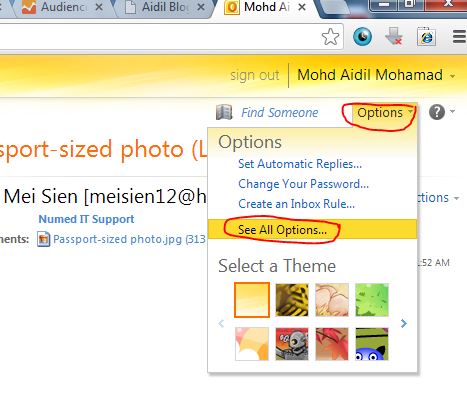
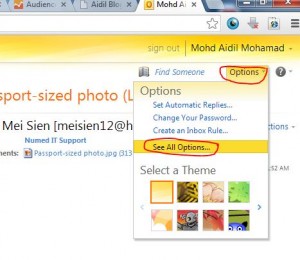
- Click on option, and then click See All Option…
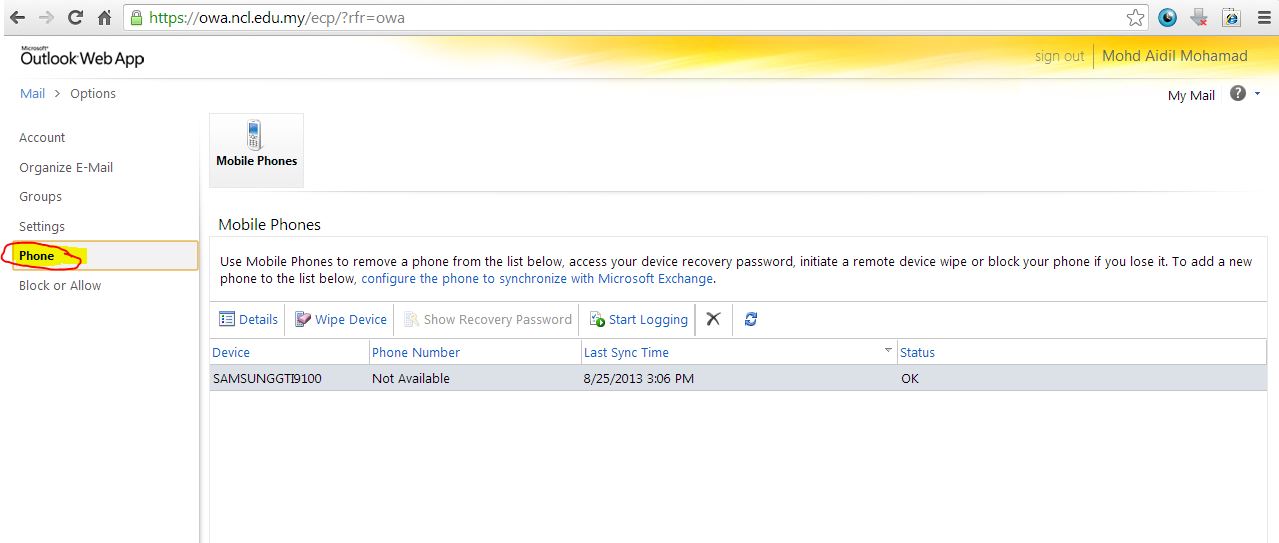
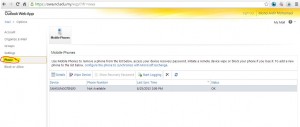
- Click on Phone, a list of device will appear on the right pane
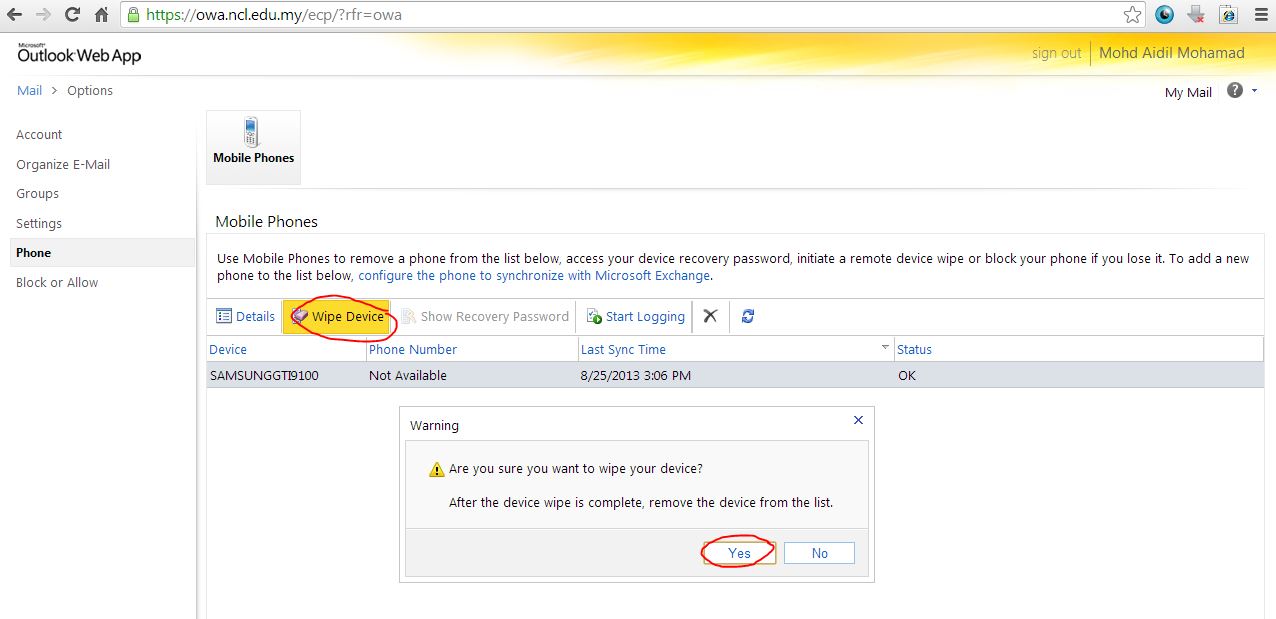
- Select on the device you wish to wipe and then click Wipe Device. You will be prompt with warning dialogue box. Click Yes to proceed
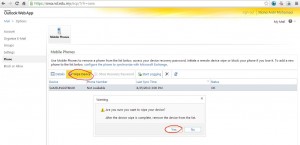
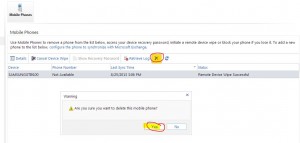
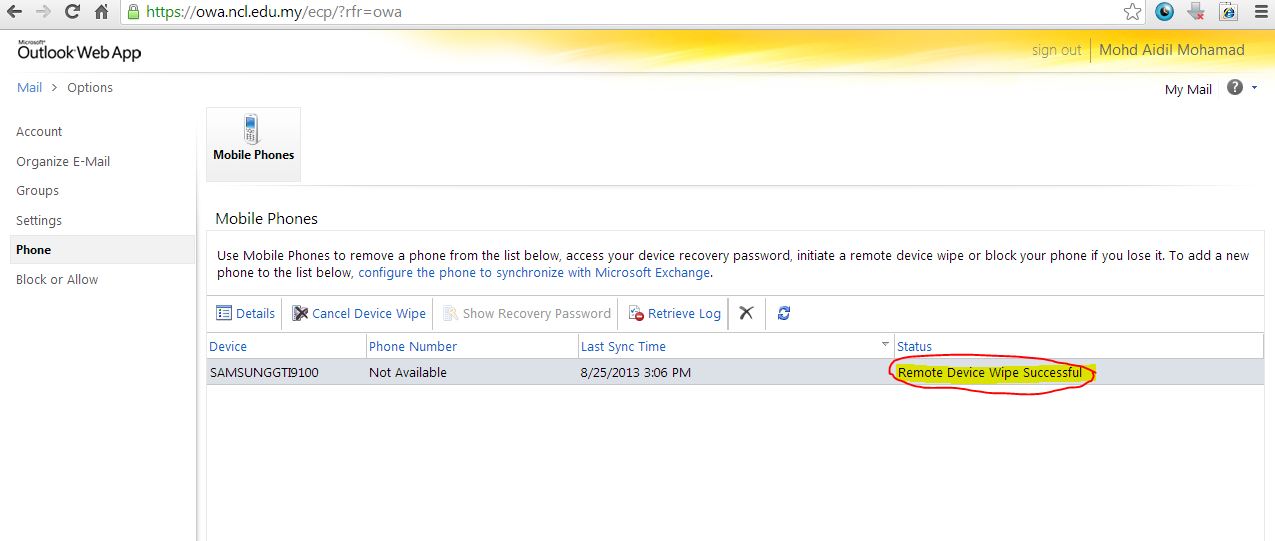
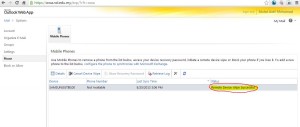
- Exchange server will then scheduling wipe process to that device. Once wipe process is completed, affected device will rebooting. You will be indicate with Remote Device Wipe Successfully on the status section.
- Please be mind that, wipe process will reset your phone to factory setting
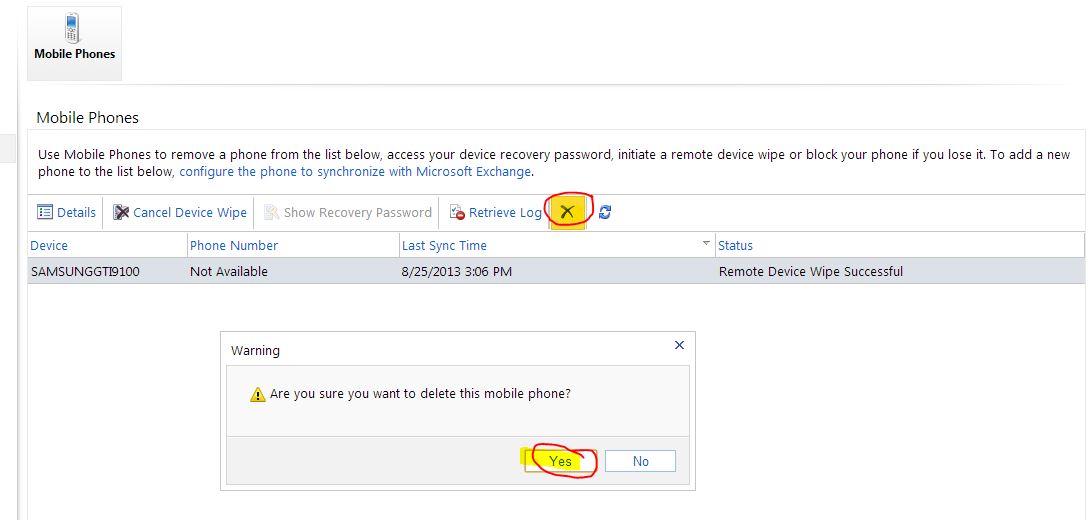
- If you wish to sync your email to this device again in the future, you need to remove it from the device list. Otherwise, exchange server will keep wiping your device. To delete the device from the list, highlight on the device and then click on delete menu. You will be prompt with warning dialogue box. Click Yes to proceed