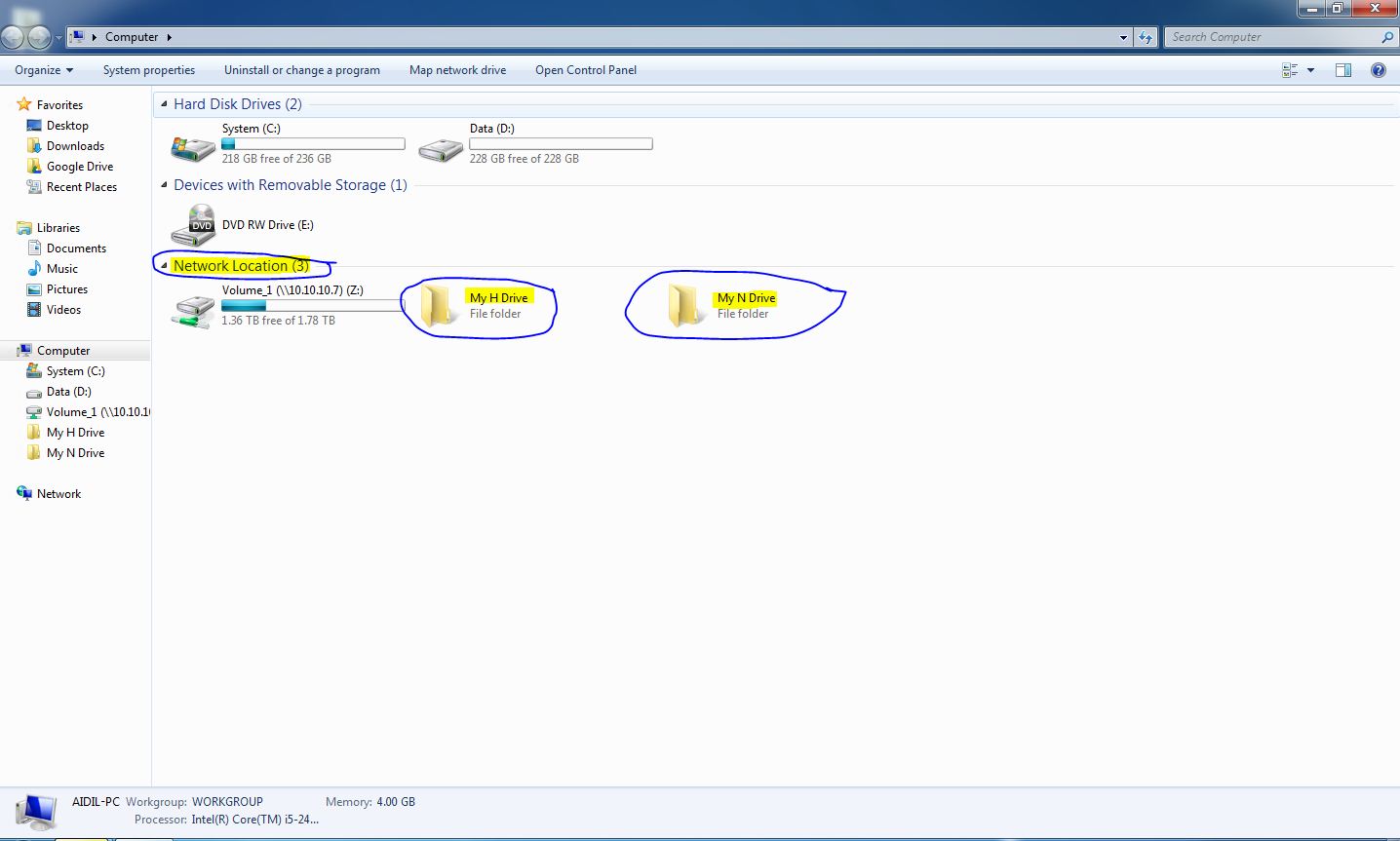
The documentation is based on Windows 7
Step 1 : Right click on Computer in Start Menu, Click Map network drive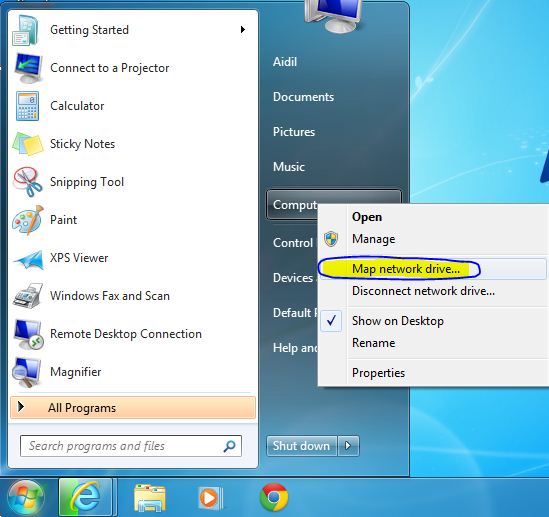
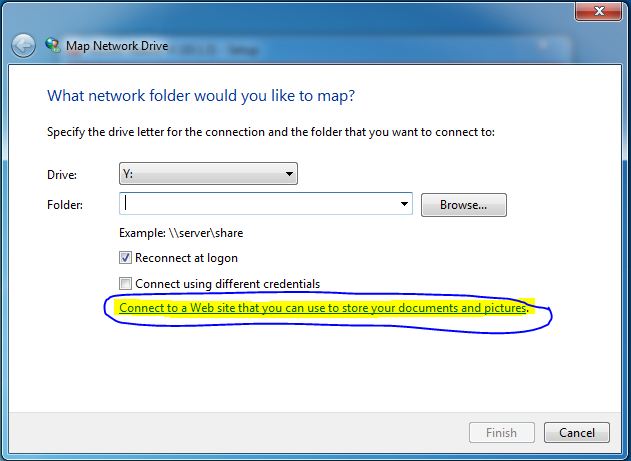
Step 2 : Click on “Connect to a Web site that you can use to store your documents and pictures”
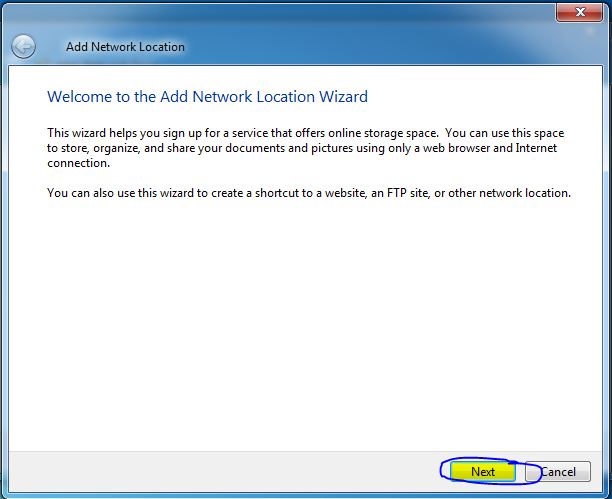
Step 3 : Click Next
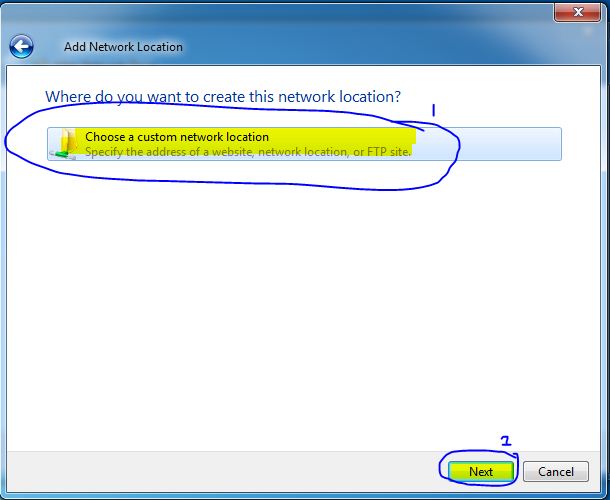
Step 4 : Click on “Choose a custome network location”and then click Next button
Step 5 :
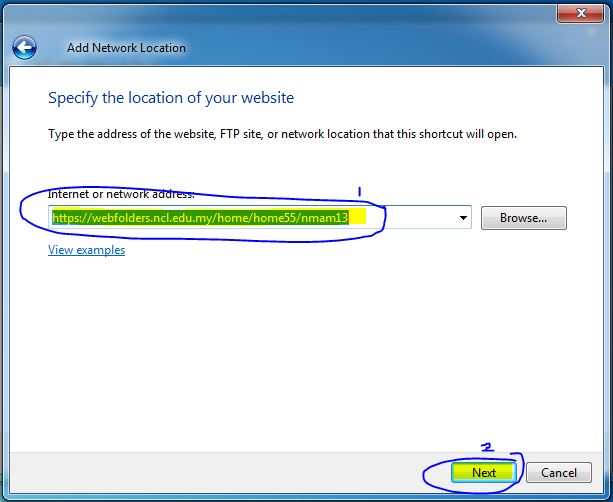
For Accessing your H:/ Drive : type https://webfolders.ncl.edu.my/home/home55/yourusername
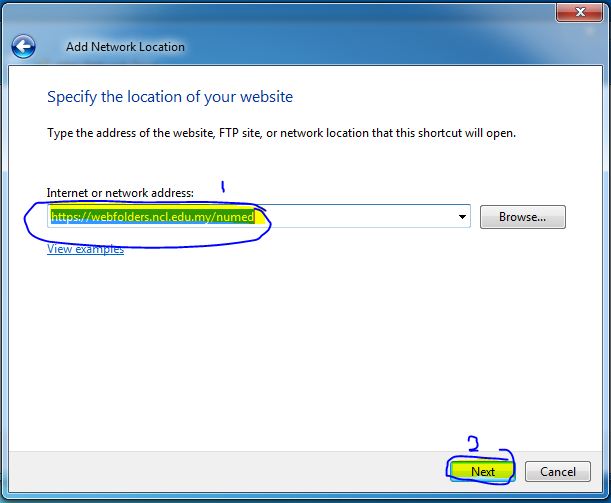
For Accessing your N:/ Drive : : type https://webfolders.ncl.edu.my/numed
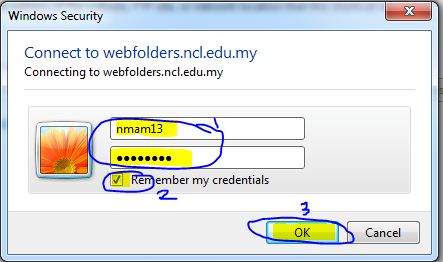
Step 6 : You will be prompt to enter a username & password. Please insert your campus login id and then click OK
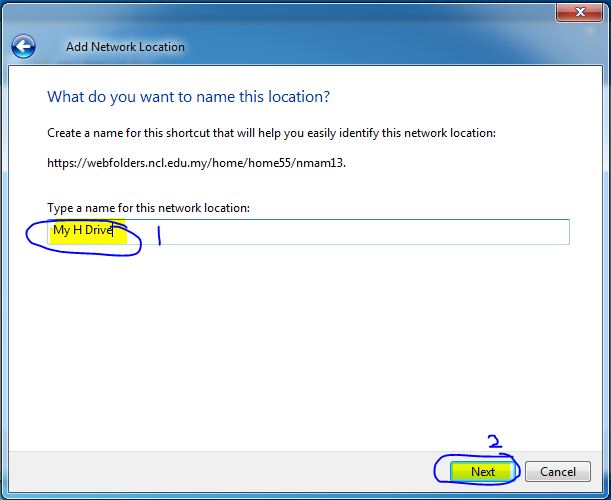
Step 7 : Put a name for your Webfolder and then click Next button
Step 8 : Click Finish
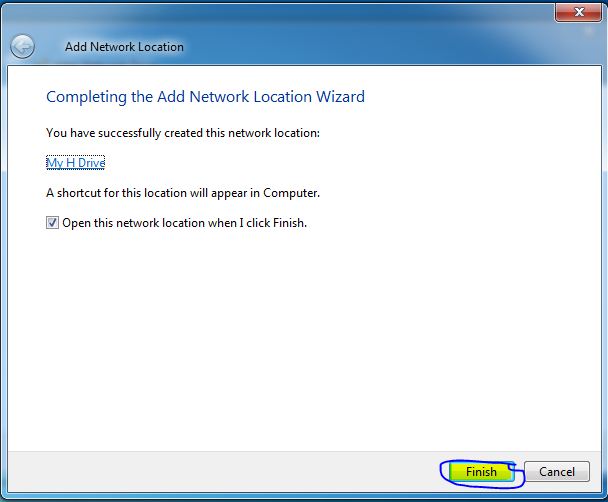
Step 9 : Your N:/ & H:/ Drive will be listed in Computer under the network location drive