Bryan

Sep 212022
 

This post is a bit of an after the event one!

podman run -it ubi8/ubi

yum update

yum group install “Development Tools”

yum clean all

cat <<EOF > /etc/yum.repos.d/conda.repo 
[conda]
name=Conda 
baseurl=https://repo.anaconda.com/pkgs/misc/rpmrepo/conda
enabled=1 
gpgcheck=1 
gpgkey=https://repo.anaconda.com/pkgs/misc/gpgkeys/anaconda.asc 
EOF 

yum update

yum install conda

yum clean all

source /opt/conda/etc/profile.d/conda.sh
conda -V 

# conda update -n base -c defaults conda <not working with rhel8.1 yet, suspect python/gcc issue

conda config --add channels defaults
conda config --add channels bioconda
conda config --add channels conda-forge
conda create -n <environment name>

My default image is called conda-4-7-10 and available at quay.io

Ok updated to 4-8-4 and we have rid of the dodgy asc gpg issue, image should be up later. Should be good to pull packages after this into the container

podman push – move the container image to quay.io

podman login quay.io

username

password

podman push quay.io/<user>/<repo>/<name>

 Posted by at 2:10 pm
Aug 282019
 

This document is the beginning of a training document to describe the process from data curation from the novaseq, bcl2fastq conversion, indexing for metadata, archival to tape, validation, labeling, retrieval.

Data from a novaseq run is controlled via the novaseq machine – novaseqdata has a samba share which the machine can see from the front end program. This is selected and created at the start of a run giving the run it’s name and directory. Data written here is as sbsuser and that also translates into sbsuser on novaseqdata

After the run is complete the data is run through a run through a program to extract fastq data

bcl2fastq

ssh into novaseqdata as sbsuser

run the bcl2fastq command  – run from within the /mnt/novaseqdata/training/180525_A00471_0028_AHCKH2DMXX

Note: ignore \ in the following listings – type it all in on one line.

cd /mnt/novaseqdata/training/180525_A00471_0028_AHCKH2DMXX
nohup /usr/local/bin/bcl2fastq -R \
/mnt/novaseqdata/training/180525_A00471_0028_AHCKH2DMXX -o \
/mnt/novaseqdata/training/180525_A00471_0028_AHCKH2DMXX --sample-sheet \
/mnt/novaseqdata/training/180525_A00471_0028_AHCKH2DMXX/SampleSheet.csv

The process can take a couple of hours from start to finish depending on the run type – S2 or S4

CellRanger

Note: ignore \ in the following listings – type it all in on one line.

cd /mnt/novaseqdata/training/190823_A00471_0062_BHF7JJDRXX/
/opt/cellranger-3.0.2/cellranger mkfastq --run=/mnt/novaseqdata/training/ \
190823_A00471_0062_BHF7JJDRXX/ \
--samplesheet=/mnt/novaseqdata/training/ \
190823_A00471_0062_BHF7JJDRXX/sample_sheet_dan_williamson.csv

The process can take an hour or so to run – creates HF7JJDRXX as a subdirectory  which has the fastq files written within it

index the directory data with tree

From within the /mnt/novaseqdata/training/180525_A00471_0028_AHCKH2DMXX run directory issue this command

tree -a -T '180525_A00471_0028_AHCKH2DMXX' -H \
/mnt/novaseqdata/training/180525_A00471_0028_AHCKH2DMXX -o index.html \
/mnt/novaseqdata/training/180525_A00471_0028_AHCKH2DMXX

tape backup and restore * see later entry for tape manipulation in the library

From within the /mnt/novaseqdata/training directory issue this command

cd /mnt/novaseqdata/training/
tar -cMvf /dev/st0 180525_A00471_0028_AHCKH2DMXX/*

To restore the data from tape: –

cd /tmp
tar -xMvf /dev/st0 180525_A00471_0028_AHCKH2DMXX/*
or
tar -xMvf /dev/st0

rsync from novaseqdata to rocket

rsync -av \
/mnt/novaseqdata/training/180525_A00471_0028_AHCKH2DMXX 
nbh23@rocket.hpc.ncl.ac.uk:/nobackup/proj/scbsu/

Trailing slashes are important – if there is no upstream directory 180525_A00471_0028_AHCKHSDMXX rsync will create it and write data  into it accordingly. (NB can’t have more than one / separation upstream I discovered)

Once done it needs to be chmod’d recursively to 775 for other people from the group to access it: –

chmod -R 775 /nobackup/proj/scbsu/180525_A00471_0028_AHCKH2DMXX/
 Posted by at 8:37 am
Jun 222018
 

Anything that doesn’t warrant a War & Peace explanation goes in here…

The command and a brief what it does and why would you want to.

First up querying what a package brings to the party – excess baggage that may require further exploration…

repoquery
repoquery --requires --resolve

Good for rpmfusion or other repo’s that may add in things that change base packages. It does require that the repo is in the yum configuration for it to query. The yum settings can be switched on and off so that future yum updates wont check that particular repo and install things without your knowledge. This requires that yum-utils is installed.

yum-config-manager

The –enablerepo option overides the permanent option set in the .repo file for only the current command. –disablerepo does the opposite for enabled repos.

If you install (or have installed) the yum-utils package then you can use yum-config-manager to permanently enable/disable repos without editing the file:

yum-config-manager --enable remi

will permanently enable the remi repo.

yum repolist all

will list all the repo id which you use with the –enable or –disable option.

one-off install from disabled repositories

By default yum installs only from the enabled repositories. For some reason if you like to install a package from a disabled repositories, use –enablerepo option in the ‘yum install’ as shown below.

yum --enablerepo=fedora-source install vim-X11.x86_64
RedHat Centos 7 firewall quickies
firewall-cmd --get-active-zones - Shows which zones you have and which interfaces

firewall-cmd --zone=public --add-port=2049/tcp --permanent - Adds nfs4 port 2049 to the firewall permanently

firewall-cmd --reload - Reload the firewall for the changes to take effect
firewall-cmd --zone=public --list-all - shows all the current rules, interfaces, ports etc
firewall-cmd --permanent --zone=public --add-port=80/tcp - add a port permanently web and tcp in this instance
firewall-cmd --zone=public --remove-port=80/tcp - remove a port 'The firewall giveth and the firewall taketh away!'
firewall-cmd --panic-on - exactly as advertised, shuts up shop
firewall-cmd --query-panic - what state is panic in? on or off
firewall-cmd --panic-off - open for business again


RedHat Centos 7 services quickies
systemctl start name.service - Starts a service
systemctl stop name.service - Stops a service
systemctl restart name.service - Restarts a service
systemctl reload name.service - Reloads configuration
systemctl status name.service - Checks if a service is running
systemctl is-active name.service - Checks if a service is running
systemctl list-units --type service --all - Displays the status of all services

systemctl enable name.service - Enables a service.
systemctl disable name.service - Disables a service.
systemctl status name.service - Checks if a service is enabled.
systemctl is-enabled name.service - Checks if a service is enabled.
systemctl list-unit-files --type service - Lists all services and checks if they are enabled.
systemctl list-dependencies --after - Lists services that are ordered to start before the specified unit.
chkconfig --list systemctl list-dependencies --before - Lists services that are ordered to start after

RedHat Centos 7 xrdp
yum install epel-release
yum install xrdp
systemctl enable xrdp.service
systemctl start xrdp.service
firewall-cmd --zone=public --add-port=3389/tcp --permanent
firewall-cmd --reload
restorecon -v /usr/sbin/xrdp
restorecon -v /usr/sbin/xrdp-sesman
reboot

Screen command
Delete a rogue screen session
screen -ls
screen -S <pid> -p 0 -X quit
rpm install by date query

rpm -qa --queryformat '%{installtime} (%{installtime:date}) %{name}\n' | sort -n | tail -5

miss off the tail to get a complete list 🙂

samba firewall

firewall-cmd –permanent –add-port=137/tcp
firewall-cmd –permanent –add-port=138/tcp
firewall-cmd –permanent –add-port=139/tcp
firewall-cmd –permanent –add-port=445/tcp
firewall-cmd –permanent –add-port=901/tcp

firewall-cmd –reload

Man page to nicely formatted PDF

For when you absolutely have to have a nicely printed Man page to scribble all over at the machine in question..

man -t <man page you want in here> | ps2pdf - man-page-name.pdf


List disk usage/folder sizes in order
du -xh * | sort -rn | head -20
fsck check

The dreaded ‘non shall pass’ when a system hasn’t been shutdown correctly or a drive is failing.

Run fsck without -a or -P

Look at the file system it is complaining about – probably one that is in device-mapper and write down the path. Then: –

fsck /dev/mapper/device/in/the/warning/message

and follow the prompts as they come up on the screen to repair the affected system.

run process as other user to see ‘their’ issues

as root: –
su <uid>

ls and see different date format

ls -l –time-style=full-iso

Find your external I.P address

curl ifconfig.me

 Posted by at 10:16 am
Dec 192016
 

Anyone using smtp services for notification of things gone bung via smtp should note the following server names and numbers. Existing smtp addresses are being added as aliases to them so it should be business as usual unless you have hard coded the dotted quad ip address in – naughty naughty if you have, get it ‘sorted’!

mailhub-ncl1.ncl.ac.uk 10.3.192.247
mailhub-ncl2.ncl.ac.uk 10.3.192.253
mailhub-ncl3.ncl.ac.uk 10.3.192.254
mailhub-ncl4.ncl.ac.uk 10.3.193.34

nslookup smtp.ncl.ac.uk

resolves to these numbers now.

 Posted by at 12:39 pm
Jul 132016
 

eMedLab VPN Access via Cisco AnyConnect VPN Client and Centos 6.8

This document is meant as a guideline for connecting a remote Centos 6.8 Desktop machine through eMedlabs Cisco VPN and connect to the Ubuntu terminal to gain access to the eMedLab HPC Cluster.

Where input is required from the end user to type into a terminal it is shown as boxed out Preformatted text.

Preformatted text example

Installation of Centos 6.8 Graphical Desktop with updates and repositories

Install Centos 6.8 x86_64 – http://isoredirect.centos.org/centos/6/isos/x86_64/

Select the Desktop option when prompted and the installation will proceed until you are prompted to create a User Account, add or amend the  NTP service for time synchronization and finally prompting for a restart.

Restart the machine and log in as root.

From the Desktop Menu select Applications > System Tools > Terminal

At the command prompt type in: –

yum update

The machine will come back with any packages that need updating to which respond ‘Y’ to install. After that has completed type in: –

yum install epel-release

Respond ‘Y’ to install the epel repository (Extra Packages for Enterprise Linux)

Creation of Public and Private ssh keys

Log out from your root session and log in as the user account you created earlier. To create the ssh passwordless login you need to create a public and private key pair to send to eMedLab along with your request for a login account on the Cisco VPN Gateway.

From the Desktop Menu select Applications > System Tools > Terminal

At the command prompt type in: –

ssh-keygen -t rsa -f ~/.ssh/id_rsa.eMedLab

This creates two files in your /home directory in a hidden subdirectory .ssh

.ssh/id_rsa.eMedLab
.ssh/id_rsa.eMedLab.pub

The first one is your private key which you keep to yourself, the second one with the .pub extension is your public key and is the one to email to eMedLab. This key pair can be copied between multiple Linux machines and is named as eMedLab so that you can keep a handle of which key belongs to which service should you ever have a future need for a key pair for a different server at a different facility.

Installation of the Cisco AnyConnect VPN Client

Log in as root and from the Desktop Menu click the Firefox Icon firefox.

browse to https://vpn.emedlab.ac.uk

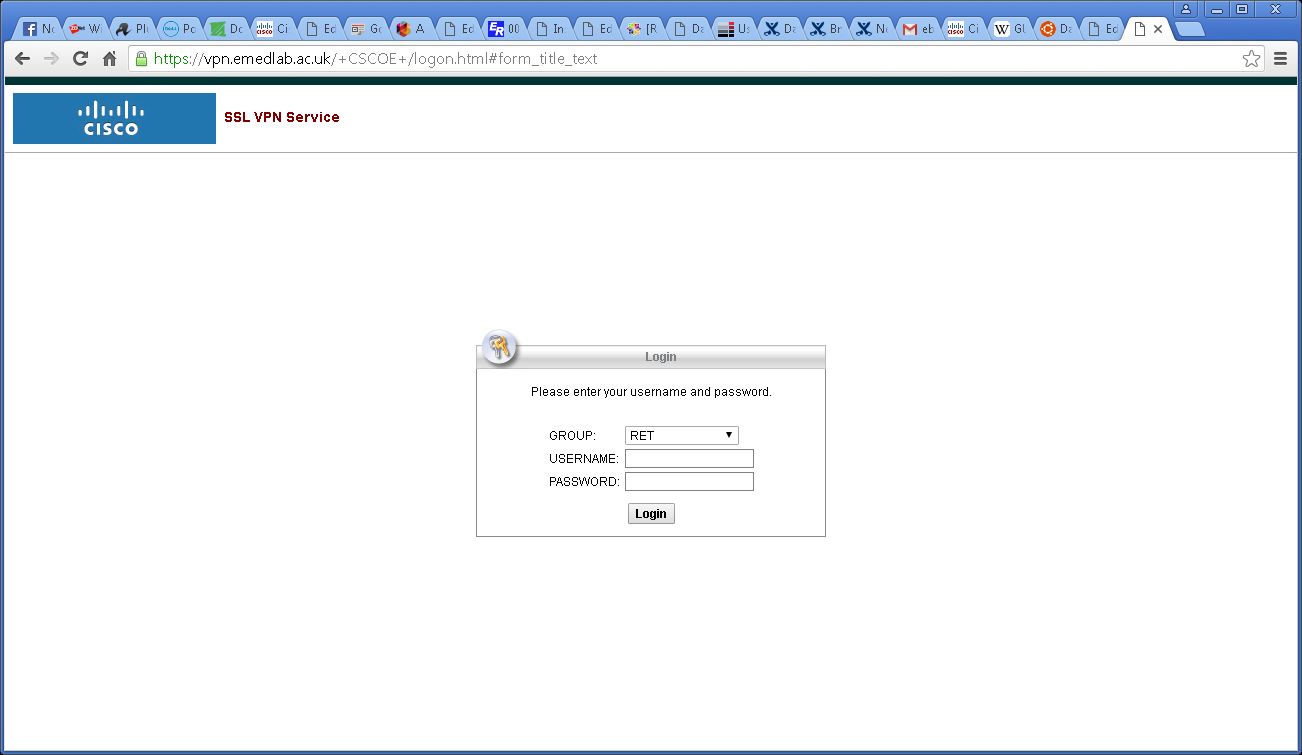
From the drop down menu select your Group and enter the Username and Password provided by eMedLab for the Cisco VPN gateway: –
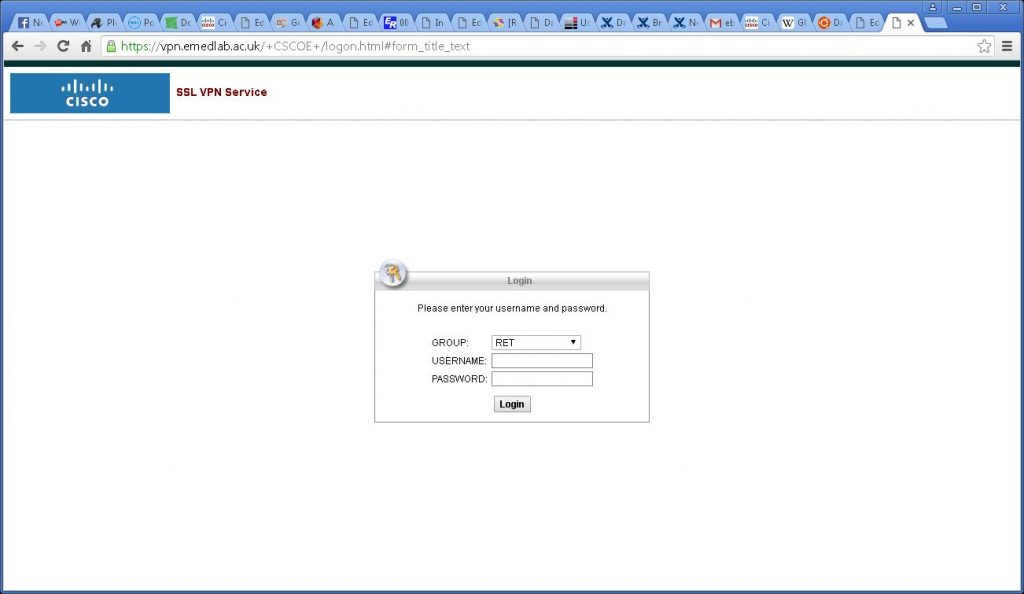
emedlab-vpn-gateway

Click the Login button.

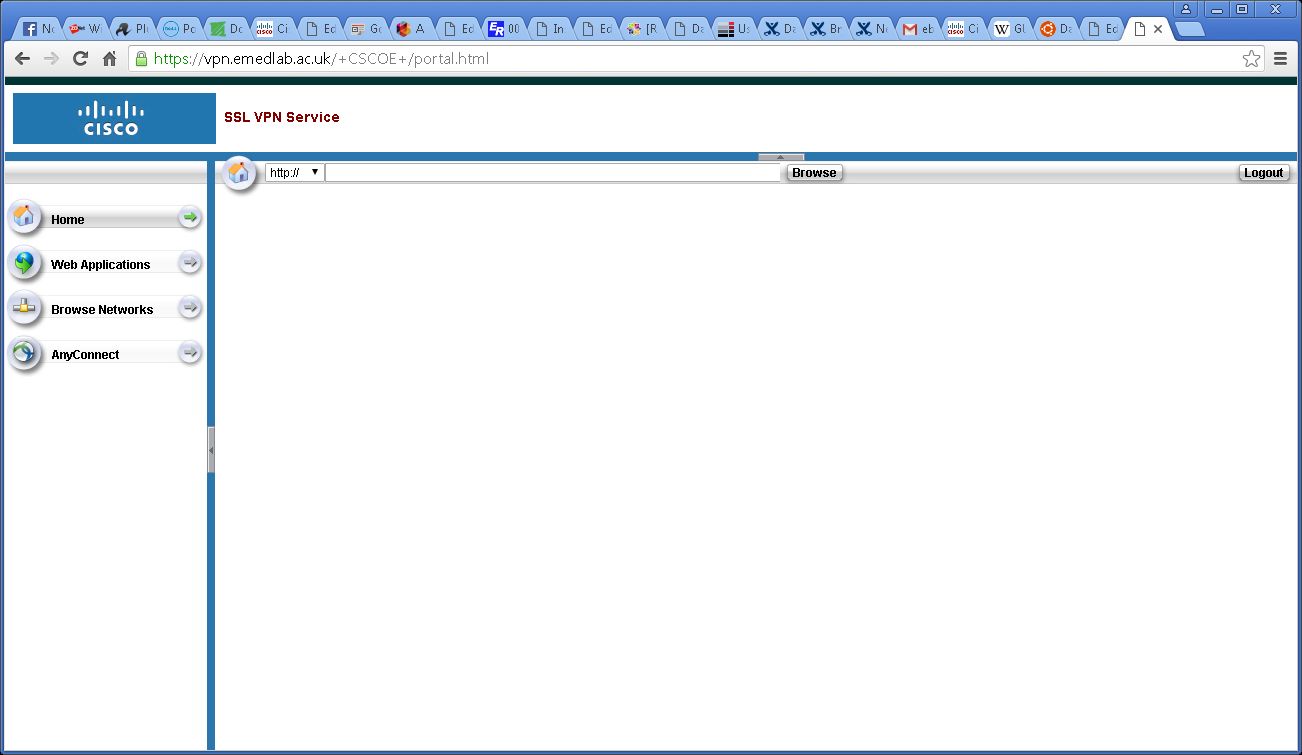
You should then see the following menu: –
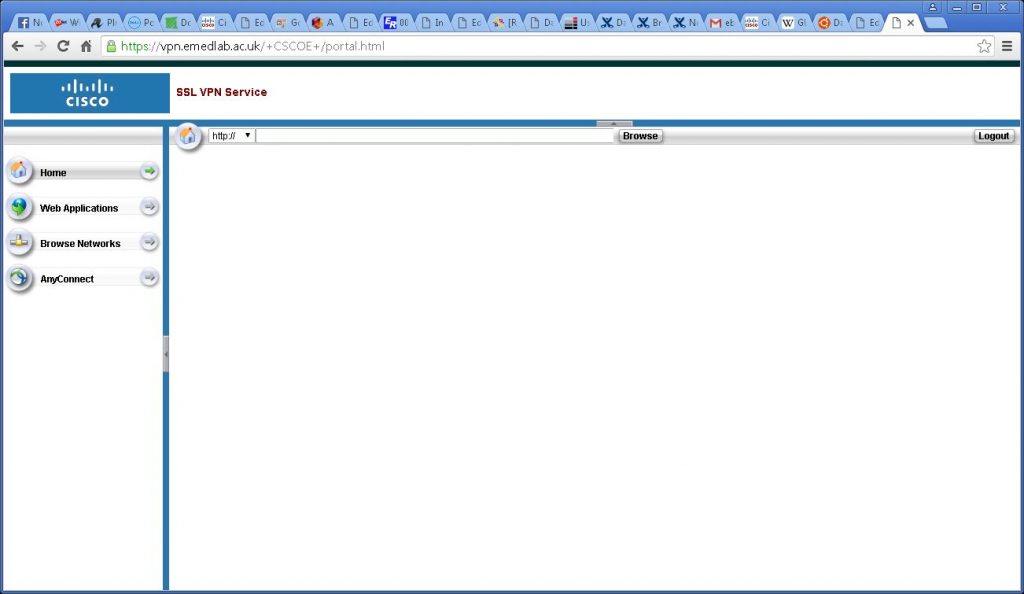
emedlab-vpn-gateway-initial-screen1

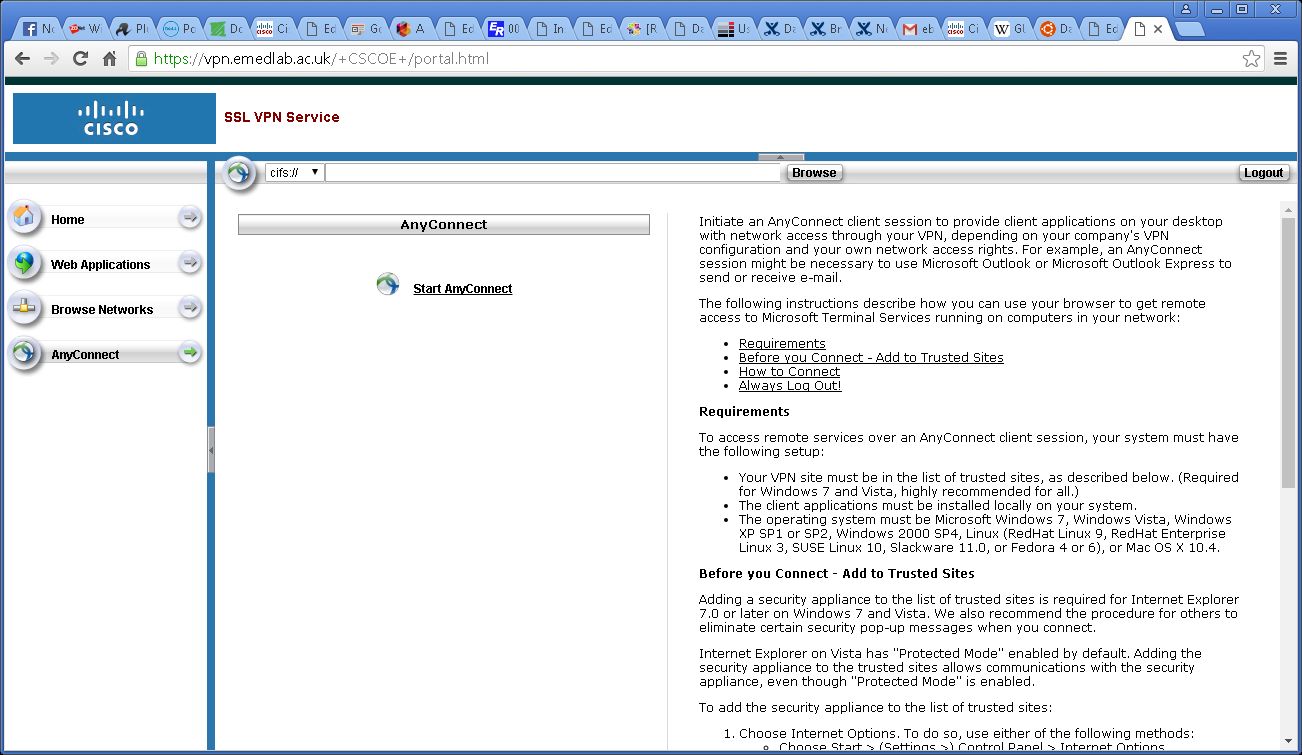
Click the AnyConnect button in the lefthand menu..
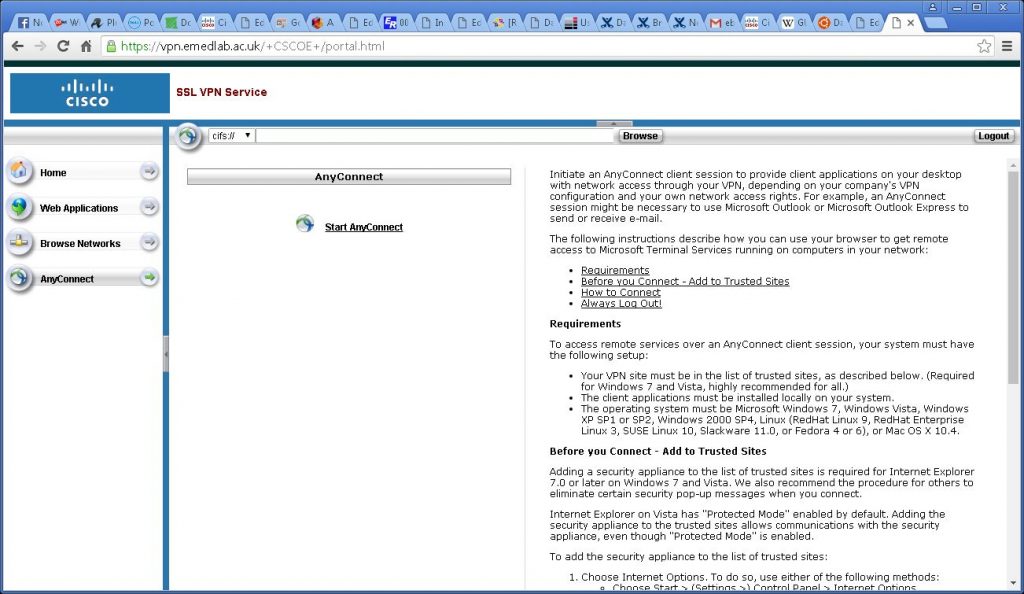
emedlab-vpn-gateway-initial-anyconnect-button

Click the Start AnyConnect button.

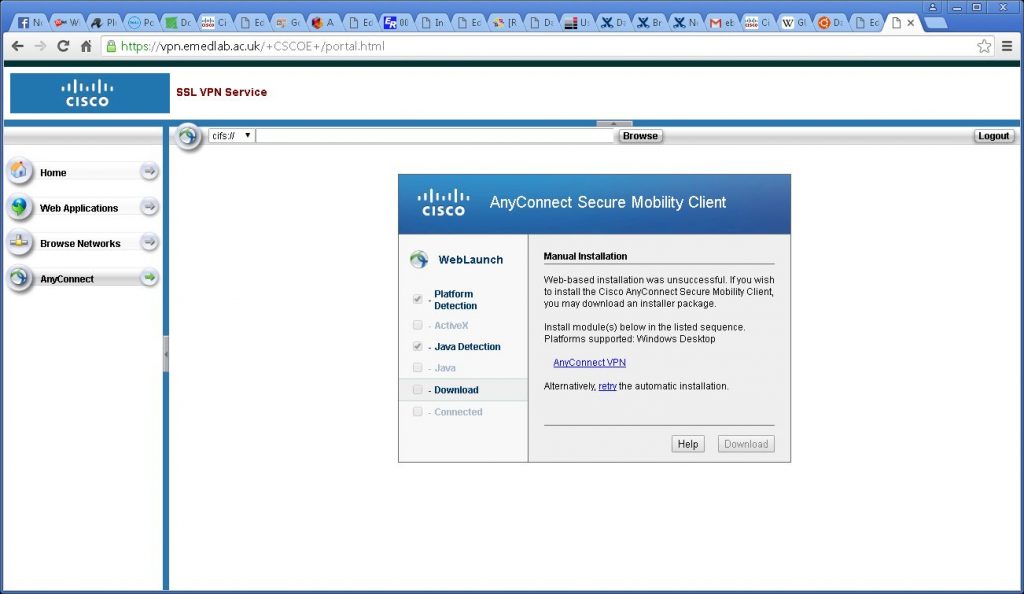
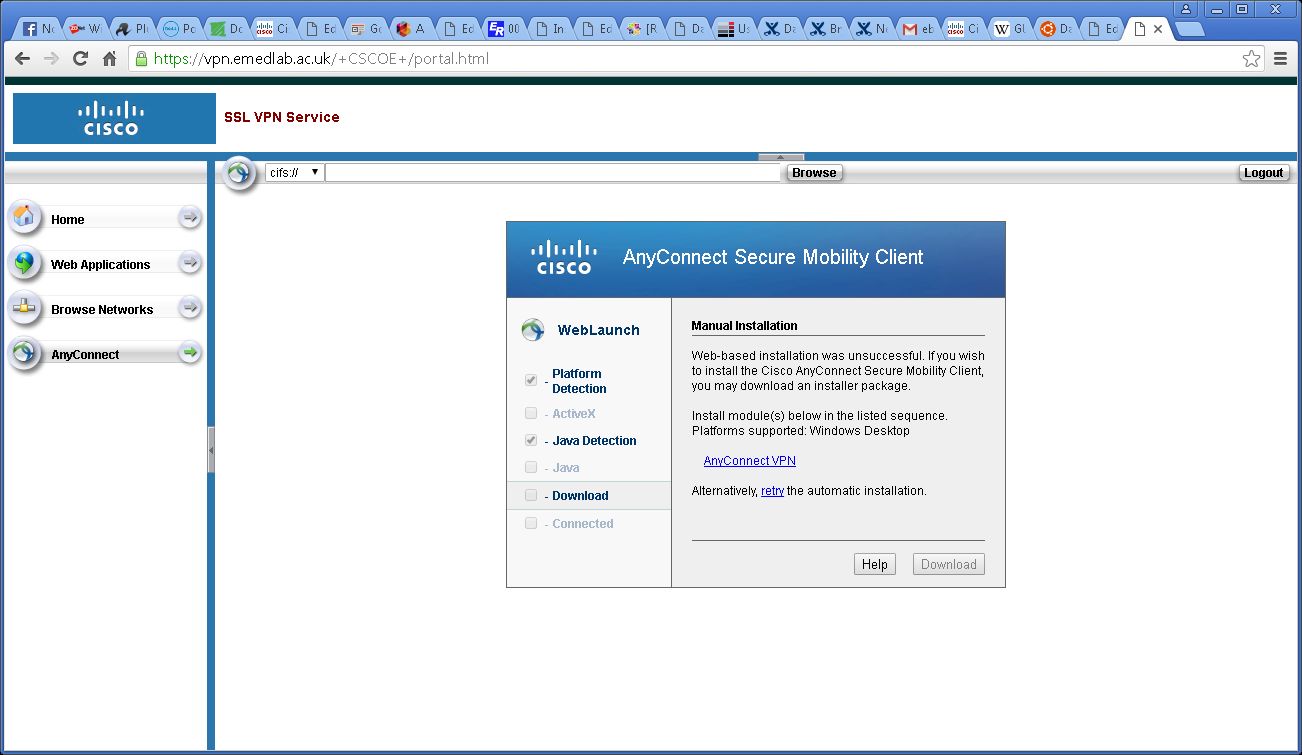
emedlab-vpn-gateway-initial-anyconnect-download

The java automatic connection will try and connect and fail and give you the option to manually download the software as above. Click the AnyConnectVPN link to download to your machine. The default download location is /root/Downloads – we need to know this location for installation as it needs to be modified.

From the Desktop Menu select Applications > System Tools > Terminal

At the command prompt type in the following: –

cd /root/Downloads
chmod +x vpnsetup.sh
./vpnsetup.sh

The script will run to completion ending with a Done! as below, there is no user interaction required.

**Centos 7 installation requires package pangox-compat to be installed for the graphical user interface**
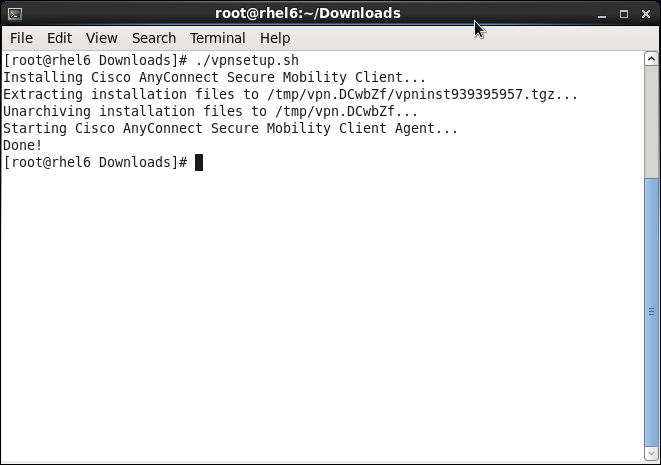
Screenshot-root@rhel6%3A~-Downloads

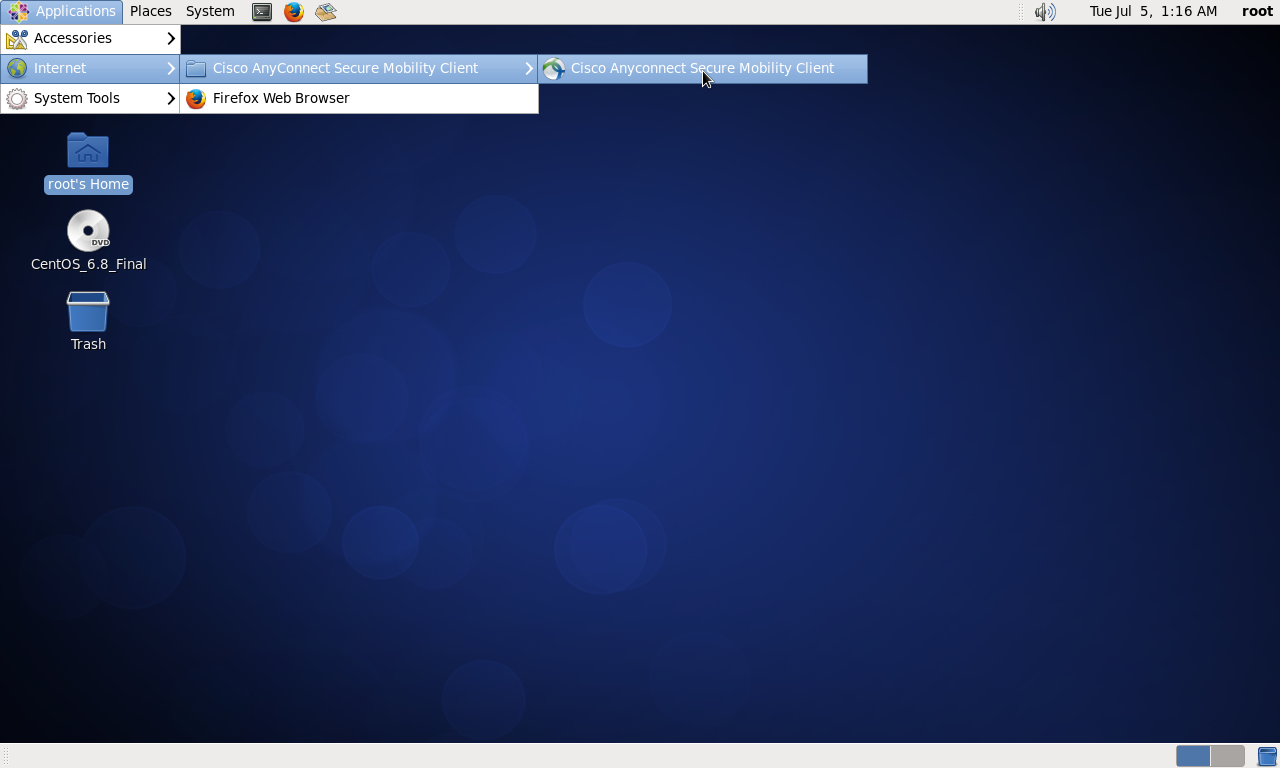
There will now be a new icon for the VPN in Applications > Internet > Cisco AnyConnect Mobility Client > Cisco AnyConnect Mobility Client as below: –
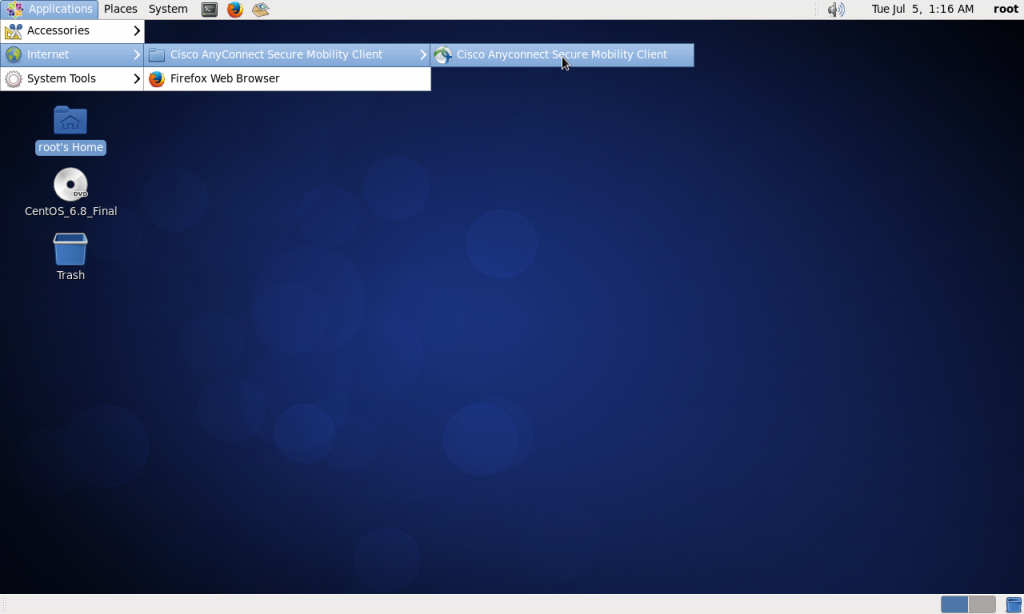
cisco-menu

Follow the menu path and click on Cisco AnyConnect Mobility Client as above. You will be presented with the following Window: –

Fill the Connect to: details in as vpn.emedlab.ac.uk
Click the two yellow cog button at the end of the Connect to: Dialog Box and adjust as per the second picture.
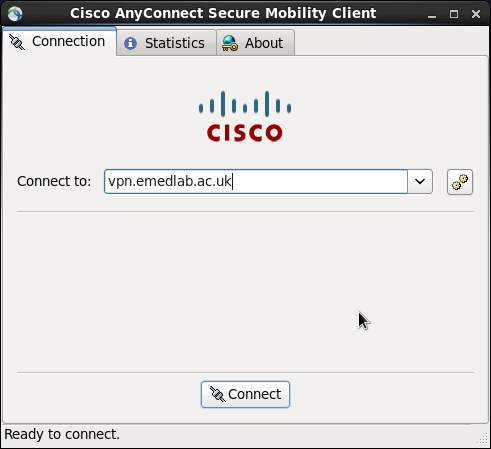
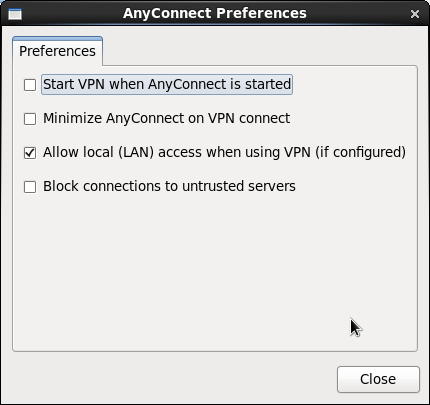
Screenshot-Cisco AnyConnect Secure Mobility Client InitialScreenshot-AnyConnect Preferences

Click Connect

You will then be prompted for your Cisco AnyConnect Group, Username and Password as before, fill those details in and click Connect.
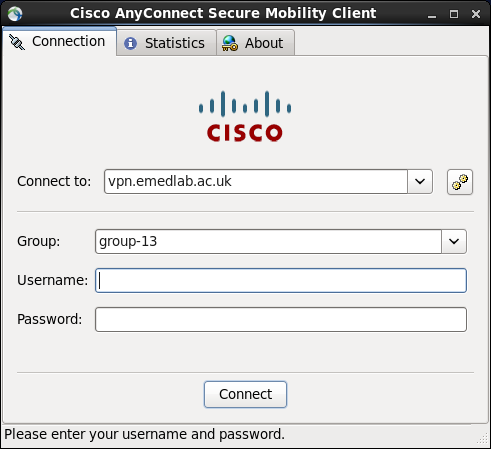
Screenshot-Cisco AnyConnect Secure Mobility Clientgroupuserpass

The vpn will come up and say connected as below: –
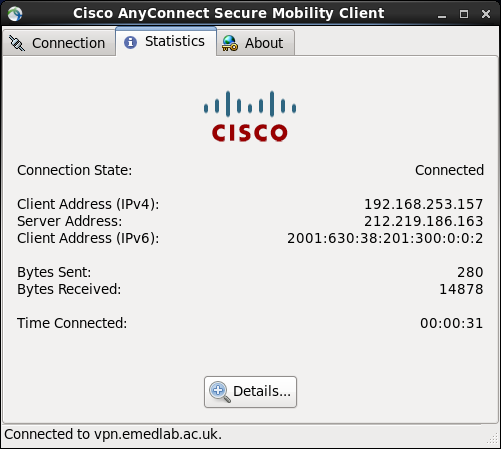
Screenshot-Cisco AnyConnect Secure Mobility Client-4

At this point you can then connect to the Ubuntu server at eMedLab with the second Username you have been given by eMedLab. You shouldn’t have to use a password to connect, it should use your keyless pair that we created.

From the Desktop Menu select Applications > System Tools > Terminal

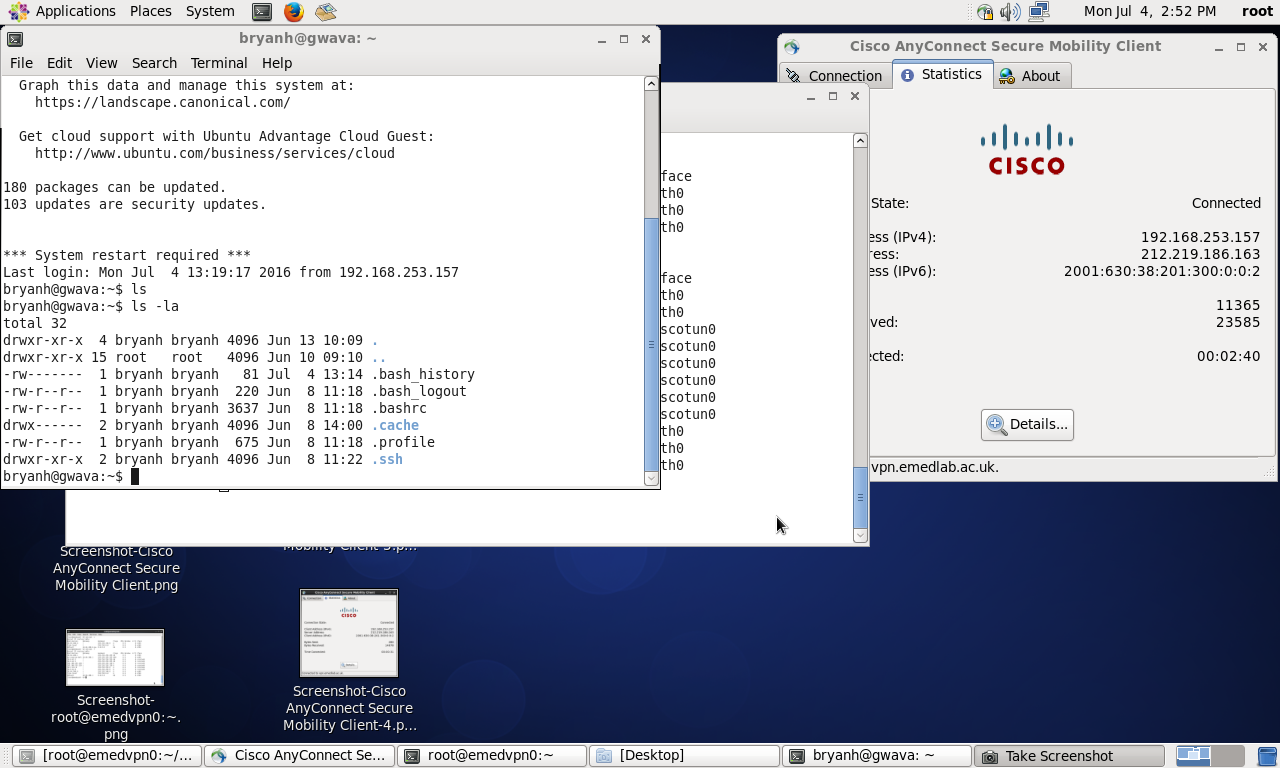
shh username@10.2.213.130

The picture below shows all the connections up with a session into the Ubuntu machine
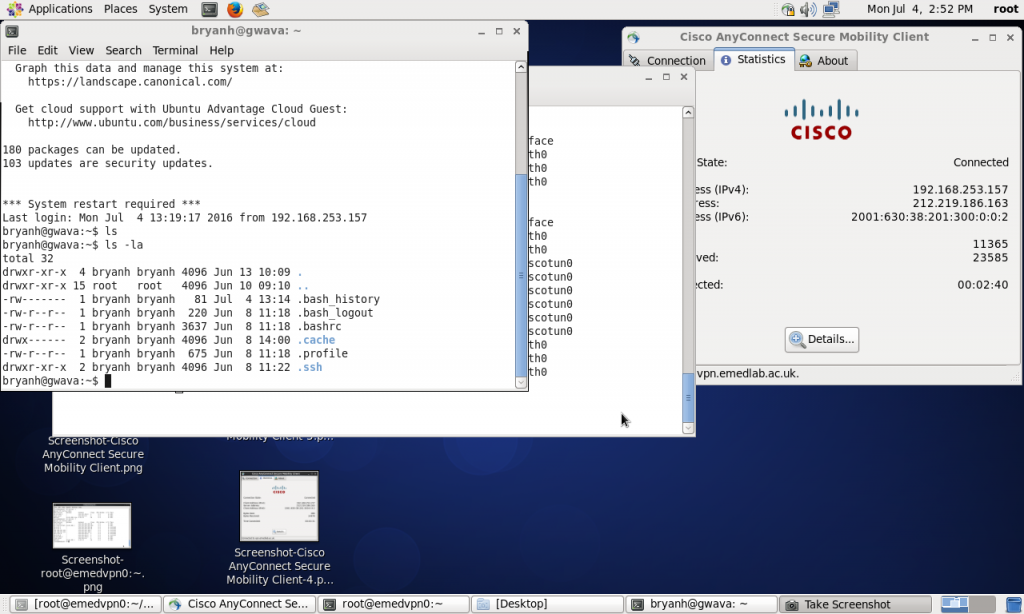
Screenshot-2

The connection can also be brought up as an ordinary user, but there is only one person allowed at a time as far as I have found so far. This means that each user who can access the machine must bring down the vpn after use if someone else requires access.

Once the link has been established once, it also appears to skip a stage and go directly to the Group setting and fail to connect. This can be overridden by stipulating vpn.emedlab.ac.uk in the Connect to: dialog box where it will prompt you for the vpn gateway Username and Password. You may be prompted that it is an insecure connection in which case click the Connect Anyway button
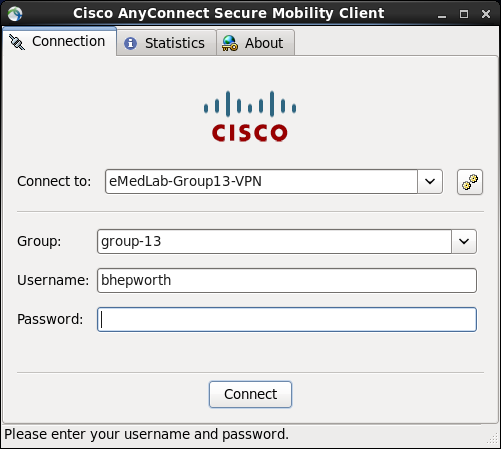
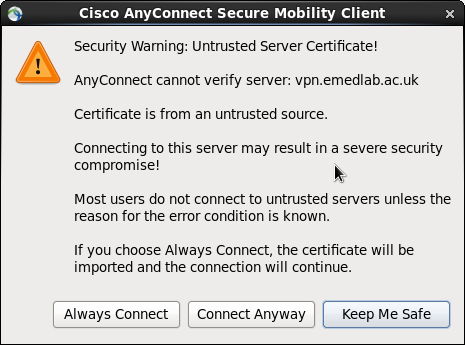
Screenshot-Cisco AnyConnect Secure Mobility Client-3Screenshot-Cisco AnyConnect Secure Mobility Client-2warning

 Posted by at 10:58 am
Jan 282016
 

OK after a few tries on safe directories and files :-

rsync -avz /source/with/trailing/slash/ /destination/with/trailing/slash/

Replicates /source/with/trailing/slash/ to /destination/with/trailing/slash

rsync -avz /with/trailing/slash/ /destination/with/trailing/slash/ however doesn’t delete missing files in /destination that have been removed or altered in /with/trailing/slash/ over subsequent runs at a later date.

rsync -avz --delete --dry-run /with/trailing/slash/ /destination/with/trailing/slash/ > whatwillhappen.txt

Will do a dry run through the source and destination and will list what it will remove on the /destination side and writes to whatwillhappen.txt the files and directories it will delete in /destination.

rsync -avz --delete /with/trailing/slash/ /destination/with/trailing/slash/

Syncs both /source and /destination – Watch and Double-Check your typing before hitting the return key.


 Posted by at 11:42 am