This option will provide Mac users with a full graphical Linux desktop environment. There is a separate guide for those that require command line only access.
* Prerequisites
(1) You need to download Microsoft’s *new* version of Microsoft Remote Desktop (version 8.0)
(2) A working Internet connection. Please NOTE: The quality of your connection is determined by your Internet Service Provider. Contact your ISP if you are not happy with the consistent quality of the connection between yourself and the University. Your external connection is not the responsibility of either the University or the IGM.
* NOTE!
You should not run jobs on the login or head node
Graphical/Interactive software, like The Integrative Genomics Viewer, require that you run it via a QRSH session. Indeed, if you are in any doubt that your commands will place stress on the login node, simply issue qrsh at the terminal, and then try your commands from there.
When finished with your session, please log out correctly – most users forget to do this correctly.
________________________________________________
* Download and Install the newest version of Microsoft’s Remote Desktop 8 for Mac
You can find this via the App Store:
Apple menu
App Store
In the search field, type microsoft remote
Click the install button next to “Microsoft Remote Desktop” icon
* Launch Microsoft Remote Desktop
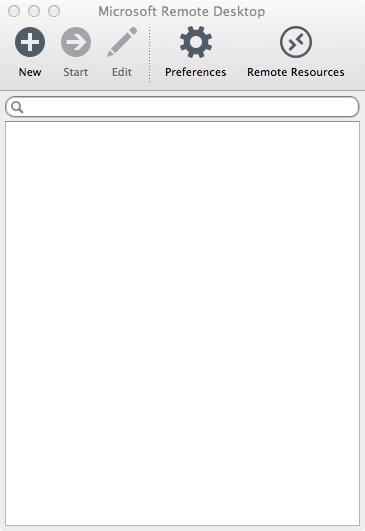
Microsoft Remote Desktop blank configuration
________________________________________________
Let’s add the most important part first, the settings needed for the Newcastle University Terminal Services Gateway. Click on the Preferences icon.
Click on + icon
Gateway name = newcastle university
Server = tsgateway.ncl.ac.uk
User name = your ISS username. As suggested, use the CAMPUS\ format e.g my ISS username is nas18 but here I must enter CAMPUS\nas18
Password = your ISS password
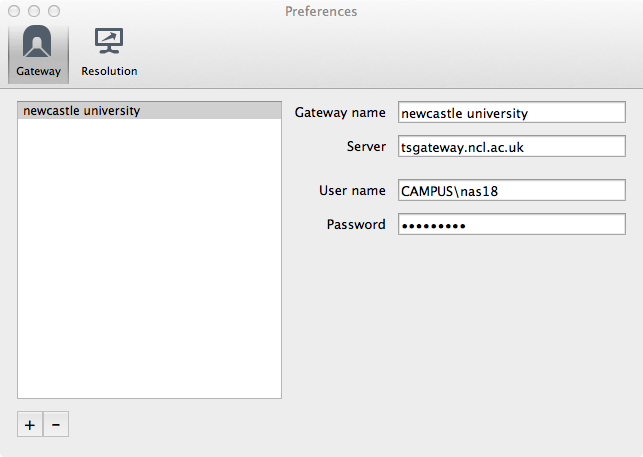
Remote Desktop Terminal Services Gateway settings
Close this windows
________________________________________________
Click the “+ New” icon
Connection name = anything, eg lampredi2 off-campus
PC name = lampredi2.ncl.ac.uk
Gateway = Newcastle university
Username = your lampredi2 username (do NOT use campus/ format here)
Password = your lampredi2 password
Resolution = experiment but 1024×768 or 1280×1024 seem sensible
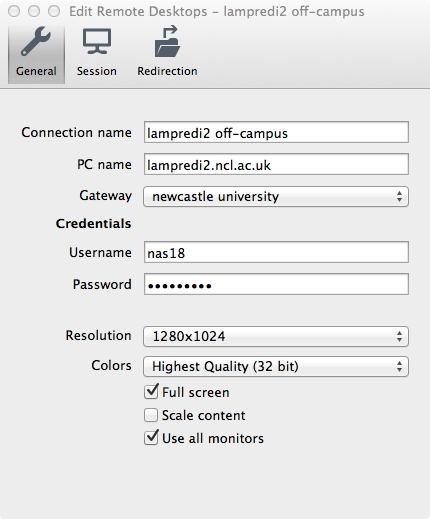
Remote Desktop configuration
Close this window
________________________________________________
To connect to lampredi2, simply double-click on “lampredi2 off-campus”, from the list under “My Desktops”.
When finished with your remote session, please click on System (menu bar on lampredi2) and choose Log Out.
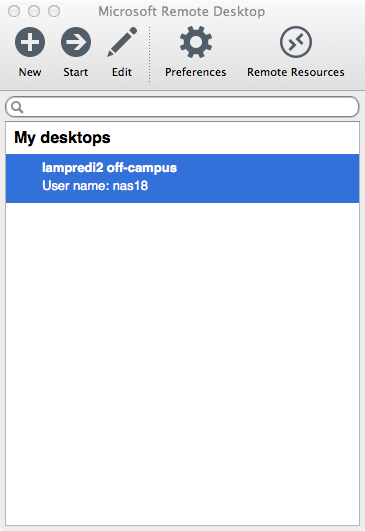
Remote Desktop ready to connect