Arron

Oct 212013
 

This option will provide Mac users with a full graphical Linux desktop environment. There is a separate guide for those that require command line only access.

* Prerequisites

(1) You need to download Microsoft’s *new* version of Microsoft Remote Desktop (version 8.0)

(2) A working Internet connection. Please NOTE: The quality of your connection is determined by your Internet Service Provider. Contact your ISP if you are not happy with the consistent quality of the connection between yourself and the University. Your external connection is not the responsibility of either the University or the IGM.

* NOTE!

You should not run jobs on the login or head node

Graphical/Interactive software, like The Integrative Genomics Viewer, require that you run it via a QRSH session. Indeed, if you are in any doubt that your commands will place stress on the login node, simply issue qrsh at the terminal, and then try your commands from there.

When finished with your session, please log out correctly – most users forget to do this correctly.

________________________________________________

* Download and Install the newest version of Microsoft’s Remote Desktop 8 for Mac

You can find this via the App Store:

Apple menu
App Store
In the search field, type microsoft remote
Click the install button next to “Microsoft Remote Desktop” icon

* Launch Microsoft Remote Desktop

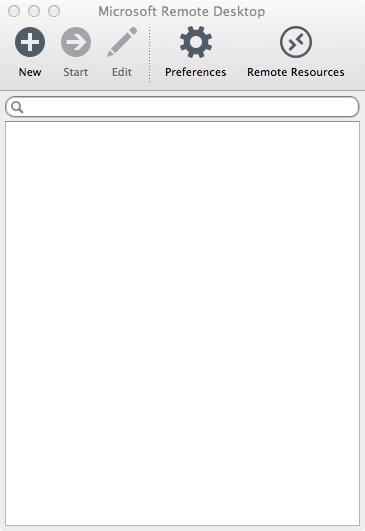
Microsoft Remote Desktop blank configuration

Microsoft Remote Desktop blank configuration

________________________________________________

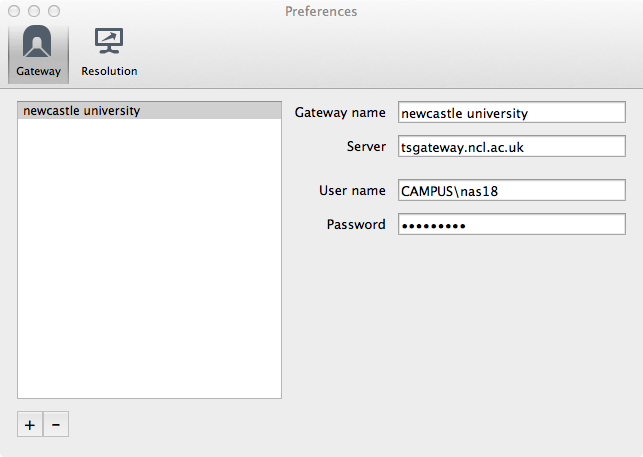
Let’s add the most important part first, the settings needed for the Newcastle University Terminal Services Gateway. Click on the Preferences icon.

Click on + icon
Gateway name = newcastle university
Server = tsgateway.ncl.ac.uk
User name = your ISS username. As suggested, use the CAMPUS\ format e.g my ISS username is nas18 but here I must enter CAMPUS\nas18
Password = your ISS password

Remote Desktop Terminal Services Gateway settings

Remote Desktop Terminal Services Gateway settings

Close this windows

________________________________________________

Click the “+ New” icon

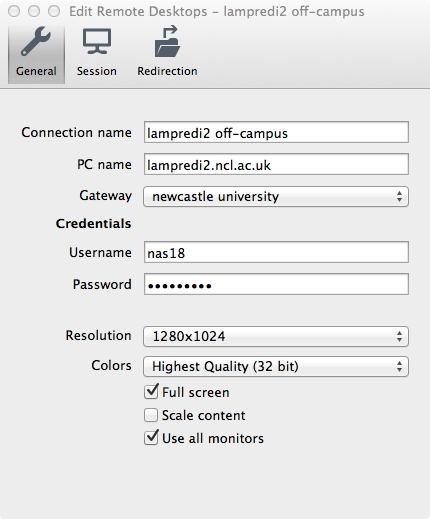
Connection name = anything, eg lampredi2 off-campus
PC name = lampredi2.ncl.ac.uk
Gateway = Newcastle university
Username = your lampredi2 username (do NOT use campus/ format here)
Password = your lampredi2 password
Resolution = experiment but 1024×768 or 1280×1024 seem sensible

Remote Desktop configuration

Remote Desktop configuration

Close this window

________________________________________________

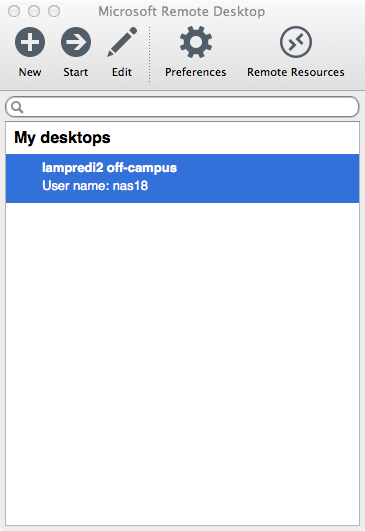
To connect to lampredi2, simply double-click on “lampredi2 off-campus”, from the list under “My Desktops”.

When finished with your remote session, please click on System (menu bar on lampredi2) and choose Log Out.

Remote Desktop ready to connect

Remote Desktop ready to connect

 Posted by at 12:10 pm
Oct 022013
 

GATK 2.7.2 and GATKQUEUE 2.7.2 have been added to lampredi2. Details are:

$module load apps/gatk/2.7.2/noarch
apps/gatk/2.7.2/noarch
|
OK

$ ls $GATKDIR
bin GenomeAnalysisTK.jar resources

———————————————————————————-

$ module whatis apps/gatk/2.7.2/noarch
apps/gatk/2.7.2 :

Title: Genome Analysis Toolkit
Summary: Software package developed at the Broad Institute to analyse next-generation resequencing data
License: Free for non-commercial use; registration required; see http://j.mp/TTba2N
Group: Bioinformatics
URL: http://www.broadinstitute.org/gatk/index.php

Name: gatk
Version: 2.7.2
Module: apps/gatk/2.7.2/noarch
Module path: /opt/gridware/etc/modules/apps/gatk/2.7.2/noarch
Package path: /opt/gridware/pkg/apps/gatk/2.7.2/noarch

Repository: git+http://download.alces-software.com/git/packager-base@0fda8da
Package: ext/gatk/2.7.2@9df24753
Last update: 2013-10-01

Builder: root@headnode1.lampredi.cluster.local
Build date: 2013-10-01T15:50:24
Build parameters: tarball=/opt/gridware/ext/GenomeAnalysisTK-2.7-2.tar.bz2
Compiler: N/A

For further information, execute:

module help apps/gatk/2.7.2/noarch

———————————————————————————-

$ module help apps/gatk/2.7.2/noarch

----------- Module Specific Help for 'apps/gatk/2.7.2/noarch' ---------------------------

======== Genome Analysis Toolkit ========
Software package developed at the Broad Institute to
analyse next-generation resequencing data
========================================

This module sets up your environment for the use of the 'gatk'
application. This module sets up version '2.7.2' of the
application.

>> SYNOPSIS <> LICENSING <> FURTHER INFORMATION <> GET STARTED <<

Please refer to the website for further details on usage of this
package.

———————————————————————————-

$ module show apps/gatk/2.7.2/noarch
-------------------------------------------------------------------
/opt/gridware/etc/modules/apps/gatk/2.7.2/noarch:

module-whatis

Title: Genome Analysis Toolkit
Summary: Software package developed at the Broad Institute to analyse next-generation resequencing data
License: Free for non-commercial use; registration required; see http://j.mp/TTba2N
Group: Bioinformatics
URL: http://www.broadinstitute.org/gatk/index.php

Name: gatk
Version: 2.7.2
Module: apps/gatk/2.7.2/noarch
Module path: /opt/gridware/etc/modules/apps/gatk/2.7.2/noarch
Package path: /opt/gridware/pkg/apps/gatk/2.7.2/noarch

Repository: git+http://download.alces-software.com/git/packager-base@0fda8da
Package: ext/gatk/2.7.2@9df24753
Last update: 2013-10-01

Builder: root@headnode1.lampredi.cluster.local
Build date: 2013-10-01T15:50:24
Build parameters: tarball=/opt/gridware/ext/GenomeAnalysisTK-2.7-2.tar.bz2
Compiler: N/A

For further information, execute:

module help apps/gatk/2.7.2/noarch

module-conflict apps/gatk
module-conflict apps/gatklite
setenv GATKDIR /opt/gridware/pkg/apps/gatk/2.7.2/noarch
setenv GATKBIN /opt/gridware/pkg/apps/gatk/2.7.2/noarch/bin
setenv GATK_JAVA_MEM_MX 2g
setenv GATK_JAVA_TMPDIR /tmp
setenv GATK_JAVA_OPTS -Xmx$GATK_JAVA_MEM_MX -Djava.io.tmpdir=$GATK_JAVA_TMPDIR
prepend-path PATH /opt/gridware/pkg/apps/gatk/2.7.2/noarch/bin

——————————————————————-

GATKQUEUE 2.7.2

$ module load apps/gatkqueue/2.7.2/noarch
apps/gatkqueue/2.7.2/noarch
| -- apps/gatk/2.7.2/noarch
| * --> OK
|
OK

$ ls $GATKQUEUEDIR
bin java Queue.jar resources

———————————————————————————-

$ module whatis apps/gatkqueue/2.7.2/noarch
apps/gatkqueue/2.7.2/noarch:

Title: Genome Analysis Toolkit Queue
Summary: Command-line scripting framework for defining multi-stage genomic analysis pipelines
License: Free for non-commercial use; registration required; see http://j.mp/TTba2N
Group: Bioinformatics
URL: http://www.broadinstitute.org/gatk/index.php

Name: gatkqueue
Version: 2.7.2
Module: apps/gatkqueue/2.7.2/noarch
Module path: /opt/gridware/etc/modules/apps/gatkqueue/2.7.2/noarch
Package path: /opt/gridware/pkg/apps/gatkqueue/2.7.2/noarch

Repository: git+http://download.alces-software.com/git/packager-base@0fda8da
Package: ext/gatkqueue/2.7.2@95ff256d
Last update: 2013-10-01

Builder: root@headnode1.lampredi.cluster.local
Build date: 2013-10-01T15:50:50
Build parameters: tarball=/opt/gridware/ext/Queue-2.7-2.tar.bz2
Compiler: N/A
Dependencies: apps/gatk/2.7.2/noarch (using: apps/gatk/2.7.2/noarch)

For further information, execute:

module help apps/gatkqueue/2.7.2/noarch

———————————————————————————-

$ module help apps/gatkqueue/2.7.2/noarch

----------- Module Specific Help for 'apps/gatkqueue/2.7.2/noarch' ---------------------------

======== Genome Analysis Toolkit Queue ========
Command-line scripting framework for defining multi-stage
genomic analysis pipelines
==============================================

This module sets up your environment for the use of the 'gatkqueue'
application. This module sets up version '2.7.2' of the
application.

>> SYNOPSIS <> LICENSING <> FURTHER INFORMATION <> GET STARTED <<

Please refer to the website for further details on usage of this
package.

———————————————————————————-

$ module show apps/gatkqueue/2.7.2/noarch
-------------------------------------------------------------------
/opt/gridware/etc/modules/apps/gatkqueue/2.7.2/noarch:

module-whatis

Title: Genome Analysis Toolkit Queue
Summary: Command-line scripting framework for defining multi-stage genomic analysis pipelines
License: Free for non-commercial use; registration required; see http://j.mp/TTba2N
Group: Bioinformatics
URL: http://www.broadinstitute.org/gatk/index.php

Name: gatkqueue
Version: 2.7.2
Module: apps/gatkqueue/2.7.2/noarch
Module path: /opt/gridware/etc/modules/apps/gatkqueue/2.7.2/noarch
Package path: /opt/gridware/pkg/apps/gatkqueue/2.7.2/noarch

Repository: git+http://download.alces-software.com/git/packager-base@0fda8da
Package: ext/gatkqueue/2.7.2@95ff256d
Last update: 2013-10-01

Builder: root@headnode1.lampredi.cluster.local
Build date: 2013-10-01T15:50:50
Build parameters: tarball=/opt/gridware/ext/Queue-2.7-2.tar.bz2
Compiler: N/A
Dependencies: apps/gatk/2.7.2/noarch (using: apps/gatk/2.7.2/noarch)

For further information, execute:

module help apps/gatkqueue/2.7.2/noarch

module-prereq apps/gatk/2.7.2/noarch
module-conflict apps/gatkqueue
setenv GATKQUEUEDIR /opt/gridware/pkg/apps/gatkqueue/2.7.2/noarch
setenv GATKQUEUEEXAMPLES /opt/gridware/pkg/apps/gatkqueue/2.7.2/noarch/resources
setenv GATKQUEUEBIN /opt/gridware/pkg/apps/gatkqueue/2.7.2/noarch/bin
setenv GATKQUEUE_JAVA_MEM_MX 2g
setenv GATKQUEUE_JAVA_TMPDIR /tmp
setenv GATKQUEUE_JAVA_OPTS -Xmx$GATKQUEUE_JAVA_MEM_MX -Djava.io.tmpdir=$GATKQUEUE_JAVA_TMPDIR
prepend-path PATH /opt/gridware/pkg/apps/gatkqueue/2.7.2/noarch/bin

——————————————————————-

Lampredi HPC
igm-lampredi-users@ncl.ac.uk

IGM IT
igmithelp@ncl.ac.uk
x8625

Oct 012013
 

The HLA*IMP software has been amended, in order to accommodate the temp folder that the software likes to use. The previous version required root access to this internal folder, something that is not a good idea on a shared cluster.

The workaround is to create your own temp folder, issued just before you run the software. The precise command is mentioned below.

Unless stated otherwise, this temp folder would be created on your lampredi2 home folder, and should be a one-off process. If you wanted to set a temp folder elsewhere e.g. within the lustre storage then that is possible too.

This temp folder is where the graphs, and other files, are stored during the software run. They don’t appear to be particularly large (your lampredi2 home folder does have a quota level set at 20GB, in order to prevent jobs being run from the login/head node).

https://oxfordhla.well.ox.ac.uk/hla/static/tutorialIMP2.pdf

For our purposes, we are assuming that you will take a copy of the two example data files, mentioned in the tutorial, and will copy them to your lustre area first.

(1)
Log into lampredi2 using Microsoft Remote Desktop Connection (Windows),
CoRD (Mac) or TS Client (Linux – there’s a myriad of names for this
client, depending on the distro you use).

(2)
Click on the Terminal icon and issue the commands:

$ qrsh
$ module load apps/hlaimpbe
$ module load apps/hlaimpfe

Here we issue the new command to create a temp folder that the software can use:

$ mkdir -p $HLAIMPFE_USERTMP

If we are following the tutorial, we can copy the example data we need to our lustre storage. I’m going to use a folder called “hla_test” on my lustre storage area.

$ mkdir -p ~/lustre/hla_test | cp $HLAIMPFEDIR/share/PnP2Pipeline/interface/examples/* ~/lustre/hla_test

(3)
Now we can run the HLA software using:

$ interface.pl

You can follow the tutorial at page 3 on the PDF document. You just need to browse to /users/your_home_folder/lustre/hla_test folder when locating your main data file. Remember that this is also the same as using ~/lustre/hla_test and /mnt/lustre/users/your_home_folder/hla_test

It might seem cumbersome using the example data in this way but it actually avoids us having to “fight” with the GUI, when it comes to declaring where data is to be located.

Lampredi HPC
igm-lampredi-users@ncl.ac.uk

IGM IT
igmithelp@ncl.ac.uk
x8625
Oct 012013
 

Trinity has been updated to version 2013-08-14. Details are:

$ module load apps/trinity/20130814
apps/trinity/20130814/gcc-4.4.6
| -- libs/gcc/system
| * --> OK
|
OK

----------------------------------------------------------------------------------

$ ls $TRINITYDIR
Analysis docs install_tests.sh notes PerlLibAdaptors sample_data util
Butterfly galaxy-plugin LICENSE.txt perl README Trinity.pl
Chrysalis Inchworm Makefile PerlLib Release.Notes trinity-plugins

----------------------------------------------------------------------------------

$ module whatis apps/trinity/20130814
apps/trinity/20130814:

Title: trinity
Summary: A novel method for the efficient and robust de novo reconstruction of transcriptomes from RNA-seq data
License: BSD
Group: Bioinformatics
URL: http://trinityrnaseq.sourceforge.net/

Name: trinity
Version: 20130814
Module: apps/trinity/20130814/gcc-4.4.6
Module path: /opt/gridware/etc/modules/apps/trinity/20130814/gcc-4.4.6
Package path: /opt/gridware/pkg/apps/trinity/20130814/gcc-4.4.6

Repository: git+http://download.alces-software.com/git/packager-base@0fda8da
Package: apps/trinity/20130814@8c2c4fe7
Last update: 2013-10-01

Builder: root@headnode1.lampredi.cluster.local
Build date: 2013-10-01T12:04:20
Build modules: apps/cpanminus/1.5017/noarch
Compiler: compilers/gcc/system
System: Linux 2.6.32-279.2.1.el6_lustre.gc46c389.x86_64 x86_64
Arch: Intel(R) Xeon(R) CPU E5620 @ 2.40GHz, 2x4 (b6b89932)
Dependencies: libs/gcc/system (using: libs/gcc/system)

For further information, execute:

module help apps/trinity/20130814/gcc-4.4.6

----------------------------------------------------------------------------------

$ module help apps/trinity/20130814/gcc-4.4.6

----------- Module Specific Help for 'apps/trinity/20130814/gcc-4.4.6' -----------

======== trinity ========
A novel method for the efficient and robust de novo
reconstruction of transcriptomes from RNA-seq data
========================

This module sets up your environment for the use of the 'trinity'
application. This module sets up version '20130814' of the
application.

>> SYNOPSIS <> LICENSING <> FURTHER INFORMATION <> GET STARTED <<

Please refer to the website for further details on usage of this
package.

----------------------------------------------------------------------------------

$ module show apps/trinity/20130814/gcc-4.4.6
-------------------------------------------------------------------
/opt/gridware/etc/modules/apps/trinity/20130814/gcc-4.4.6:

module-whatis

Title: trinity
Summary: A novel method for the efficient and robust de novo reconstruction of transcriptomes from RNA-seq data
License: BSD
Group: Bioinformatics
URL: http://trinityrnaseq.sourceforge.net/

Name: trinity
Version: 20130814
Module: apps/trinity/20130814/gcc-4.4.6
Module path: /opt/gridware/etc/modules/apps/trinity/20130814/gcc-4.4.6
Package path: /opt/gridware/pkg/apps/trinity/20130814/gcc-4.4.6

Repository: git+http://download.alces-software.com/git/packager-base@0fda8da
Package: apps/trinity/20130814@8c2c4fe7
Last update: 2013-10-01

Builder: root@headnode1.lampredi.cluster.local
Build date: 2013-10-01T12:04:20
Build modules: apps/cpanminus/1.5017/noarch
Compiler: compilers/gcc/system
System: Linux 2.6.32-279.2.1.el6_lustre.gc46c389.x86_64 x86_64
Arch: Intel(R) Xeon(R) CPU E5620 @ 2.40GHz, 2x4 (b6b89932)
Dependencies: libs/gcc/system (using: libs/gcc/system)

For further information, execute:

module help apps/trinity/20130814/gcc-4.4.6

module-prereq libs/gcc/system
module-conflict apps/trinity
setenv TRINITYDIR /opt/gridware/pkg/apps/trinity/20130814/gcc-4.4.6
setenv TRINITYBIN /opt/gridware/pkg/apps/trinity/20130814/gcc-4.4.6
prepend-path PERL5LIB /opt/gridware/pkg/apps/trinity/20130814/gcc-4.4.6/perl/lib/perl5
prepend-path MANPATH /opt/gridware/pkg/apps/trinity/20130814/gcc-4.4.6/perl/man
prepend-path PATH /opt/gridware/pkg/apps/trinity/20130814/gcc-4.4.6/perl/bin
prepend-path PATH /opt/gridware/pkg/apps/trinity/20130814/gcc-4.4.6/util
prepend-path PATH /opt/gridware/pkg/apps/trinity/20130814/gcc-4.4.6
----------------------------------------------------------------------------------

Lampredi HPC
igm-lampredi-users@ncl.ac.uk

IGM IT
igmithelp@ncl.ac.uk
x8625
Jul 192013
 

Webfolders allow you to access your data when off-campus. Below are instructions on how to access the two FCCF data areas, typically called the S: drive (live instrument data) and the R: drive (archived data).

They can be used with any Internet ready computer, regardless of your location, and are also useful when used with non-University computers that are based on-campus.

__________________________________________________________________

*** Windows 7

FCCF S: DRIVE / Live instrument data

Click the Windows icon, on the task bar
Click Computer
Click “Map network drive”
Click the link “Connect to a Web site that you can use to store your documents…”
Click Next button
Click Next button
Enter the address:

https://webfolders.ncl.ac.uk/scratch/IHGSCRATCH/FLOWCF

Click Next button
When prompted, enter your University username using this format:

campus\nabc123

It is important that you precede your username with campus\

Enter your University login and tick the “Remember my credentials” box
Click OK button
Enter a name for this folder. For example, FCCF S DRIVE
Click Next button
Click Finish button


The FCCF R: DRIVE / archived data

Click the Windows icon, on the task bar

Click Computer
Click “Map network drive”
Click the link “Connect to a Web site that you can use to store your documents…”
Click Next button
Click Next button
Enter the address:

https://webfolders.ncl.ac.uk/igm/FLOWCF

Click Next button
When prompted, enter your University username using this format:

campus\nabc123

It is important that you precede your username with campus\

Enter your University username and tick the “Remember my credentials” box
Click OK button
Enter a name for this folder. For example, FCCF R DRIVE
Click Next button
Click Finish button


__________________________________________________________________

*** Apple Mac OS X

FCCF S: DRIVE / live instrument data

Click on your desktop area
Finder (menu bar)
Preferences
Ensure that “Connected Servers” box is ticked
Close the window

Go (menu bar)
Connect to Server…
Carefully enter this address:

https://webfolders.ncl.ac.uk/scratch/IHGSCRATCH/FLOWCF

Click + icon
Click Connect button
Enter your University username and password
Tick the box next to “Remember this password in my keychain”
Click Connect button

FCCF R: DRIVE / archived area

Click on your desktop area
Finder (menu bar)
Preferences
Ensure that “Connected Servers” box is ticked
Close the window

Go (menu bar)
Connect to Server…
Carefully enter this address:

https://webfolders.ncl.ac.uk/igm/FLOWCF

Click + icon
Click Connect button
Enter your University username and password
Tick the box next to “Remember this password in my keychain”
Click Connect button

 __________________________________________________________________

Jul 112013
 

You can access your H: drive via something called “webfolders”. This works on any Internet capable Windows/Mac/Linux computer, both on and off campus.

Webfolders are a useful alternative to RAS, and they allow non University Common Desktop PCs access to your H: drive and Z: drive, regardless of your location.

You can also use webfolders to access Institute folders and Research folders (more commonly known as the Z: drive). We have a different set of instructions here explaining how to access those areas.

__________________________________________

Accessing your H: drive / home folder


*** Windows 7 / XP

Users should follow the instructions provided by ISS http://www.ncl.ac.uk/itservice/filestore/remoteaccess/webfolders/


*** Apple Mac OS X

Finding your Home Folder / Webfolders path

Open the Newcastle university home page: http://www.ncl.ac.uk
Click People search
Click My Details
If prompted, authenticate using your campus ID and password.
Click the link for “ISS technical information, including details of which ISS servers you use and any role accounts you own.”
Either make a note or right-click on the link next to “Home folder via WebFolders” and choose “Copy link” from the menu
Close your web browser

Click on your desktop area
Finder (menu bar)
Preferences
Ensure that “Connected Servers” box is ticked
Close the window

Go (menu bar)
Connect to Server…
Carefully enter the address you noted earlier or delete whatever address is currently in the Server Address box. Right-click and choose “Paste” from the menu

You should end up with something that resembles
https://webfolders.ncl.ac.uk/home/homeXX/n123example

Click Connect button
Enter your ISS login and password
Tick “remember this password in my keychain”
Click Connect button


*** Linux

This has only been tested on our officially supported Linux distributions – Red Hat/CentOS/Scientific Linux/Fedora. We will test other distributions later.

Follow the first part of the Apple Mac instructions, with regards to finding your Home Folder/Webfolder path

Places (menu bar)
Connect to Server…
Service type = Secure WebDAV (HTTPS)
Server = webfolders.ncl.ac.uk
Folder = /home/homeXX/n123example
(replace homeXX, which can be found in the webfolder address you noted earlier, and n123example should be altered to reflect your ISS login

username = your ISS login
Name to use for connection = something useful eg h drive
Click Connect button
Enter your ISS password. Tick “remember my password for this session”
Click Connect button
Click “Allow Once” button

When finished, remember to unmount your webfolder. Right-click over the web folder icon, sitting on the Desktop, and choose “Unmount Volume” from the menu.

 Posted by at 3:54 pm
Jul 112013
 

You can access your H: drive, the Institute folders and research folders via something called “webfolders”. This works on any Internet capable Windows/Mac/Linux computer, both on and off campus.

Webfolders are a useful alternative to RAS, and they allow non University Common Desktop PCs access to your H: drive and Z: drive, regardless of your location.

Below are instructions on how to access the Z: drive/Institute folders/Research folders. We have separate  instructions available here on how to access your H: drive using webfolders.


__________________________________________

 Accessing the Z: drive / Institute folders / Research folders


*** Windows 7

Click the Windows icon, on the task bar
Click Computer
Click “Map network drive”
Click the link “Connect to a Web site that you can use to store your documents…”
Click Next button
Click Next button
Enter the address:

https://webfolders.ncl.ac.uk/igm

Click Next button
When prompted, enter your ISS login using this format:

campus\n123example

It is important that you precede your login with campus\

Enter your ISS login and tick the “Remember my credentials” box
Click OK button
Enter a name for this folder. For example, IGM Z DRIVE
Click Next button
Click Finish button

This adds the webfolder to your computer. It behaves like the Z: drive on a IGM University Common Desktop computer, though there are some subtle differences.


*** Windows XP

Click the Start button, on the task bar
Click My Computer
Click Tools (menu bar)
Click “Map Network Drive…”
Click the link “Sign up for online storage or connect to…”
Click Next button
Click Next button

Enter the address:

https://webfolders.ncl.ac.uk/igm

Click Next button
When prompted, enter your ISS login using this format:

campus\n123example

It is important that you precede your login with campus\

Enter your ISS login and tick the “Remember my password” box
Click OK button
Enter a name for this folder. For example, IGM Z DRIVE
Click Next button
Click Finish button


*** Apple Mac OS X

Click on your desktop area
Finder (menu bar)
Preferences
Ensure that “Connected Servers” box is ticked
Close the window

Go (menu bar)
Connect to Server…
Carefully enter this address:

https://webfolders.ncl.ac.uk/igm

Click Connect button
Enter your ISS login and password
Tick the box next to “Remember this password in my keychain”
Click Connect button


*** Linux

This has only been tested on our officially supported Linux distributions – Red Hat/CentOS/Scientific Linux/Fedora. We will test other distributions later.

Places (menu bar)
Connect to Server…
Service type = Secure WebDAV (HTTPS)
Server = webfolders.ncl.ac.uk
folder = igm
user name = your ISS login
Name to use for connection = can be anything e.g “igm z drive”
Click Connect button
Enter your password. Tick “remember password for this session” box
Click Connect button
If prompted, choose “Allow once” when asked about “allow application access to keyring?”

When finished, remember to unmount your webfolder. Right-click over the web folder icon, sitting on the Desktop, and choose “Unmount Volume” from the menu.

Oct 252012
 

Our remit is to provide access to data produced by the Flow Cytometry Core Facility via University Common Desktop PCs.

Below are instructions on how to map drives to the two storage areas used by the FCCF. They are commonly known as the S: drive (scratch space/live instrument data) and the R: drive (archived data).

New Flow Cytometry users must provide IGM IT with their University username (not your FCCF username, nor do we need any passwords) in advance. Failure to do this will mean that you will not have access to the data. The FCCF team are not responsible for enabling access. Hence *your* need to request access from IGM IT.

If you are a new Flow Cytometry user, please send us your request for access, along with your University login, to: igmithelp@ncl.ac.uk

We have also provided instructions for Mac users, and there are two alternative ways for you to access your data when off campus (via RAS and webfolders).

Returning to our remit, should you run into any issues when trying to access your data, we ask that you seek out a University Common Desktop computer.

Important! USB sticks/portable drives are NOT permitted within the Flow Cytometry Core Facility. This is why we have been tasked with providing you with access to the instrument data via other means.

Please do ensure that you have backups of your data. Files stored on the S: drive are removed after 90 days, in order to maintain adequate storage space for *live* instrument data. Please do contact the FCCF team about any queries you may have regarding data and any other aspects of their service, including analysis software.

Thank you for your co-operation.

IGM IT
igmithelp@ncl.ac.uk
– – – – – – – – – – – – – – – – – – – – – – – – – – – – – – – – – – – – – – – – – –

Mapping the S: drive (FCCF scratch space /live instrument data)

*** Data stored on the S: drive is removed after 90 days ***

• Windows 7

Click on Windows logo (taskbar)
Click “Computer”
Click ‘Map network drive’ option
Change “Drive” option to the letter S
Change “Folder” option to:

\\campus.ncl.ac.uk\scratch\IHGSCRATCH\FLOWCF

Ensure that ‘Reconnect at logon’ is ticked
Click ‘Finish’ button and the S: drive will be mapped


• Mac OS X

Click on Desktop area.
Click on Go (menu bar)
Choose ‘Connect to server…’ and type:

smb://fsarchive.ncl.ac.uk/IHGScratch/FLOWCF

Click + icon
Click Connect
Enter University username and password
Tick ‘remember this password…’ option

IMPORTANT! Should you encounter problems using the above address, try the following alternative:
cifs://campus.ncl.ac.uk/scratch/IHGSCRATCH/FLOWCF
Some users have reported that substituting smb:// for cifs:// works for them

Additional instructions for Mac users: click on Desktop area. Click on Finder (in menu bar), choose Preferences. Ensure ‘Connected servers’ option is ticked. Close window.


Mapping the R: drive (FCCF archived data)

• Windows 7

Click on Windows logo, far left of task bar
Click “Computer”
Click ‘Map network drive’ option Change “Drive” option the letter R
Change “Folder” option to:

\\campus.ncl.ac.uk\igm\FLOWCF

Ensure that ‘Reconnect at logon’ is ticked
Click ‘Finish’ button and the R: drive will be mapped


• Mac OS X

Click on Desktop area
Click on Go (menu bar)
Choose ‘Connect to server…’ and type:

smb://fs-ncl-smb-db.ncl.ac.uk/igm-flowcf
Click + icon
Click Connect
Enter University username and password
Tick ‘remember this password…’ option

IMPORTANT! Should you encounter problems using the above address then try the following alternative:
cifs://campus.ncl.ac.uk/IGM/FLOWCF
Some users have reported that substituting smb:// for cifs:// works for them

Additional instructions for Mac users: click on Desktop area. Click on Finder (in menu bar), choose Preferences. Ensure ‘Connected servers’ option is ticked. Close window.


Accessing FCCF data when off campus

There are two options for retrieving your data, when off-campus. You may find the Webfolders option easier to use than RAS. Both work on any internet capable computer.


Accessing the FCCF data when on-campus, using a laptop (University owned or private laptop)

The instructions can be found here. It is similar to mapping drives when using a University Common Desktop PC.

However, you *must* precede your University username with campus\ otherwise you will be refused access. We cannot stress enough that you must remember to include campus\ as part of your University username, when using these instructions!

 Posted by at 1:31 pm
Jul 122012
 

Your H: drive will have an upper limit of 4GB. If you need more than this then ISS ask that you consider using their “Home Archive Service”. If you are nearing your H: drive limit then you may have received an automated message from ISS about this subject.

It can be thought of as a second H: drive, providing you with 20GB of additional storage. The one condition ISS set is that this new storage area can only accept compressed files, typically called zipped files.

In other words, your H: drive would remain as your primary storage but you would move less frequently accessed files/folders from your H: drive to your new 20GB area. Those files would be compressed/zipped before you moved them there.

All our University Common Desktop PCs can compress files/folders instantly, via right-clicking on the file/folder in question and following the “7zip” option in the menu. Choose the option “Compress to <name of your file or folder>.zip”.

This feature is available on Macs (right-click your file/folder and choose ‘Compress …’) and Linux – you can use the command line or simply right-click and use the ‘Compress…’ option.

To apply for this service, click on: https://crypt.ncl.ac.uk/helpdesk/home-archive
and follow the on-screen prompts.

ISS will send you a detailed set of instructions. For Windows users, you are simply going to map a new drive. You will be asked to choose a letter to represent your new 20GB of storage. We ask that you avoid using Z, W, T, S and R, as these are reserved by the Institute.

Mac users should not feel left out! We need to convert the address ISS give you into something that your Mac understands, and we are happy to help with this.

Using both your H: drive and your new (archived) storage efficiently, you will have a combined total of 24GB of storage. For a more detailed explanation of this service please visit:

http://www.ncl.ac.uk/iss/getstarted/storage/personalarchive.php


Jul 122012
 

ISS have re-named their Drop-box service (for rather obvious reasons), and it is now known as the University “File Drop-Off Service”. This allows you to transfer larger file(s) between University colleagues and non-University colleagues.

Before this service existed, it was a rather complicated task to pass large files on to other people. There is currently a 20MB file size limit that is enforced on email attachments. In the past, there has often been problems sending files to people who are not members of the University. ISS designed the File Drop-Off Service to help address these matters.

This ISS service can be reached via: https://dropoff.ncl.ac.uk/

You can read a more detailed explanation at: https://dropoff.ncl.ac.uk/about.php

It’s worth noting that the file size limit for this drop-off service is 2GB (per transaction). You should always compress the files you are going to send someone first, as this not only helps reduce the overall size involved but it helps “protect” the data as it makes it way through the Internet.

All our University Common Desktop PCs can compress files/folders instantly, via right-clicking on the file/folder in question and following the “7zip” option in the menu. Choose the option “Compress to <name of your file or folder>.zip”. This feature is available on Macs (right-click your file/folder and choose ‘Compress …’) and Linux. Most computers have built-in software that can uncompress zip files, so you do not need to worry about the recipient not being able to read the your files.

The IGM does runs a similar service but it is mainly reserved for users who need to move sequencing data in and out of the Institute. Our service also requires that you speak to us first, so that we can offer you the best possible help. Depending on the size of the data involved, some transactions are required to take place over a weekend.