Dec 192016
 

Anyone using smtp services for notification of things gone bung via smtp should note the following server names and numbers. Existing smtp addresses are being added as aliases to them so it should be business as usual unless you have hard coded the dotted quad ip address in – naughty naughty if you have, get it ‘sorted’!

mailhub-ncl1.ncl.ac.uk 10.3.192.247
mailhub-ncl2.ncl.ac.uk 10.3.192.253
mailhub-ncl3.ncl.ac.uk 10.3.192.254
mailhub-ncl4.ncl.ac.uk 10.3.193.34

nslookup smtp.ncl.ac.uk

resolves to these numbers now.

 Posted by at 12:39 pm
Dec 012016
 

These instructions work for on-campus access only. If you require off-campus access, we have additional webfolder instructions and RAS instructions.


• Windows 7

FCCF S: drive / live instrument data

Click on Windows logo (taskbar)
Click “Computer”
Click ‘Map network drive’ option
Change “Drive” option the letter S
Change “Folder” option to:

\\fsarchive.ncl.ac.uk\IHGSCRATCH\FLOWCF

Tick ‘Reconnect at logon’ is ticked
Tick ‘Connect using different credentials”
Click ‘Finish’ button

When prompted for your University details, *ensure* that you precede your username with campus\

E.g If your University username was nabc123 then use campus\nabc123 as your username here
Enter your University password
Tick ‘Remember my crednetials’ box
Click OK


FCCF R: drive / archived data

Click on Windows logo (taskbar)
Click “Computer”
Click ‘Map network drive’ option
Change “Drive” option the letter R
Change “Folder” option to:

\\fs-ncl-smb-db.ncl.ac.uk\igm-flowcf

Tick ‘Reconnect at logon’ is ticked
Tick ‘Connect using different credentials”
Click ‘Finish’ button

When prompted for your University details, *ensure* that you precede your username with campus\

E.g If your University username was nabc123 then use campus\nabc123 as your username here
Enter your University password
Tick ‘Remember my credentials’ box
Click OK

Dec 012016
 

* RAS

Go to http://ras.ncl.ac.uk/
You may need to install some additional software on the computer that you are using to log into RAS with.  Use the links provided on the RAS front page to download and install this software.

Log in to RAS as usual
Click on My Drives icon (if this icon is missing, click on the + icon; All Apps; scroll down and click on My Drives icon)
Wait for window to appear showing your drives. Be patient.

RAS labels the S: drive as “FLOWCF (\\campus.ncl.ac.uk\scratch\IHGSCRATCH)”… and it labels the R: drive as  “FLOWCF (\\campus.ncl.ac.uk\igm)”

If these are missing, click on Computer icon
Click ‘Map network drive’ option
Change Drive: to S
Change folder to: \\campus.ncl.ac.uk\scratch\IHGSCRATCH\FLOWCF
tick the ‘reconnect at logon’ box
click Finish button

IMPORTANT! Right-click on some white space, within that window, and choose “refresh” from the menu. The S: drive will now appear.

Repeat this for the R: drive by clicking on the  “Map network drive’ option

Change Drive: to R
Change folder to: \\campus.ncl.ac.uk\igm\flowcf
tick the ‘reconnect at logon’ box
click Finish button

IMPORTANT! Right-click on some white space, within that window, and choose “refresh” from the menu. The R: drive will now appear.

The drives shown under the “Network Location” section are your University mapped drives, and these include your H: drive (labelled as “Documents”). You may also have an Institute drive (the IGM uses the Z: drive and this provides access to Institute shared folders and our groups research folders).

The section labelled “Other” contains access to the local drives associated with your off campus computer, the one you are logging into RAS with. These drives will vary but they will usually include your computer’s C: drive – often labelled as “Local Disk” – and any portable drives or USB sticks attached to your computer. Explore these local drives by double-clicking on them so that you become familiar with where things are stored on your local computer. You will be asked about giving RAS permission to access these particular drives –  it’s just a precaution.

To copy data from the University to your off campus computer, double-click on the relevant drive under “Network Location” until you find the folder/file you are looking for. Right-click on this file/folder, and from the pop-up menu, select ‘Copy’.

Now double-click on the relevant drive under “Other”. Note that you will be asked about giving RAS permission to access this local drive. Now find somewhere appropriate to store this data and right-click on the location. Choose ‘Paste’ from the pop-up menu.

This copy/paste technique is how you copy data between the University and your off campus computer.

Jul 202016
 

NUIT have acknowledged that there is an issue with disappearing Desktop items and Internet Explorer Favourites. The cause is still unknown.

Current advice is to attempt to recover these items using the videos found on the Z: drive, within the Public folder. They show you how to use the Previous Versions option, in order to retrieve your items from the various backups that are taken.


Below is a written form of those instructions:


Right-click on your H: drive

Choose Proprieties from the menu

Click Previous Versions tab

and wait! The amount of time that you have to wait varies, anything from a few seconds to 5 minutes.

You will then see a list of dates and times. Click on a Date/Time

Click on the Open button (this will open up your H: drive at that particular day/time)

Open the folder called Desktop. If it is blank, you will need to repeat this process by going back and choosing another Date/Time

When you eventually find your missing Desktop items, drag them to your Desktop area.

You can use this same method to retrieve your missing Internet Explorer Favourites:

Right-click on your H: drive

Choose Proprieties from the menu

Click Previous Versions tab

and wait! The amount of time that you have to wait varies, anything from a few seconds to 5 minutes.

You will then see a list of dates and times. Click on a Date/Time

Click on the Open button (this will open up your H: drive at that particular day/time)

Open the folder called Favourites and check its contents. It may not be the correct version. If that is the case, you  will need to repeat this process by going back and choosing another Date/Time.

When you eventually find the correct version of your Favourites folder, right-click on it and choose “Send to” from the pop-up menu. Select your H: drive and  confirm that you want it to replace the current (incorrect) Favourites folder.

 Posted by at 3:52 pm
Jul 132016
 

eMedLab VPN Access via Cisco AnyConnect VPN Client and Centos 6.8

This document is meant as a guideline for connecting a remote Centos 6.8 Desktop machine through eMedlabs Cisco VPN and connect to the Ubuntu terminal to gain access to the eMedLab HPC Cluster.

Where input is required from the end user to type into a terminal it is shown as boxed out Preformatted text.

Preformatted text example

Installation of Centos 6.8 Graphical Desktop with updates and repositories

Install Centos 6.8 x86_64 – http://isoredirect.centos.org/centos/6/isos/x86_64/

Select the Desktop option when prompted and the installation will proceed until you are prompted to create a User Account, add or amend the  NTP service for time synchronization and finally prompting for a restart.

Restart the machine and log in as root.

From the Desktop Menu select Applications > System Tools > Terminal

At the command prompt type in: –

yum update

The machine will come back with any packages that need updating to which respond ‘Y’ to install. After that has completed type in: –

yum install epel-release

Respond ‘Y’ to install the epel repository (Extra Packages for Enterprise Linux)

Creation of Public and Private ssh keys

Log out from your root session and log in as the user account you created earlier. To create the ssh passwordless login you need to create a public and private key pair to send to eMedLab along with your request for a login account on the Cisco VPN Gateway.

From the Desktop Menu select Applications > System Tools > Terminal

At the command prompt type in: –

ssh-keygen -t rsa -f ~/.ssh/id_rsa.eMedLab

This creates two files in your /home directory in a hidden subdirectory .ssh

.ssh/id_rsa.eMedLab
.ssh/id_rsa.eMedLab.pub

The first one is your private key which you keep to yourself, the second one with the .pub extension is your public key and is the one to email to eMedLab. This key pair can be copied between multiple Linux machines and is named as eMedLab so that you can keep a handle of which key belongs to which service should you ever have a future need for a key pair for a different server at a different facility.

Installation of the Cisco AnyConnect VPN Client

Log in as root and from the Desktop Menu click the Firefox Icon firefox.

browse to https://vpn.emedlab.ac.uk

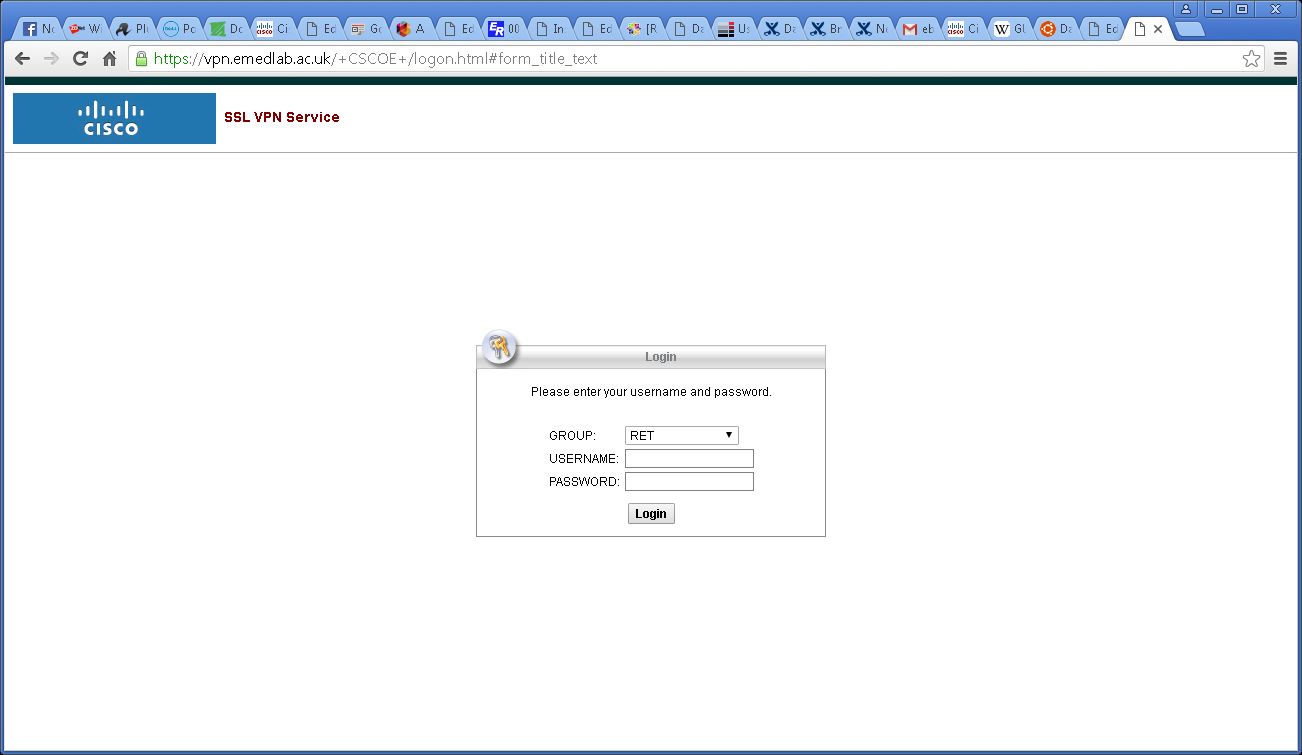
From the drop down menu select your Group and enter the Username and Password provided by eMedLab for the Cisco VPN gateway: –
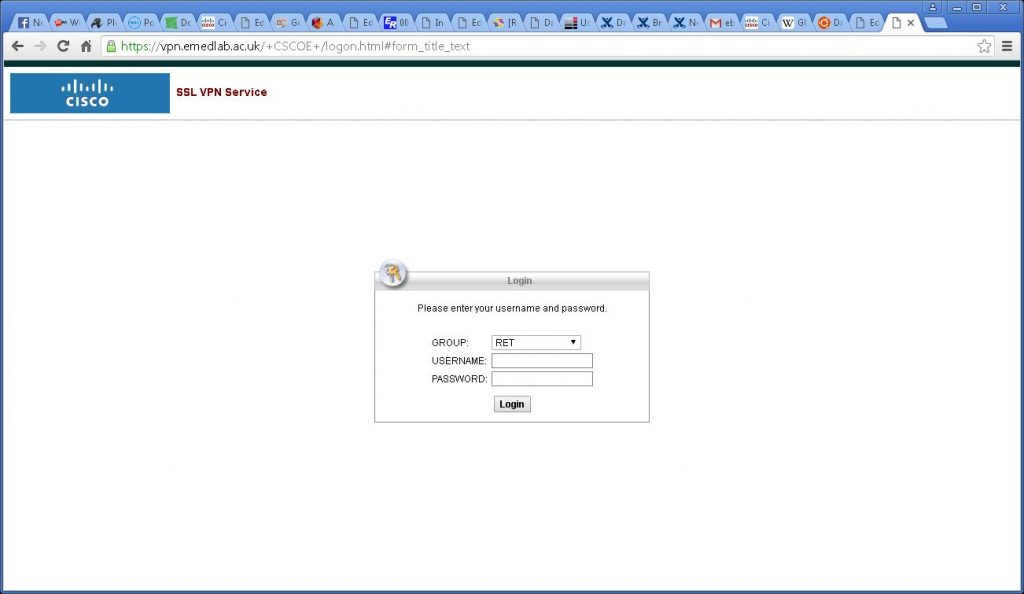
emedlab-vpn-gateway

Click the Login button.

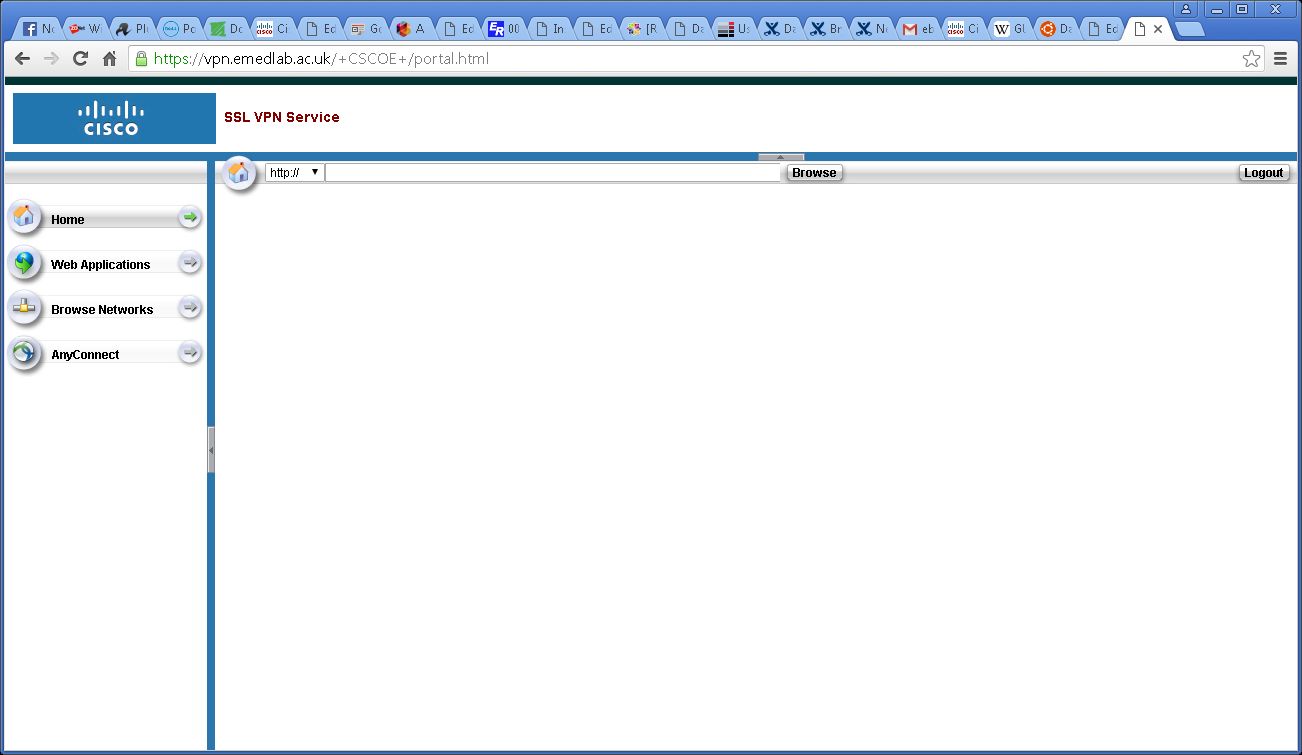
You should then see the following menu: –
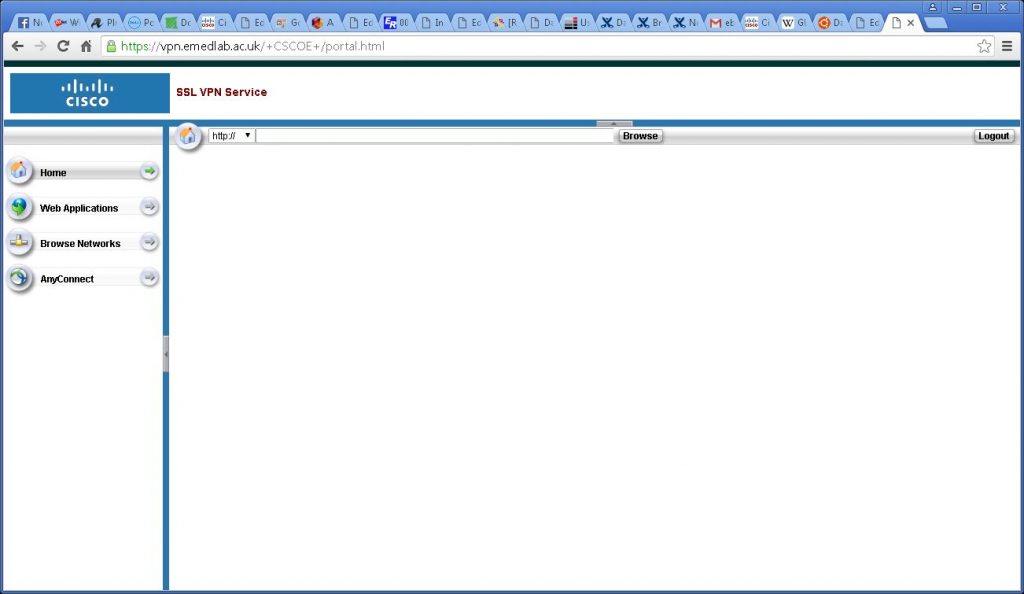
emedlab-vpn-gateway-initial-screen1

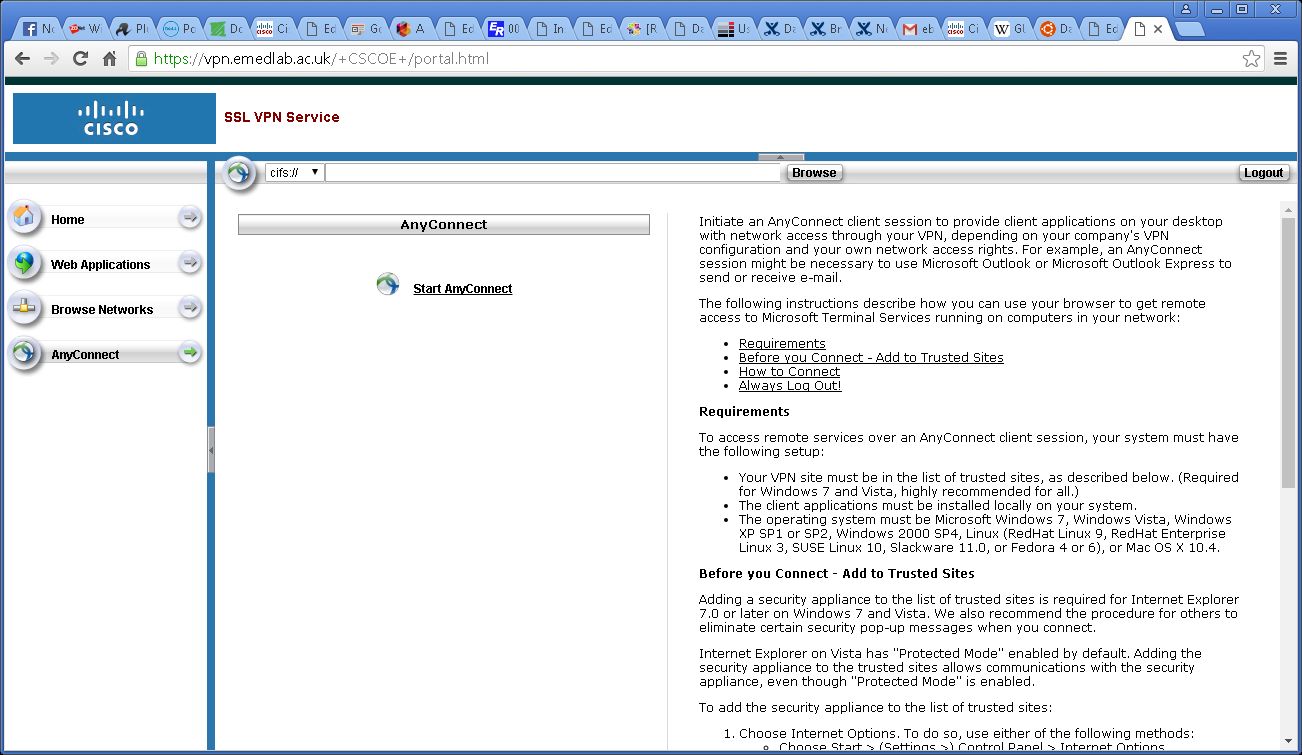
Click the AnyConnect button in the lefthand menu..
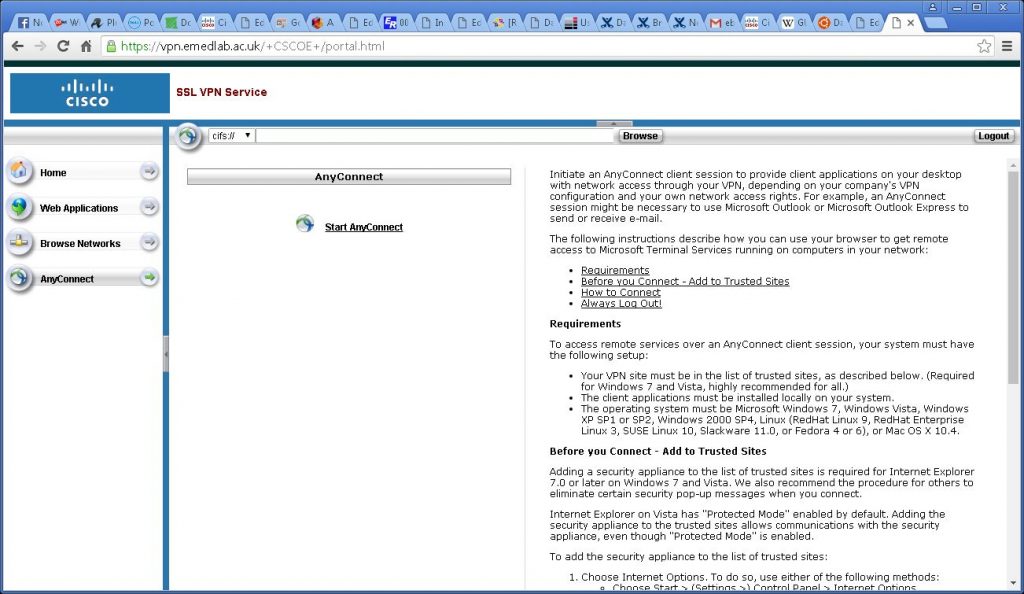
emedlab-vpn-gateway-initial-anyconnect-button

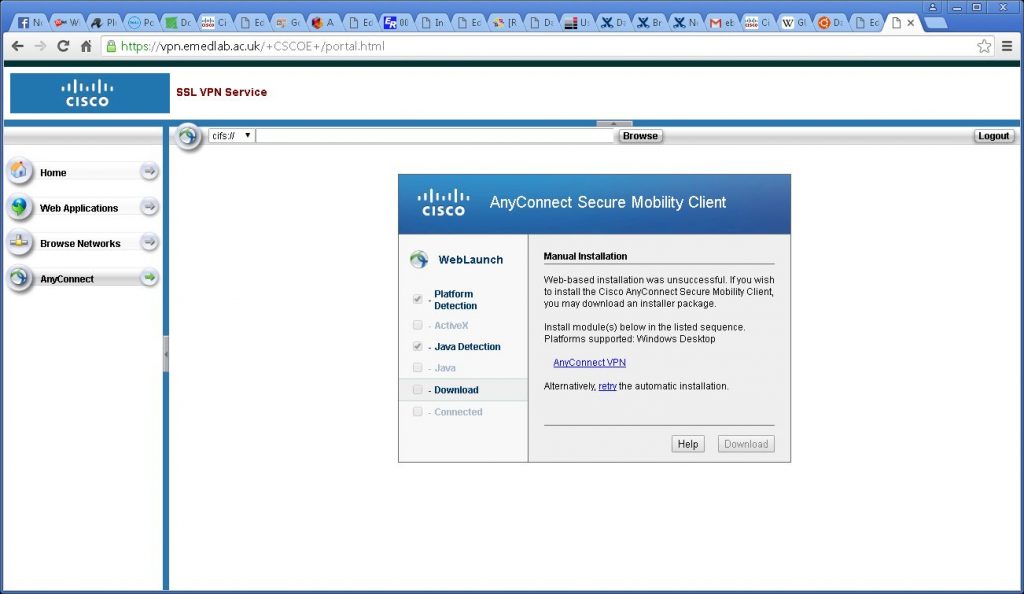
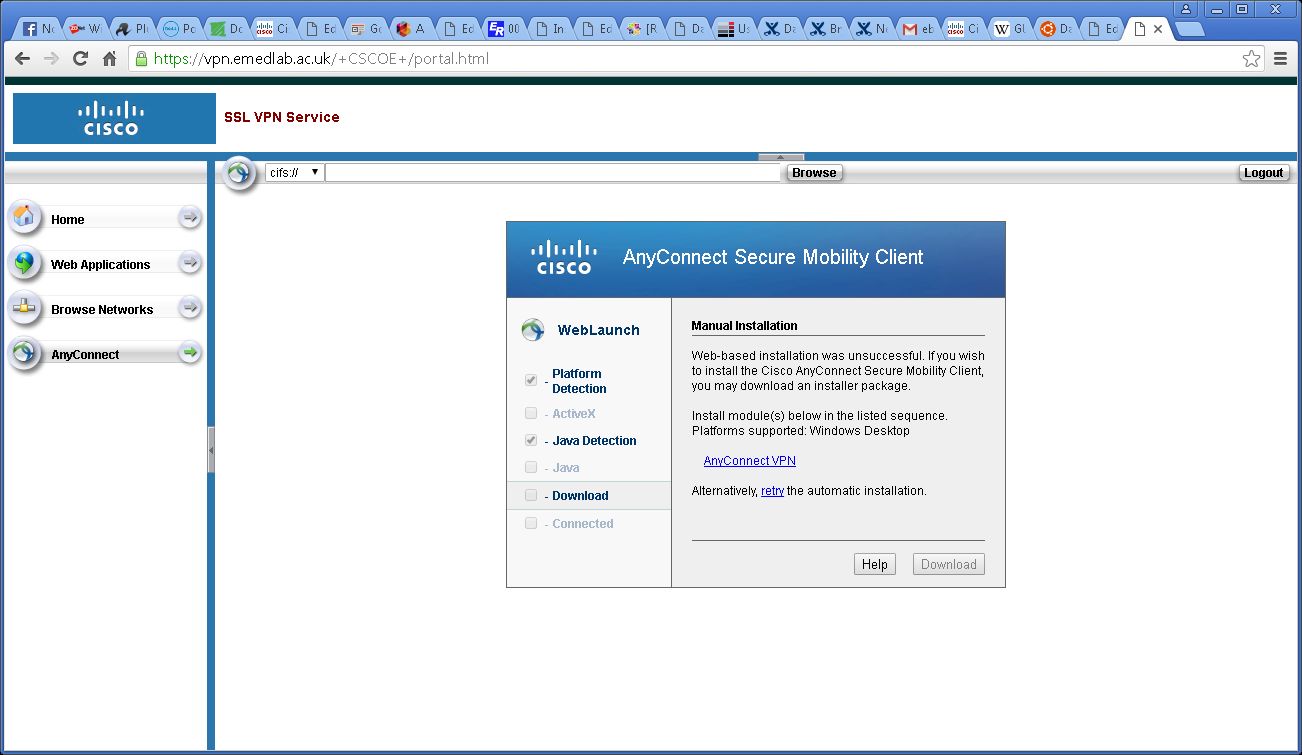
Click the Start AnyConnect button.

emedlab-vpn-gateway-initial-anyconnect-download

The java automatic connection will try and connect and fail and give you the option to manually download the software as above. Click the AnyConnectVPN link to download to your machine. The default download location is /root/Downloads – we need to know this location for installation as it needs to be modified.

From the Desktop Menu select Applications > System Tools > Terminal

At the command prompt type in the following: –

cd /root/Downloads
chmod +x vpnsetup.sh
./vpnsetup.sh

The script will run to completion ending with a Done! as below, there is no user interaction required.

**Centos 7 installation requires package pangox-compat to be installed for the graphical user interface**
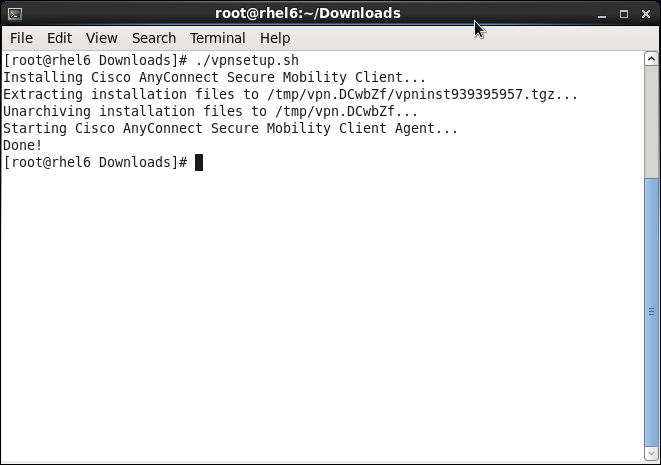
Screenshot-root@rhel6%3A~-Downloads

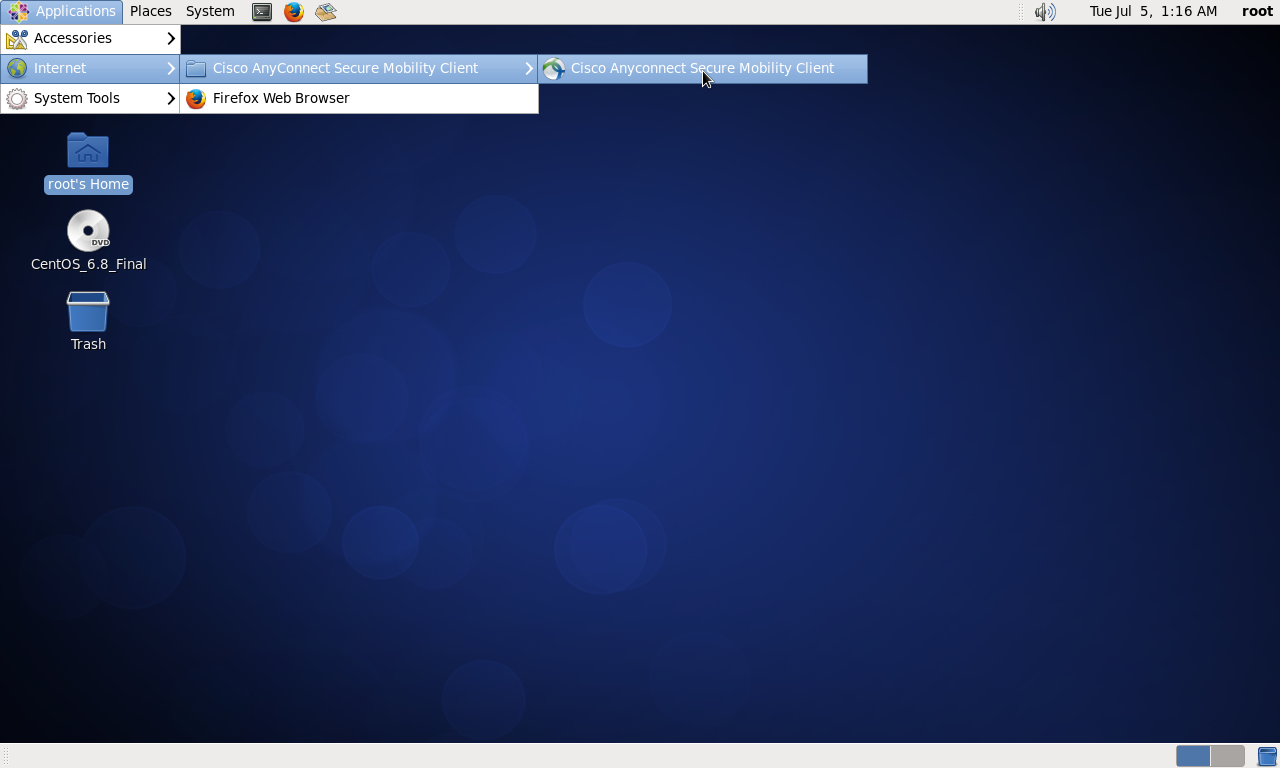
There will now be a new icon for the VPN in Applications > Internet > Cisco AnyConnect Mobility Client > Cisco AnyConnect Mobility Client as below: –
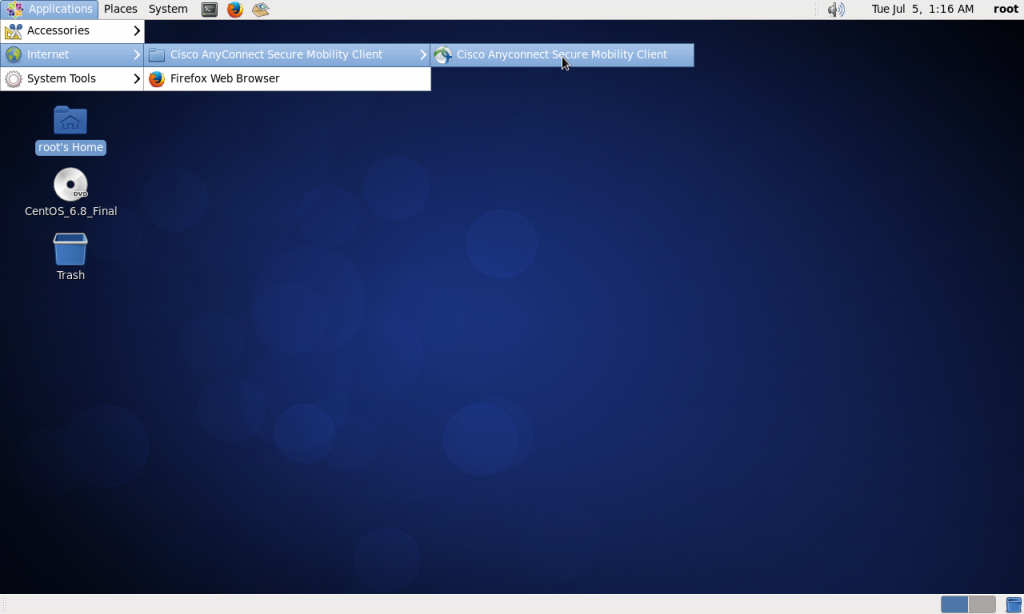
cisco-menu

Follow the menu path and click on Cisco AnyConnect Mobility Client as above. You will be presented with the following Window: –

Fill the Connect to: details in as vpn.emedlab.ac.uk
Click the two yellow cog button at the end of the Connect to: Dialog Box and adjust as per the second picture.
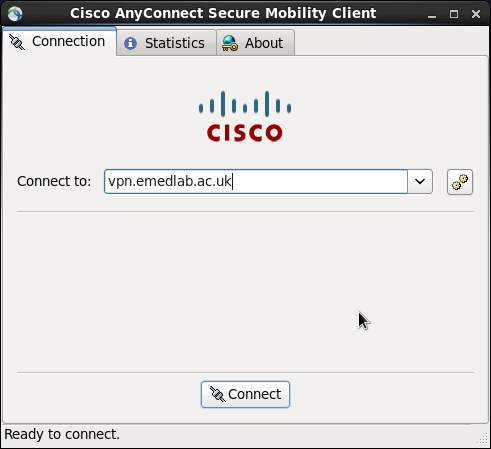
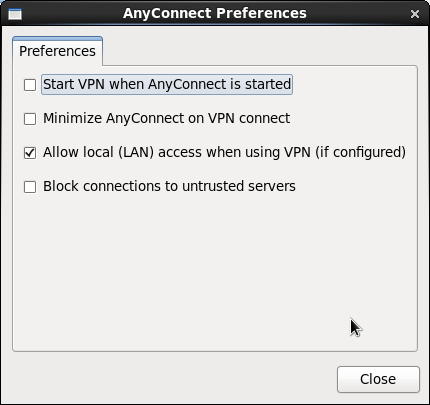
Screenshot-Cisco AnyConnect Secure Mobility Client InitialScreenshot-AnyConnect Preferences

Click Connect

You will then be prompted for your Cisco AnyConnect Group, Username and Password as before, fill those details in and click Connect.
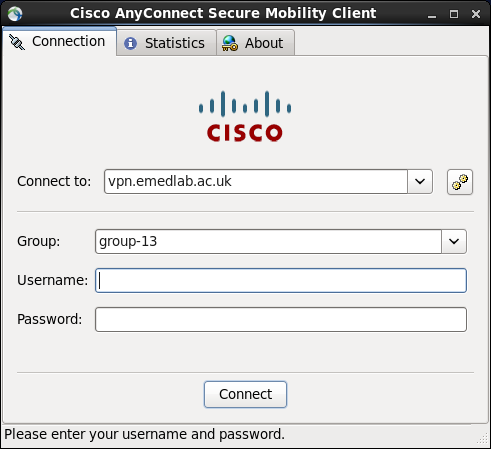
Screenshot-Cisco AnyConnect Secure Mobility Clientgroupuserpass

The vpn will come up and say connected as below: –
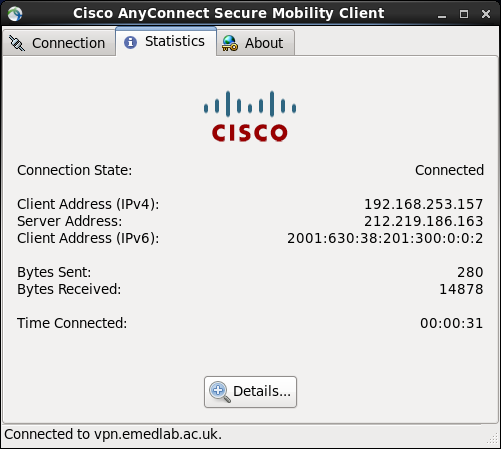
Screenshot-Cisco AnyConnect Secure Mobility Client-4

At this point you can then connect to the Ubuntu server at eMedLab with the second Username you have been given by eMedLab. You shouldn’t have to use a password to connect, it should use your keyless pair that we created.

From the Desktop Menu select Applications > System Tools > Terminal

shh username@10.2.213.130

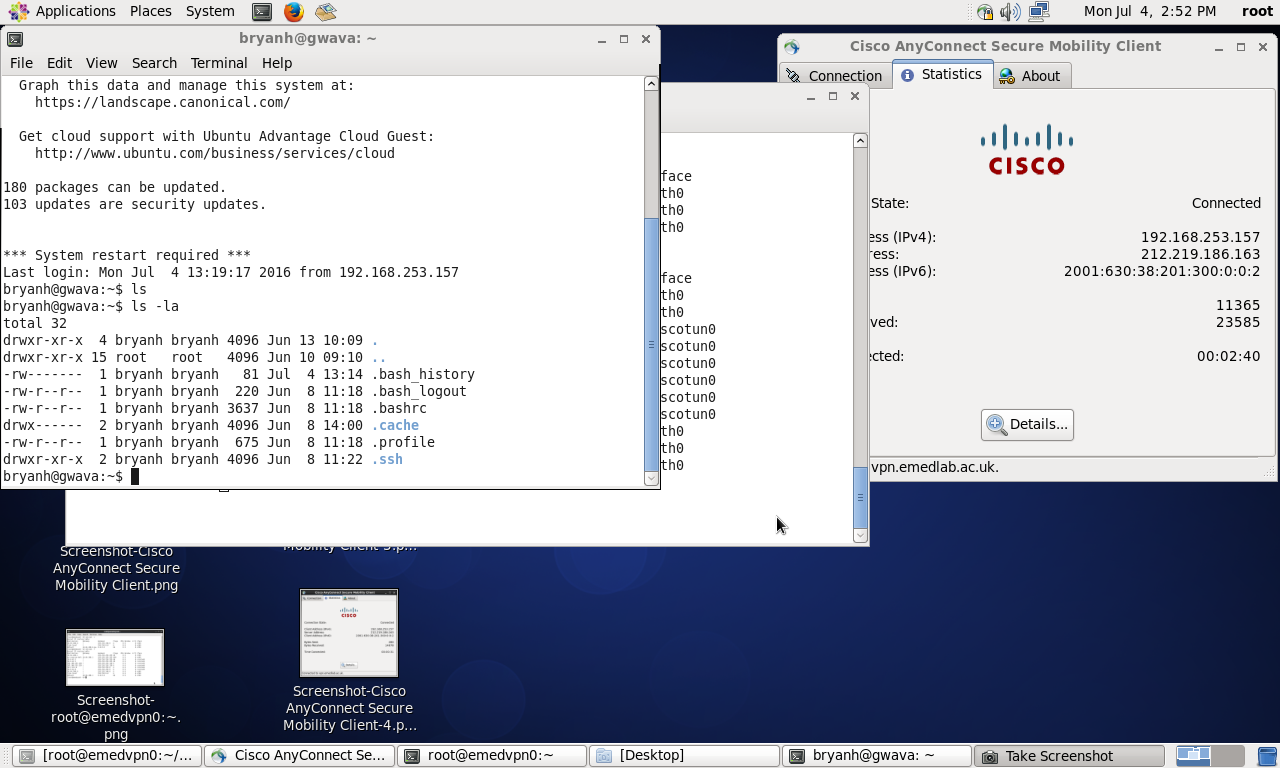
The picture below shows all the connections up with a session into the Ubuntu machine
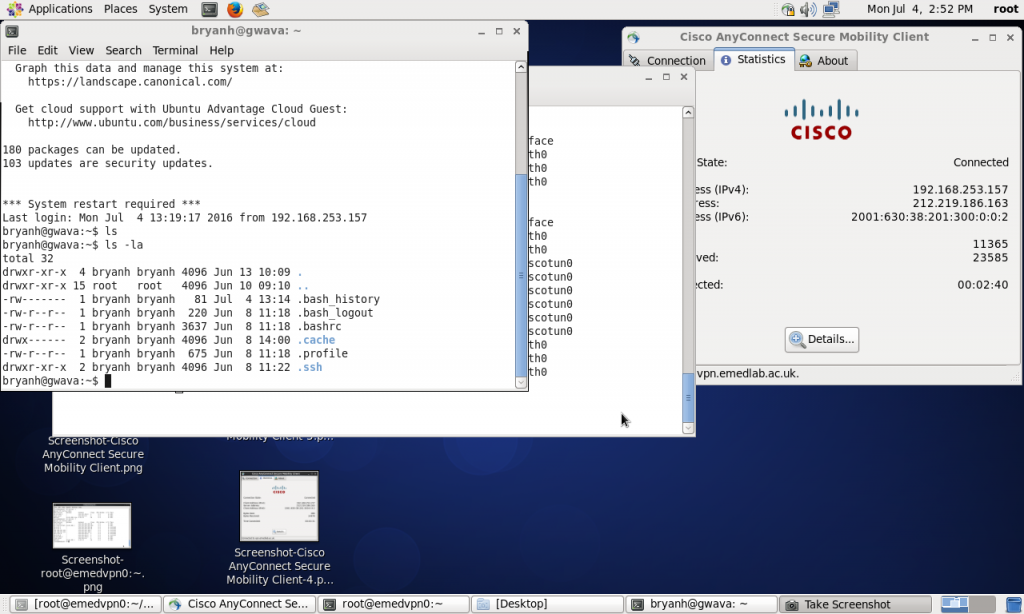
Screenshot-2

The connection can also be brought up as an ordinary user, but there is only one person allowed at a time as far as I have found so far. This means that each user who can access the machine must bring down the vpn after use if someone else requires access.

Once the link has been established once, it also appears to skip a stage and go directly to the Group setting and fail to connect. This can be overridden by stipulating vpn.emedlab.ac.uk in the Connect to: dialog box where it will prompt you for the vpn gateway Username and Password. You may be prompted that it is an insecure connection in which case click the Connect Anyway button
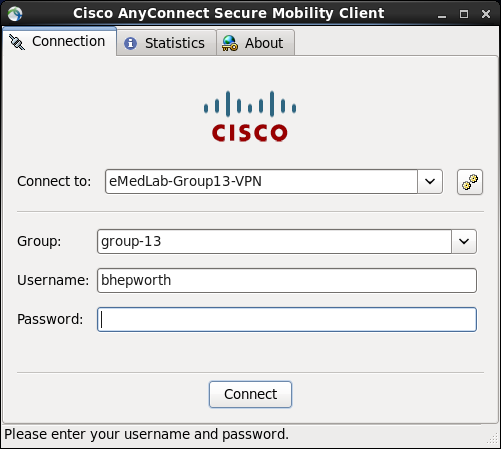
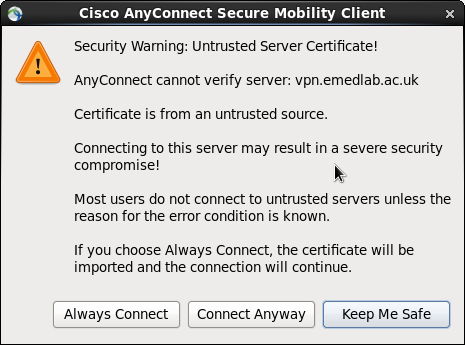
Screenshot-Cisco AnyConnect Secure Mobility Client-3Screenshot-Cisco AnyConnect Secure Mobility Client-2warning

 Posted by at 10:58 am
Jan 282016
 

OK after a few tries on safe directories and files :-

rsync -avz /source/with/trailing/slash/ /destination/with/trailing/slash/

Replicates /source/with/trailing/slash/ to /destination/with/trailing/slash

rsync -avz /with/trailing/slash/ /destination/with/trailing/slash/ however doesn’t delete missing files in /destination that have been removed or altered in /with/trailing/slash/ over subsequent runs at a later date.

rsync -avz --delete --dry-run /with/trailing/slash/ /destination/with/trailing/slash/ > whatwillhappen.txt

Will do a dry run through the source and destination and will list what it will remove on the /destination side and writes to whatwillhappen.txt the files and directories it will delete in /destination.

rsync -avz --delete /with/trailing/slash/ /destination/with/trailing/slash/

Syncs both /source and /destination – Watch and Double-Check your typing before hitting the return key.


 Posted by at 11:42 am
Sep 162015
 

Staff and Students are entitled to install up to 5 copies of Office 365 (basically Office 2013 for Windows; Office 2016 for Mac; Office for iPad) on home computers/devices.

STUDENTS should click on this link http://www.ncl.ac.uk/itservice/software/softwaredeals/office365proplus/

For STAFF, there are some useful points to be aware of:

* IGM staff have been upgraded to Office365 email accounts. Not everyone physically located at the Institute falls under the category of IGM staff, as we soon found out during the upgrade!

To keep this simple, some colleagues come under the remit of other Institutes/organisations, who have their own time frame, with regards to Office365 upgrades.


!!! Not sure if you have a newer Office365 type email account or the old owa/exchange account? Go to http://owa.ncl.ac.uk

Log in with your usual University login/password.

If you see your emails *immediately* then you have the old owa/exchange email account.
Those of you with the newer Office365 email accounts are prompted to follow a specific link.


* Colleagues who have already opted to purchase Office under the £9 work-at-home scheme, do not worry. That copy of Outlook is yours to keep, until Microsoft finally end support for a particular version of Office. Unlike the Office365 offer, it remains active, regardless of your status with the University.

* This Office365 offer is provided on a subscription basis, dependent on you being registered as student/staff, with an active IT account.

* For Offcie365 accounts, remember that your outlook username is based on your_login@newcastle.ac.uk
This is not an email address and it needs to be written out in full. Do not use @ncl.ac.uk


Finally, with all that out of the way, we can get to the actual links!

PC owners with OFFICE365 email accounts

Mac owners with OFFICE365 email accounts

Office for Mobile (iPad) ONLY for OFFICE365 email accounts

Mac and PC owners with OWA/EXCHANGE email accounts

For more information, please click here for the original NUIT web page.

 Posted by at 2:49 pm
Dec 152014
 

This guide will provide off-campus access to the IGM HPC Cluster, providing a graphical environment. If you only require command line, off-campus, access then please see this post.

* Prerequisites

Mac users will need to download the latest version of Microsoft Remote Desktop. Note that the original version of this software is not compatible. You must download the free version that is available from the App Store.

Windows users just need to be familiar with the Microsoft Remote Desktop program that is installed on all Windows computers.

In order to access the HPC from off-campus, we need to alter some settings within the Microsoft Remote Desktop program, so this guide will be split into the Apple Mac Edition and the Windows Edition.

– – –
IGM IT

 Posted by at 3:14 pm
Dec 152014
 

All modern versions of Windows have the Microsoft Remote Desktop software pre-installed.  If you want the Apple Mac  instructions then please click here.

Microsoft Remote Desktop can be found via All Programs > Accessories.

Run the software.
Click on the Options icon (usually found in the bottom-left of the window)
Click Advanced tab
Click Settings, under Connect from Anywhere
Click Use these RD Gateway server settings

Server name = tsgateway.ncl.ac.uk
Logon method = allow me to select later
UNTICK “use my RD Gateway for remote computer”
OK button

General tab
Computer = lampredi2.ncl.ac.uk
username = your lampredi2 username, which is normally the same as your University username

Click Connect button. Since this is the first time you have connected, you will be prompted for your University username and password. It might help to precede your username with campus\

That is, if your username is nabc123, you would use campus\nabc123 as your username.
Enter your details and tick the “remember my credentials box”.
Click OK.
Click Yes when you receive the “do you want to connect advice”.
Enter your University password (and username if you forgot to add it previously)
Click OK

Remember to log out of your session properly rather than just closing the main menu. Sometimes logging out incorrectly causes the Remote Desktop service to malfunction, both for you and other users.

 Posted by at 3:12 pm
Dec 152014
 

We will assume that you have already downloaded the latest version of the Microsoft Remote Desktop software from the Apple App Store. If you want the Windows only instructions then please click here.

Run the Microsoft Remote Desktop software
Click on the Microsoft Remote Desktop Preferences icon (the cog)
Click + icon
Enter the details as:

Gateway name = newcastle university
Server = tsgateway.ncl.ac.uk
User name = campus\your_university_username
Password = your University password

Close the window
Click on +New icon

Connection name = lampredi2 off-campus
PC name = lampredi2.ncl.ac.uk
Gateway = newcastle university
username = campus\your_university_username
password = your University password
Resolution = experiment, but 1280×1024 seems safe enough
Optional  – untick Start session in full screen
Optiomal – sometimes the Scale content option is available and it can be useful to tick this

Close Window
Double-click on lampredi2 off-campus to engage a connection

Remember to log out of your session properly rather than just closing the main menu. Sometimes logging out incorrectly causes the Remote Desktop service to malfunction, both for you and other users.


 Posted by at 2:31 pm