
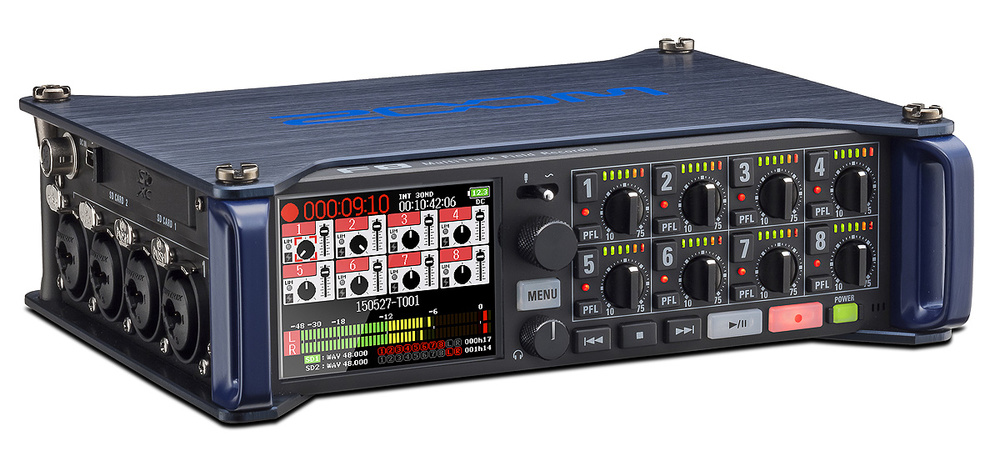
As a music student at Newcastle University, you have access to a wide range high-quality microphones and recording equipment. While these are mostly intended for use in the recording studio or live performance, we also have a range of battery-powered recording devices which enable you to record outdoors. These range from handheld devices with built-in microphones like the Zoom H1n, right up to the Zoom F8, which has 8 XLR inputs for recording with whichever mics you choose.
These devices are largely intended for applications such as field recording, film audio, documenting interviews etc., but in this post we will look at a setup that can be used to make a high quality recording of instruments and vocals, without needing to be near any plug sockets!
The video above is a live recording of an EP by three of our alumni: Ben Fitzgerald (AKA Memphis Gerald) accompanied by Anna Hughes and Sam Baxter. We were able to capture a nice high-quality recording using a setup consisting entirely of equipment that is available to you during your time in the department. The mixing and processing of the audio was fairly minimal thanks to the choice and placement of microphones.
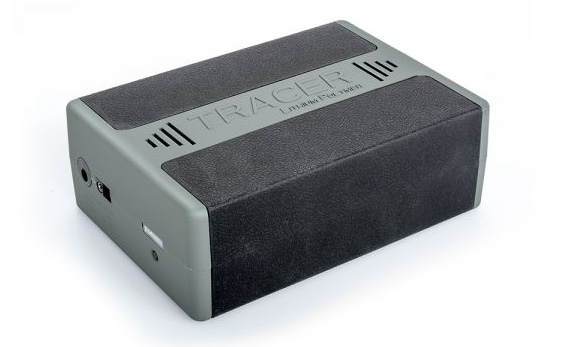
I used a Zoom F8 powered by a Tracer battery pack. The F8 gave me 8 inputs to play with and the Tracer was still close to fully charged after a couple of hours of recording. If you book out 2 Tracers you should have more than enough power for most recording sessions!
I used a pair of Earthworks QTC40s as a stereo pair in the first two channels of the F8. These are extremely good quality omnidirectional reference microphones with a very flat, ‘uncoloured’ frequency response (meaning they should sound pretty much the same as what you are hearing with your ears). These acted as an ambient stereo pair, fulfilling a similar purpose to a pair of drum overheads or room mics. I placed these quite far from the musicians (about 15 feet away, pointing towards them) in order to capture a decent amount of ambient sound as well as a nice stereo image of the group as a whole (skip to 9.38 for nice bit of birdsong!). I could/should have used a proper windshield like the Rode Blimp, but to keep everything compact and easy to transport I just used small foam windshields, held in place with elastic bands.

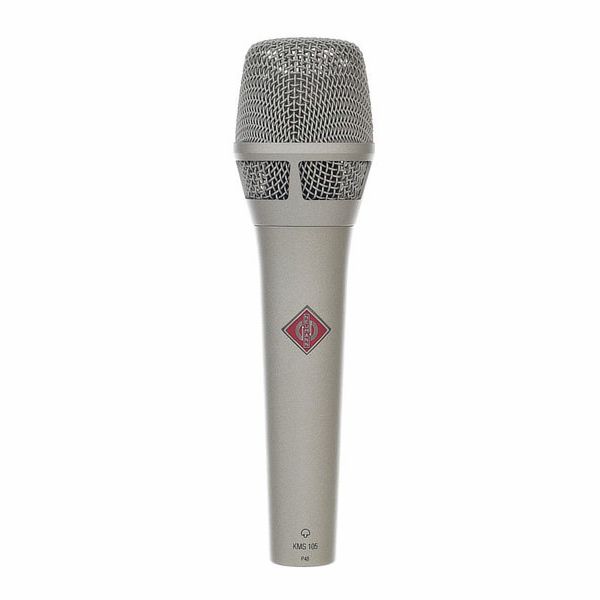
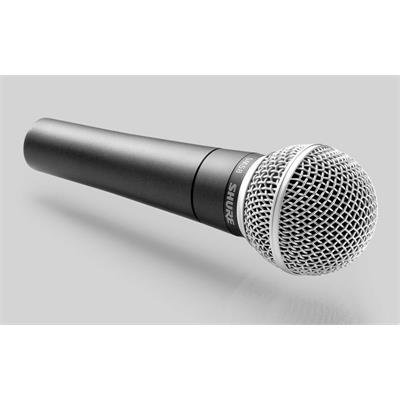
For the vocals, I used 3 Neumann KMS105s. These are hand-held condenser mics, similar in size and shape to a Shure SM58 but with a higher quality sound overall, particularly in the high-end detail. An SM58 might be better outdoors, as they have a more focused polar pattern and so pick up less background noise, but I found KMS105 worked well on this occasion since it wasn’t too windy. I also added basic foam windshields to help minimise unwanted noise (these are not bookable but just ask at the loans hatch if you need any).
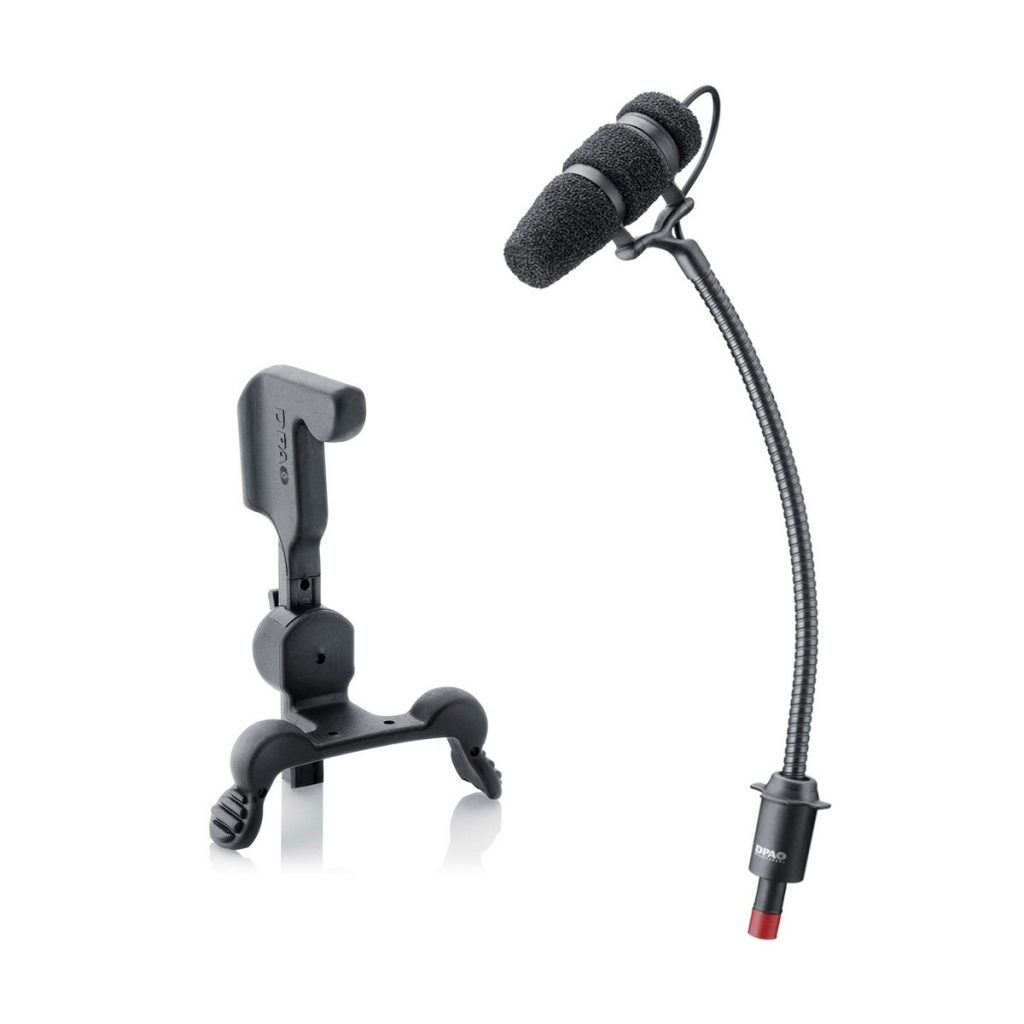
For guitar and violin, I used DPA 4099s. These are also condenser microphones, but in a very small form which allows them to be placed very close to the source without being intrusive to the player. This proximity helps with the relative levels of background noise that can be an issue with condenser microphones. These microphones come in a set of four, along with various different clips that allow them to be easily attached to most instruments.
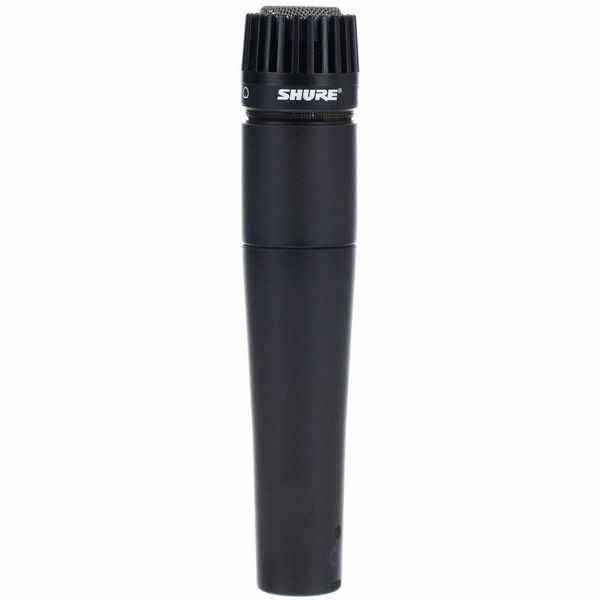
For the harmonium, I used the old faithful Shure SM57, again with a basic foam windshield just to help with any wind noise. Ideally, I would have used a stereo pair of microphones to capture the richness of the instrument’s sound, but this was a reasonable compromise I only had 8 channels to work with.
If you have any questions about how to use the equipment in this post, or need help or advice with microphone choices for different applications, please get in touch with me at rob.blazey@ncl.ac.uk or Fred at fred.hollingsworth@ncl.ac.uk