
Text Headings
Use a structured hierarchy of headings to enhance navigation and accessibility, for example:
- Title
- Heading 1
- Heading 2
- Heading 3
Headers are vital for accessibility because they:
- Organise content: They structure information, making it easier to follow.
- Aid navigation: Screen readers use headers to help users move through a document.
- Enhance visibility: Larger, distinct headers guide users with cognitive disabilities.
- Ensure consistency: Properly ranked headers provide a clear reading experience.
How To Guides
How to Add Text Headers in Microsoft Word
- Select the text you want to use as a heading.
- Go to the Home tab on the ribbon.
- In the Styles group, you’ll see various heading styles like Heading 1, Heading 2, etc (see the graphic below illustrating this).
- Hover over each style to see a preview of how your text will look.
- Click on the desired heading style to apply it to your selected text.
- If you want to customize the heading style:
- Select the heading text you want to modify.
- Change the font, size, color, etc. as desired.
- Right-click the heading style in the Styles group and select Update Heading to Match Selection.

How to Add the Text Headers in Microsoft Outlook
- Open Microsoft Outlook and start composing a new email or open an existing draft.
- Highlight the text you want to format as a header.
- Go to the “Format Text” tab on the Ribbon (shown in 1, in the image below).
- Select HTML from the Format options (shown in 2, in the image below).
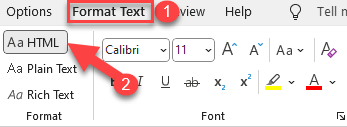
Click on the desired heading style (e.g., Heading 1 for H1, Heading 2 for H2) to apply it to your selected text.

How to Add the Text Headers in Canvas Rich Content Editor
- Highlight the text you want to format as a header.
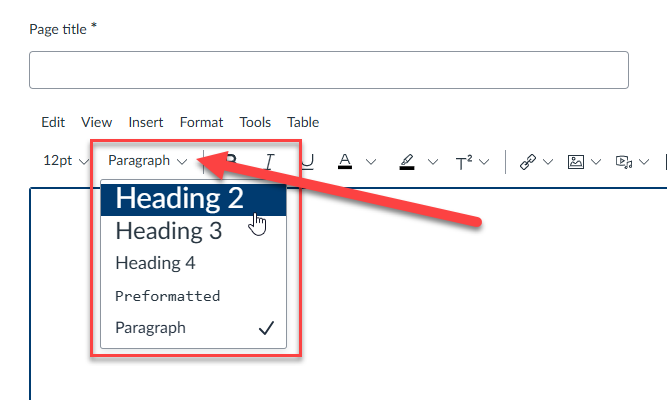
- Click the Paragraph drop-down menu in the toolbar.
- Select the appropriate heading level (e.g., Heading 2, Heading 3) from the options.
Further Resources
Canvas Guide – What is the Rich Content Editor?
Microsoft Guide – Add a heading in a Word document (Microsoft Windows)
Microsoft Guide – Add a heading in a Word document (Apple Mac)