Font and Text
For Microsoft Word documents, ensure a minimum font size of 12pt and 1.5 line spacing. Use bullet points for non-sequential lists and numbered lists for sequential items.
For Microsoft PowerPoint presentations, ensure a minimum of 18pt or larger.
It is recommended that you opt for Sans Serif fonts like Arial or Calibri, which are more accessible due to their clear and regular shapes. Popular fonts such as Tahoma or Arial are preferable over decorative ones. Minimize the use of bold and italic text where possible. You can use bold and italics, but it’s not recommended to over use these.
How To Guides
How to Adjust the Font Settings in Microsoft Word
- Select the text you want to change.
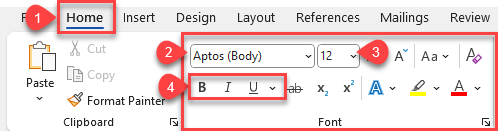
- Go to the Home tab on the Ribbon (shown in 1 in the image below).
- In the Font group, you can:
- Change the font by selecting a new font from the drop-down menu (shown in 2 in the image below).
- Adjust the font size using the font size drop-down menu or the increase/decrease font size buttons(shown in 3 in the image below).
- Apply bold, italic, or underline by clicking the respective buttons(shown in 4 in the image below).
How to Adjust the Font Settings in Microsoft PowerPoint
- Select the text you want to change.
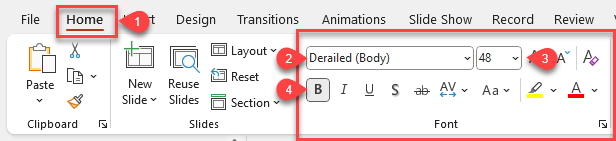
- Go to the Home tab on the Ribbon (shown in 1 in the image below).
- In the Font group, you can:
- Change the font by selecting a new font from the drop-down menu (shown in 2 in the image below).
- Adjust the font size using the font size drop-down menu or the increase/decrease font size buttons (shown in 3 in the image below).
- Apply bold, italic, or underline by clicking the respective buttons (shown in 4 in the image below).
How to Adjust the Font Settings in Canvas Rich Content Editor
- Select the text you want to resize.
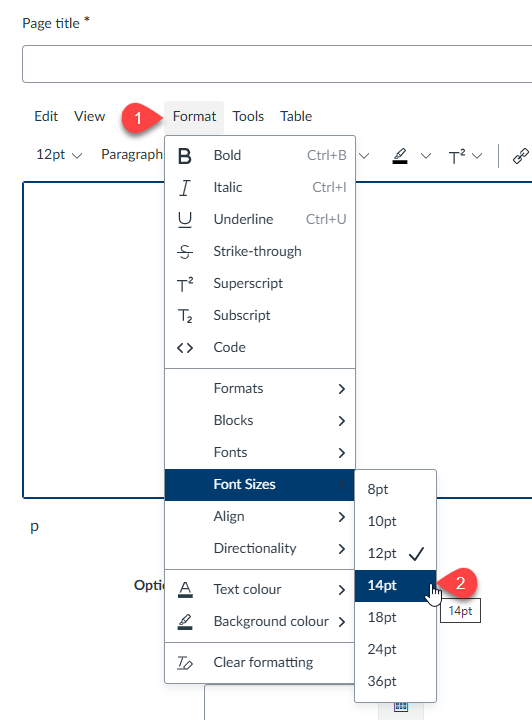
- Click the Format menu in the toolbar (shown in 1 in the image below).
- Choose Font Size from the drop-down menu (shown in 2 in the image below).
- Select your desired font size from the options provided.