Colour and Contrast
Avoid using colour alone to convey meaning, as it may not be effective for users with visual impairments, including colour blindness. Ensure sufficient contrast between background and foreground content for legibility. You can check colour contrast using tools like WebAIM’s Color Contrast Checker.
How To Guides
How to Adjust the Font Colour and Background Colour Settings in Microsoft Word
Adjust Font Colour
- Select the text you want to change.
- Go to the Home tab on the Ribbon (shown in 1 in the image below).
- In the Font group, click the Font Color button (shown in 2 in the image below).
- Choose your desired colour from the drop-down menu

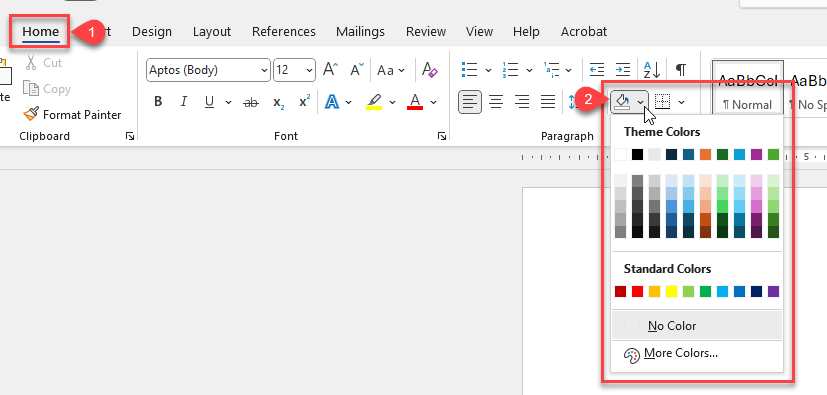
Adjust Background Colour
- Select the text you want to highlight.
- Go to the Home tab on the Ribbon (shown in 1 in the image below).
- In the Paragraph group, click the Shading button (shown in 2 in the image below).
- Choose your desired background colour from the drop-down menu
How to Adjust the Font Colour and Background Colour Settings in Microsoft PowerPoint
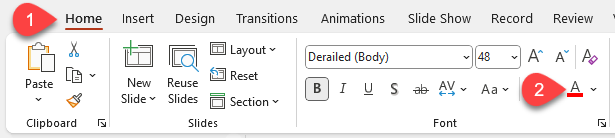
Adjust Font Colour
- Select the text you want to change.
- Go to the Home tab on the Ribbon (shown in 1 in the image below).
- In the Font group, click the Font Color button (shown in 2 in the image below).
- Choose your desired colour from the drop-down menu
Adjust Background Colour
- Select the text you want to highlight.
- Go to the Home tab on the Ribbon (shown in 1 in the image below).
- In the Drawing group, click the Shape Fill button (shown in 2 in the image below).
- Choose your desired background colour from the drop-down menu.

How to Adjust the Font Colour and Background Colour Settings in Canvas Rich Content Editor
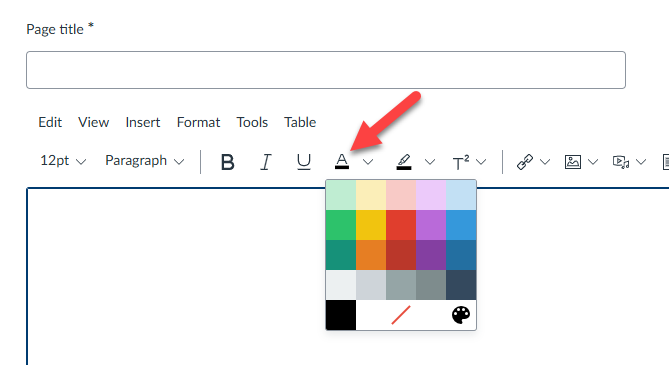
Adjust Font Colour
- Select the text you want to change.
- Click the Text Color button in the toolbar.
- Choose your desired colour from the drop-down menu.
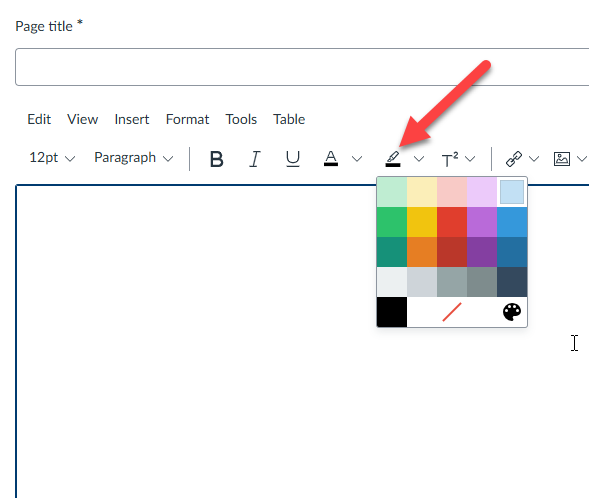
Adjust Background Colour
- Select the text you want to highlight.
- Click the Background Color button in the toolbar.
- Choose your desired background colour from the drop-down menu.