Alternative Text (Alt Text)
Always provide meaningful alternative (alt) text for images to describe their content. Alt text should be concise (1-2 sentences) and limited to 125 characters, focusing on key elements. If an image is purely decorative, mark it as such (e.g., in Microsoft Word, you can select the inbuilt “Mark as decorative” option).
How To Guides
How to Add Alt Text in Microsoft Word
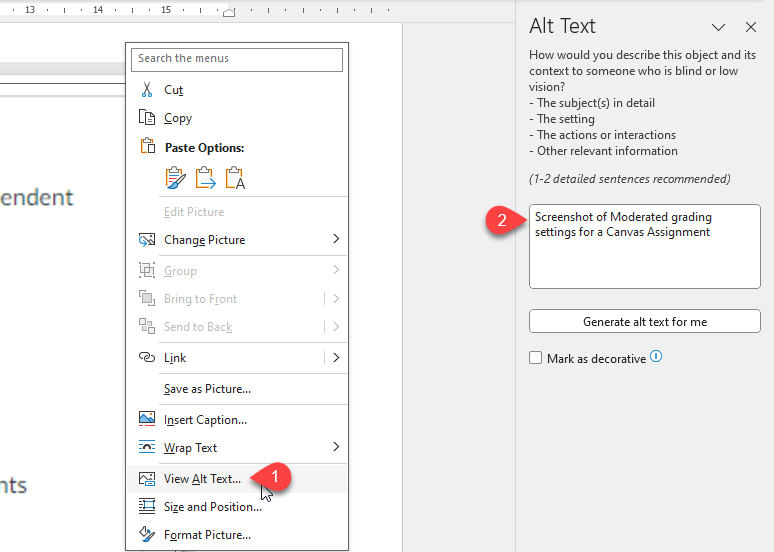
- Right-click the object (image, shape, chart, etc.) you want to add alt text to.
- Select View Alt Text from the context menu (shown in 1 in the image below).
- Type your alt text in the Alt Text pane that appears on the right (shown in 2 in the image below).
How to Add Alt Text in Microsoft PowerPoint
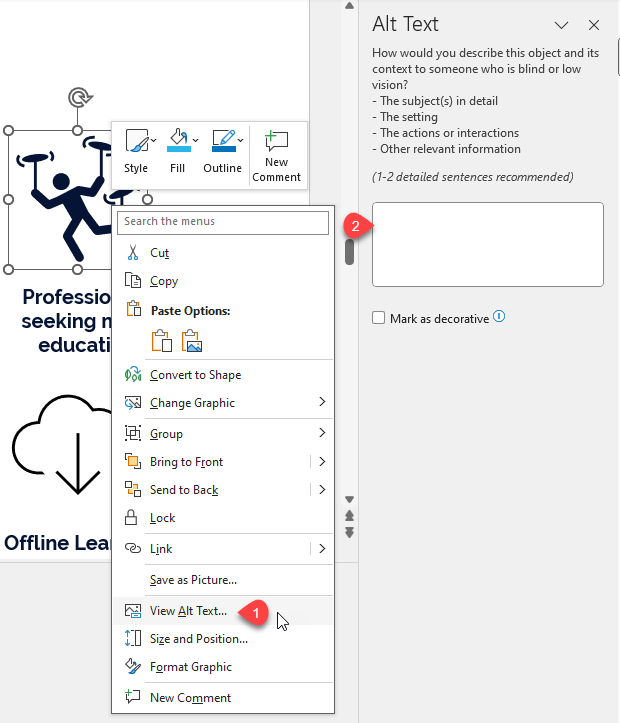
- Right-click the object (image, shape, chart, etc.) you want to add alt text to.
- Select View Alt Text from the context menu (shown in 1 in the image below).
- Type your alt text in the Alt Text pane that appears on the right (shown in 2 in the image below).
How to Add Alt Text in How to Adjust Alt Text in Canvas Rich Content Editor
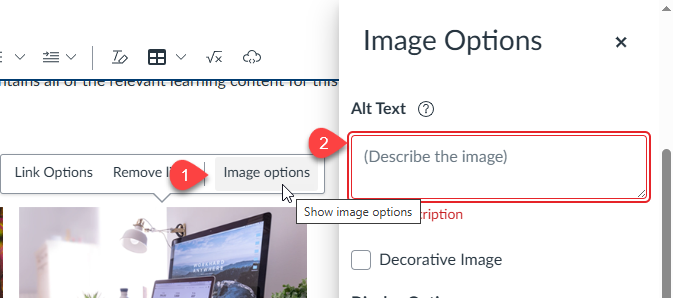
- Click the Image Options button that appears (shown in 1 in the image below).
- Enter your alt text in the Alt Text field (shown in 2 in the image below).
- Click Done to save your changes