Hyperlinks
Create descriptive hyperlinks that indicate where the link will take the user. For example, use “Semester 1 – Assignment Brief” instead of “click here.” Descriptive hyperlinks make it clear what the link is for which is essential for those using a screen reader.
You should avoid underlining text for emphasis and use bold instead. For printed documents, use the full URL or a link shortener like bit.ly if the URL is long.
How To Guides
How to Edit a Hyperlink in Microsoft Word
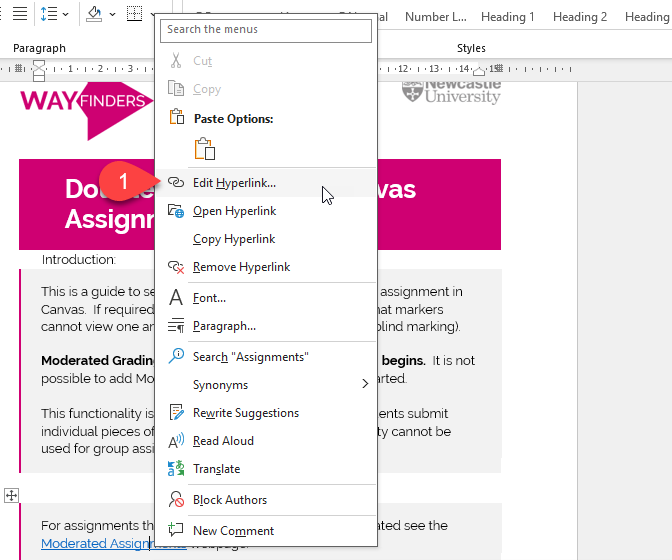
- Right-click the hyperlink you want to edit.
- Select Edit Hyperlink from the context menu (shown in 1 in the image below).
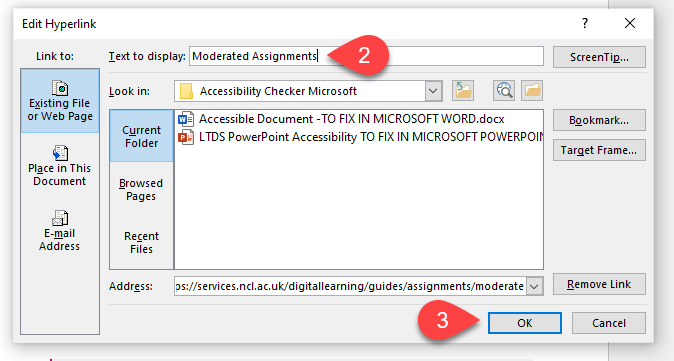
- In the Edit Hyperlink dialog box, find the Text to display field (shown in 2 in the image below).
- Enter a descriptive text that clearly indicates the link’s destination or purpose.
- Click OK to save your changes (shown in 3 in the image below).
How to Edit a Hyperlink in Microsoft PowerPoint
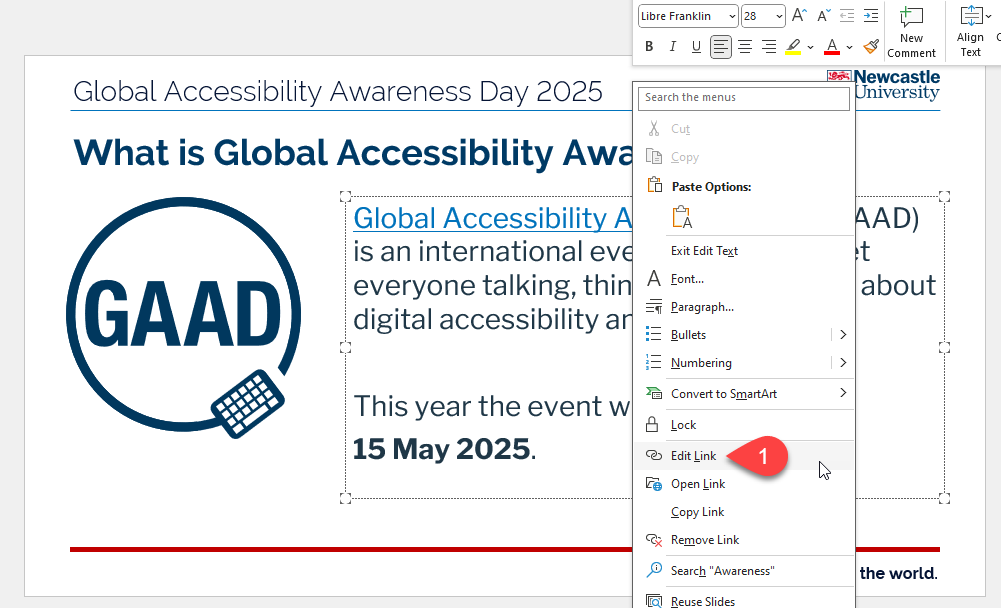
- Right-click the hyperlink you want to edit.
- Select Edit Hyperlink from the context menu (shown in 1 in the image below).
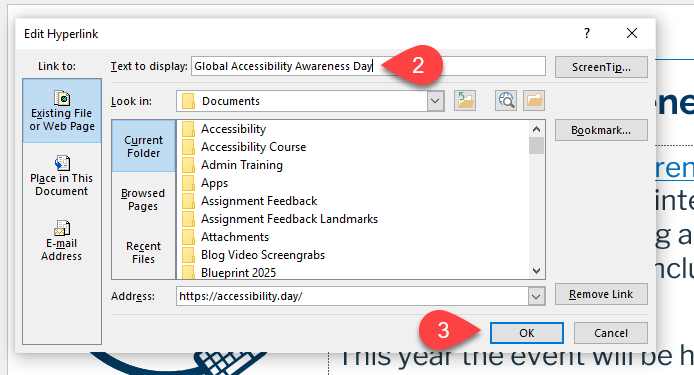
- In the Edit Hyperlink dialog box, find the Text to display field (shown in 2 in the image below).
- Enter a descriptive text that clearly indicates the link’s destination or purpose.
- Click OK to save your changes (shown in 3 in the image below).