Use an Accessibility Checker
Utilise built-in accessibility checkers in Microsoft Office, Adobe Acrobat, and Canvas to identify and resolve accessibility issues. These tools provide step-by-step guidance to ensure your document meets accessibility standards. Using such tools will familiarise yourself with the sort of changes required to your documents which you can implement going forward.
How To Guides
How to Access the Accessibility Checker in Microsoft Word
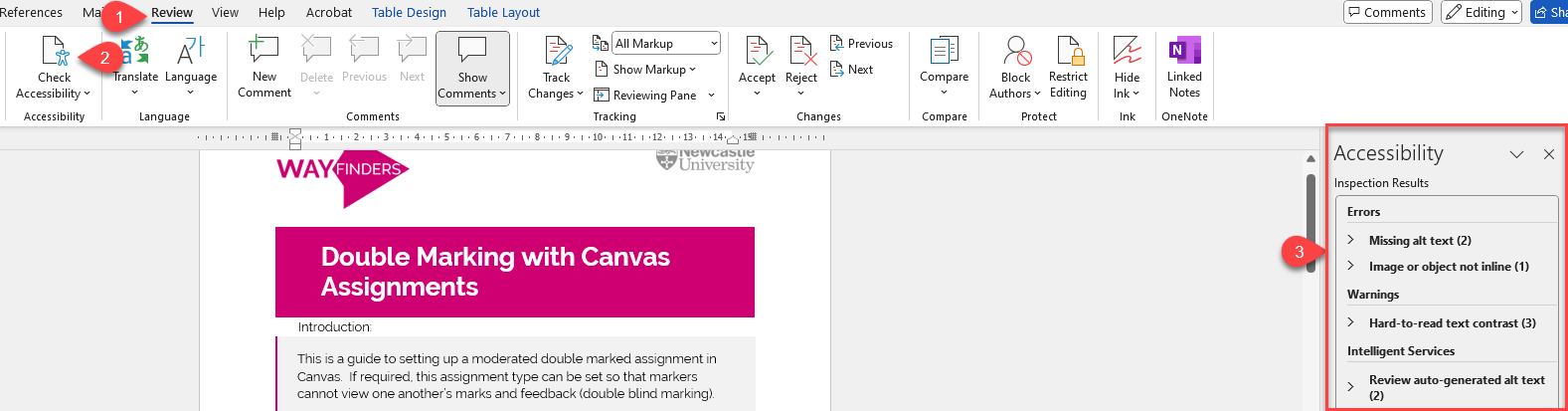
- Go to the Review tab on the Ribbon (shown in 1 in the image below).
- Click Check Accessibility in the Accessibility group (shown in 2 in the image below).
- The Accessibility pane will open on the right, showing any issues and suggestions for improvement (shown in 3 in the image below).
How to Access the Accessibility Checker in Microsoft PowerPoint
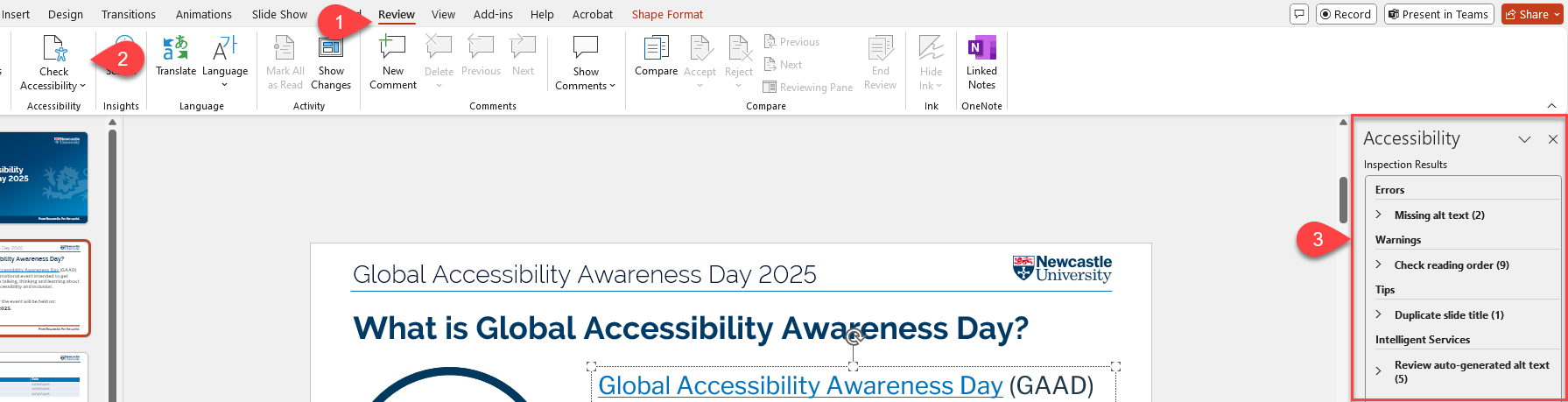
- Go to the Review tab on the Ribbon (shown in 1 in the image below).
- Click Check Accessibility in the Accessibility group (shown in 2 in the image below).
- The Accessibility pane will open on the right, showing any issues and suggestions for improvement (shown in 3 in the image below).
How to Access the Accessibility Checker in the Canvas Rich Content Editor
- Open the Rich Content Editor in Canvas.
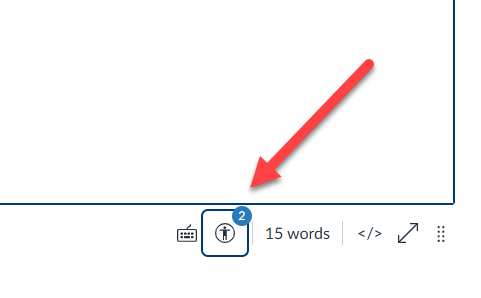
- Look for the Accessibility Checker icon at the bottom right of the editor (it looks like a stick figure).
- Click the Accessibility Checker icon to run the checker