
Multiple Attempts
Module teams, for the new academic year, can allow their students to take practice Inspera exams repeatedly using Multiple Attempts with manually marked questions. Use with automarked content has been available during the latter half of 24-25.
Important note: Multiple Attempts is a feature which supports formative digital exams. There is no option to lock down an exam using Multiple Attempts.
Setting up Multiple Attempts with manually marked questions
Important note: Multiple Attempts as a feature cannot be used with templates. Please ensure when setting up, your template is left blank i.e.

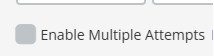
- Within the Deliver Tab, you will need to edit the exam settings and click ‘Enable Multiple Attempts’. (Once activated, the greyed box will turn green and include a white tick symbol).
- You will be prompted to ‘choose method for attempt creation’ for manually marked tests, select ‘I want to specify attempt time windows’. This means the individual setting up the test would have flexibility to schedule attempts. This is recommended as the workflow for manually marked questions as there must be marker input prior to feedback release.

- Once selected, you can ‘add attempts’:
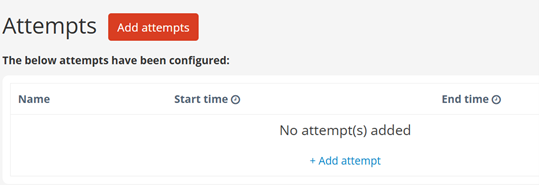
Each attempt will enable a different start/end time which you input:
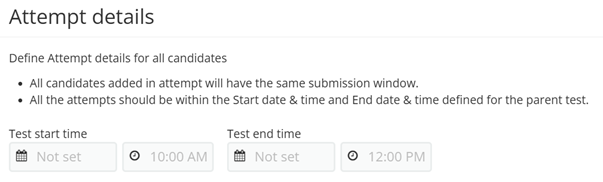
Click ‘create attempt’ to save and ‘add’ to create another.
- Important note: All attempts must be within the Start date & time and End date & time defined for the parent test.
- You will then be prompted to ‘choose how attempts are available’ for manually marked tests, select ‘Grader control’. This means Graders can release students’ next attempts once marked.

5, Under ‘Setting final result’, choose the most appropriate option for your exam which will be applicable as part of your student feedback. Options are:
- Highest: The highest score achieved among all attempts will be the final result.
- Average: The average score obtained across all attempts will be calculated and used as the final result.
- Latest: The most recent score from the student’s attempts will be the final result.
The Digital Exams team will be releasing this new feature prior to Academic Year 25-26 teaching starts. We’ll also be updating our Multiple Attempts dedicated website.
Any questions please contact digital.exams@ncl.ac.uk