GAAD Week Blog Day 2 – Document Design Fundamentals

Thursday 15th May 2025

Document Design Fundamentals

Welcome to Day 2 of our Accessibility Awareness blog series. In this post, you can learn about aspects of document design to help you create documents that are accessible from the go. By ensuring that your documents are designed in an accessible format when you create them, anyone using them have the opportunity to engage with the content from the get go. Making a document accessible does not need to happen after the fact. You can do it as you create, and make a difference from now.

Our Learning and Teaching Development Service (LTDS) have created a helpful crib sheet available that covers the do’s and don’ts to enable you to design documents for a diverse range of learners. Take a look at the Designing for Diverse Learners resource – and why not save a copy to your ‘favourites’ or put a copy in your office space?

We’ll now dive into some of the guidance from the Designing for Diverse Learners resource in more detail to understand ways you can design documents to ensure that they are accessible:

On each page, you’ll find essential digital document design guidelines along with step-by-step instructions on how to implement these changes in your own digital documents.

Global Accessibility Awareness Day (GAAD) – Thursday 15th May

Global Accessibility Awareness Day (GAAD)

Global Accessibility Awareness Day (GAAD) takes place on the 3rd Thursday of May each year. Individuals are encouraged to take an hour to experience first-hand the impact of digital accessibility (or lack thereof). This year GAAD takes place on Thursday 15th May

Participate Directly 

There are many ways to get involved. The GAAD webpage recommends ways that individuals can participate directly – for example, you can: 

  • Think about how you can make your events and meetings more accessible – whether it’s the moment you start planning, writing communications, and looking at how these are hosted (online, in-person or hybrid). 
  • Make accessible digital experiences – e.g. ensure images have alt text and considering contrast when using colour.  

There is also a list of actionable ideas for GAAD available. 

Spread Awareness 

The GAAD webpage also shares how we can spread awareness. One of the suggestions is sharing blog posts. To help our colleagues and students at Newcastle to engage with accessibility content, colleagues in the Learning and Teaching Development Service (LTDS) are going to be sharing blog posts each day during the week that GAAD falls in (week of 12th May). We will be writing and sharing content for you to engage with, including additional resources available to you, around digital accessibility

Resources 

There are plenty of resources you can use to get started and learn about how you can make further considerations around accessibility and encourage others to do the same. You can check out the following resources available at Newcastle: 

Check back on the blog on Monday 12th May for more information.

Inspera Digital Exams External Case Study and Introduction of Newcastle Inspera Users Teams Community

In this post we will share the external case study that colleagues from the Digital Exams Team wrote for Inspera, and share details of the new Microsoft Teams Community for Inspera users at Newcastle. 

Inspera Case Study 

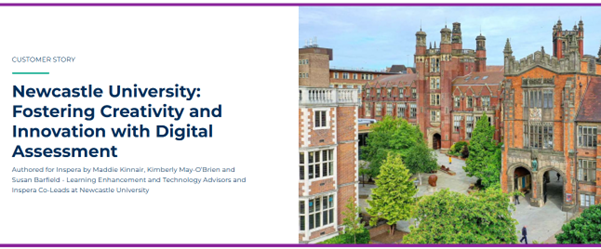
The Inspera Co-Leads worked with Inspera to write and design a case study about Newcastle University’s work with Inspera Digital Exams. You can read the case study entitled ‘Newcastle University: Fostering Creativity and Innovation with Digital Assessment’ on the Inspera website. Colleagues in our Digital Exams Team here at Newcastle are delighted to have worked with Inspera to write this. We have a fantastic relationship with our Account Manager at Inspera, Fiona Orel, who supports us with our Inspera needs. 

Image of the Inspera case study on Inspera’s website

Newcastle University’s Inspera Digital Exams Team have created an External User Groups with other Inspera users across Higher Education in the UK. The Group currently has members across 14 institutions and meets online every few months. 

Digital Exams using Inspera Assessment @ Newcastle – Teams Community 

We are pleased to share that we have created an internal user space in the form of a Microsoft Teams Community for Inspera users at Newcastle. 

This Teams community is a place for colleagues to share ideas about how Inspera can be used, and maybe even find inspiration.

It also will allow you to keep up to date with the latest developments in the software and flag any general problems, that peers might be able to assist with. Though if you do have any immediate/specific queries about an active exam we would recommend contacting digital.exams@newcastle.ac.uk.

You can request to join the community where you will have access to various materials to support you as an Inspera user. 

The Inspera Assessment Teams Community. 

Save the Date: Digital Education Technologies Showcase Day 

The Learning Enhancement and Technology Team in the Learning and Teaching Development Service (LTDS) are hosting a Digital Education Technologies Showcase Day on Monday 1st September 2025 between 12 and 3pm in the Boilerhouse.

This is a fantastic opportunity to meet the teams and people behind our Digital Education Technologies here at Newcastle. This will include: Canvas, ReCap, Vevox, Inspera (Digital Exams), Assignments (Canvas, Turnitin and New Canvas Quiz), Buddycheck, NULA, NU Reflect, AI, H5P, as well as the Numbas Team, Digital Adoption (M365 and Adobe) and Library Reading Lists Team.

This event is aimed at both academic and professional services colleagues already using these systems who want to take that step further, as well as new colleagues who want to learn about the digital technologies available.

The event will take place as a drop in, so you don’t need to sign up. If you would like to make any suggestions around what you would like to see at the event, please complete our Microsoft Form.

More information will be shared about this event over the summer.

Psychometric Dashboard Access for Inspera Digital Exams Team

What is the Psychometric Dashboard?

Inspera have been working on the release of a psychometric dashboard for data on Inspera exams. The dashboard is built using AWS QuickSight and provides insights into assessments conducted on the Inspera platform. The QuickSight Dashboard is part of Inspera’s phase 1 in their strategy for introducing Test-Level Analysis. You can find out more about the Psychometric Dashboard on Inspera’s website. 

What can Inspera users access at the moment? 

Phase 1 allows the Digital Exams Team to have access to an administrative dashboard, but by Phase 3 Inspera hopes to have this integrated into the Inspera platform, where colleagues currently create questions and grade exams. There is not currently an estimated date for this to be available, but we will be keeping up to date with all developments. 

If colleagues are interested in accessing data, the Digital Exams Team can provide a PDF download from Inspera exam’s scheduled from 1st December 2024 onwards that have been graded and marks confirmed. Note: there are some limitations in how much can currently be shared in the PDF but a fuller view is expected later in 2025.  

What data is available? 

Information around the sort of data available is noted within this section and has been extracted from the Psychometric Dashboard page on Inspera’s website. Within this blog post, you can find out about all the different type of data available. Some screenshots are included but check out the Psychometric Dashboard page on Inspera’s website for further graphics. 

Continue reading “Psychometric Dashboard Access for Inspera Digital Exams Team”

Authentic Assessment Case Study: Using Inspera for a Language Module Assessment Strategy

Loiana Leal, Lecturer in Modern Languages, in the School of Modern Languages has recently developed a case study around their use of Inspera for digital assessment via digital examinations in a language module for formative and summative assessments. 

Head over to the Case Study database to read all about Loiana’s work of using Inspera in their POR2010 – Level B Portuguese HE Intermediate module. 

Question Set Functionality in Inspera Digital Exams – Part 2

Introduction 

As we approach the Semester 2 (24/25) question set deadline on 7th March 2025, the Digital Exams Team are sharing another post about question set functionality in Inspera.  

You may also wish to check out our first blog post from Semester 1: Question Set Functionality in Inspera Digital Exams – Part 1. This first post covers a lot of the functionality around making your questions and enabling functions such as randomisation, random pulling and candidate selected questions. In this new post, we will cover some of the other functionalities available. These include:  

  • How to share question sets with colleagues,  
  • Accessing and printing PDF copies of the question set, 
  • Duplicating your question set. 

Sharing question sets with colleagues 

There are a couple of ways you can share your question set content with other colleagues or your external examiners. 

For other colleagues on your module team, you may find it useful to add them as a ‘contributor’ to your question set. This will allow them to view questions and preview them in Inspera. This is also particularly useful if you are creating the content together with another colleague. 

How to add contributors to your question set:
  1. Open Inspera (this can be done by clicking on your previous exam within Canvas assignment area) 
  1. Click on the Author tab 
  1. In the search bar type the question set name/module name 
  1. Find the question set you wish to print and click on the name to open this 
  1. Select the person icon icon (on the left hand side of the icons in the top right corner) 
  1. Search the person’s name and select them as a user from the drop down menu that appears 
  1. If you would like them to receive an email about this, please keep the ‘notify via e-mail’ box ticket 
  1. Click ‘Share’. 

Please note: if you cannot find a user when searching for their name, it is likely that they have not accessed Inspera via Canvas yet, and therefore do not have an Inspera account. They would need to access Inspera via Canvas to activate this, and for their name to show in the list. There is guidance available on the self enrol Inspera guidance course on Canvas. 

For external examiners, it is possible for you to add them as a contributor as well and ask them to access Inspera via Canvas. You may also wish to consider the option of downloading a PDF copy of the question set content from Inspera in order to share the question set content with them. 

Accessing and printing question sets as PDFs 

Within your question set in Inspera, it is possible to access and print your question set as a PDF. This could be to share a copy with External Examiners, or to create a paper copy if you are hosting a mock exam where you want a back up paper copy available just incase. 

How to print your question set:
  1. Open Inspera (this can be done by clicking on your previous exam within Canvas assignment area) 
  1. Click on the Author tab 
  1. In the search bar type the question set name/module name 
  1. Find the question set you wish to print and click on the name to open this 
  1. Select the print icon in the top right corner 
  1. On the right hand side click ‘download question set’ 
  1. The download may take a minute or two to prepare, once ready select download now 
  1. The download will be in your downloads folder 

Should you wish to change what is available on your PDF, you can use edit Settings. Once within the Print screen, drop down the settings bar. 

Settings allow you to: 

  • remove maximum marks 
  • remove ‘documents’ or instruction pages 

remove certain questions from the PDF (i.e. hide auto marked questions) 

How to edit the PDF of your question set 

You can edit your PDF using ABBY Finereader. You can familiarise yourself with the FineReader video guides, and detailed written user guides which have been shared by NUIT. 

How to duplicate your question set 

Once you have created a question set, you can re-use it. The Digital Exams Team recommend duplicating your Question Set and then editing, this means there’s a clear audit trail of the Question Set used in prior years. 

How to duplicate your question set:
  1. Open Inspera (this can be done by clicking on your previous exam within Canvas assignment area) 
  1. Click on the Author tab 
  1. In the search bar, type the Question Set name/module name (in this example a ‘demo’ Question Set is being searched for) 
  1. Find the question set you wish to duplicate and click into the tick box (on the left hand side) 
  1. An options bar appears along the bottom, click ‘duplicate’ 
  1. A message will appear about the duplication, click ‘continue’ 
  1. Click into this new ‘copy of’ question set 
  1. You can re-label the name of the question in the top left corner using the pencil icon. 

You can now make any changes to the Question set for an upcoming exam. 

Question set deadlines

Once the Module Leader has completed their Digital Exam Form to confirm the details about their Inspera Digital Exam, the next step is to start creating their question sets.  

Question sets are created by the module team and shared with the Digital Exams Team via email to Digital.Exams@newcastle.ac.uk.   

The question set deadlines for 2024/25 are detailed in the following table:  

Semester  Question Set Deadline  
Semester 1  15th November  
Semester 2  7th March  
Semester 1 August Resit (Semester 3)  17th April  
Semester 2 August Resit (Semester 3)  8th July  
A table with the question set deadlines for each semester. 

Training webinars  

The Digital Exams Team deliver a training webinar Creating and managing exam questions in Inspera which colleagues can sign up to via the Elements training system. The training session covers an on-screen demo of setting up and adding questions to your question set. 

If you have any queries about creating your question set, you can head over to our dedicated Creating Question and Content Creation Features webpages. You can also contact the Digital Exams Team via Digital.Exams@newcastle.ac.uk.

Digital Accessibility Demo Day – 5th March 2025

What does “accessible” mean?

What difficulties do students have accessing the material we provide?

How do students surmount those difficulties?

How do you improve the accessibility of your material?

We’re putting on an event to help answer those questions.

It’s important that all of our digital services are accessible to their users, whether they’re students or colleagues. The Public Sector Bodies Accessibility Regulations set out some legal requirements that we must meet.

But digital accessibility is a complex topic and many colleagues have found it hard to understand what they need to do to ensure their teaching material is accessible.

At our digital accessibility demo day, you can have a go at accessing university teaching material at a selection of stations simulating different access requirements and supports, including:

  • Screen reader
  • Speech to text
  • Keyboard-only interaction
  • Low vision
  • Low mobility
  • Magnification
  • Canvas Ally

We’ll have plenty of pointers to guidance and training opportunities to help you improve the accessibility of your material.

People from LTDSNUIT and the Disability Interest Group will be there to offer support and answer any questions you may have about digital accessibility.

Time and location

The event will take place 13:00 – 15:00 on Wednesday 5th March 2025, in the Boiler House.

The Boiler House is in the middle of campus, between the Armstrong Building and the Student Union. Access is step-free.

There’s no presentation as part of the session – just drop in and talk to one of the facilitators.