
View Hidden Grades
In the Gradebook Settings of the Canvas Gradebook area, a View Hidden Grades indicator option is available. This will allow Teachers and Admins to see an icon marking any grades that have not yet been posted to students.
This will help you quickly identify which grades are hidden from students, reducing confusion and ensuring more accurate communication about grade visibility.
This feature is available for use from 25th September 2025.
How do I use this feature?
To use this feature, you would navigate to the Gradebook area of your course in Canvas.
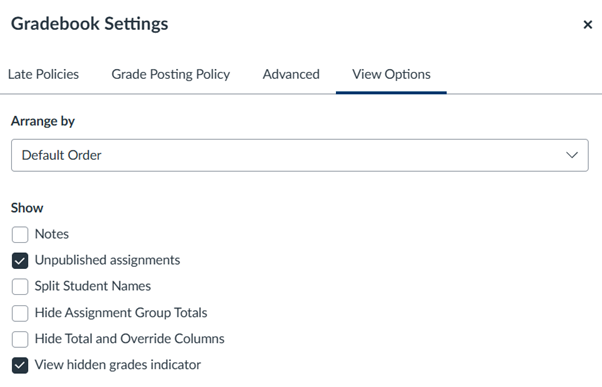
You would then locate the ‘Gradebook Settings’ by selecting the settings option (cog icon) in the top right corner of the screen. Once here, you will navigate to the ‘View Options’ tab where you will be able to select the ‘View hidden grades indicator’. This enables the hidden grades indicator within the Gradebook of the particular course you are in.
What does the feature look like in action?
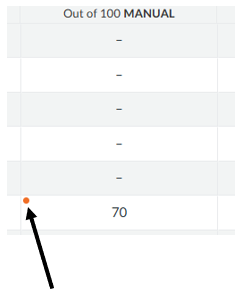
In the Gradebook, an orange indicator displays which grades have not been posted next to each grade where this is applicable.
Find out more
You can find out more about the functionality of the Canvas Gradebook on the Canvas Course Navigation website, under the heading ‘Grades’.