Semester 1 Marking Hints & Tips on Inspera

We’re currently within the Semester 1 Exam period for 2025-26. For anyone marking using Inspera we’ve collated some handy tips which you may find helpful.

Hints and Tips 

  1. To access your exam(s) to mark, click the link within the assignment point in Canvas. You must be a teacher or teaching assistant on the Canvas module.
  2. If you need to search for a specific student, within the Inspera ‘Grading Overview’ section, use the search bar – you can search for a student ID. 
  3. To download raw marks from Inspera, as an Excel file. Click the ‘Options’ button at the top right of the Grade screen and navigate to ‘Downloads’. Select ‘Marks and Explanations as Excel file’. 
  4. Inspera Exams are always set up initially within the Canvas assignment as out of 100 points. You can edit the points on the Canvas assignment after the exam if needing to display raw marks (edit the Canvas assignment)
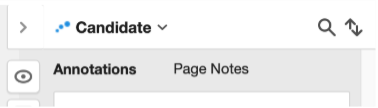
  5. For manually marked questions, Markers can add Annotations to student submissions. 
    • Within the student’s submitted text, click the left mouse button to select the text you want to annotate. Click Annotate. 
  6. Once marking is complete within Inspera, don’t forget to Confirm Marks, this will complete the grading step and push the completed marks from inspera to Canvas Gradebook.  
  7. It is now possible to port Inspera digital exam grades from Canvas Gradebook into NESS. For instructions on how to do this please see NESS Guidance.

Video demonstrations: There are a range of marking videos available which provide on-screen demonstrations of grading tasks. See Video guides for Markers. 

Feedback release: As a reminder, we’ve relinked a blog released previously which outlines feedback release options if you’re wishing students to see Essay comments only: Inspera: Enable students to view Essay feedback comments without auto marked questions becoming visible – Learning and Teaching @ Newcastle Blog). If you would like to release any form of additional feedback to your students on Inspera, we have further information available on our dedicated feedback release webpage.  

Further questions? If you have any questions about marking an Inspera exam, please contact the Digital Exams Team via Digital.Exams@newcastle.ac.uk    

Got a quick digital exams question? Why not join our Teams Community about all things Inspera! 

Preparation for January Exam period (Inspera Digital Exams) 

The January Exam period (for 2026) is taking place from Tuesday 6 January 2026 to Tuesday 20 January 2026 (including Saturday 10 January and Saturday 17 January). Inspera Digital Exams will be running throughout this. This blog aims to share communications Module Teams are asked to share with their students ahead of their Inspera exams, along with information around support with marking once your Inspera digital exam is over. 

Communications for Students  

Module Teams are encouraged to share communications with their students if sitting an Inspera digital exam. Note: Students must know their own University log in details (username and password). It may not be possible to reset forgotten log ins on the day of the exam. Please remind students of this. Below is some draft text that you can use in an email and/or Canvas announcement.  

[Title] Preparing for your [MODCODE] digital exam: make sure you know your log in details  

To sit your upcoming Inspera digital exam you will need to know your University login details (username and password).   

Please check that you know your login details before the day of the exam and that you can successfully sign into a campus Cluster PC. If you do not know your login details on the day of the exam it may not be possible to reset them before the exam starts.  

Your username begins with a letter (usually c) followed by the middle 7 numbers from your student number, which you can find on your smartcard. E.g. if your smartcard shows your student number is 212345678, your username is c1234567.  

If you cannot remember your password, you can reset it online or you can contact the IT Service Desk for help. If you have your password but would like to change it to something that is easier to remember you can change your password online.  

To help you prepare for your assessment, you can try out our demo exams via Canvas. There is a locked down demo and an open book demo. Both demo exams reflect the same demo content. The locked down demo allows students to experience the in-person Inspera exam security, therefore this particular demo should only be taken within a Campus PC cluster (as the required software will be installed).  

There is also a student page on the Academic Skills Kit about Inspera which students may wish to look at ahead of your exams.  

Marking your Inspera Exams:  

We highly recommend those Grading on Inspera check out our dedicated website: Marking Exams in Inspera | Learning and Teaching @ Newcastle | Newcastle University. This has: 

  • Bitesize video guides 
  • Written guidance about how to navigate Grade  
  • How to use areas like the Grading Overview 
  • Instructions about reviewing auto and manual marking 
  • Confirming grades 
  • FAQs 

If you’re planning to release any feedback to students  directly on Inspera, please see our Inspera Feedback Release webpage. 

Questions: 

If you have any questions, please contact digital.exams@newcastle.ac.uk where a member of our team can assist you.   

Got a quick digital exams question? Why not join our Teams Community about all things Inspera! 

A reminder about the upcoming Learning and Teaching conference:

Inspera: Sharing Best Practice Event 2025

Introduction

Colleagues in the Inspera Digital Exams Team of the Learning and Teaching Development Service (LTDS) invited colleagues from Inspera Assessment to visit Newcastle University for the third year in a row to host an on campus event with our users.

Fiona Orel and Ishan Kolhatkar visited Newcastle on Wednesday 5th November for this year’s ‘Inspera: Sharing Best Practice’ Event.

Our Inspera users were invited to come along to find out updates about using Inspera at Newcastle and upcoming features on the Inspera roadmap. The event is a great opportunity for colleagues to learn about how they can enhance their use of Inspera and ensure best practice. The Inspera Digital Exams Team arranged for some demonstrations on features and functionality listed in the agenda below.

The agenda included:

  • Welcome and Introduction – An update from the Inspera Digital Exams Team and update from Inspera Assessment around their Roadmap
  • Inspera demonstration – Rubrics Functionality, Manually Marked Multiple Attempts Assessments and Feedback Release Features
  • Questions and Discussion – Colleagues submitted their questions for Inspera to answer.
Continue reading “Inspera: Sharing Best Practice Event 2025”

Inspera: Enable students to view Essay feedback comments without auto marked questions becoming visible

Inspera’s feedback release aims for transparency for all exam questions, however this had caused limitation for Module Teams wishing to releasing Essay comments as feedback, without revealing correct answers to automated marking. A new workaround is now available.  

Enabling Essay comment feedback only:  

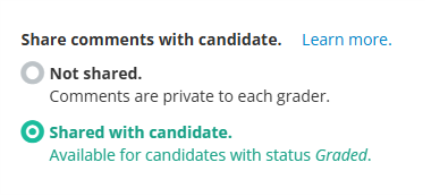
  1. When marking an Inspera exam which includes Essay feedback comments that you wish to be visible to your individual students, comments must be saved as visible to candidate in Grade i.e.  


a. Feedback comments for individual student submissions are known on Inspera as ‘annotations’ and/or ‘page notes’. To see more about annotations or page notes go to Marking Exams in Inspera | Learning and Teaching @ Newcastle | Newcastle University and navigate to ‘How to mark manually marked questions using Inspera’.   

  1. You must finalise marking to enable feedback release i.e. marks must be confirmed. 
  1. Navigate to the Deliver tab for your exam.  

a. You can do this by clicking Options and then ‘Open test in deliver’:   

  1. Within Deliver, scroll down and click ‘Show/hide details’ next to ‘Options’.  
  1. Tick Share comments with candidates (on the right hand side)  


a. Please ensure you do not tick ‘Enable Candidate Report’ 

Possible limitations:  

Using this method means:  

  • Students would be unable to see final marks on Inspera however this would still be shown on Canvas Gradebook.  
  • There’s no per question marks breakdown visible.    
  • Students see the question and their submitted answers only if an annotation or page note was left for them by a Marker.   
  • Leaving a page note for all candidates on a particular question becomes disabled when using this feedback option.  

If you have any questions specifically about your feedback use case, please contact digital.exams@ncl.ac.uk . 

For general information about all feedback release options please see our dedicated feedback release website. 

Inspera Digital Exams Update – 2025/26 Academic Year 

Inspera Digital Exams Team 

At the start of Semester 1 and Semester 2, the Inspera Digital Exams Team contact the Module Leader of any centrally supported summative Inspera exams that are due to happen that Semester. We will request that a Digital Exams Form is completed to provide the team with lots of useful information. 

You can find out more about the process of using an Inspera Digital Exam from start to finish for Semester 1, Semester 2 and for mid-semester exams, which we refer to as ad-hocs In our Digital Exam Journey PDFs. 

Continue reading “Inspera Digital Exams Update – 2025/26 Academic Year “

Digital Education Technologies Showcase Day: Summary

The Learning Enhancement and Technology (LET) Team in the Learning and Teaching Development Service (LTDS) were joined by colleagues from NUMBAS, Library Reading Lists, Digital Adoption, FMS Technology Enhanced Learning (TEL) Team and representatives from the Artificial Intelligence (AI) in LTDS.

The LET Team were delighted at the turnout on the day and the fantastic conversations that were able to take place. Find out more about the event and what colleagues thought about the event within this blog post.

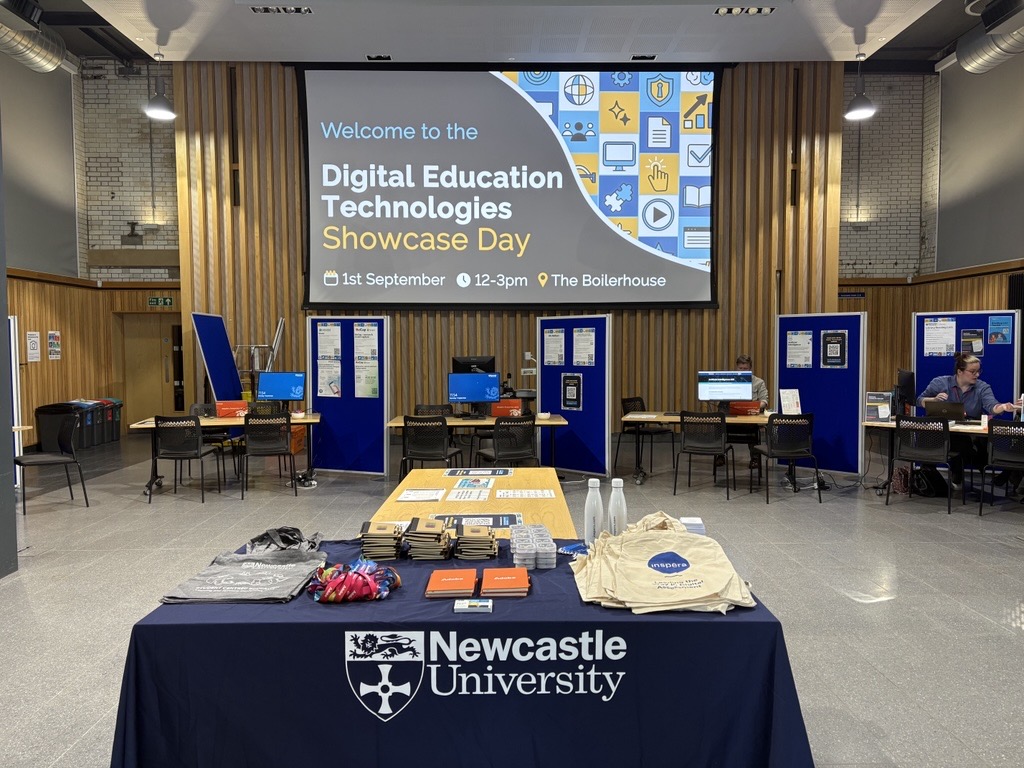
Stalls set up at the Showcase Day event
Stalls set up at the Showcase Day event.
Continue reading “Digital Education Technologies Showcase Day: Summary”

Inspera New Feature: Multiple Attempts with manually marked question content 

Multiple Attempts 

Module teams, for the new academic year, can allow their students to take practice Inspera exams repeatedly using Multiple Attempts with manually marked questions. Use with automarked content has been available during the latter half of 24-25.

Important note: Multiple Attempts is a feature which supports formative digital exams. There is no option to lock down an exam using Multiple Attempts.  

Setting up Multiple Attempts with manually marked questions

Important note: Multiple Attempts as a feature cannot be used with templates. Please ensure when setting up, your template is left blank i.e.

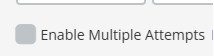
  1. Within the Deliver Tab, you will need to edit the exam settings and click ‘Enable Multiple Attempts’. (Once activated, the greyed box will turn green and include a white tick symbol).
  • You will be prompted to ‘choose method for attempt creation’ for manually marked tests, select ‘I want to specify attempt time windows’. This means the individual setting up the test would have flexibility to schedule attempts. This is recommended as the workflow for manually marked questions as there must be marker input prior to feedback release.
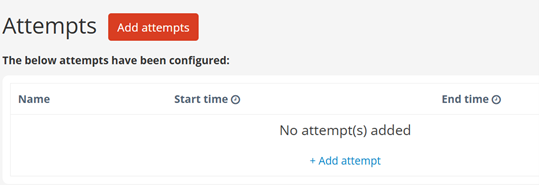
  • Once selected, you can ‘add attempts’:

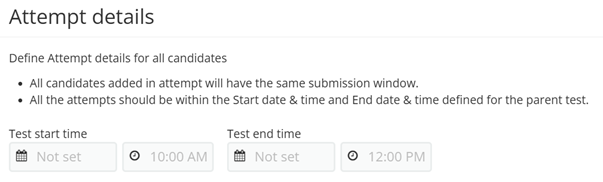
Each attempt will enable a different start/end time which you input:

Click ‘create attempt’ to save and ‘add’ to create another.

  • Important note: All attempts must be within the Start date & time and End date & time defined for the parent test.
  • You will then be prompted to ‘choose how attempts are available’ for manually marked tests, select ‘Grader control’. This means Graders can release students’ next attempts once marked.

5,   Under ‘Setting final result’, choose the most appropriate option for your exam which will be applicable as part of your student feedback. Options are: 

  • Highest: The highest score achieved among all attempts will be the final result. 
  • Average: The average score obtained across all attempts will be calculated and used as the final result. 
  • Latest: The most recent score from the student’s attempts will be the final result. 

The Digital Exams team will be releasing this new feature prior to Academic Year 25-26 teaching starts. We’ll also be updating our Multiple Attempts dedicated website.

Any questions please contact digital.exams@ncl.ac.uk

Preparation for August Assessment Period

The August Assessment Period is taking place from 4th to 15th August 2025, with Inspera Digital Exams running from 7th to 15th August. In this blog post, we are sharing communications that are useful for Module Teams to share with their students ahead of their Inspera exams, along with information around support with marking.

Communications for Students 

Module Teams are encouraged to share the following communications with their students. These communications are also shared via emails with module teams once the exam is set up by our Digital Exams Team:

Preparing for your [module code] Inspera digital exam: make sure you know your log in details 

To sit your upcoming Inspera digital exam you will need to know your University login details (username and password).  

Please check that you know your login details before the day of the exam and that you can successfully sign into a campus Cluster PC. If you do not know your login details on the day of the exam it may not be possible to reset them before the exam starts. 

Your username begins with a letter (usually c) followed by the middle 7 numbers from your student number, which you can find on your smartcard. E.g. if your smartcard shows your student number is 212345678, your username is c1234567. 

If you cannot remember your password, you can reset it online or you can contact the IT Service Desk for help. If you have your password but would like to change it to something that is easier to remember you can change your password online. 

To help you prepare for your assessment, you can try out our demo exams via Canvas. There is a locked down demo and an open book demo. Both demo exams reflect the same demo content. The locked down demo allows students to experience the in-person Inspera exam security, therefore this particular demo should only be taken within a Campus PC cluster (as the required software will be installed). 

There is also a student page on the Academic Skills Kit about Inspera which students may wish to look at ahead of your exams. 

Marking your Inspera Exams 

Once the Inspera exams have taken place, Module Teams mark the exams under the Grade area of Inspera. You can find various marking hints and tips in a previous blog post about this. You can also view our Marking Exams in Inspera webpage, as well as our Inspera Feedback Release webpage.

Save the Date 

Inspera are hosting an on-campus event with our users on Wednesday 5th November (Time TBC – but will be PM). Further details will be circulated to Module Teams using Inspera. 

Questions? 

If you have any questions, please contact digital.exams@newcastle.ac.uk where a member of our team can assist you.  

You may also wish to join our Inspera Assessment Teams site to stay up to date with updates. 

Inspera Digital Exams External Case Study and Introduction of Newcastle Inspera Users Teams Community

In this post we will share the external case study that colleagues from the Digital Exams Team wrote for Inspera, and share details of the new Microsoft Teams Community for Inspera users at Newcastle. 

Inspera Case Study 

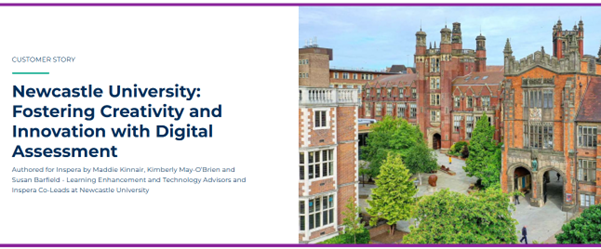
The Inspera Co-Leads worked with Inspera to write and design a case study about Newcastle University’s work with Inspera Digital Exams. You can read the case study entitled ‘Newcastle University: Fostering Creativity and Innovation with Digital Assessment’ on the Inspera website. Colleagues in our Digital Exams Team here at Newcastle are delighted to have worked with Inspera to write this. We have a fantastic relationship with our Account Manager at Inspera, Fiona Orel, who supports us with our Inspera needs. 

Image of the Inspera case study on Inspera’s website

Newcastle University’s Inspera Digital Exams Team have created an External User Groups with other Inspera users across Higher Education in the UK. The Group currently has members across 14 institutions and meets online every few months. 

Digital Exams using Inspera Assessment @ Newcastle – Teams Community 

We are pleased to share that we have created an internal user space in the form of a Microsoft Teams Community for Inspera users at Newcastle. 

This Teams community is a place for colleagues to share ideas about how Inspera can be used, and maybe even find inspiration.

It also will allow you to keep up to date with the latest developments in the software and flag any general problems, that peers might be able to assist with. Though if you do have any immediate/specific queries about an active exam we would recommend contacting digital.exams@newcastle.ac.uk.

You can request to join the community where you will have access to various materials to support you as an Inspera user. 

The Inspera Assessment Teams Community. 

Save the Date: Digital Education Technologies Showcase Day 

The Learning Enhancement and Technology Team in the Learning and Teaching Development Service (LTDS) are hosting a Digital Education Technologies Showcase Day on Monday 1st September 2025 between 12 and 3pm in the Boilerhouse.

This is a fantastic opportunity to meet the teams and people behind our Digital Education Technologies here at Newcastle. This will include: Canvas, ReCap, Vevox, Inspera (Digital Exams), Assignments (Canvas, Turnitin and New Canvas Quiz), Buddycheck, NULA, NU Reflect, AI, H5P, as well as the Numbas Team, Digital Adoption (M365 and Adobe) and Library Reading Lists Team.

This event is aimed at both academic and professional services colleagues already using these systems who want to take that step further, as well as new colleagues who want to learn about the digital technologies available.

The event will take place as a drop in, so you don’t need to sign up. If you would like to make any suggestions around what you would like to see at the event, please complete our Microsoft Form.

More information will be shared about this event over the summer.