Loiana Leal, Lecturer in Modern Languages, in the School of Modern Languages has recently developed a case study around their use of Inspera for digital assessment via digital examinations in a language module for formative and summative assessments.
Head over to the Case Study database to read all about Loiana’s work of using Inspera in their POR2010 – Level B Portuguese HE Intermediate module.
The E-Assessment in Mathematical Sciences (EAMS) conference, takes place between 16th and 27th June 2025.
Organised by the team behind our Numbas e-assessment system, the conference aims to bring together researchers and practitioners with an interest in e-assessment for mathematics and the sciences. It will consist of a mix of presentations of new techniques, and pedagogic research, as well as workshops where you can get hands-on with leading e-assessment software.
EAMS 2025 is an entirely online conference, with a mix of live sessions and web-based activities, and plenty of opportunity for discussion and collaboration.
Before the conference starts, there will be a programme of optional training workshops available for participants to get hands-on with state-of-the-art maths e-assessment software.
Live talks will take place over Zoom at 9:30 and 15:30 BST (UTC +1) each weekday, with recordings available later. The online format and longer timescale allow participants to engage more deeply with the material presented.
The call for talk and workshop proposals is currently open. If you have some research or an innovative technique related to mathematical e-assessment that you would like to present, then please submit an abstract at eams.ncl.ac.uk/call-for-speakers by 2nd May.
We’re actively seeking to increase the diversity of our attendees and speakers, and particularly encourage speakers from groups under-represented in previous editions of EAMS to submit proposals.
Multiple Attempts is a feature which supports formative auto-marked Inspera digital exams. Module teams can now allow their students to take practice auto-marked Inspera exams repeatedly, either by having students submit as many times as they wish, or by setting a defined number of retakes. Please be aware there is no option to lock down an exam using Multiple Attempts.
Multiple Attempts can help students to learn rapidly and understand topics by allowing them to practice until answers are correct. This can also allow for a dynamic and effective learning experience.
Students can:
Improve their understanding of the topic by practicing multiple times
Increase their confidence by identifying and correcting mistakes
Prepare more effectively for exams by identifying improvement areas
Multiple Attempts can currently only be used with Inspera digital exams which are using automatically marked questions. The feature can also be used with pre-defined feedback. Pre-defined feedback is recommended if using multiple attempts, as this allows students to improve their understanding of the exam content.
Setting up Multiple Attempts
Within the Deliver Tab on Inspera, you will need to edit the exam settings and click ‘Enable Multiple Attempts’.
You will then be prompted to set a maximum number of attempts. If wishing students to have an unlimited number of attempts, click ‘Unlimited Attempts’.
Under ‘Setting final result’, choose the most appropriate option for your exam which will be applicable as part of your student feedback. Options are:
Highest: The highest score achieved among all attempts will be the final result.
Average: The average score obtained across all attempts will be calculated and used as the final result.
Latest: The most recent score from the student’s attempts will be the final result.
Student feedback when using Multiple Attempts
When using Multiple Attempts, feedback should be set to be released to students immediately after each test attempt. Feedback which is immediate enables students to see full details of their attempt instantly and work on this for the next attempt.
We have created a new resource with our students to help us create a more inclusive university experience.
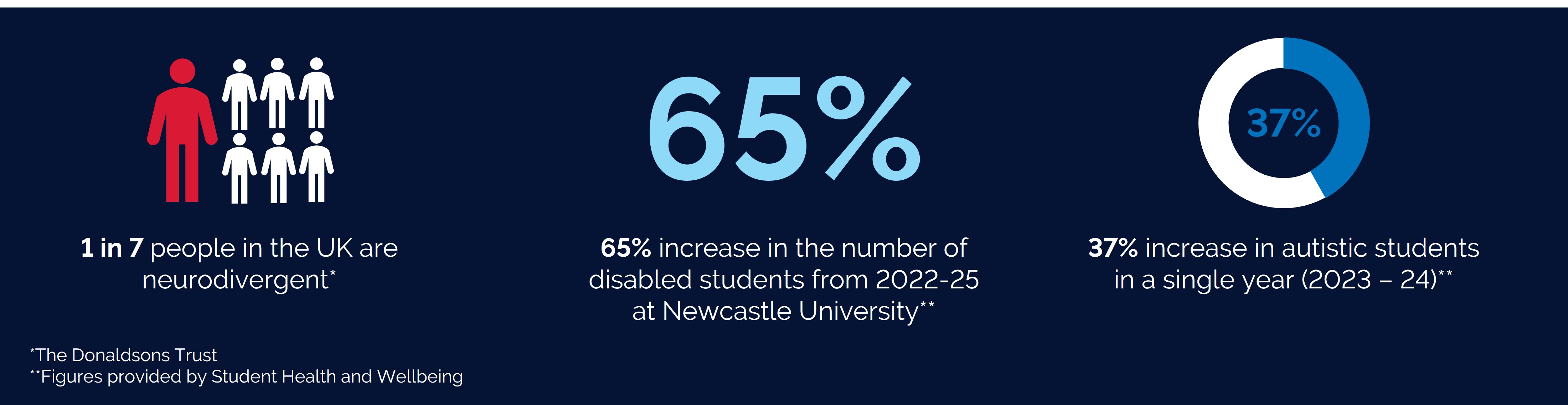
Neurodivergent students are a growing and important part of our university community, yet many still encounter barriers that impact their ability to thrive. With increasing numbers of neurodivergent students enrolling each year, most colleagues will interact with them regularly—whether they realise it or not.
Many of our students struggle with traditional academic structures, unclear expectations, and inaccessible learning environments, often without formal support plans in place. By making small adjustments and genuinely listening to our neurodivergent students, we can create a more inclusive university experience that benefits everyone—not just neurodivergent students, but the entire learning community.
How the Project Started
This project emerged from recognising that student needs are evolving, and traditional academic structures do not always provide the necessary support for neurodivergent students. With funding from LTDS, we collaborated with the Student Health and Wellbeing Team to ensure that student voices remained central to this project.
Hearing Real Student Experiences
Our key focus was understanding how neurodivergent students experience university life, both academically and socially. We used a framework called Key Aspects of Student Academic Life, which helped us examine crucial areas such as learning environments, social interactions, and overall student wellbeing.
We recruited students through JobsOC, then held relaxed, open discussions where students shared their perspectives on university life—what works, what doesn’t, and what could be improved. Their insights were honest, eye-opening, and full of valuable ideas for change.
Creating a Resource for Staff
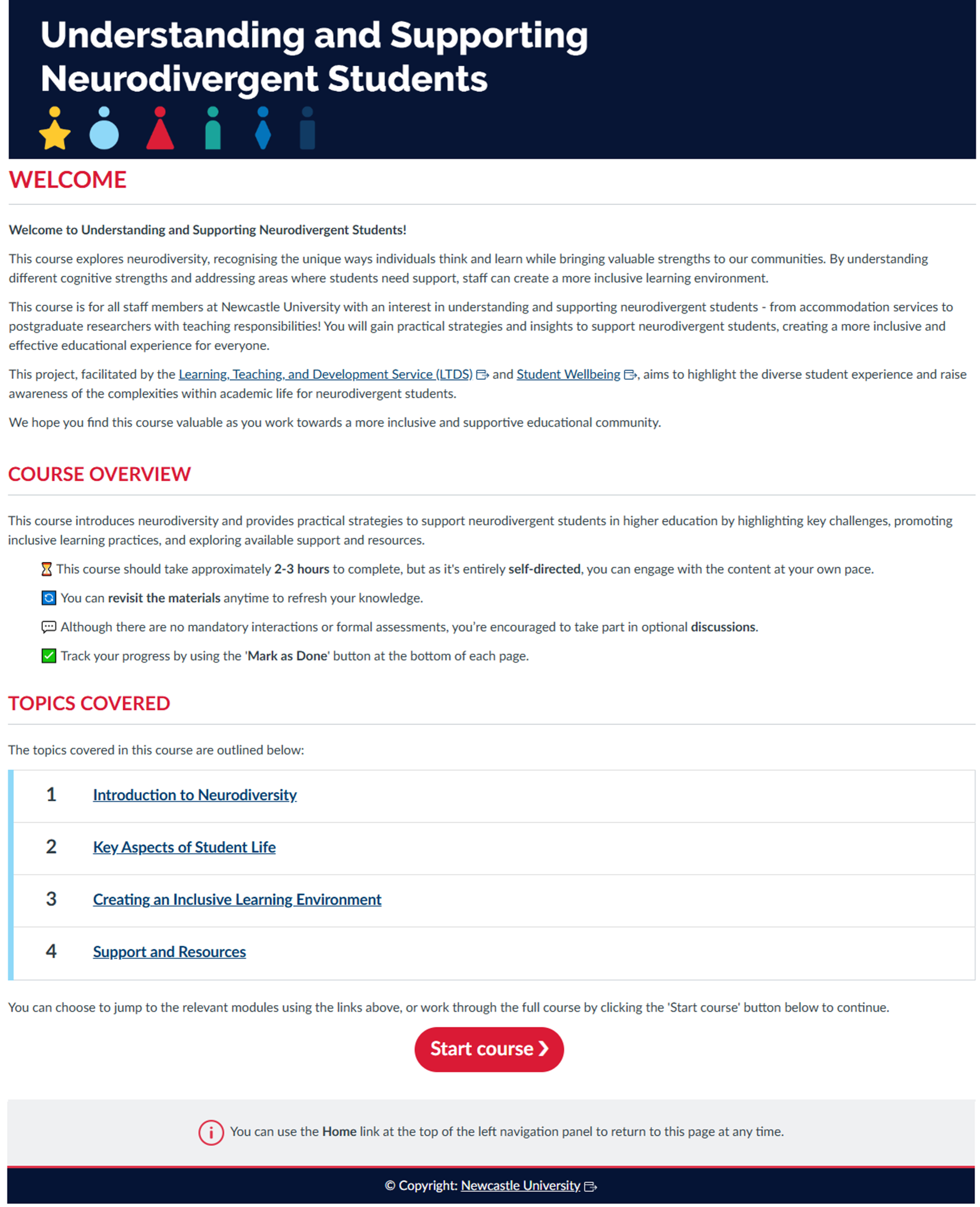
From these discussions, we developed the Understanding and Supporting Neurodivergent Students Canvas course. The course is flexible and self-guided, allowing Newcastle University colleagues to explore the sections most relevant to them. Whether it’s deadlines, adapting to university life, or common challenges, the course offers real student perspectives and practical recommendations for staff.
The course covers a range of key topics, including:
Introduction to Neurodiversity
Key Aspects of Student Life
Creating an Inclusive Learning Environment
Support and Resources
Why Student Voices Matter
One of the most powerful aspects of this project has been hearing directly from students. Many shared not just their struggles but also practical solutions, demonstrating how valuable their voices are in shaping a better university experience.
By listening to students, we have already made positive changes. For example, students told us they like using the Room Finder tool to see what a classroom looks like before attending, as unfamiliar environments can cause significant anxiety. However, many students were unaware of this tool. Thanks to their feedback, we have made it more accessible on the Student Timetables webpage. Hopefully, this is just one of many positive outcomes from this project.
What’s Next?
This project has highlighted the importance of truly listening to students. By ensuring neurodivergent voices are heard and acted upon, we are taking steps towards a more inclusive and supportive university for everyone.
If you are interested in learning more about supporting neurodivergent students, you can self-enrol in the Canvas course using the following link: https://ncl.instructure.com/enroll/B9YKFJ.
As we approach the Semester 2 (24/25) question set deadline on 7th March 2025, the Digital Exams Team are sharing another post about question set functionality in Inspera.
You may also wish to check out our first blog post from Semester 1: Question Set Functionality in Inspera Digital Exams – Part 1. This first post covers a lot of the functionality around making your questions and enabling functions such as randomisation, random pulling and candidate selected questions. In this new post, we will cover some of the other functionalities available. These include:
How to share question sets with colleagues,
Accessing and printing PDF copies of the question set,
Duplicating your question set.
Sharing question sets with colleagues
There are a couple of ways you can share your question set content with other colleagues or your external examiners.
For other colleagues on your module team, you may find it useful to add them as a ‘contributor’ to your question set. This will allow them to view questions and preview them in Inspera. This is also particularly useful if you are creating the content together with another colleague.
How to add contributors to your question set:
Open Inspera (this can be done by clicking on your previous exam within Canvas assignment area)
Click on the Author tab
In the search bar type the question set name/module name
Find the question set you wish to print and click on the name to open this
Select the person icon icon (on the left hand side of the icons in the top right corner)
Search the person’s name and select them as a user from the drop down menu that appears
If you would like them to receive an email about this, please keep the ‘notify via e-mail’ box ticket
Click ‘Share’.
Please note: if you cannot find a user when searching for their name, it is likely that they have not accessed Inspera via Canvas yet, and therefore do not have an Inspera account. They would need to access Inspera via Canvas to activate this, and for their name to show in the list. There is guidance available on the self enrol Inspera guidance course on Canvas.
For external examiners, it is possible for you to add them as a contributor as well and ask them to access Inspera via Canvas. You may also wish to consider the option of downloading a PDF copy of the question set content from Inspera in order to share the question set content with them.
Accessing and printing question sets as PDFs
Within your question set in Inspera, it is possible to access and print your question set as a PDF. This could be to share a copy with External Examiners, or to create a paper copy if you are hosting a mock exam where you want a back up paper copy available just incase.
How to print your question set:
Open Inspera (this can be done by clicking on your previous exam within Canvas assignment area)
Click on the Author tab
In the search bar type the question set name/module name
Find the question set you wish to print and click on the name to open this
Select the print icon in the top right corner
On the right hand side click ‘download question set’
The download may take a minute or two to prepare, once ready select download now
The download will be in your downloads folder
Should you wish to change what is available on your PDF, you can use edit Settings. Once within the Print screen, drop down the settings bar.
Settings allow you to:
remove maximum marks
remove ‘documents’ or instruction pages
remove certain questions from the PDF (i.e. hide auto marked questions)
How to edit the PDF of your question set
You can edit your PDF using ABBY Finereader. You can familiarise yourself with the FineReader video guides, and detailed written user guides which have been shared by NUIT.
How to duplicate your question set
Once you have created a question set, you can re-use it. The Digital Exams Team recommend duplicating your Question Set and then editing, this means there’s a clear audit trail of the Question Set used in prior years.
How to duplicate your question set:
Open Inspera (this can be done by clicking on your previous exam within Canvas assignment area)
Click on the Author tab
In the search bar, type the Question Set name/module name (in this example a ‘demo’ Question Set is being searched for)
Find the question set you wish to duplicate and click into the tick box (on the left hand side)
An options bar appears along the bottom, click ‘duplicate’
A message will appear about the duplication, click ‘continue’
Click into this new ‘copy of’ question set
You can re-label the name of the question in the top left corner using the pencil icon.
You can now make any changes to the Question set for an upcoming exam.
Question set deadlines
Once the Module Leader has completed their Digital Exam Form to confirm the details about their Inspera Digital Exam, the next step is to start creating their question sets.
Question sets are created by the module team and shared with the Digital Exams Team via email to Digital.Exams@newcastle.ac.uk.
The question set deadlines for 2024/25 are detailed in the following table:
Semester
Question Set Deadline
Semester 1
15th November
Semester 2
7th March
Semester 1 August Resit (Semester 3)
17th April
Semester 2 August Resit (Semester 3)
8th July
A table with the question set deadlines for each semester.
Training webinars
The Digital Exams Team deliver a training webinar ‘Creating and managing exam questions in Inspera’ which colleagues can sign up to via the Elements training system. The training session covers an on-screen demo of setting up and adding questions to your question set.
What difficulties do students have accessing the material we provide?
How do students surmount those difficulties?
How do you improve the accessibility of your material?
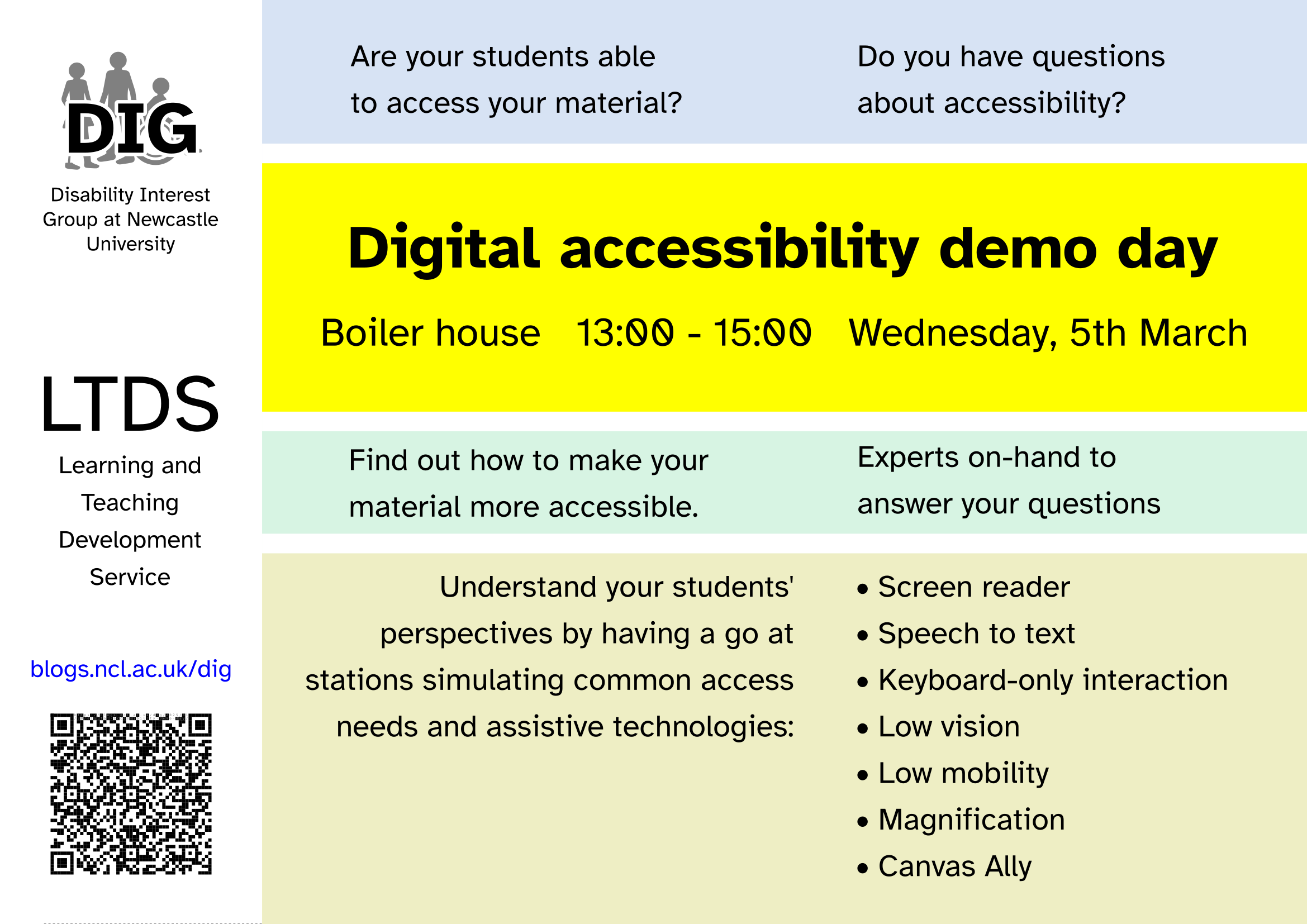
We’re putting on an event to help answer those questions.
It’s important that all of our digital services are accessible to their users, whether they’re students or colleagues. The Public Sector Bodies Accessibility Regulations set out some legal requirements that we must meet.
But digital accessibility is a complex topic and many colleagues have found it hard to understand what they need to do to ensure their teaching material is accessible.
At our digital accessibility demo day, you can have a go at accessing university teaching material at a selection of stations simulating different access requirements and supports, including:
Screen reader
Speech to text
Keyboard-only interaction
Low vision
Low mobility
Magnification
Canvas Ally
We’ll have plenty of pointers to guidance and training opportunities to help you improve the accessibility of your material.
People from LTDS, NUIT and the Disability Interest Group will be there to offer support and answer any questions you may have about digital accessibility.
Time and location
The event will take place 13:00 – 15:00 on Wednesday 5th March 2025, in the Boiler House.
The Boiler House is in the middle of campus, between the Armstrong Building and the Student Union. Access is step-free.
There’s no presentation as part of the session – just drop in and talk to one of the facilitators.
NULA provides valuable insights into student engagement by consolidating a range of data sources. As colleagues, we know that interpreting this information effectively can make a real difference in supporting student success. To help you make the most of this powerful tool, we’d like to announce the launch of a new webpage dedicated to helping colleagues better understand and use the data provided by NULA.
What’s New?
This new resource has been designed to support colleagues by providing:
Examples of NULA data: using dummy data, there are practical examples of student engagement to explore and draw inferences from
Tips for interpreting trends: videos are provided to support interpreting the data, highlighting key trends and data points, in each practical example
Visualising key differences in the student profile view
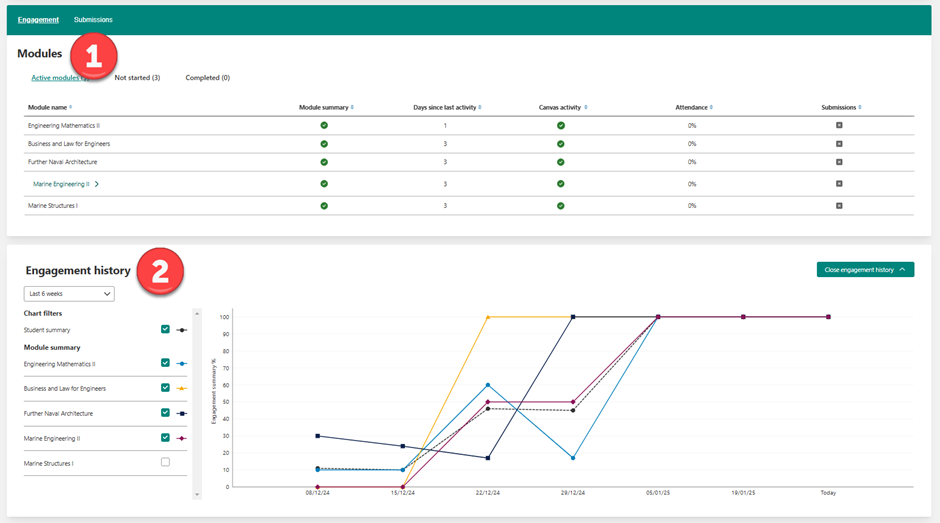
As a reminder, the student profile in NULA offers two distinct views that provide complementary insights into engagement:
2 weeks display under Modules: the metrics within the Modules section give a focused, short-term view of a student’s engagement over the last two weeks, allowing you to spot recent trends and patterns.
Historic view under Engagement history: this offers a longer-term perspective, showing patterns and trends over time to identify consistent behaviours or shifts in engagement.
Additional Support
For further guidance, additional support is also available through the Traffic Lights and Metrics pages. These resources offer deeper insights into interpreting NULA data and understanding key indicators.
In Spring 2025, there will be some updates to Canvas SpeedGrader. This update makes SpeedGrader faster and more stable, while keeping the interface easy to use. The grading process you know will stay the same, but with some improvements behind the scenes.
Previously, courses with large cohorts or assignments with large file submissions experienced frustratingly slow loading times. This update aims to enhance SpeedGrader’s performance, making navigation quicker and more efficient.
In addition to performance updates, there will be minor interface changes to assist with navigation. Although small, these changes will help with the usability of SpeedGrader. After these changes, the interface will still have the familiar SpeedGrader feel.
Let’s dive into the changes made to Canvas SpeedGrader…
Sections Selector Dropdown
The section selector now has a streamlined interface, making it easier to navigate between different class sections. Previously, filtering by section required more steps. With the new Sections Selector Dropdown, you can quickly filter submissions by section.
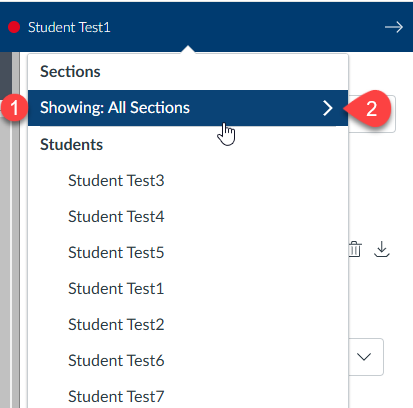
In the Student Dropdown List, you’ll now see a Sections header. Under ‘Showing,’ you’ll find the current section that the list is filtered to (point 1).
To apply a new section filter, click on the Section filter (point 2). A dropdown list will then appear, as shown below:
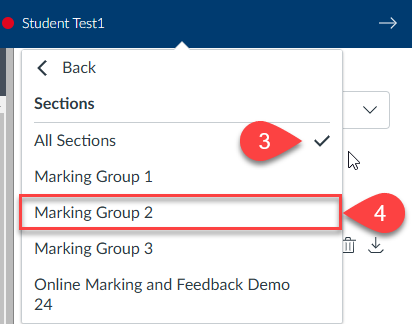
In the dropdown list, you’ll see all the sections associated with the assignment. A tick mark will indicate the section currently applied as the filter (point 3).
To choose a new section filter, click on the name of the desired section (point 4).
No Submission Alerts
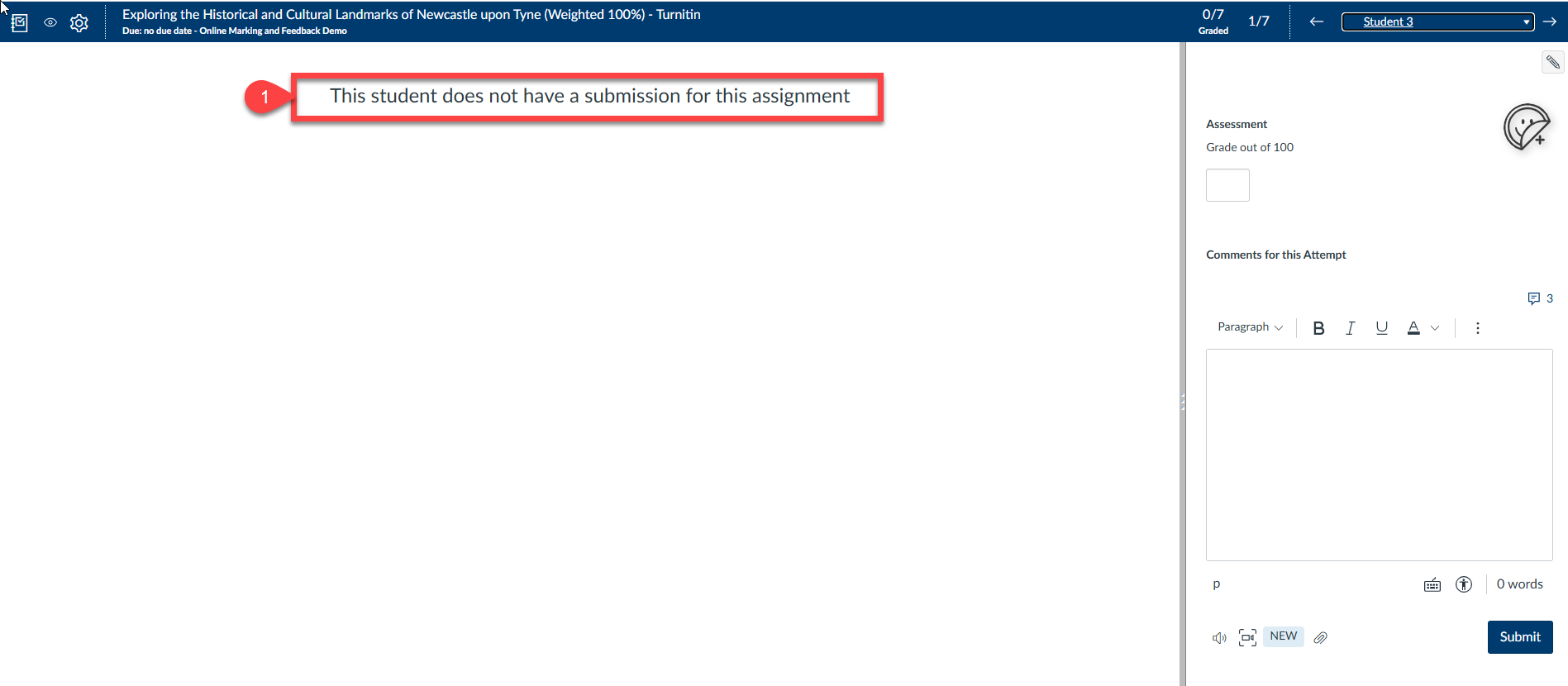
The alert for assignments without submissions has been enhanced to be more prominent and visually clear.
Previously, this would be indicated with the assignment showing as blank in the DocViewer. It is now clearly indicated that there is no submission.
You can see in the below (point 1), this is now clearly displayed in the DocViewer.
Grade Status Selector
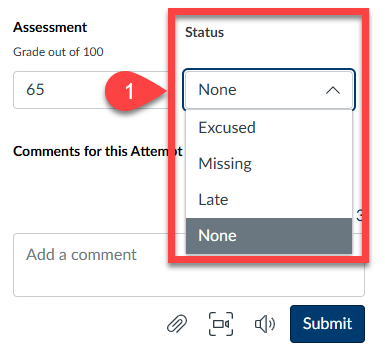
Changing the status of a submission is now easier with a new dropdown box. However, it’s generally not recommended to use this feature, as our assignment statuses are tracked via the NESS system.
Previously, this status was managed by a pencil icon located in the top corner of the marking pane in SpeedGrader.
To change a submission status, click on the dropdown box and selected the appropriate status.
This is demonstrated in point 1 below:
Rubrics
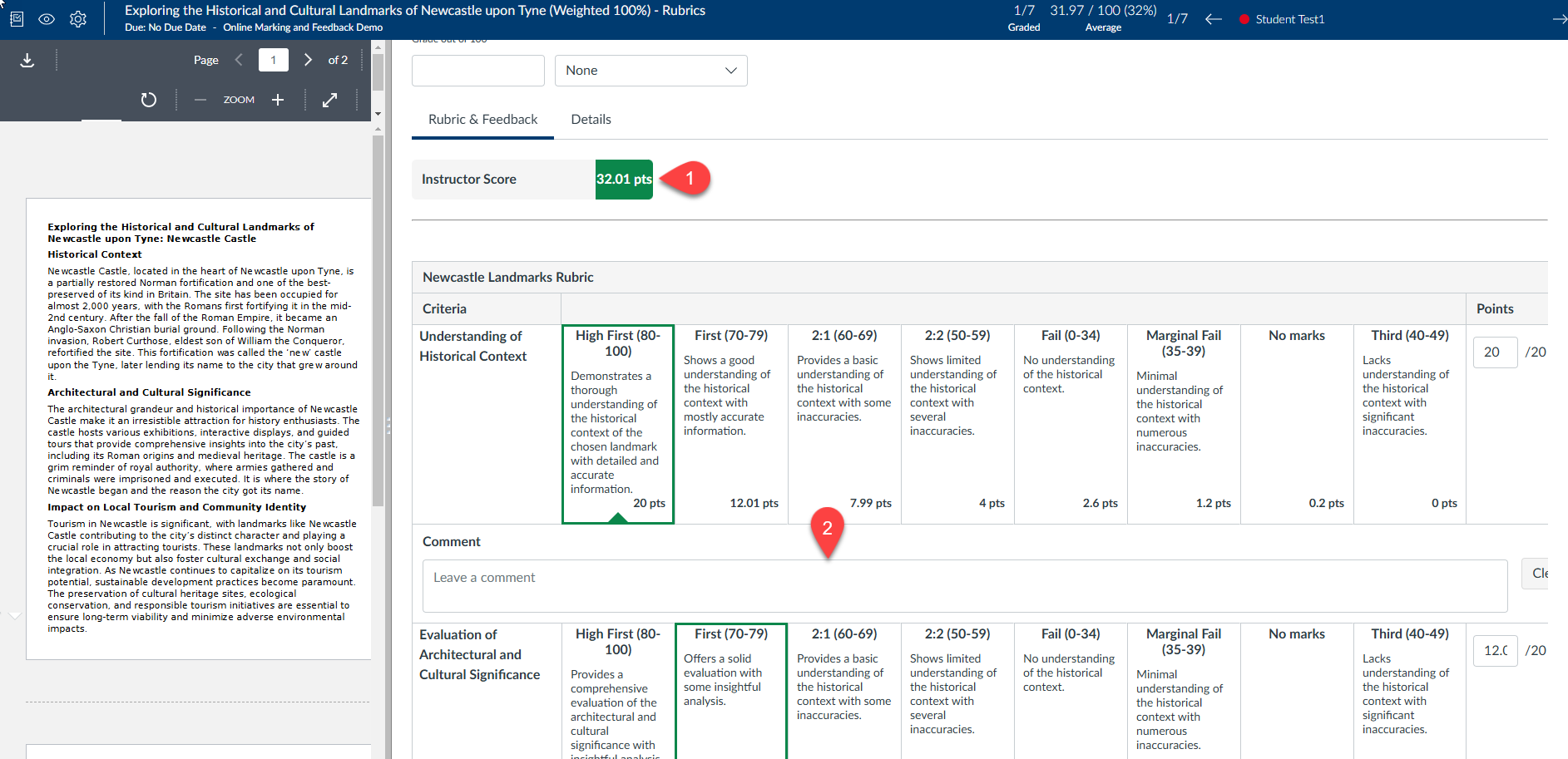
Rubrics are now consistently displayed in the new traditional (grid) view. This view is very similar to the rubrics you’re used to marking with, though there are some minor changes.
The Instructor score is now displayed at the top of the rubric, making it easier to see while marking an assignment (point 1).
Providing feedback for rubric criteria is now easier with the feedback entry box clearly displayed (point 2). Previously, you had to access this feature via a button. Having the feedback option readily available encourages more frequent addition of comments to rubric criteria.
Media Attachments
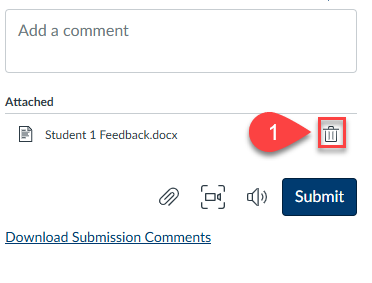
Uploading and managing media attachments in submission comments is now more intuitive, thanks to an improved dialogue and a more straightforward deletion process.
Deleting an attachment has been made more intuitive with the introduction of a rubbish bin icon, replacing the previous red ‘x’ button (point 1). This change not only modernises the interface but also makes the deletion process clearer and more user-friendly. The rubbish bin icon is universally recognised, ensuring that users can easily identify and use this function without confusion.
It is now possible to upload your students to grading committees via the csv upload option. This blog post works through the steps required to set up grading committees via CSV upload.
Vevox have made some updates to their features which were featured in their December product update. Find out more about the new features available, including the introduction of:
Live ‘Before and After’ poll comparisons
Demographic Segmentation
Rich text options for question formatting
Pie chart and number cloud displays available in the PowerPoint add-in
‘Before and After’ Poll Comparison
It is now possible to run the same poll question twice and use a toggle option in present view after repeating the question in order to see a before and after comparison. This can be done live in your polls for you and your audience to see.
This feature is only available in the present view of the Vevox Dashboard, and not in PowerPoint.
Potential use cases: See shifts in understanding in lectures or training sessions.
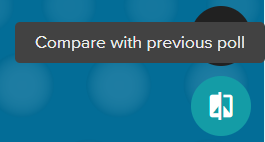
The ‘compare with previous poll’ toggle option icon in Vevox present view.
Demographic Segmentation
It is now possible to identify trends with demographic segmentation functionality in questions. You can use the multichoice question type, to ask a demographic question such as ‘What stage of study are you in?’ at the start of your session. When you run any subsequent multichoice questions, you can choose to display the results by those demographics by using a toggle option.
This feature is only available in the present view of the Vevox Dashboard, and not in PowerPoint.
Potential use cases: See how answers or opinions differ among groups of students or participants.
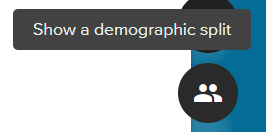
The ‘show a demographic split’ toggle option icon in Vevox present view.
Rich Text Options for Question Formatting
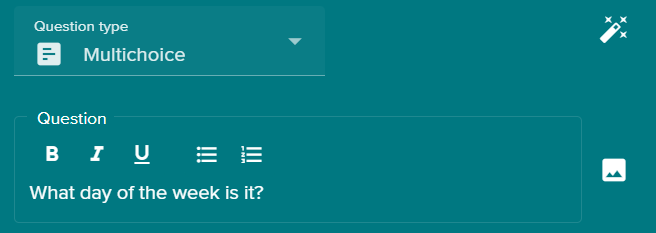
Within the question creation area, there are now some rich text editing options available to help you when writing your questions. The new formatting available includes bold, italics, underline, bullet points, and new lines.
The rich text editor options in the Vevox question creation area.
Pie Chart and Number Cloud Display in PowerPoint
The option to use pie charts to display results and use number clouds as a question type were made available in the Dashboard present view back in September. They are now available in the Office 365 Vevox PowerPoint add-in.
Additional information
For more information about Vevox, please see the dedicated Vevox webpage on the University’s Learning and Teaching website and also on Vevox’s own Blog.