Inspera: Enable students to view Essay feedback comments without auto marked questions becoming visible

Inspera’s feedback release aims for transparency for all exam questions, however this had caused limitation for Module Teams wishing to releasing Essay comments as feedback, without revealing correct answers to automated marking. A new workaround is now available.  

Enabling Essay comment feedback only:  

  1. When marking an Inspera exam which includes Essay feedback comments that you wish to be visible to your individual students, comments must be saved as visible to candidate in Grade i.e.  
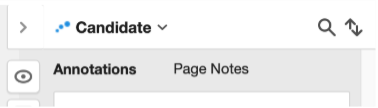
  

a. Feedback comments for individual student submissions are known on Inspera as ‘annotations’ and/or ‘page notes’. To see more about annotations or page notes go to Marking Exams in Inspera | Learning and Teaching @ Newcastle | Newcastle University and navigate to ‘How to mark manually marked questions using Inspera’.   

  1. You must finalise marking to enable feedback release i.e. marks must be confirmed. 
  1. Navigate to the Deliver tab for your exam.  

a. You can do this by clicking Options and then ‘Open test in deliver’:   

  1. Within Deliver, scroll down and click ‘Show/hide details’ next to ‘Options’.  
  1. Tick Share comments with candidates (on the right hand side)  
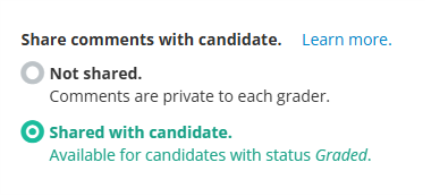
  

a. Please ensure you do not tick ‘Enable Candidate Report’ 

Possible limitations:  

Using this method means:  

  • Students would be unable to see final marks on Inspera however this would still be shown on Canvas Gradebook.  
  • There’s no per question marks breakdown visible.    
  • Students see the question and their submitted answers only if an annotation or page note was left for them by a Marker.   
  • Leaving a page note for all candidates on a particular question becomes disabled when using this feedback option.  

If you have any questions specifically about your feedback use case, please contact digital.exams@ncl.ac.uk . 

For general information about all feedback release options please see our dedicated feedback release website. 

Inspera New Feature: Multiple Attempts with manually marked question content 

Multiple Attempts 

Module teams, for the new academic year, can allow their students to take practice Inspera exams repeatedly using Multiple Attempts with manually marked questions. Use with automarked content has been available during the latter half of 24-25.

Important note: Multiple Attempts is a feature which supports formative digital exams. There is no option to lock down an exam using Multiple Attempts.  

Setting up Multiple Attempts with manually marked questions

Important note: Multiple Attempts as a feature cannot be used with templates. Please ensure when setting up, your template is left blank i.e.

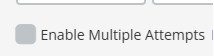
  1. Within the Deliver Tab, you will need to edit the exam settings and click ‘Enable Multiple Attempts’. (Once activated, the greyed box will turn green and include a white tick symbol).
  • You will be prompted to ‘choose method for attempt creation’ for manually marked tests, select ‘I want to specify attempt time windows’. This means the individual setting up the test would have flexibility to schedule attempts. This is recommended as the workflow for manually marked questions as there must be marker input prior to feedback release.
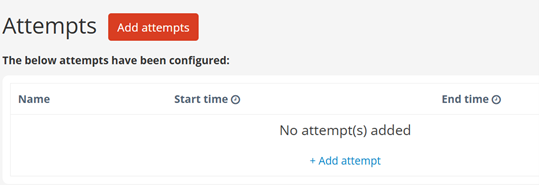
  • Once selected, you can ‘add attempts’:

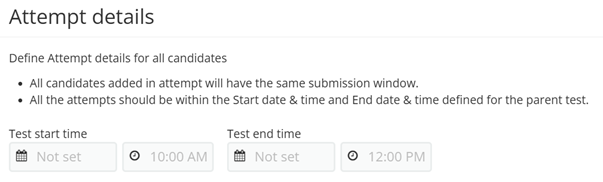
Each attempt will enable a different start/end time which you input:

Click ‘create attempt’ to save and ‘add’ to create another.

  • Important note: All attempts must be within the Start date & time and End date & time defined for the parent test.
  • You will then be prompted to ‘choose how attempts are available’ for manually marked tests, select ‘Grader control’. This means Graders can release students’ next attempts once marked.

5,   Under ‘Setting final result’, choose the most appropriate option for your exam which will be applicable as part of your student feedback. Options are: 

  • Highest: The highest score achieved among all attempts will be the final result. 
  • Average: The average score obtained across all attempts will be calculated and used as the final result. 
  • Latest: The most recent score from the student’s attempts will be the final result. 

The Digital Exams team will be releasing this new feature prior to Academic Year 25-26 teaching starts. We’ll also be updating our Multiple Attempts dedicated website.

Any questions please contact digital.exams@ncl.ac.uk