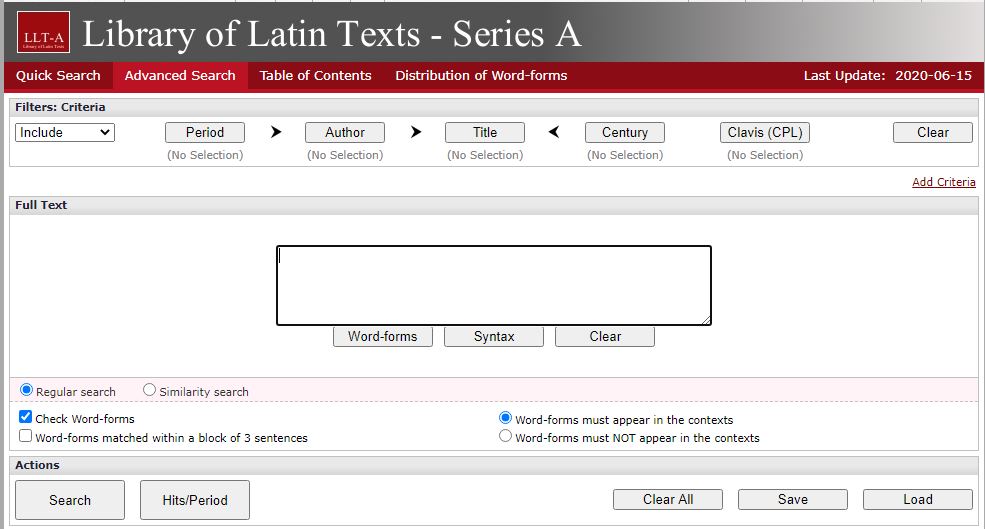
This database gathers together Latin texts of all genres and from all periods. Series A contains over 4,000 texts by nearly 1,400 authors, from the beginning of Latin literature to the modern era.
The companion Series B gathers Latin texts of all genres and periods, with the aim of more rapidly integrating a huge number of Latin texts into online form.
Together, the two databases form one large linguistic corpus, with sophisticated tools enabling a variety of search and analytical methods, with the stated objective being simply summarised as “who said what, when, where, and how many times?”
The databases are updated regularly, and can also be used to read texts as a whole.
The Library has recently bought access to this major eight volume online work.
For the first time ever, the eight volumes gather together all of T.S. Eliot’s collected, uncollected and unpublished prose, making available material that has been restricted or inaccessible until now.
The content includes letters, essays, lectures, commentaries and transcripts of broadcasts, and is annotated by leading Eliot scholars.
You can read more about the background to this significant collection here or watch the trailer:
The eight volumes are individually catalogued on Library Search: just search for complete prose Eliot to find them.
This time of year is normally one of the busiest for the Libraries on campus. Instead, the Libraries are currently physically closed and both revision and exams are taking place at homes across the country (and possibly further afield!). While this ‘new normal’ might seem overwhelming at first, in many ways, it’s business as usual. Read on to find out how we can all work together to ensure you have the best possible revision and exam experience.
Your subject-specific
guide also contains links to useful journals, databases and eBook
collections that are tailored for your course. You may also find it helpful to
browse through a list of newly-acquired
online resources that the Library have purchased to better enable your
studies from home.
There are a number of MCQ (multiple choice question) books available
to read online to complement your revision. They cover subjects including:
paediatrics, neurology and physiology.
Library Help remains available 24/7 to assist with your queries – please send them in via email or live chat. We are also regularly updating Library FAQs to bring you the most up-to-date information. (Hint: if you filter the FAQs to show ‘remote services temporary FAQ’, you’ll only be shown the newest Library FAQs.)
Following the announcement of lockdown, ASK have made some
new resources to assist with online examinations. These are broken down into
helpful categories: how
to revise for an online exam, what
to do before an online exam and exam
technique. While you will get details from your School about the specific
changes to your exam(s), these pages have really helpful advice on preparing
for and succeeding in online assessment.
Choose an area in your home to work in that’s best suited to your needs. This might be a bedroom, kitchen or office space. You may want to consider making some adjustments to your existing desk (or kitchen table!) to avoid causing an injury. If possible, choose to work in an area that has plenty of natural light and is well-ventilated.
Build yourself a realistic revision planner, with plenty of breaks factored in. You won’t be able to revise everything in one day so breaking down topics into manageable chunks is essential. Regular exercise, a balanced diet and a good night’s sleep are also key to revision success.
Remember to take regular study breaks to stay hydrated, get
fresh air and clear your mind. You’re unlikely to revise effectively without
regular breaks and time away from your work. There are a number of activities and resources
on the Library’s website for things you can do while taking a break. These
include seated desk yoga, colouring in sheets and mindfulness exercises.
New to the University and not sure where to start? Or simply need a handy list for you to refer back to when you’re studying Geography? Well look no further than this post! Here are some of our suggestions to help you find the information you need.
Whether you’re on or off campus, you can access the full collection of ebooks, electronic journals and professional magazines, newspapers, conferences and more, from Library Search.
Watch our short video showing how to search for eBooks.
To find academic journal articles from across our collection that match your topic keywords, use the everything search option and filter your results on the left to peer-reviewed journals.
Find out how to search for electronic journal articles in this short video.
You can contact the Liaison Team for one-to-one support or send your questions to Library Help, where there are staff logged into our live chat service, 24/7.
Between Library Search and your Subject Guide, you will be able to find excellent information to use in your academic essays, but there are many other resources you may want to try.
3. Proquest Collections
The Social Sciences Premium Collection and Natural Sciences Collection are both brilliant places to start if you would like to refine your results to either natural or social sciences, while still searching broadly across different information types. They are collections of databases, covering a range of information types including articles, reports, conference papers and theses, so you are able to find results that match your keywords from a variety of global sources.
Find out more about the Social Sciences Premium Collection, how to search it successfully and use the advanced features in the video guide below. It is a brilliant resource for sociology and excellent to use for any academic assignment.
Watch our introduction to the Social Sciences Premium Collection to explore basic and advanced searching.
Scopus is a large, multidisciplinary database, which indexes peer- reviewed journal articles, books, book chapters, conference proceedings and trade publications.
One of the main advantages of using Scopus is that it provides a lot of useful information about the articles it indexes. This includes full reference lists for articles and cited reference searching, so you can navigate forward and backward through the literature to uncover all the information relevant to your research.
You can also set up citation alerts so you can be informed of new, relevant material automatically. Other useful tools include citation overviews, author and affiliation searching, visual analysis of search results, a journal analyser, and author identifier tools (if you are interested in publishing work).Watch this video from Scopus about how to expand your search from a known article reference.Watch this video from Scopus about how to expand your search from a known article reference.
https://youtu.be/qCu-obYMFsE
Watch this video from Scopus about how to expand your search from a known article reference.
Government publications provide information in a variety of subjects. Statistics, White Papers, Parliamentary Bills and a whole range of Official Legislation published by the Government. The provide a good, reliable, source of accurate statistics, and can give support to your argument in essay topics.
OECD iLibrary is the online library of the Organisation for Economic Cooperation and Development (OECD) and gives you access to books, analyticalreports and statistics, covering a broad range of topics relevant for studies in sociology.
Statista is an extensive statistics platform covering over 1.5 million data sets. It includes reports, statistics and forecasts on a range of topics. So if you want to know compare homelessness statistics, explore education trends, attitudes to sustainability and the environment or how many people drink barista coffee every day, Statista is a brilliant place to start.
Statistics and reports can be exported in a range of formats including images and PowerPoint, giving you flexibility to include the visuals in your assignments. The statistics source is included, giving you the information that you need to cite it successfully.
Find out more about Statista with this brief introduction.
Newspapers are an excellent resource to explore, to provide a range of perspectives on a topic. You can find opinion pieces, social commentary and identify trends in public opinion.
We have a huge range of newspaper archives, historic newspapers and international sources such as Nexis that can mostly be access online and off campus. Our Newspapers resource guide collates all of our resources and will guide you through how where to look.
LexisLibrary is an excellent place to start. It provides access to UK national and regional newspapers, from the 1990s to today. It includes the copy text without the images or formatting and all of the details you need to create a citation are on the article page.
Once you have followed the Library Search link to access Lexis, make sure you click on News at the top of the page for full text access to all UK publications.
As so many articles are published every day, you will need to refine your searching using date ranges, combined keywords or by selecting specific newspapers or publication type (i.e. broadsheet or tabloid).
Remember to use your critical skills when using newspapers however, and watch out for Fake News. They are biased sources and are best used in balance with other sources. You can find our tips on our Evaluating Information skills guide.
11. Box of Broadcasts
Box of Broadcasts can be used to access TV and radio broadcasts from over 65 channels, including most of the UK’s freeview network, all BBC TV and radio content from 2007, and several foreign language channels. It’s a great resource to use to find documentaries or critical opinions.
You can view archived programmes, record new ones, create clips and playlists and see transcripts to help with citation and translation. You can also search for other user’s public playlists to help you in your own search.
Unfortunately, Box of Broadcasts is not available outside the UK.
The British Geological Survey website gives you access to geological datasets, including environmental monitoring data, digital databases, physical collections (borehole core, rocks, minerals and fossils), records and archives.
You can search using keywords or browse the Open Geoscience datasets. It is also worth browsing in the research section and participate in one of their citizen science projects.
GreenFILE is a fully searchable database on the EBSCOHost platform, offering research on all aspects of human impact on the environment. It includes peer-reviewed, academic articles, government and general-interest titles on topics including global warming, green building, pollution, sustainable agriculture, renewable energy, recycling, and more.
Some of the content is full text while with others, you will need to use the Find at Newcastle University option to check for access via Library Search.
New to the University or just wanting a handy list of places to search for Sociology information. Then here are some of our suggestions to help you find the information you need.
Whether you are on or off campus you can access the full collection of ebooks, electronic journals and professional magazines, newspapers, conferences and more, from Library Search.
Watch our short video showing how to search for eBooks.
To find academic journal articles from across our collection that match your topic keywords, use the everything search option and filter your results on the left to peer-reviewed journals.
Find out how to search for electronic journal articles in this short video.
You can contact the Liaison Team for one-to-one support or send your questions to Library Help, where there are staff logged into our live chat service, 24/7.
Between Library Search and your Subject Guide, you will be able to find excellent information to use in your academic essays, but there are many other resources you may want to try.
The Social Sciences Premium Collection is a brilliant place to start if you would like to refine your results to sociology and the social sciences, while still searching broadly across different information types. It is a collection of social sciences databases, covering a range of information types including articles, reports, conference papers and theses, so you are able to find results that match your keywords from a variety of global sources.
Find out more about the Social Sciences Premium Collection, how to search it successfully and use the advanced features in the video guide below. It is a brilliant resource for sociology and excellent to use for any academic assignment.
Watch our introduction to the Social Sciences Premium Collection to explore basic and advanced searching.
Scopus is a large, multidisciplinary database, which indexes peer- reviewed journal articles, books, book chapters, conference proceedings and trade publications.
One of the main advantages of using Scopus is that it provides a lot of useful information about the articles it indexes. This includes full reference lists for articles and cited reference searching, so you can navigate forward and backward through the literature to uncover all the information relevant to your research.
You can also set up citation alerts so you can be informed of new, relevant material automatically. Other useful tools include citation overviews, author and affiliation searching, visual analysis of search results, a journal analyser, and author identifier tools (if you are interested in publishing work).Watch this video from Scopus about how to expand your search from a known article reference.Watch this video from Scopus about how to expand your search from a known article reference.
https://youtu.be/qCu-obYMFsE
Watch this video from Scopus about how to expand your search from a known article reference.
Government publications provide information in a variety of subjects. Statistics, White Papers, Parliamentary Bills and a whole range of Official Legislation published by the Government. The provide a good, reliable, source of accurate statistics, and can give support to your argument in essay topics.
OECD iLibrary is the online library of the Organisation for Economic Cooperation and Development (OECD) and gives you access to books, analyticalreports and statistics, covering a broad range of topics relevant for studies in sociology.
Statista is an extensive statistics platform covering over 1.5 million data sets. It includes reports, statistics and forecasts on a range of topics. So if you want to know which social media platforms are most popular across the globe, compare homelessness statistics, explore education trends or how many people read every day, Statista is a brilliant place to start.
Statistics and reports can be exported in a range of formats including images and PowerPoint, giving you flexibility to include the visuals in your assignments. The statistics source is included, giving you the information that you need to cite it successfully.
Find out more about Statista with this brief introduction.
Newspapers are an excellent resource to explore, to provide a range of perspectives on a topic. You can find opinion pieces, social commentary and identify trends in public opinion.
We have a huge range of newspaper archives, historic newspapers and international sources such as Nexis that can mostly be access online and off campus. Our Newspapers resource guide collates all of our resources and will guide you through how where to look.
LexisLibrary is an excellent place to start. It provides access to UK national and regional newspapers, from the 1990s to today. It includes the copy text without the images or formatting and all of the details you need to create a citation are on the article page.
Once you have followed the Library Search link to access Lexis, make sure you click on News at the top of the page for full text access to all UK publications.
As so many articles are published every day, you will need to refine your searching using date ranges, combined keywords or by selecting specific newspapers or publication type (i.e. broadsheet or tabloid).
Remember to use your critical skills when using newspapers however, and watch out for Fake News. They are biased sources and are best used in balance with other sources. You can find our tips on our Evaluating Information skills guide.
10. Box of Broadcasts
Box of Broadcasts can be used to access TV and radio broadcasts from over 65 channels, including most of the UK’s freeview network, all BBC TV and radio content from 2007, and several foreign language channels. It’s a great resource to use to find documentaries or critical opinions.
You can view archived programmes, record new ones, create clips and playlists and see transcripts to help with citation and translation. You can also search for other user’s public playlists to help you in your own search.
Unfortunately, Box of Broadcasts is not available outside the UK.
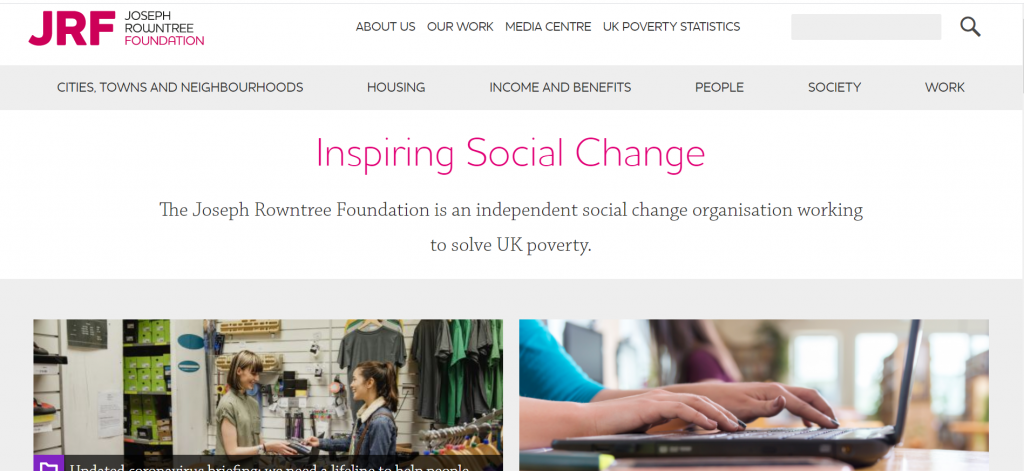
The Joseph Rowntree Foundation is a British social policy research and development charity, that funds UK-wide research and development programs. It aims to understand the root causes of social problems, and how social needs can be met in practice. The charity produces excellent topical research reports on cities towns and neighborhoods, housing, income and benefits, people, society and work.
The website is easy to search and browse by topic.
Written by the Social Science team at the British Library and guest contributors, it gives insight into their work, projects they are involved in as well as events, interesting resources and research methods related to the social sciences.
There is some great content on the blog and they run free, online short courses, with recent topics including things like propoganda and research methods for historical, society focused, research. This is definitely a blog worth bookmarking.
This a major resource for British social history from 1937-1967. It contains material generated by the Mass Observatihttps://libsearch.ncl.ac.uk/permalink/f/1jraif3/NCL_ALMA21112401630002411on social research organisation, including all the day surveys, diaries and subject directives from 1937-1967, a wide range of themed topic collections, together with other material such as images and essays.
The online exhibitions are an accessible way into the collections and highlight the wealth of information and documents available in the database.
To get started, browse by topic and you will quickly get a sense of the range of information that would be useful for your written assignments
As well as following your reading lists from your module leaders you will also need to find your own good quality resources. Here are some of our suggestions to help you find the information you need.
When working off campus, you can still access the full collection of ebooks, electronic journals and professional magazines, newspapers, conferences and more, from Library Search.
Additional ebook titles are being added to the collection every day while we are all working remotely. Search by author, title or keyword to find books to help you with your essay topic.
Our video will get you started with searching for eBooks.
To find academic journal articles from across our collection that match your topic keywords, use the everything search option and filter your results on the left to peer-reviewed journals.
Find out how to search for journal articles in this short video.
The Social Sciences Premium Collection is a brilliant place to start if you would like to refine your results to education and the social sciences, while still searching broadly across different information types. Find out more about the Social Sciences Premium Collection, how to search it successfully and use the advanced features in the video guide below. It is a brilliant resource for education.
You can contact the Liaison Team for one-to-one support or send your questions to Library Help, where there are staff logged into our live chat service, 24/7.
Between Library Search and your Subject Guide, you will be able to find excellent information to use in your academic essays, but there are many other resources you may want to try.
ERIC is the most widely used education database, that covers a broad spectrum of education literature including journal articles, books, conference papers and reports. It has global coverage although can be a little skewed towards American education.
It includes basic and advanced search options, and has a built in thesaurus that allows you to select subject headings for your search, that take into account the differences in how education levels or topics may be described internationally, e.g. elementary education versus primary education.
Find out how to do a basic search on the EBSCOhost platform, that hosts ERIC.
If you want to refine your search to UK education, use British Education Index instead. It is on the same platform as ERIC so is searched in the same way, but will refine your results to a British focus.
4. JSTOR
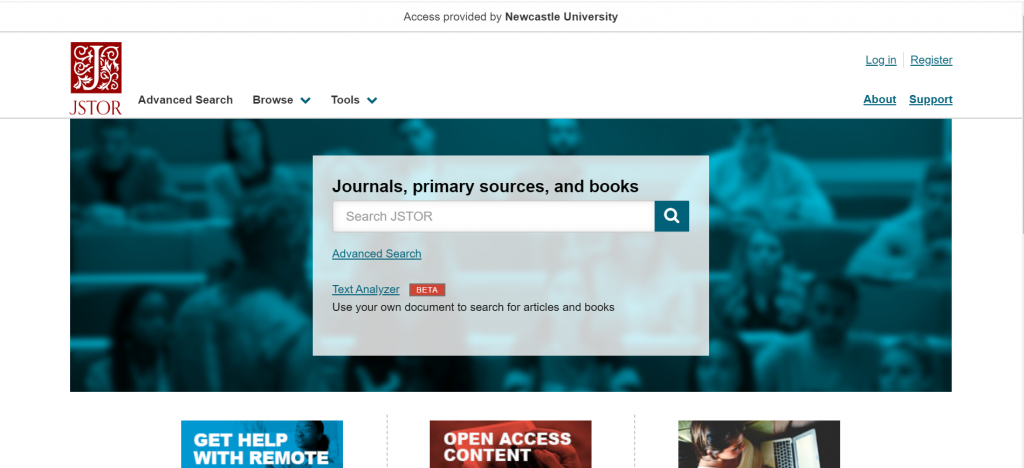
JSTOR is a full-text collection, giving you online access to scholarly journals, books and book chapters in the arts, humanities, and social sciences.
It has basic and advanced search options that allow you to search by topic keyword, author, subject area, title or publisher
Scopus is a large, multidisciplinary database, which indexes peer- reviewed journal articles, books, book chapters, conference proceedings and trade publications.
One of the main advantages of using Scopus is that it provides a lot of useful information about the articles it indexes. This includes full reference lists for articles and cited reference searching, so you can navigate forward and backward through the literature to uncover all the information relevant to your research.
You can also set up citation alerts so you can be informed of new, relevant material automatically. Other useful tools include citation overviews, author and affiliation searching, visual analysis of search results, a journal analyser, and author identifier tools (if you are interested in publishing work).Watch this video from Scopus about how to expand your search from a known article reference.
https://youtu.be/qCu-obYMFsE
Watch this video from Scopus about how to expand your search from a known article reference.
Government publications provide information in a variety of subjects. Statistics, White Papers, Parliamentary Bills and a whole range of Official Legislation published by the Government. The provide a good, reliable, source of accurate statistics, and can give support to your argument in essay topics. This includes OFSTED reports, Department for Education advice, policy and publications.
OECD iLibrary is the online library of the Organisation for Economic Cooperation and Development (OECD) and gives you access to books, analyticalreports and statistics, covering a broad range of topics relevant for studies in education.
OECD iLibrary is certainly worth searching to provide reputable supporting information for your academic work.
Statista is an extensive statistics platform covering over 1.5 million data sets. It includes reports, statistics and forecasts on a range of topics. So if you want to know which social media platforms are most popular across the globe, compare homelessness statistics, explore education trends or how many people read every day, Statista is a brilliant place to start.
Statistics and reports can be exported in a range of formats including images and PowerPoint, giving you flexibility to include the visuals in your assignments. The statistics source is included, giving you the information that you need to cite it successfully.
Find out more about Statista with this brief introduction.
Newspapers are an excellent resource to explore, to provide a range of perspectives on a topic. You can find opinion pieces, social commentary and identify trends in public opinion.
We have a huge range of newspaper archives, historic newspapers and international sources such as Nexis that can mostly be access online and off campus. Our Newspapers resource guide collates all of our resources and will guide you through how where to look.
LexisLibrary is an excellent place to start, including TES and The Guardian education. It provides access to UK national and regional newspapers, from the 1990s to today. It includes the copy text without the images or formatting and all of the details you need to create a citation are on the article page.
Once you have followed the Library Search link to access Lexis, make sure you click on News at the top of the page for full text access to all UK publications.
As so many articles are published every day, you will need to refine your searching using date ranges, combined keywords or by selecting specific newspapers or publication type (i.e. broadsheet or tabloid).
Remember to use your critical skills when using newspapers however, and watch out for Fake News. They are biased sources and are best used in balance with other sources. You can find our tips on our Evaluating Information skills guide.
Box of Broadcasts can be used to access TV and radio broadcasts from over 65 channels, including most of the UK’s freeview network, all BBC TV and radio content from 2007, and several foreign language channels. It’s a great resource to use to find documentaries or critical opinions.
You can view archived programmes, record new ones, create clips and playlists and see transcripts to help with citation and translation. You can also search for other user’s public playlists to help you in your own search.
You can get help at anytime during your studies by contacting your Social Science Liaison Team; Karen and Louise who are based in the Philip Robinson Library.
New to the University or just not sure where to start other than the Politics reading lists you’ve been told to follow? Then check out our list for where you might to look.
When working off campus, you can still access the full collection of ebooks, electronic journals and professional magazines, newspapers, conferences and more, from Library Search.
Additional ebook titles are being added to the collection every day while we are all working remotely. Search by author, title or keyword to find books to help you with your essay topic.
To find academic journal articles from across our collection that match your topic keywords, use the everything search option and filter your results on the left to peer-reviewed journals.
Watch our introduction to the main Library Search features.
The Social Sciences Premium Collection is a brilliant place to start if you would like to refine your results to politics and the social sciences, while still searching broadly across different information types.
Find out more about the Social Sciences Premium Collection, how to search it successfully and use the advanced features. It is a brilliant resource for politics.
You can contact the Liaison Team for one-to-one support or send your questions to Library Help, where there are staff logged into our live chat service, 24/7.
Between Library Search and your Subject Guide, you will be able to find excellent information to use in your academic essays, but there are many other resources you may want to try.
Scopus is a large, multidisciplinary database, which indexes peer reviewed journal articles, books, book chapters, conference proceedings and trade publications.
One of the main advantages of using Scopus is that it provides a lot of useful information about the articles it indexes. This includes full reference lists for articles and cited reference searching, so you can navigate forward and backward through the literature to uncover all the information relevant to your research.
You can also set up citation alerts so you can be informed of new, relevant material automatically. Other useful tools include citation overviews, author and affiliation searching, visual analysis of search results, a journal analyser, and author identifier tools (if you are interested in publishing work).
https://youtu.be/qCu-obYMFsE
Watch this video from Scopus about how to expand your search from a known article reference.
Government publications provide information in a variety of subjects. Statistics, White Papers, Parliamentary Bills and a whole range of Official Legislation published by the Government provide a good, reliable, source of accurate statistics, and can give support to your argument in essay topics.
OECD iLibrary is the online library of the Organisation for Economic Cooperation and Development (OECD) and gives you access to books, analyticalreports and statistics, covering a broad range of topics relevant for studies in politics.
Agriculture and food
Development
Economics
Education
Employment
Energy and nuclear energy
Environment
Finance and investment, taxation and trade
Industry and services
Science and technology
Social Issues / Migration / Health
Transport
Urban, Rural and Regional Development
OECD iLibrary is certainly worth searching to provide reputable supporting information for your academic work.
Statista is an extensive statistics platform covering over 1.5 million data sets. It includes reports, statistics and forecasts on a range of topics. So if you want to know which social media platforms are most popular across the globe, compare homelessness statistics, explore industry trends or how many people play video games, Statista is a brilliant place to start.
Statistics and reports can be exported in a range of formats including images and PowerPoint, giving you flexibility to include the visuals in your assignments. The statistics source is included, giving you the information that you need to cite it successfully.
Find out more about Statista with this brief introduction.
Newspapers are an excellent resource to explore, to provide a range of perspectives on a topic. You can find opinion pieces, social commentary and identify trends in public opinion.
We have a range of newspaper resources available from the Library, and LexisLibrary is an excellent place to start. It provides access to UK national and regional newspapers, from the 1990s to today. It includes the copy text without the images or formating and all of the details you need to create a citation are on the article page.
Once you have followed the Library Search link to access Lexis, make sure you click on News at the top of the page for full text access to all UK publications.
As so many articles are published every day, you will need to refine your searching using date ranges, combined keywords or by selecting specific newspapers or publication type (i.e. broadsheet or tabloid).
Remember to use your critical skills when using newspapers however, and watch out for Fake News. They are so biased sources and are best used in balance with other sources. You can find our tips on our Evaluating Information skills guide.
9. Newspaper archives and international news
We have a huge range of newspaper archives, historic newspapers and international sources such as Nexis that can mostly be access online and off campus. Our Newspapers resource guide collates all of our resources and will guide you through how where to look.
If you want to search across a range of newspapers, we suggest you start with Gale Primary Sources, as this gives access to nearly all our British newspaper archives, except for The Guardian and The Observer.
10. Box of Broadcasts
Box of Broadcastscan be used to access TV and radio broadcasts from over 65 channels, including most of the UK’s freeview network, all BBC TV and radio content from 2007, and several foreign language channels. It’s a great resource to use to find documentaries or critical opinions.
You can view archived programmes, record new ones, create clips and playlists and see transcripts to help with citation and translation. You can also search for other user’s public playlists to help you in your own search.
Unfortunately, Box of Broadcasts is not available outside the UK.
You can access the full collection of ebooks, electronic journals and professional magazines, newspapers, conferences and more, from Library Search.
Additional ebook titles are being added to the collection every day while we are all working remotely. Search by author, title or keyword to find books to help you with your essay topic.
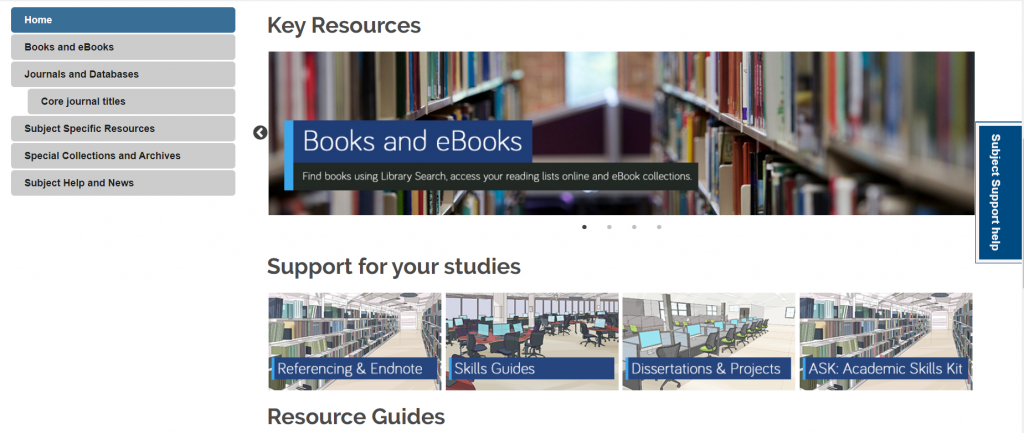
The Subject Specific Resources page gives you a curated list of good quality image and buildings websites which will be great to reference in your essays.
You can contact the Liaison Team for one-to-one support or send your questions to Library Help, where there are staff logged into our live chat service, 24/7.
Between Library Search and your Subject Guide, you will be able to find excellent information to use in your essay, but there are many other resources you may want to try.
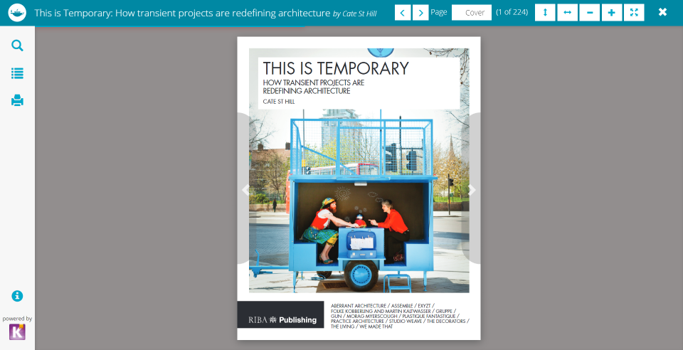
The Library recently purchased 89 ebook titles, available through a partnership between RIBA and Taylor & Francis. You can access the RIBA ebooks in Library Search when books match your keywords, or you can find a full list on this blog post.
Find excellent quality building examples for your academic work. The database includes case studies, articles, essays, building plans and photographs for different building types and construction methods. You can find out more about
Published by the Getty Research Institute, the index is a comprehensive American guide to the current literature of architecture and design. It surveys more than 2,500 international journals and provides nearly 13,000 citation records for architects’ obituaries. Some of the articles have full-text attached, while others will link using the Find@Newcastle University button to take you back to Library Search to access the full-text if we have it.
You can filter your results to scholarly journals or the wider professional collection.
A full text, full colour archive of 25 art and architecture magazines from the 19th to 21st centuries. You can search across the whole archive or individual magazines.
The AJ Buildings Library is a digital database that showcases more than 1,900 exemplar projects, most from the last 20 years but including major projects back to 1900.
When accessing the database for the first time, you will need to set up an account using your Newcastle email on the Architects Journal website. Click on Sign In at the top left of the homepage, and then register, to complete the form. You will be able to log in to the Buildings Database.
You can search for projects by age, cost, architect, building type, footprint, location, and a combination of these. Each project featured in this digital database includes full project data (more than 20 items of information) and comprehensive architectural photographs and drawings (plans, elevation, section) – all provided at high resolution.
Drawings can be downloaded and printed out to their original scale. Vector pdfs and CAD files are not available for download and all copyrighted images are protected.
Box of Broadcasts can be used to access TV and radio broadcasts from over 65 channels, including most of the UK’s freeview network, all BBC TV and radio content from 2007, and several foreign language channels. It’s a great resource to use to find documentaries or critical opinions.
You can view archived programmes, record new ones, create clips and playlists and see transcripts to help with citation and translation. You can also search for other user’s public playlists to help you in your own search.
Unfortunately, Box of Broadcasts is not available outside the UK.
ArchDaily is a great resource that provides news and information from around the world on all aspects of architecture. Founded in 2008, is is one of the biggest and most popular architecture websites in the world.
You can keyword search across the website, or use the browse options to find information about hot topics, different types of architectural project. The interviews section is well worth exploring.
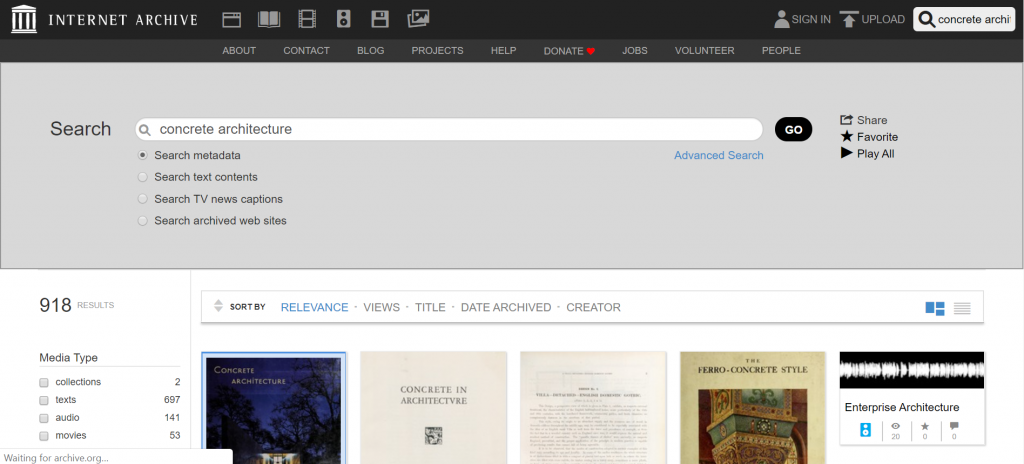
Internet Archive is a non-profit library of millions of free books, videos, music, websites, and more. You can do a simple keyword search around your topic area, and refine by the information type. Or search within the ebooks for specific titles.
The US Modernist Library is the world’s largest open digital collection of major US 20th-century architecture magazines with approximately 2.7 million downloadable pages – all free to access. You can search for a specific modernist house, search by architect, original owner or keyword.
RIBA’s image library of over 100,000 photographs and drawings from the RIBA Collections, available to view, buy and download. Many of the images are protected by copyright so will need to be used with caution.
With over 8,000 images, the slides, negatives and prints of historical and contemporary architecture are all available in low resolution for educational purposes. It also includes photographs of work produced by students at the School of Architecture since the 1880s, as well as a video archive for its lectures, conferences, and seminars.
This is the largest online-database about worldwide architects and buildings, including information about more than 81,000 built and unrealised projects. The information varies for each project but includes images, commentary, drawings and links to references to read more about the project.
You can search the database using your topic keywords, or by architect, building name or location.
CIS is produced jointly with the National Building Specification (NBS) especially for architects, civil and structural engineers, building control officers, building services engineers and other professionals in the construction industry. It provides industry information and legislation, along with full-text access to key professional publications, including Architects Journal.
The full-text documents cover all aspects of the building, engineering, design and construction process.
Institute of Physics Ebook collections offer high-quality research across physics and related disciplines. They have been created to meet the needs of students, early-career researchers and established leaders in the fields.
An additional 255 IOP ebooks covering subjects such as astronomy, particle and nuclear physics, medical physics and biophysics, quantum science and more have just been added to the Library’s collection.
If you find a title that we don’t have full-text access to and you would like us to add it to the collection, just use our Books on Time form available on the Library website to request it.
We have 89 eBook titles available through a partnership between RIBA and Taylor & Francis. We like them as they are available on a unlimited DRM free model.
All titles are available through our catalogue, Library Search.
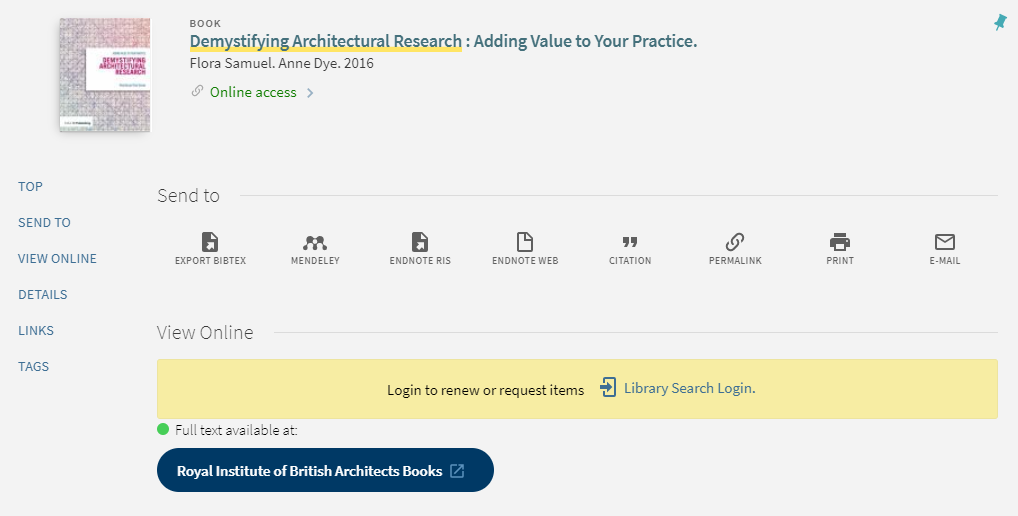
Follow the links to the platform which supply that title e.g. the large blue button to the “Royal Institute of British Architects Books”
Once you are transferred to the Taylor and Francis platform you will see options to navigate to specific chapters or content, download read online. Once you’re inside the eBook then you can keyword search, make the text size larger/smaller or jump into chapters.
The full list of titles includes :
101 Rules of Thumb for Low Energy Architecture
101 Rules of Thumb for Sustainable Buildings
and Cities
20/20 Visions
A Gendered Profession
Age-friendly Housing
An Architect’s Guide to Public Procurement
An Introduction to Architectural
Conservation
An Introduction to Passive House
Architect’s Guide to NEC4
Assembling a Collaborative Project Team
Automatic for the City
Avoiding and Resolving Disputes
Being an Effective Construction Client
Better Buildings
BIM Demystified
Biomimicry in Architecture
Briefing
Building Condition Surveys
Building in Arcadia
Building Revolutions
CDM 2015
Chinese Urban Transformation
Climax City
Commercial Client’s Guide to Engaging an
Architect
Competition Grid
Conservation
Construction
Contemporary Vernacular Design
Contract Administration
Creating Winning Bids
Demystifying Architectural Research
Design
Design for Biodiversity
Design for Climate Change
Design Management
Designed to Perform
Desire Lines
Domestic Client’s Guide to Engaging an
Architect
Extensions of Time
Financial Management
Future Campus
Future Office
Future Schools
Good Office Design
Guide to JCT Design and Build Contract 2016
Guide to JCT Intermediate Building Contract
2016
Guide to JCT Minor Works Building Contract
2016
Guide to JCT Standard Building Contract 2016
Guide to RIBA Domestic and Concise Building
Contracts 2018
Guide to RIBA Professional Services
Contracts 2018
Guide to the RIBA Domestic and Concise
Building Contracts 2014