
Accessing resources beyond the Library

Photograph by Erik Odiin of somebody in a train station
Photo by Erik Odiin on Unsplash

If you’re working on a dissertation, thesis or project right now, or will be doing so next academic year, what can you do if the Library doesn’t have access to all the specialist books and other information resources you need? How can you find out about resources relating to your research topic which are held elsewhere? Can you visit other libraries and archives if you’re away from Newcastle over the vacation?

Read on to find out how you can expand your search beyond our library….

1. Search

You can search across the catalogues of over 170 UK and Irish academic and national libraries, together with other specialist and research libraries, via Library Hub Discover (formerly COPAC). The range of libraries included in Library Hub Discover is expanding all the time, and includes all UK universities, as well as the libraries of such diverse organisations as Durham Cathedral, the Institution of Civil Engineers, the Victoria and Albert Museum, and the Royal Horticultural Society.

Library Hub Discover logo

In response to Covid restrictions, Library Hub Discover has also made it easier for you to find Open Access resources via its catalogue: it has recently incorporated the HathiTrust Digital Library, as well as the Directories of Open Access Books and Journals to its searchable database.

For a more in-depth and up-to-date search, you can also search individual academic library catalogues online. Need to look further afield? Search library catalogues internationally via WorldCat.

If you are looking for archives elsewhere, whether in the North East or beyond, our colleagues in the Special Collections and Archives team have compiled a list of useful directories and search tools.

2. Obtain

If we haven’t got the book you want, you can ask us to consider buying or borrowing it via our Recommend a book service.

If you need a copy of a journal article to which we don’t have access, you can apply for it via our inter library loan service, which is currently free.

You can search UK doctoral theses via the national EThOS service. This has records for over 500,000 theses, dating back to the year 1800, of which over half are freely available online (do note you have to register with EThOS before being able to download: it’s a separate login process to your usual University login).

3. Visit
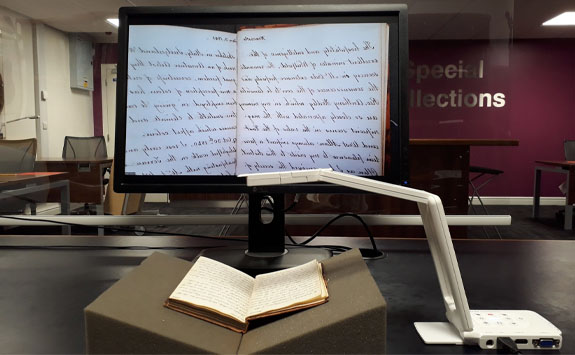
Photo of Special Collections Virtual Reading Room
Special Collections Virtual Reading Room

The SCONUL Access Scheme enables students to visit most other academic libraries around the country, and in some cases, borrow from them. This service has recently resumed since its suspension during the Covid pandemic, but please note that not all academic libraries are currently participating in the scheme, so do check carefully before you visit, and read the latest information on the SCONUL Access site.

You will need to register with SCONUL Access before you can visit another Library, so do allow time for your registration to be processed.

If you want to consult archives or special collections elsewhere, you’ll need to check with the organisation in question beforehand (you’ll usually need to request to consult items in advance of your visit). If you can’t visit in person, archives services may still be able to answer queries, provide access to selected digitised items, or even operate a Virtual Reading Room, so it may well be worth enquiring.

Westlaw UK Dockets

The Thomson Reuters banner advertising Dockets. It is a dark sky-like background with shooting stars heading upwards.

Thomson Reuters have recently announced the introduction of UK Dockets in Westlaw UK, included in our academic subscription.

A docket is a record of litigation events as a case goes through the courts, starting when a claim is filed through to judgment. 

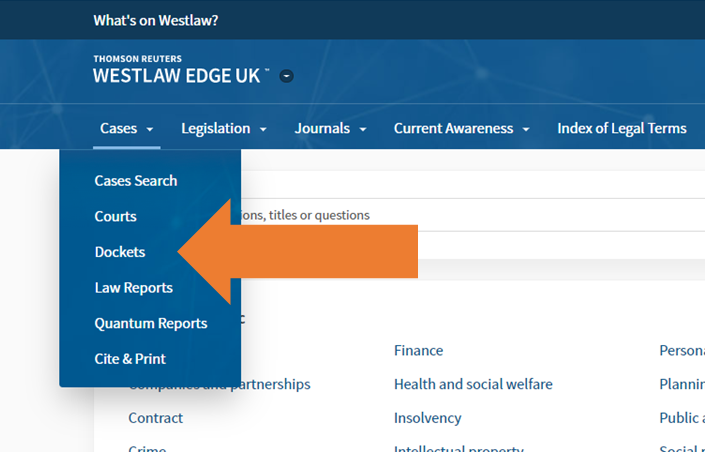
You can access UK Dockets from the Cases menu. This brand-new content set containing over 230,000 litigation events will make it easier for you to receive daily updates of new cases filed in the High Court — all in one place.

An image of the Westlaw Edge UK homepage, with the Cases menu and Dockets menu option highlighted with a large orange arrow.

With UK Dockets on Westlaw, you can easily:

  • create daily alerts on new cases, specific courts or parties, and other events
  • track individual cases and be alerted to any changes
  • access every step of the case journey from a claim being filed to judgment and through to the appeals process

Having access to UK Dockets on Westlaw can provide you with confidence around never missing a case event.

Access Westlaw Edge UK and UK Dockets via our Subject Guide.

If you have any feedback on the service, please contact libraryhelp@ncl.ac.uk or leave your comments below.

Get more out of Box of Broadcasts!

Have you met BoB? Box of Broadcasts is a fantastic resource for all subject areas: an archive of over two million radio and television broadcasts from over 75 free-to-air channels, including all BBC channels, ITV and Channel 4, plus some international channels. New programmes are added to BoB as they are broadcast each day.

We know it’s a very popular resource, but are you getting the best out of it? Here are some quick tips for newbies and experienced users alike!

Smarter searching

BoB is a huge database, so searching by keyword may retrieve a lot of irrelevant results, especially as the default search looks for your keyword in all programme transcripts (i.e. every word spoken in a programme). Click on the Search options link just under the search bar to see various ways of making your search more precise, including searching in the programme titles only, or limiting by date. This help video gives more detail:

Playlists and clips

You can create your own playlists: really helpful if you’re researching for an assignment, or preparing to teach a module. You can also search public playlists curated by other BoB users around the UK: just select Public playlists underneath the search bar, or explore this showcase of playlists for more inspiration.

BoB curated playlists

Clips are really easy to make too:

Stop press: pre-2007 broadcasts now available

Box of Broadcasts currently only contains programmes broadcast from 2007 onwards. However, in March 2022, the BBC announced that its entire digitised archive can now be requested using the Television and Radio Index for Teaching and Learning (TRILT), which is also managed by Learning on Screen.

Need more help?

Got more BoB questions? Try their extensive FAQs or take a look at their updated collection of short video guides.

Resource in focus: State Papers Online

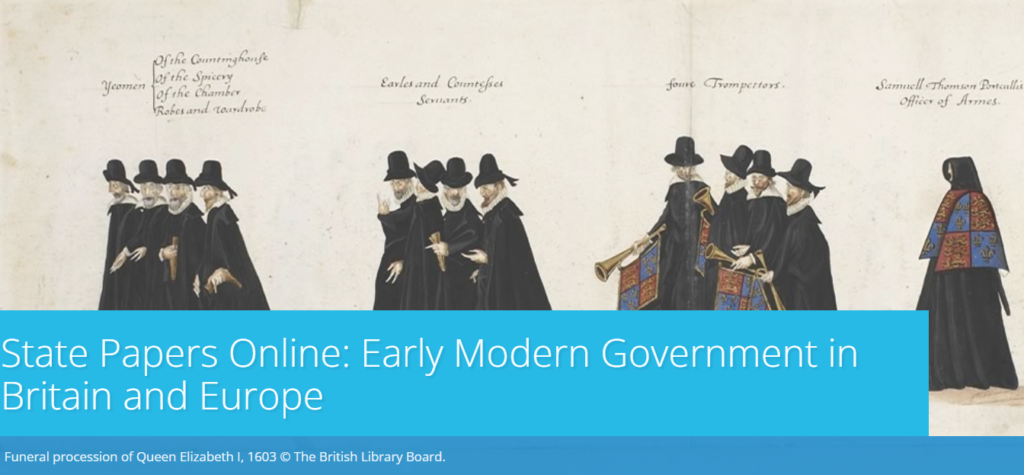
The Library has access to the digitised State Papers Online from 1509 to the end of the State Papers series in 1782, providing a fascinating research resource for early modern Britain and Europe.

What are the State Papers?

They are predominantly official papers of the Secretaries of State from the period, and include correspondence, reports, memoranda and civil service drafts, covering a wide range of domestic and international matters, and emanating from the highest levels of power. The collections include letters from popes, diplomats, and rulers of other countries, as well as records such as military and naval registers, and thus provide a fascinating record of the Tudor, Stuart and early Georgian periods in England and beyond.

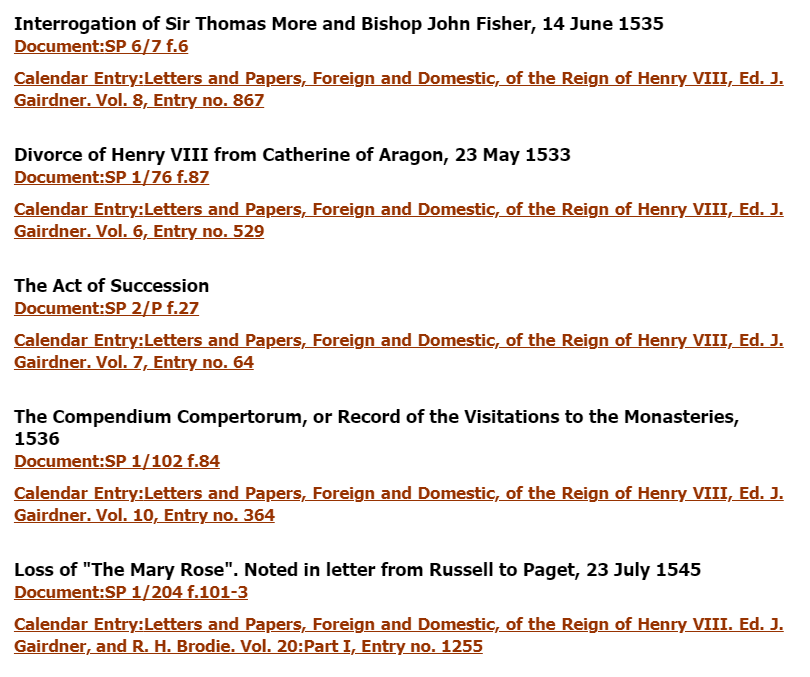
A selection of entries

It is an major resource for researching themes such as the monarchy, law and order, religious conflict, wars and treaties, international trade and the emergence of party politics.

What’s in this collection?

The digitised collections comprise the papers themselves, digitised from the original manuscripts, as well as the ‘calendars’, which catalogue and briefly describe or summarise the manuscripts, and which have been transcribed into text. The manuscripts themselves are mostly not searchable (except for a few series which have been transcribed). The calendars are searchable, and each calendar entry links to its manuscript, making the research process significantly easier than pre-digitisation.

How to search

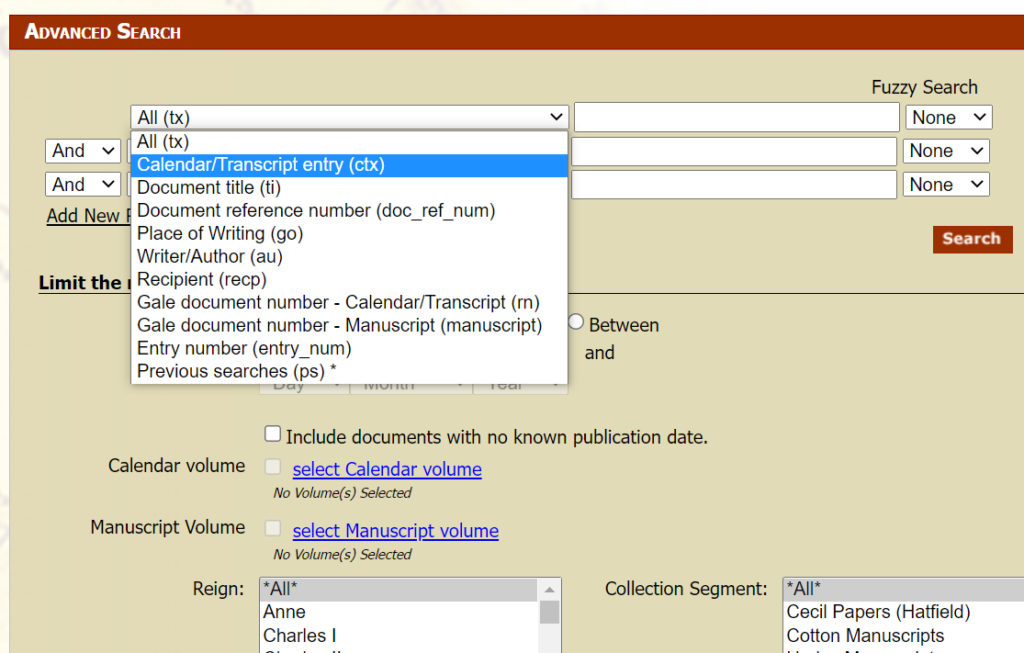
You can search or browse the State Papers in various ways. We’d recommend selecting Advanced Search to access all the options for focusing your search. Note useful options such as fuzzy search, which enables you to search for spelling variants, plus the option to limit your search to records with a manuscript, and/or a transcript of the manuscript.

Advanced search screen

The Browse function may be useful if you wish to work through a particular series of State Papers: you can either browse the calendars or manuscripts.

There are various options for saving, downloading and exporting results.

Help and guidance

Help options
Help options

If you are using the State Papers for the first time, we’d recommend reading the relevant About State Papers Online section to get an overview of what each collection contains.

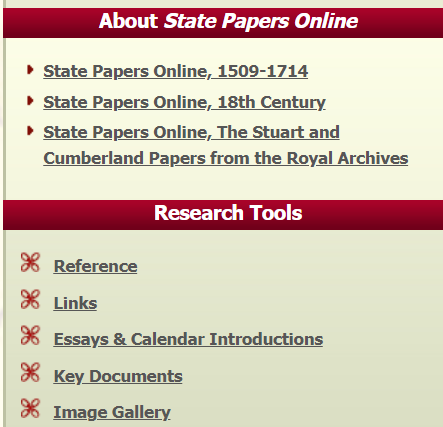
You will also find very helpful contextual information in the Research Tools section.

  • Reference includes glossaries, explanations of dates, weights and measures etc;
  • Links gives links to useful guidance such as paleography courses.
  • Essays gives more detailed insights into each collection, written by experts.
  • Key documents picks out important highlights from the collections.
  • You can also click Help in the top right of the screen for in-depth help with searching and exporting.
Tips for creating your study space

If you’re away from Newcastle over the Winter break you may be studying in unfamiliar or unusual spaces, which can make it more challenging to concentrate or find your motivation. Procrastination may be a struggle and creating a space, both physical and online, in which to be your most productive is something that many of us find challenging. It may not always be possible, but creating a managed space to study in will help. So what are our tips for creating the perfect study space at home?
1. Select your space

If possible, designate a space as your study environment. It may be your room in a shared house, the kitchen table, office, dining room or a spot in the hallway. Wherever you choose, claim it and make it yours in order to reduce distractions from those you live with and to create a studying mindset.

It can be invaluable to have a ‘work space’ which is separate from the rest of your life and spaces in which you relax. Even if this is simply a cheap desk in your bedroom, having a ‘study spot’ which is dedicated to your academic work will help you create structure and routine, and feel in the studying zone. It also makes for less embarrassment when you turn your camera on in Zoom or Teams.

2. Make it comfortable

While it may be tempting to study from your bed (which we’ve all done!), sitting upright will help you stay alert. Not to mention the benefits for your shoulders, back and neck. Start with a desk or table if you can, as it will allow you to make an organised space and leave your hands free to take notes.

It’s also worth thinking about how you can make the space more comfortable by opening a window for fresh air every so often, and the level of natural light you can introduce. Perhaps think about studying earlier in the day so that the natural brightness helps you stay alert and boosts your mood.

3. Tidy space, tidy mind

A cluttered study space can make it more difficult to focus and introduce unwanted distractions. By filing away your notes and de-cluttering your space at the end of a day, you will be able to start the next day fresh and find the learning materials you need.

This goes for your online spaces too. Think about how and where you keep your assignments, notes and any materials you download from Canvas, to ensure you are able to access the materials as you prepare assignments or revise for exams. Set up folders in One Drive that relate to each module or project you are working on and be sure to keep track of any collaborative work, such as projects in Teams. Managing the information you collect as you study and keeping it organised in some way is an essential study skill. Visit the Managing Information Guide for more tips.

4. Gather some stationery

It’s a simple tip, but keep a pen and paper nearby so that you can make quick notes. This might be jotting down an idea or something to remind yourself about at a later date. Many of you will take your notes digitally and may have a tablet you use within your programme, but having a notebook and pen to hand is a valuable backup. If you prefer handwritten notes, make sure you have a good organisational system so that you are able to retrieve the information you need.

You’ll find lots of useful tips around notetaking on the ASK website.

5. Listen to some music

Some of you may find studying in silence works best for you, while others may need a little background noise to block out distractions. Select a soundtrack for your study that helps you concentrate, with a mixture of mood boosting tracks and songs that are a little more mellow and calming. You’ll find lots of readymade study playlists on streaming services, or you could start with our Library Spotify playlists.

6. Switch off your devices

Many of us will recognise our mobile phone as a significant source of distraction and cause of many unproductive minutes. Switch off your mobile phone, log out of social media accounts on your study device and turn off the TV. This will help you create designated study time as well as space. It will also be a step towards introducing breaks in your study routine.

7. Take breaks

Taking regular breaks and walking away from your study space will help you return feeling refreshed. Why not download the iNCLude App? It has been designed to help you take small steps to improve and maintain your wellbeing, by creating positive habits and helping you focus on more than just your academic studies.

One valuable bonus tip from the WDC about taking breaks:

When you break, take a moment to leave a ‘note to future self’ about where you got to or what you were intending to do next.

Student studying with laptop and notebook.

8. Be organised

Learning remotely is challenging when you have to manage your own time and motivation. Being organised and creating your own plan or timetable can help.

When you begin your study session make sure you have everything you need to hand so that you don’t interrupt your flow. You might want to leave your laptop charger nearby!

Visit the Academic Skills Kit for more study and academic skills advice

Resource on trial: Westlaw Academic Books

The Westlaw UK logo

Westlaw is one of our highly-valued legal databases and can be accessed via our Law Subject Guide and Library Search, logging in with your Newcastle University Campus ID & password. One of the lesser-used aspects of Westlaw is its Books collection.

Westlaw Books gives access to invaluable titles such as the White Book and Archbold, alongside comprehensive and authoritative coverage of common law through titles from the Common Law Library series (e.g. Chitty on Contracts, and Benjamin’s Sale of Goods).

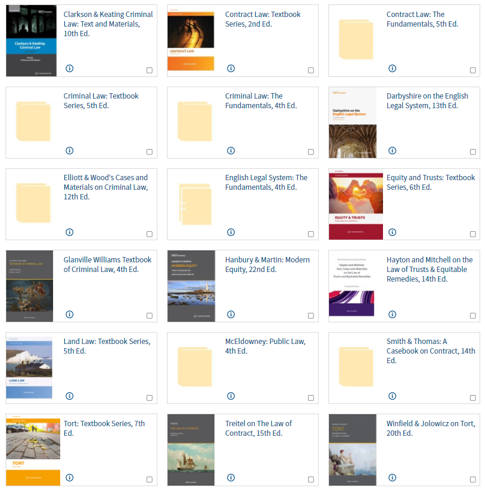
Until the end of November 2021, we also have access to the academically-based books available in the Sweet & Maxwell Academic Collection to support your studies. These include Duxbury’s Contract Law (Textbook Series), Winfield & Jolowicz on TortTreitel on the Law of Contract, and Elliott & Wood’s Cases and Materials on Criminal Law (the latter being written and edited by former academics of Newcastle Law School).

An image of the selection of Sweet & Maxwell Academic titles available within Westlaw Books.

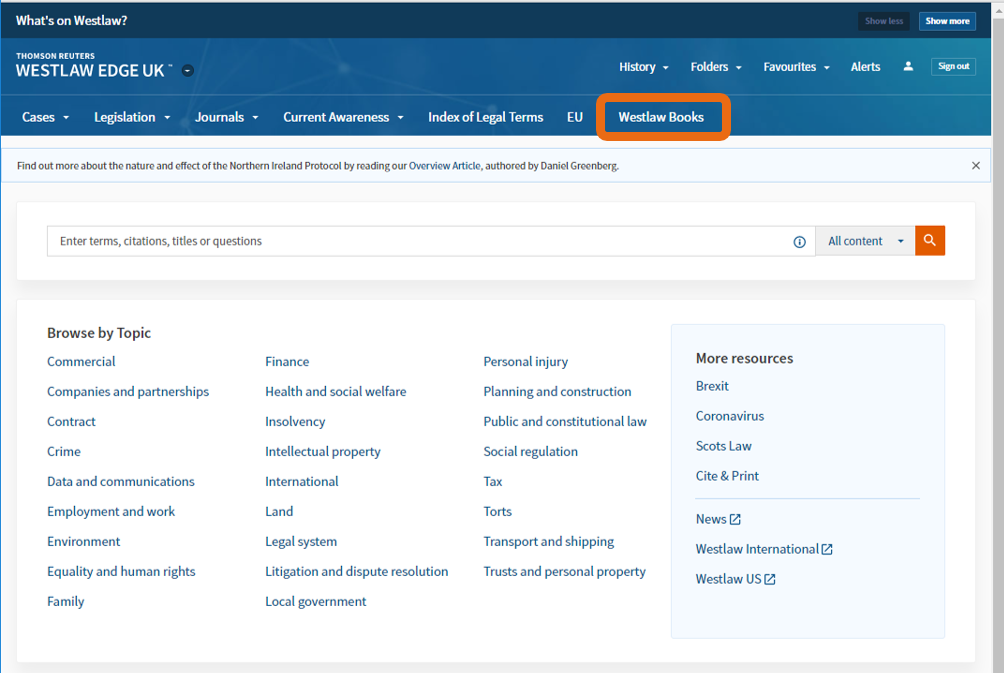
To access this content, log into Westlaw and click on Westlaw Books in the menu at the top of the page.

An image of the Westlaw homepage screen with the 'Books' menu option highlighted.

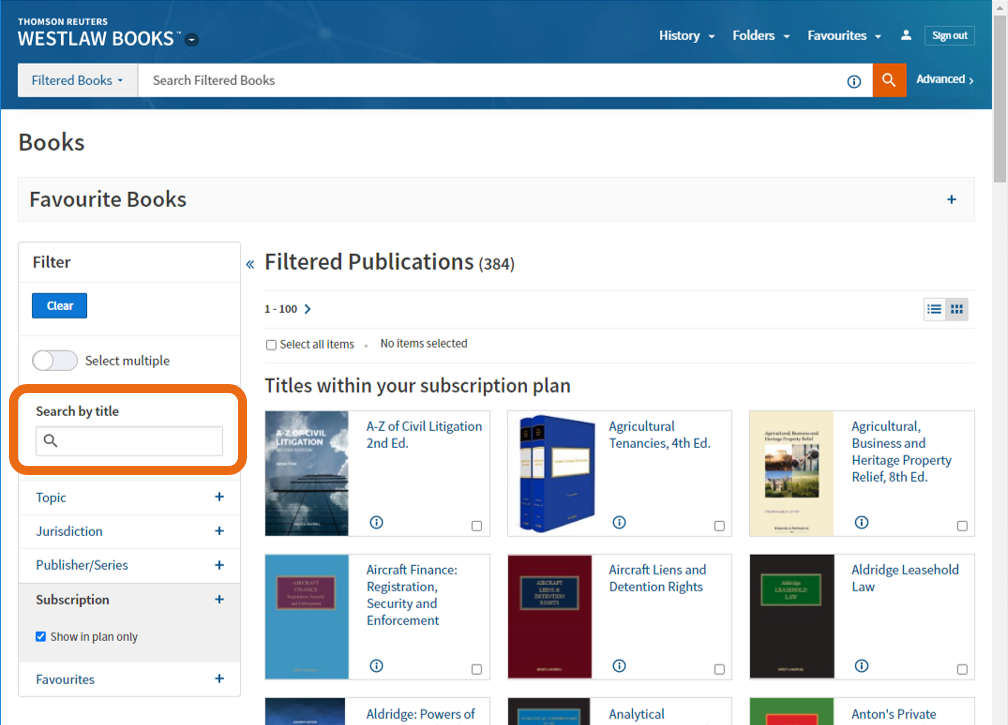
You can browse through the 350+ titles included in the Library’s subscription plan, but if you know the book you are looking for, search by a title keyword, e.g. criminal.

An image of the Westlaw Books screen with the 'Search by Title' field highlighted.

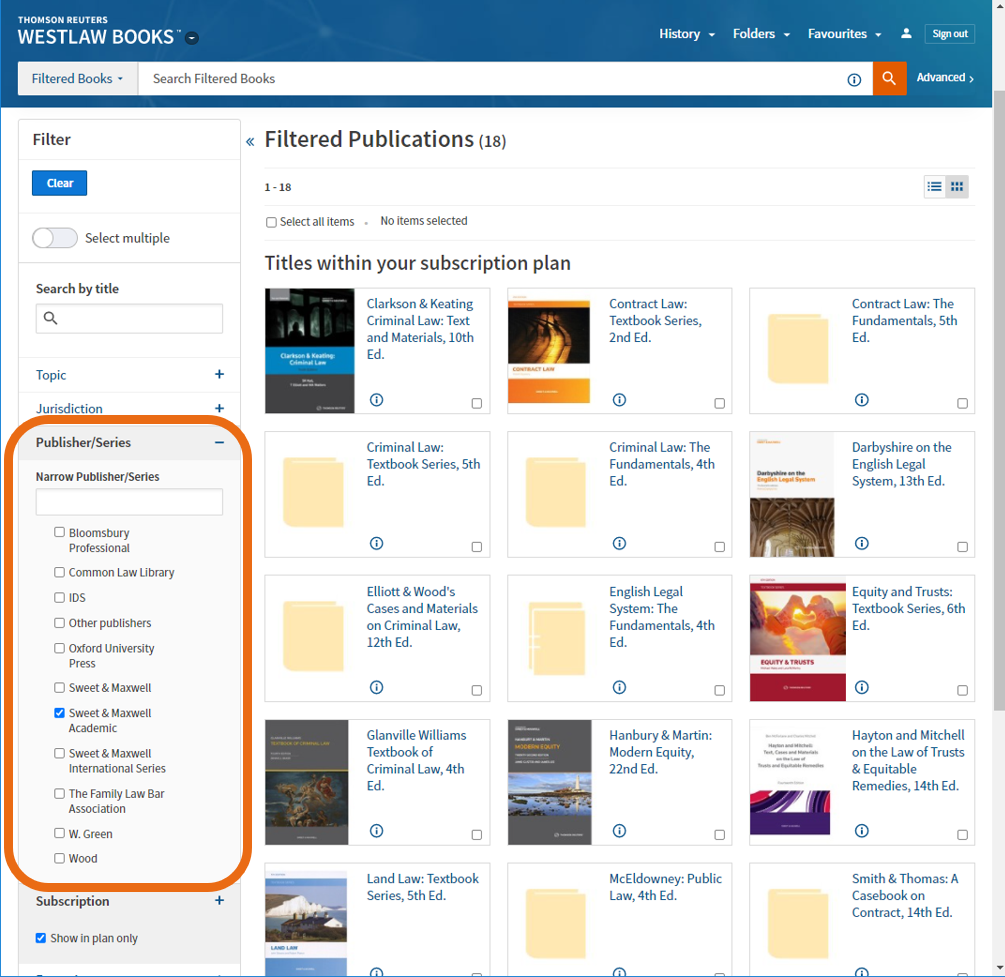
If you want to browse those student-focused books which are currently on trial, use the filters on the left-hand side of the screen. Scroll down and select ‘Sweet & Maxwell Academic’ in the Publisher/Series filter section.

An image of the Westlaw Books screen with a Sweet & Maxwell Academic filter selected.

This short Thomson Reuters video (1:56 mins) gives tips on using Westlaw Books effectively in locating bibliographic information (essential for referencing these titles in your work), searching the materials using keywords, saving your favourite titles for repeated use, and how to email, print, download, save into a Westlaw folder or simply view the material on the screen (in reading-mode too).

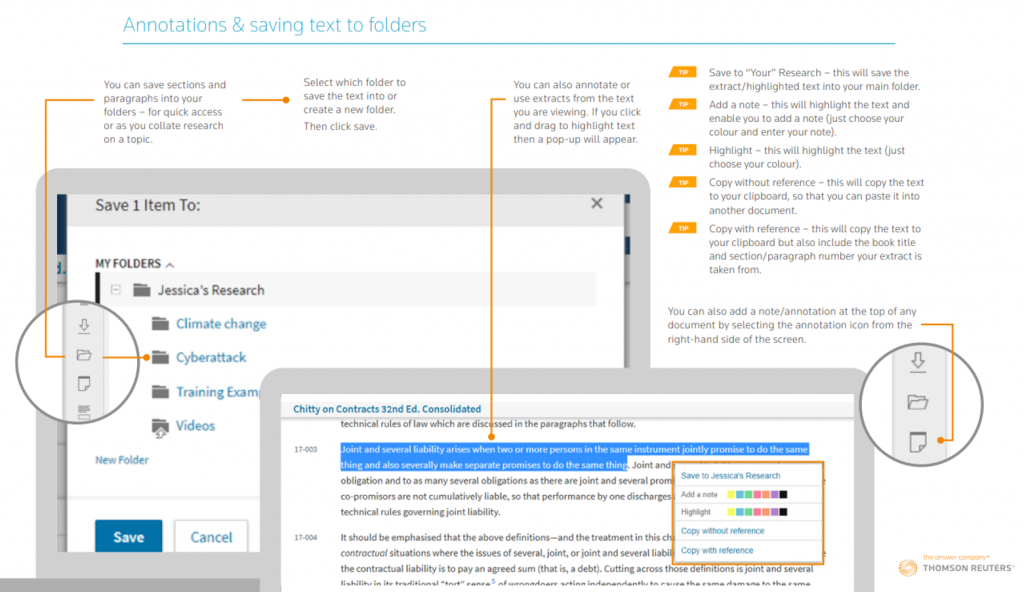
If you’re not a fan of videos and want a handy guide to download or print, then this Westlaw Books PDF will help.

An image showing an excerpt from the Westlaw Books support leaflet, and how to annotate and save text, download and print.

If you have any comments or questions about Westlaw Books, or any other library resource, please contact libraryhelp@ncl.ac.uk or leave your comments here.

Find UK and international news with Nexis Uni

If you’re looking for UK or international news from the last thirty years or so to today, then make sure you explore Nexis. The Nexis database has recently moved to a new platform (Nexis Uni): we think you’ll find it is easier to search than the old version, and it has some really useful features.

If you’re used to ‘old’ Nexis, don’t worry: the content on Nexis Uni is exactly the same, and you can still use the ‘expert’ search features if you want to.

What does it cover?

Nexis Uni enables you to search over 17,000 news, business and legal sources. This includes most UK national and regional newspapers, together with international sources, including newspapers, newswires and news magazines in multiple languages. Coverage of news titles often dates back to the 1990s and includes today’s news. Coverage is text only, and doesn’t include images, layout, adverts etc.

Nexis Uni also gives access to specialist business information, including dossiers on major UK and international companies, together with specialist legal information.

How to search news on Nexis Uni?

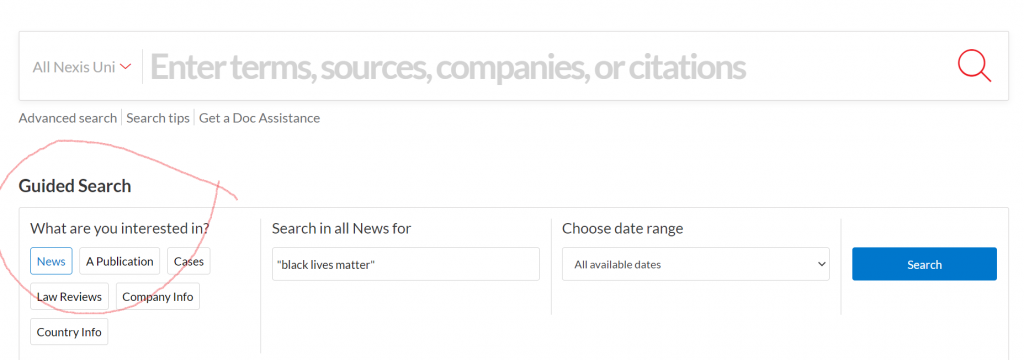
There are various ways to limit your search to newspapers/news sources, but the simplest is to select the News button from the Guided Search section:

Guided Search

Type in your search term (use ” ” if searching for a phrase), select your date range, and click Search.

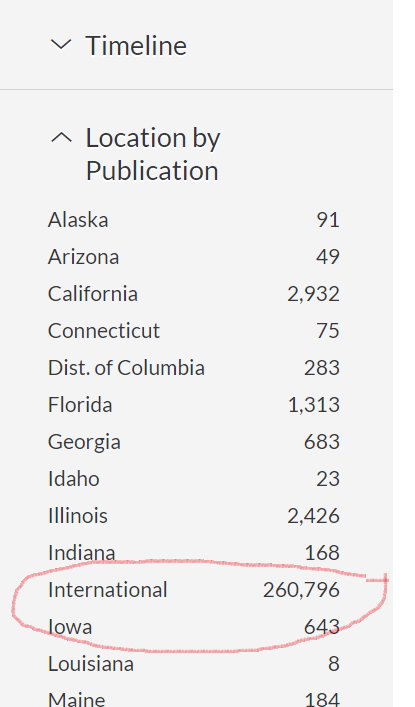
Limit by location of publication

Once your results are displayed, you can then further limit your search by date, publication type, location, language and more.

If you want to search news from a particular country, such as the UK, select Location by Publication >International> and then choose your continent and country.

If you would like to try more complex searching (e.g. searching in a particular section of the newspaper, or combining terms together in various ways), then click on Advanced search from the home page.

There is more detailed guidance about searching in the Nexis help centre.

Searching/browsing a particular newspaper

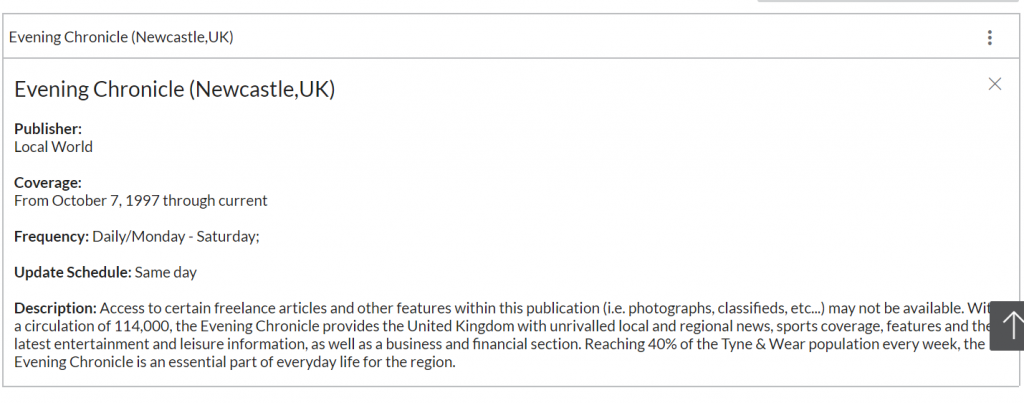
If you want to find a particular newspaper, choose Menu>All Sources, and then type the newspaper’s name in the Search within sources box. Click the three dot menu to get more information about coverage of the newspaper in Nexis Uni (NB ignore the phrase which says Archived source: no longer updated).

You can also use this route to add one or more newspapers as search filters, if you just want to search across certain titles only: to do this, type the newspaper title in the top search box entitled All Nexis Uni.

Personalisation features

If you’re using Nexis Uni regularly, we’d recommend you create a Nexis account, which enables you to set up alerts (click the bell icon at the top of your results listing), save searches, annotate and bookmark items, and share these with others. You can read more about alerts here.

Alert button

Please note: if you had previously set up alerts or saved searches on ‘old’ Nexis, they won’t migrate to Nexis Uni, so you’ll need to set them up again.

Where can I get more help?

Click the large question mark icon at the bottom right of the screen to get to the Nexis Help Centre >Support Resources, which includes videos and short guides.

Should I use Lexis or Nexis for UK news searching?

The ‘news’ section on the Lexis legal database enables you to search UK national and regional (but not international) newspapers. Nexis Uni is produced by the same company, and should have the same UK news coverage as Lexis, though Nexis Uni also includes a wider range of news sources such as broadcast news and news wires. We also think you’ll find the Nexis search and personalisation options are better, and easier to use, so we’d recommend Nexis. However, you might prefer to stick with Lexis if you use it regularly for legal information.

Resource in focus: OUP Law Trove (revised)

An image of the OUP Law Trove logo.

We’ve subscribed to OUP Law Trove for a little while now. What is it? This Oxford University Press e-resource contains most of the essential, recommended and background reading titles you would normally find listed in your Newcastle Law School module handbooks and on the Law Library shelves.

If you’re asking if you need to buy your course texts for 2021/22 then we can’t answer that question for you, as the answer depends on you. Ask yourself: can you work with e-books? Do you prefer to have your own copy of a book so you can fold pages, write notes in the margins or use a highlighter to annotate the text (*librarians across the world gasp in horror!*). Can the University Library provide a copy of the book you need to use? (We’ll answer that for you! It’s certainly possible but we certainly can’t provide a copy of every single book to every single student even if we wanted to.) We do advise you to try OUP Law Trove to see how easy it is to access, and how versatile it can be (including annotating the text!). It may just save you spending money on books where you don’t need to.

For those students with mobile devices, the OUP Law Trove website has been revised for the new academic year and is now mobile responsive. The updated design offers improved accessibility features and a better experience on phones, small screens and tablets.

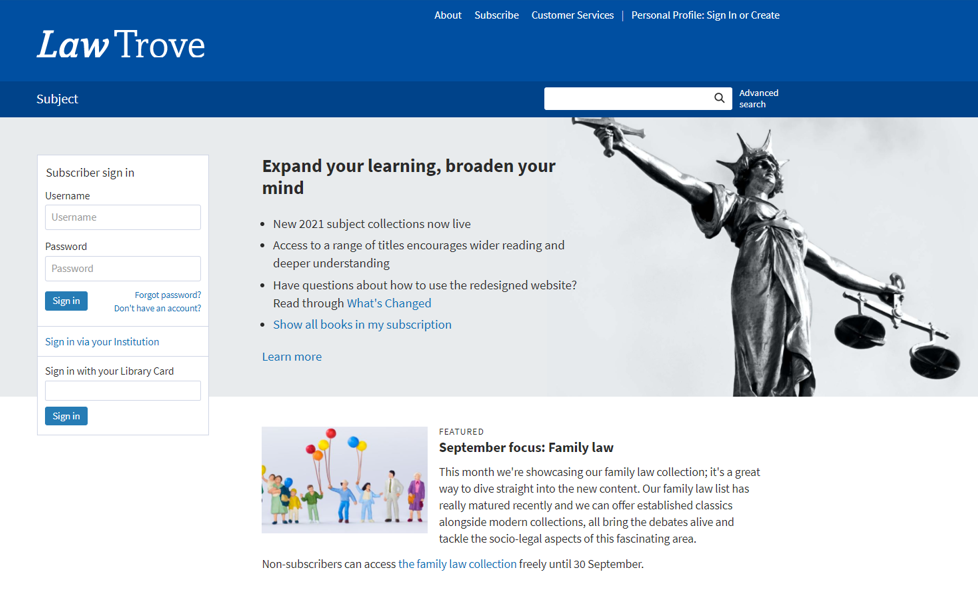
An image of the OUP Law Trove homepage: https://www.oxfordlawtrove.com/

Logging in
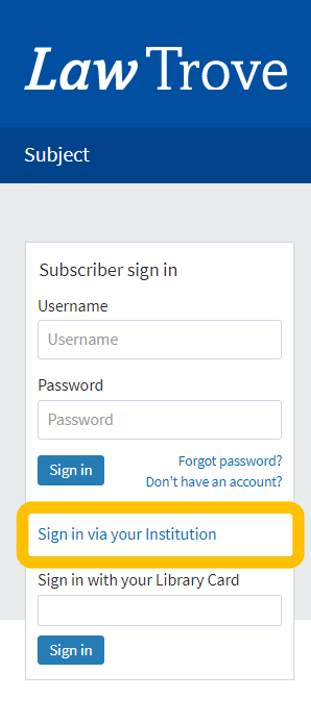
You can access OUP Law Trove directly via Library Search (log in with your Campus ID & password), via your Reading Lists in your Canvas modules, and directly too. You can also go to OUP Law Trove and use the ‘Sign in via your Institution’ option in the left-hand login box on the homepage, and search for Newcastle University.

An image showing the Sign in via your Institution login option for OUP Law Trove.

Further guidance on logging in is provided by OUP in this video (1:05 mins):

Searching
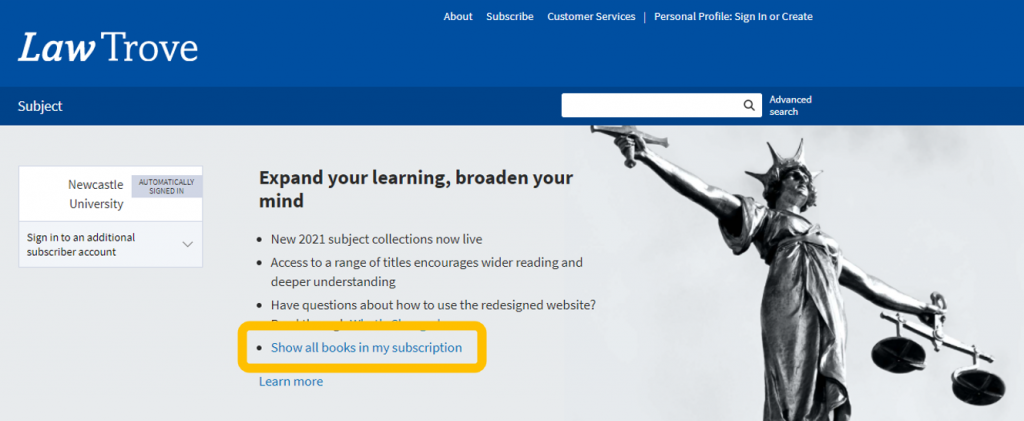
From the OUP Law Trove home page you can immediately select to view those titles included in our subscription.

An image of the OUP Law Trove home page, with the option of displaying all books included in Newcastle University's subscription highlighted.

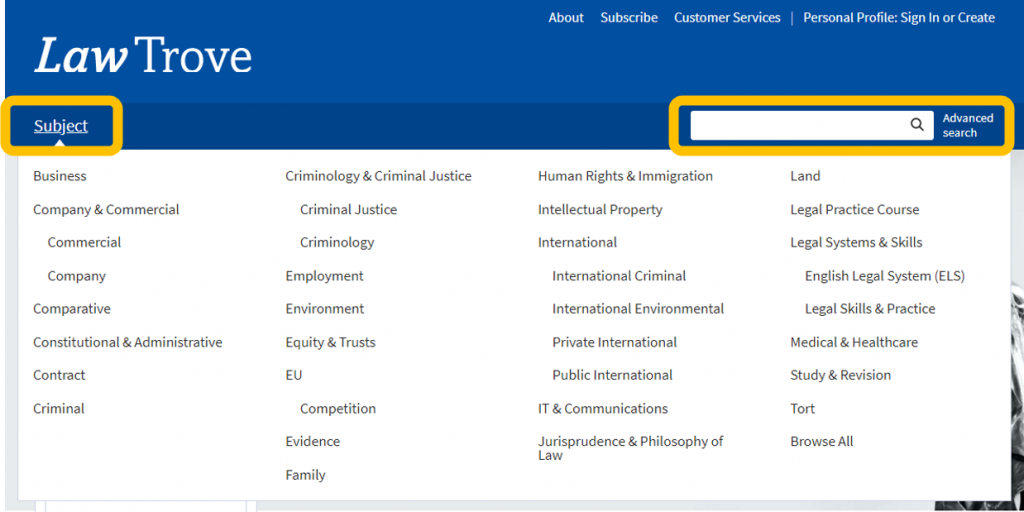
You can search OUP Law Trove by subject by using the browse option from the home page, or search by term for any author, title or keyword.

An image of the OUP Law Trove homepage with the Subject and Search options highlighted.

NB The results retrieved from either search will include all chapters and books related to your subject or search term, in alphabetical order.

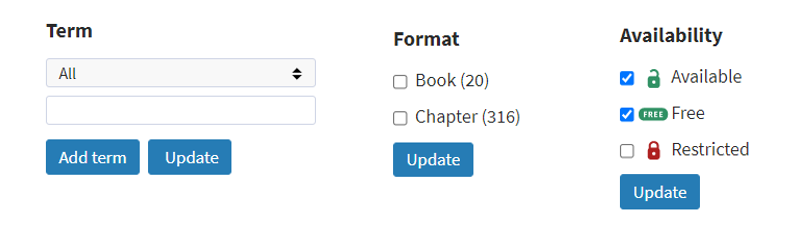
Using the options in the left hand menu, you can narrow your choices by searching for a term within your results, by selecting the format of the results you want to see, or the availability (it makes sense to select those that are unlocked or free if you have not selected to view those titles included in our subscription) and updating your search.

An image of the refine or narrow your choices options within OUP Law Trove, i.e. by term, book or chapter, or availability (available or free).

Further guidance on accessing and navigating books within Law Trove is provided by OUP in these videos (2:28 mins and 2:41 mins):

Personalisation
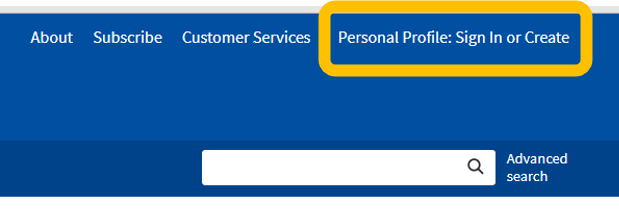
You can create a Personal Profile to experience the full functionality of OUP Law Trove, including bookmarking and annotating (without writing on your books!). Click the ‘Sign In or Create’ button on the top menu bar and follow the instructions to set up your profile.

An image of the OUP Law Trove homepage with the Personal Profile option highlighted,

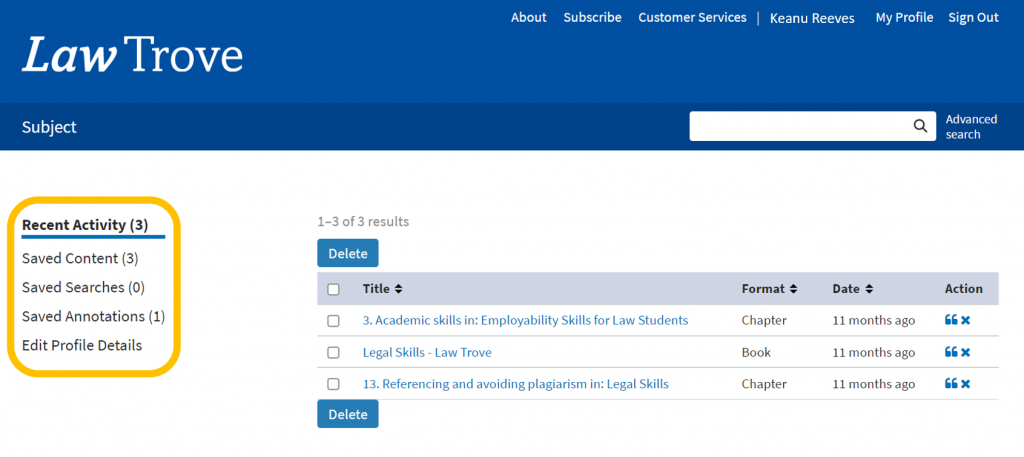
Once active you can access your saved content, searches and annotations quickly and easily.

An image of the OUP Law Trove homepage with the Personal Profile option highlighted,

Further information on the benefits of creating and using the Personal Profiles features is provided by OUP in this video (1:54 mins):

Reading Lists and Handouts
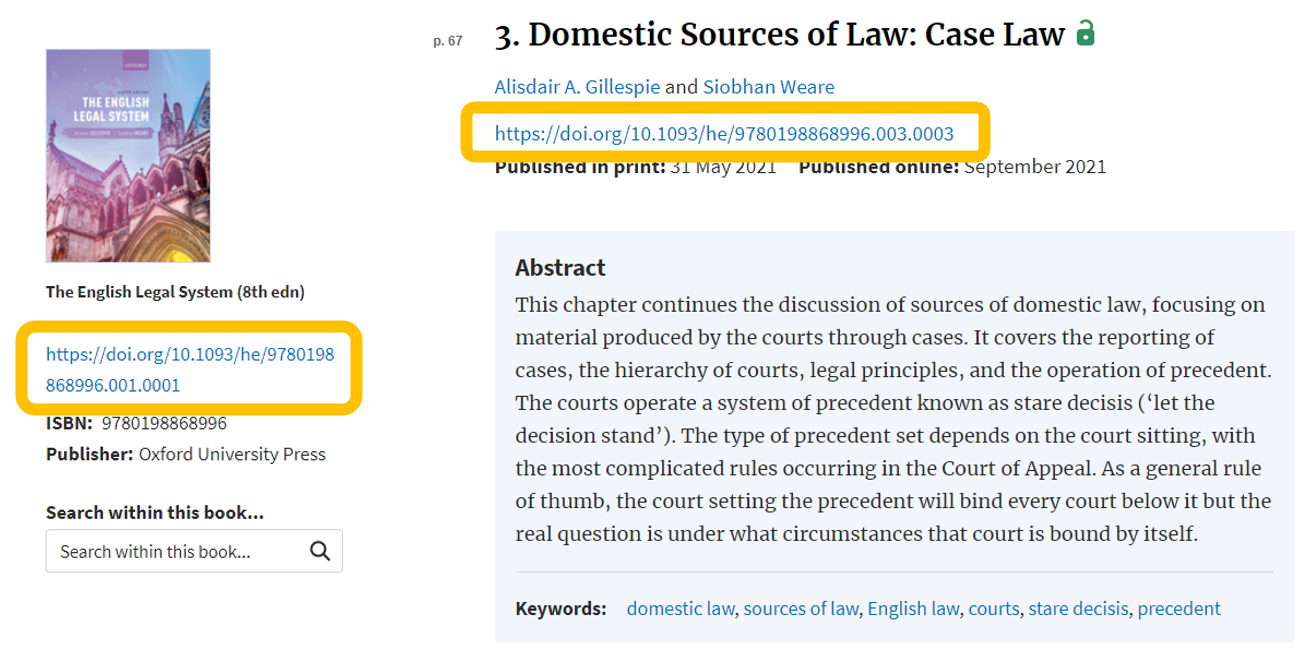
You may find your module teaching staff are using the DOI: for a specific book or chapter from your Reading List or module handout. What’s a DOI? A Digital Object Identifier. It’s a ‘permalink’ (permanent link) to the specific materials you need to read and looks like a weblink (which it is, essentially). If it doesn’t directly link to OUP Law Trove then add https://dx.doi.org/ to create the full DOI link. You will still be asked to login using your Newcastle University Campus ID & password to gain access to the materials.

An image of OUP Law Trove which indicates the availability of DOI: links for both books and chapters.

Tips
Search OUP Law Trove directly for your resources if you can. Library Search and your Reading Lists are linking to most of the books, and some of the chapters available, but not all. You may find more resources by performing a keyword search; the results could show a useful chapter in another book that you would never have thought to search in.

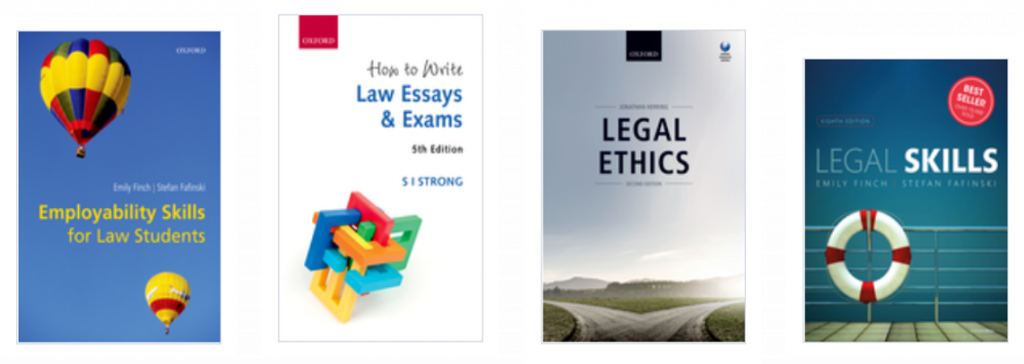
You have access to some great employability and study skills information in OUP Law Trove too. Whether you are wondering what academic writing actually is, how to write a case note, how to prepare for a moot or dealing with an exam, there are materials in Trove to assist you alongside the Academic Skills Kit made available to you by the University, the University Library and the Writing Development Centre.

An image of book covers covering employability and academic skills.

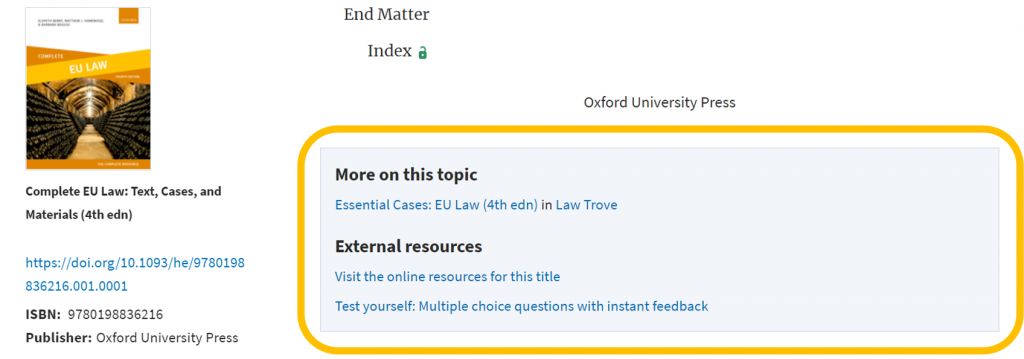
Finally, scroll to the bottom of the contents page of a book to see if there are additional resources available:

An image of an example of external/additional resources available on the OUP website.

Further information on the online resources, including multiple choice questions (MCQs), is provided by OUP in this video (1:47 mins):

We think you will find OUP Law Trove very useful in supporting your studies at Newcastle Law School. If you have any feedback or questions, please leave a comment or contact libraryhelp@ncl.ac.uk.

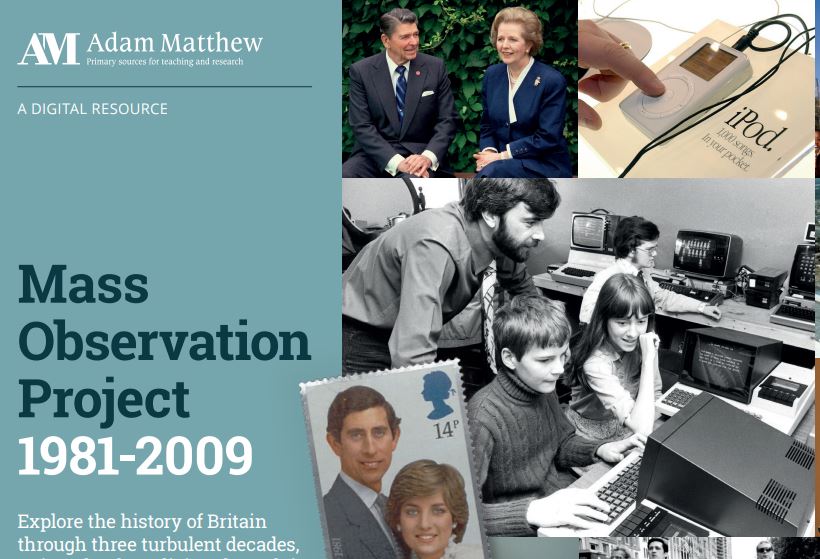
New resource now available: Mass Observation 1980s and 1990s

We’re delighted to announce that the Library has now bought the latest instalment of the Mass Observation Online collection, covering the 1980s and 1990s.

About Mass Observation

Mass Observation is a pioneering project which documents the social history of Britain by recruiting volunteers (‘observers’) to write about their lives, experiences and opinions. Still growing, it is one of the most important sources available for qualitative social data in the UK. This latest instalment is a great resource for anyone researching aspects of late twentieth century Britain. It complements our existing access to the original Mass Observation project archive, which covers 1937-1967.

1981-1999 collection

The 1980s and 1990s modules include hundreds of directive (survey) responses from observers on a wide range of issues, covering major political and social themes of the period from Thatcher to Blair, as well as everyday life. There are also photographs, leaflets, and other ephemeral materials, as well as contextual essays and timelines to help you interpret the collection.

Searching and browsing

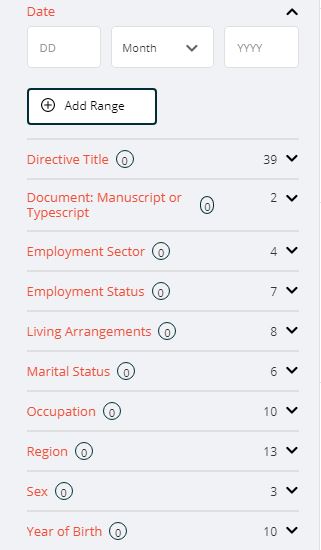
Filtering options

You can browse or search Mass Observation in various ways.

Browse by directive: browse the different directives (surveys), which are arranged chronologically and by topic.

Browse all documents: browse all the individual documents, and then further filter your search as required.

You can also use the Advanced search box at the top of the screen to search for specific topics.

Help

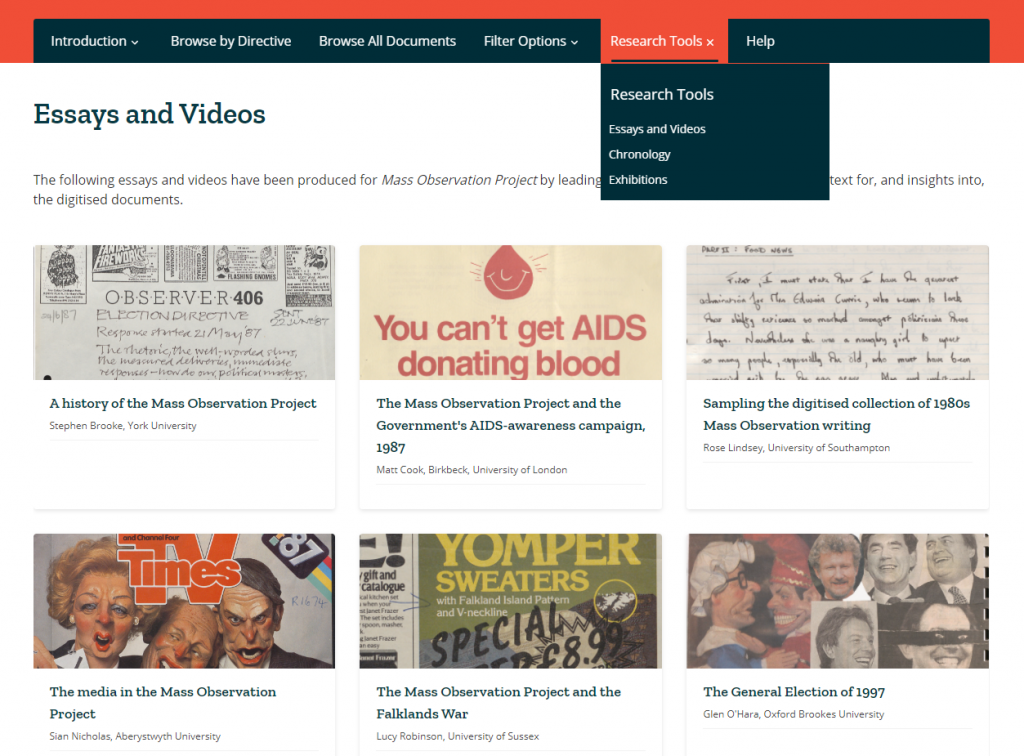
Research tools

We’d recommend you start by reading through the Introduction (top menu) which explains more about the project and the different document types. If you’re looking for ideas about how to make use of it, take a look at the Research Tools, which includes essays, videos, exhibitions and chronological timelines.

Note that as over half the materials in these collections are handwritten, the database enables Handwritten Text Recognition (HTR) to help you search. We would recommend you read about how HTR works, to help you get the best out of the database, in the Introduction section.

New e-book collection: Oxford World’s Classics

OWC logo

We’re pleased to announce that the Library has bought the new Oxford World’s Classics e-book collection, following a well-received trial earlier this year.

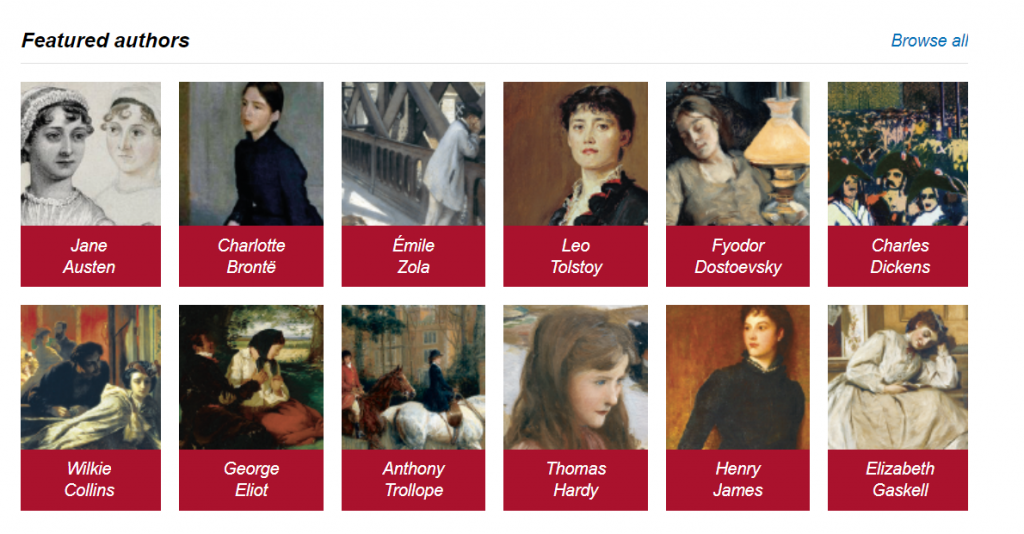
This provides access to 301 novels and other works from the 18th and 19th centuries from around the world, including novels by writers such as Jane Austen, Charles Dickens, Emile Zola and Fyodor Dostoevsky, as well as works such as Charles Darwin’s On The Origin of Species and John Stuart Mill’s On Liberty.

OWC authors

Each work is accompanied by extensive hyperlinked notes, introductions, bibliographies and commentaries. You can browse or search the entire collection in various ways (for example: by author, subject, keyword or time period). Every book in the collection is also individually catalogued on Library Search (here is an example).

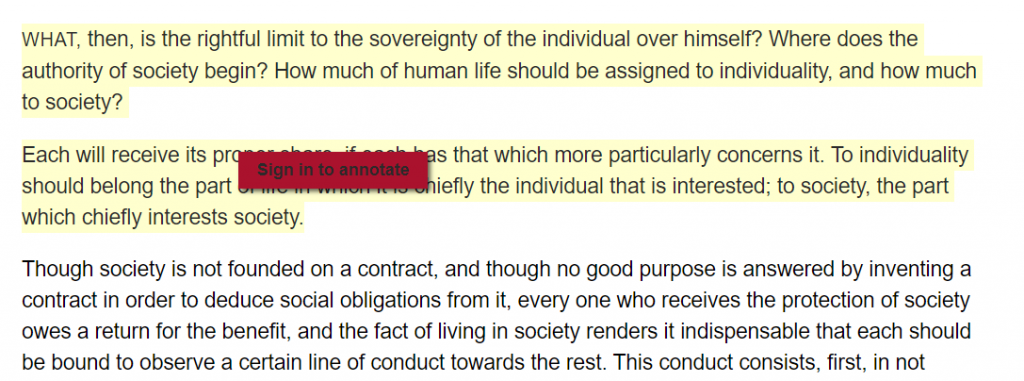
When reading a book, you can highlight text and make and save annotations (you’ll need to create a Personal Profile first).

Text highlight and annotation

Get the latest news and features on this platform from Twitter or via the Oxford World’s Classics blog.