
Avoiding the second year slump

One of my good friends is the middle child of three siblings – born between two siblings with strong identities of “the eldest” and “the youngest”- and feels that she gets “forgotten about” or “neglected” by her parents (but of course she never is).

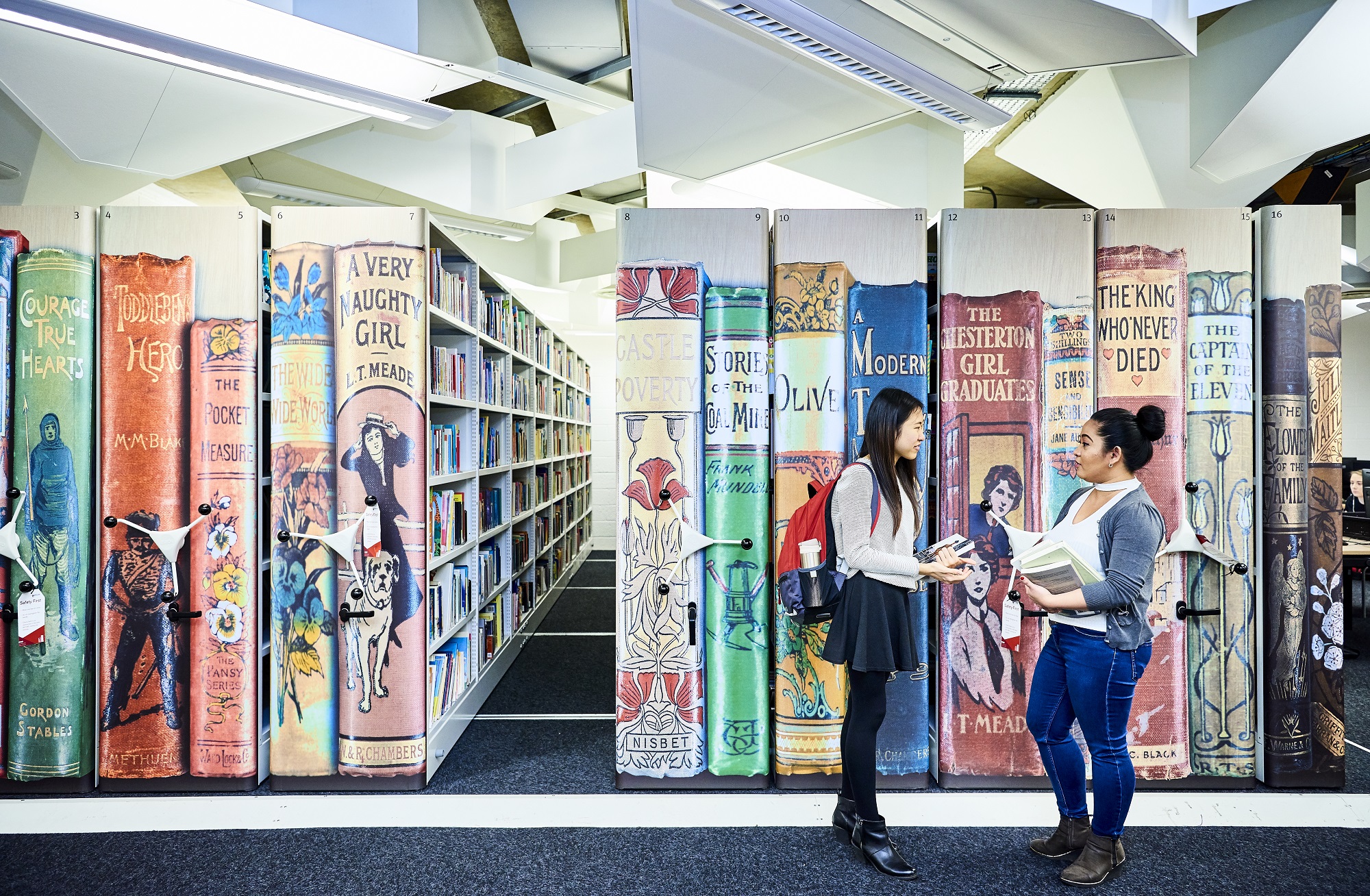
You could compare second year at University to feeling like the second child – not as exciting and ‘new’ as the youngest new-born (first year) nor as distinguished and knowledgeable as the eldest (final year at University) – but definitely never to be forgotten about.

Research conducted by Liverpool John Moores University found that second year students can suffer from ‘underperformance and withdrawal’ (Thompson et al., 2013) and that ‘around a third of undergraduates experienced a slow down in their academic progress during second year’ (Milsom, 2015). So don’t worry if you are feeling a bit overwhelmed and disengaged as you enter your second year of studies, you are definitely not alone.

So how can you get out of your slump?

The research by Liverpool John Moores University highlight the importance of recognising the challenges faced by second year students and identify support that can help you rise to meet them (Thompson et al., 2013).

The Library have definitely not forgotten about our much loved second years, and we’ve been thinking about how we can help – here are our top three ways that the Library and our resources can support you during your second year and how you can hopefully kick-start your engagement with the Library and your studies…

1. Find inspiration

As a second year, you may often feel disengaged, so take some time to remember what you love about you subject; explore your reading lists and Subject Guide(s) to find some wider reading on your favourite topics in your subject area – this may help you build your subject knowledge, help you think about what you want to focus on in third year and remind you why you chose this subject in the start.

The reading lists for your modules is an excellent places to start any refresh. Watch this short video (2:44min) on how to find and use your reading lists:

Another place to re-engage with your subject is our Subject Guides. These guides are created by our ingenious Librarians (*ahem) and are collections of subject specific resources to help you discover reliable and authoritative information for your studies. Remember, if your studies are interdisciplinary, you might have to use multiple guides to ensure find relevant resources.

2. Refresh and build on your skills

Second year is a great time to take some time to refresh or build on your information and academic skills, so you are prepared for your studies becoming more challenging and intense as the year progresses and then transitioning into third year.

Boost your motivation this year by setting yourself small and achievable goals. These could be to improve a mark from last year, to read more widely or to refresh a skill that would be useful for employment. Our Skills Checker is an excellent tool to help you identify an area of information skills to work on.

Once you have identified the areas to work on, check out the Academic Skills Kite for help and has advice on developing your academic skills. It is your guide to where you can go for support on all aspects of your academic life. With online resources to help you with your academic and study skills, covering topics such as academic integrity and referencing, exams and revisions, learning online and academic writing, you will find the support you need to study successfully.

Also discover our Resource and Subject Guides for help on finding, evaluating and managing information and useful guides on subject such as how to use EndNote, how to create an academic poster or how to identify fake news.

Our Employability Guide is another superb guide to show how developing your information and digital literacy skills can help prepare you for your future careers, and don’t forget, Newcastle University’s award-winning Careers Service provide expert advice regarding your future plans.

3. Ask for help

The Library is always here to help, so contact us by email, chat, phone or by social media 24/7 to ask any question regarding the Library services and resources.

The Library Liaison team and the Academic Skill Team are also available to meet (via Teams) for a one-to-one appointment to help you on any aspect of Library and academic skills that you need help with. You can book an appointment via Library Help.


I hope we have reassured you that you lovely second years are definitely not forgotten and that we are here to help you on your academic journey every step of the way (*oh so cheesy). These are difficult times but with a bit of grit and determination we have confidence that you will succeed in every way.

References

Milsom, C. (2015) ‘Disengaged and overwhelmed: why do second year students underperform?’, The Guardian, 16 February. Available at: https://www.theguardian.com/higher-education-network/2015/feb/16/disengaged-and-overwhelmed-why-do-second-year-students-underperform#:~:text=Positioned%20between%20two%20years%20with,often%20seems%20to%20be%20overshadowed.&text=The%20issue%20is%20widely%20recognised,related%20underperformance%20and%20disengagement%20extensively (Accessed: 28 October 2020).

Thompson, S., Milsom, C., Zaitseva, E., Stewart, M., Darwent, S. and Yorke, M. (2013) The Forgotten Year? Tackling the Second Year Slump. Liverpool John Moores University. Available at: https://www.advance-he.ac.uk/knowledge-hub/forgotten-year-tackling-%25E2%2580%2598sophomore-slump%25E2%2580%2599 (Accessed: 28 October 2020).

Resource Guides: it’s all in the name!

Last week, we let you in on the secrets of Library Search. This week we want to introduce you to our Resource Guides.

Library Search is a great starting point for any piece of research or essay, but there comes a time, when you need some extra help in finding a particular type of information. And that’s where our Resource Guides come in.  We have a range of guides to suit your information needs including: company information, market research, government publications, newspapers, maps, statistics, patents, standards, theses and dissertations, plus much more.

The guides group together all the main library subscriptions we have for that specific type of information, as well as linking out to key external links and resources too. Wherever possible we also include guidance and help on how to get the best out of the databases and links and group the information together into a logical and helpful way. We know how busy life is and we simply want to save you time!

So what you are waiting for, go and check out our fabulously named Resource Guides, because they do exactly what they say on the tin!

Library Search: (the secret stuff?)

You know Library Search. You use it every day when you’re at University. Why are you going to read a blog post on it? Well, we’re wondering if you’re using Library Search to its full potential. Not sure? Then read on.

Library Search is Newcastle University Library’s discovery tool – essentially it’s how you find resources on the library shelves and access those invaluable resources online. But what else can it do?

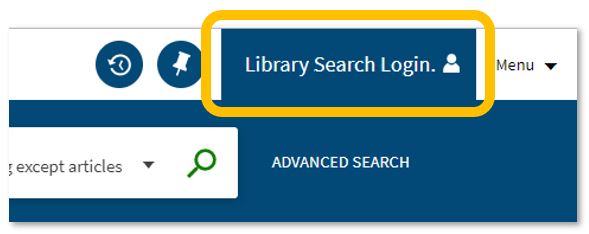
An image of the Library Search login function.

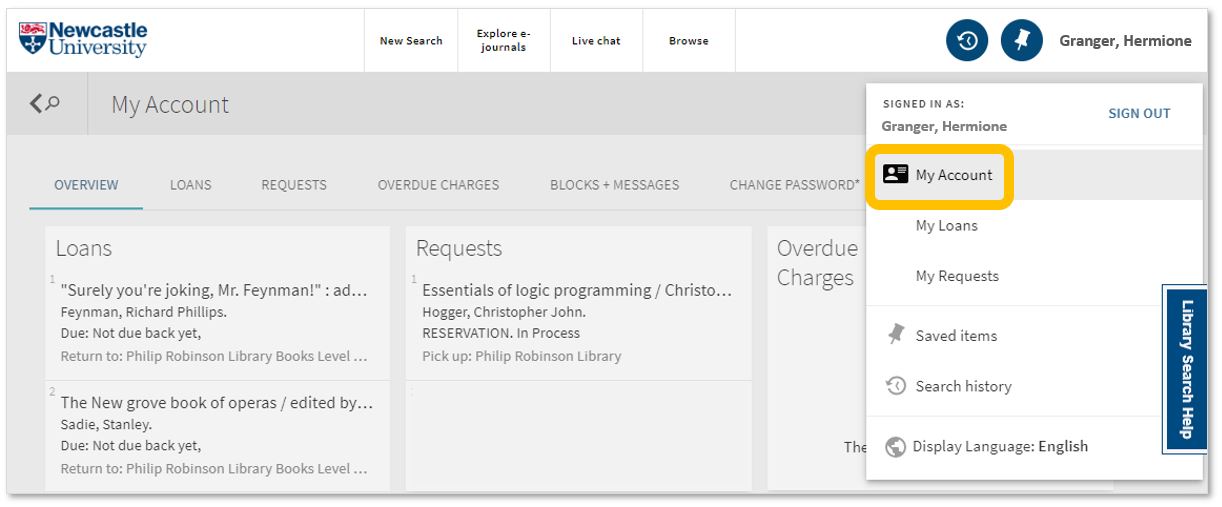
Log in. Using your usual Campus ID and password, you can open up the full functionality of Library Search by telling it who you are. It allows you to:

  • Log into your library account to see what books you have on loan (which you may be finished with and could return to any library site), those requests you’ve placed and any books you have on loan that may have been requested by someone else. The standard library stuff, but it’s important too.

An image of Library Search's My Account function.

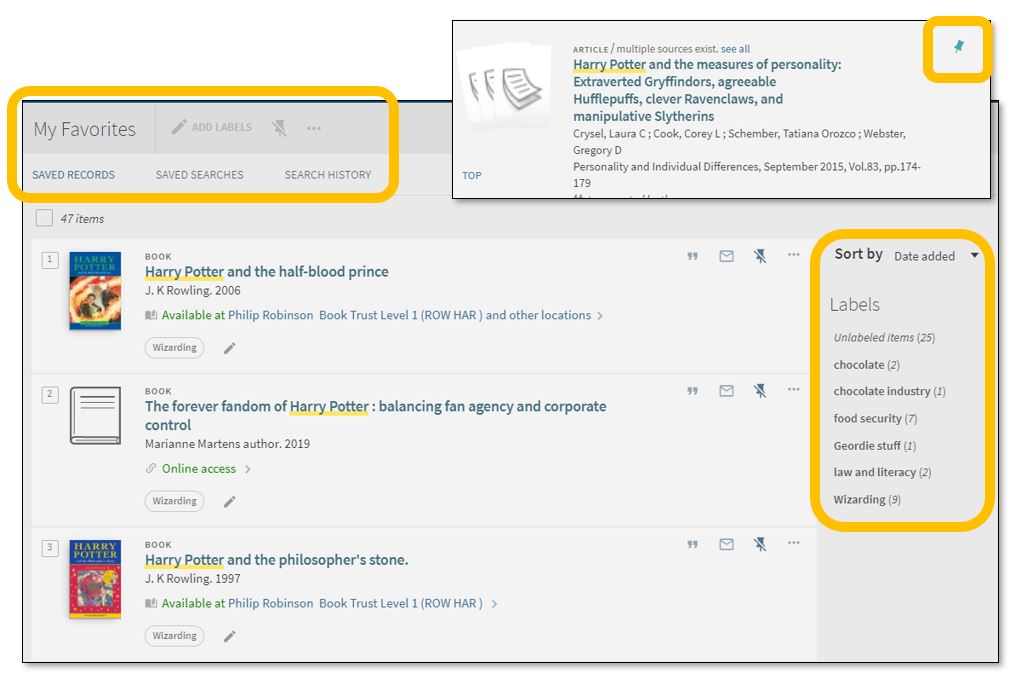
  • Save items you want to come back to (that’ll save you writing them down somewhere else). Find that favourite item and ‘pin’ it to your record. You can then access a list of your favourite books, journals or journal articles and label (or tag) them as to why you may need them, e.g. Herbology, Professor Snape’s essay, or Field Trip to Hogsmeade. That makes it easy to see what you need to use for each lecture, seminar or assessment.

An image of the Library Search Favourites tool.

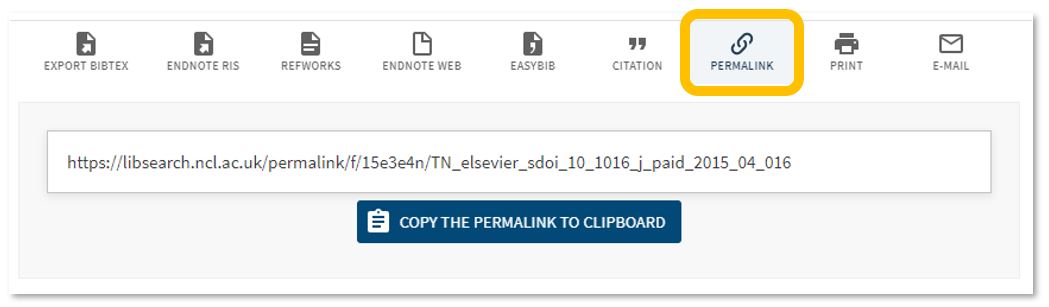
  • Permalink. You can share an item with someone if you want to – copy the permalink to the clipboard and send it to someone you know may be interested.

An image of Library Search's permalink tool.

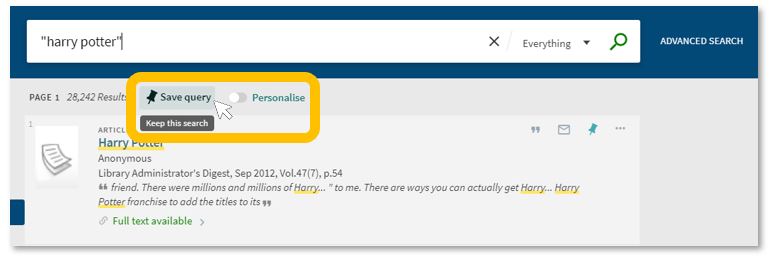
  • Save your search. If you need to repeat your search then save it within Library Search so you don’t need to remember the keywords and connectors (AND, OR, NOT) sequence. This is important if you are scoping a search and need to record or change your approach. You can also ‘Personalise’ your results to a particular discipline – give it a try!

Animage of the Library Search Save Search and Personalise tool.

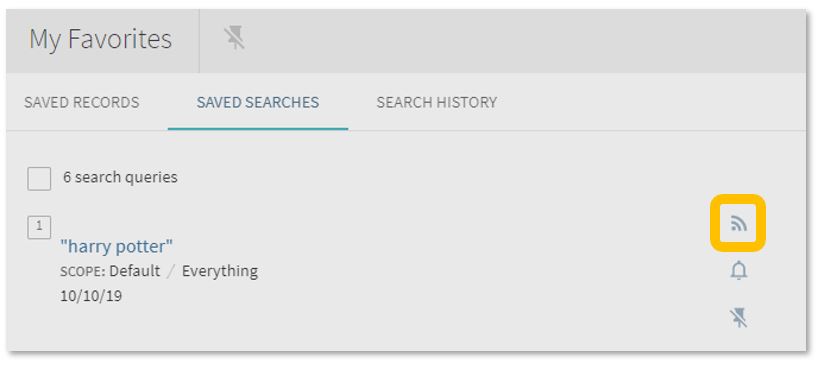
  • Set up a RSS Feed (yes, really!). The Rich Site Summary function allows you to be informed of changes to results in your saved searches. Handy, eh? Go to your Saved Searches and simply click the RSS icon.

An image of Library Search's RSS feed tool.

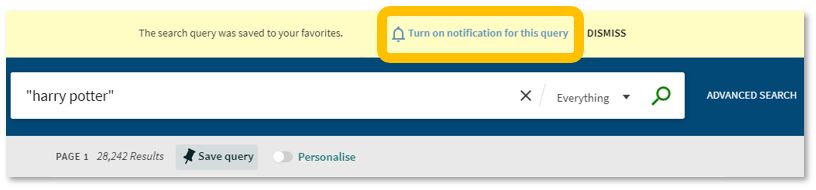
  • Receive an email alert when there are new results for your saved search. This can save you time in your research as Library Search will inform you if there is a new publication available which matches your search terms. Switch it off when you move onto a new subject area by accessing your Favourites list and deselecting the alarm bell icon.

An image of Library Search's email notification tool.

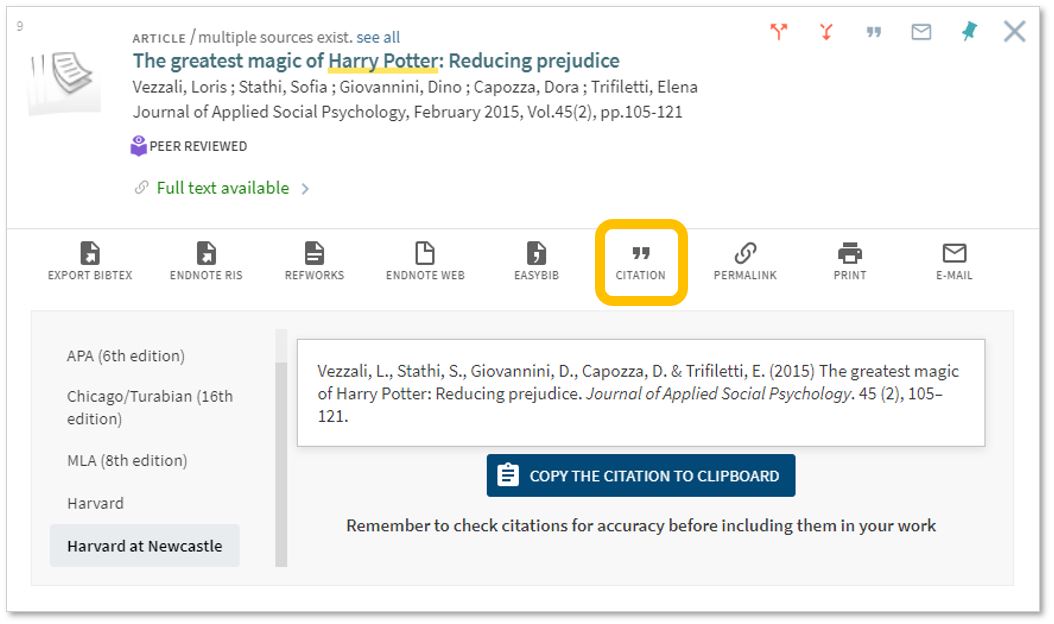
Finally, if you’re writing up your assignment and can’t remember the essential elements of a reference, then use Library Search for guidance. The Citation tool will allow you to view a suggested citation and to copy it to your clipboard for use in your work.*

An image of Library Search's Citation tool.

*BUT (you knew that was coming, didn’t you) ensure you choose the correct style and check your citations for accuracy before including them in your work. It pays to know your required referencing style and not to rely on automated or generated references. If you want to learn more about referencing then see our Managing Information guide and Cite Them Right. Cite Them Right is a great resource which will remind you of the importance of referencing, how to reference and will give guidance on how to cite those more tricky materials such as conference papers, newspaper articles, social media posts and more. Finally, there’s a new tutorial with lots of interactive questions so you can test yourself too.

If you know of any tips or tricks in Library Search that aren’t mentioned here, then leave us a comment and share them!

New resources for Science, Agriculture and Engineering 2020

We have been very busy over the summer adding to our growing collection of e-resources to support your studies and research. Discover individual titles in Library Search and browse some of the new collections now available to you below.

We have also invested in continued access to our Evidence-Based Acquisition (EBA) collections from multiple publishers, so you can browse and access hundreds of ebook titles and we can see which are the most popular titles for our students and researchers.

New resource: Westlaw Edge UK

Westlaw Edge UK. Is this a new resource? Possibly not by definition, but it is most certainly a significant enhancement within the existing Westlaw UK service.

https://youtu.be/K2hiP_AsLag

Westlaw Edge UK (not to be confused with the Microsoft Edge browser) is available via the Law Subject Guide and Library Search within Westlaw UK. Once logged in with your Newcastle University Campus ID and password you will find the tools available to help you keep currently aware and able to anticipate change – skills which are incredibly important to develop as a law student to be carried into your legal career.

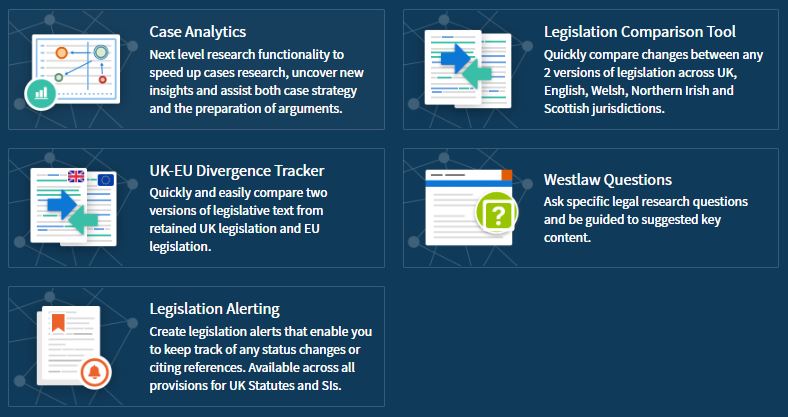
These tools include:

An image showing the Westlaw Edge UK tools to enable current awareness.

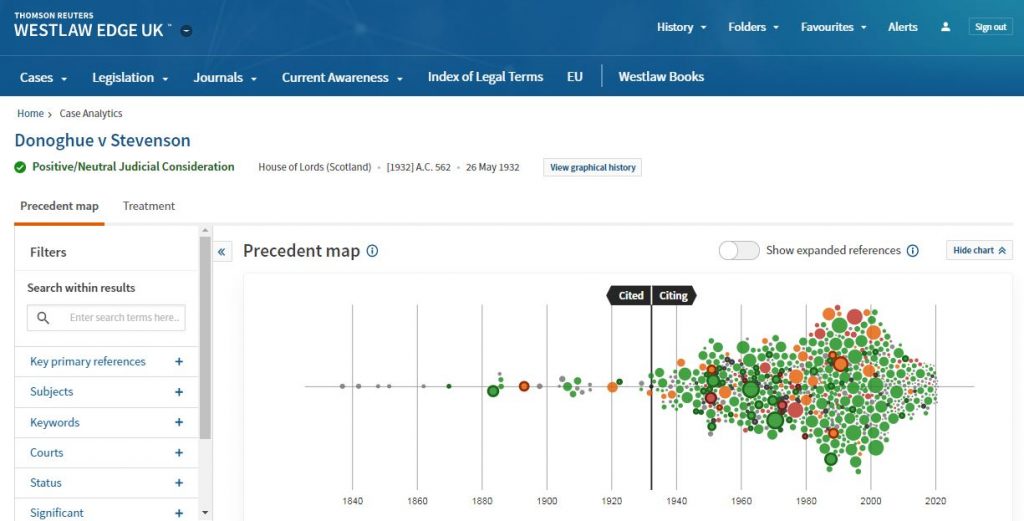
With inclusion of an interactive precedent map within Case Analytics to easily locate relevant cases…

An image of the precedent map associated with Donoghue v Stevenson (snail in a bottle case).

…and the UK-EU Divergence Tracker to assist with analysing the legal implications of Brexit, it’s even easier to carry out effective and efficient legal research.

https://youtu.be/RIo7_d54VDY

You can go beyond search results lists with AI-suggested relevant research and resources tailored to your needs. Skynet hasn’t got a look in. Go on, don’t be slow. Lose yourself in Westlaw Edge UK and get ahead.

A photo of a snail in a glass bottle. Photo by Rodion Kutsaev on Unsplash.

New dataset – Digimap Pilot

A new dataset is now available within Digimap called the Pilot Collection. This provides temporary access to data that EDINA are trying out and want feedback from users. This means the data will be replaced with other data sets over time as new sets become available.

Digimap Pilot is free for staff and students at current subscribing higher and further education institutions and research councils. All you will need to do is to accept the end user licence agreement which is available when you log into Digimap with your Campus ID and password. As these datasets will change regularly then you’ll need to re-accept each new licence agreement as sets are replaced.

Digimap Pilot comprises two applications, one for creating maps online, the other for downloading data which enables further analysis and investigation in other packages:

  • Use Roam to view, annotate and print maps online.
  • Use Data Download to download data and load it into a GIS or CAD package for further manipulation

As of April 2020, Pilot currently offers access to the following data.

Geomni data which consists of:

  • UKMap a modern, highly detailed, feature-rich mapping database of Greater London. Its unique, innovative design offers users a flexible choice of integrated map features within a single geographic information source.  It comprises addresses, retail names, detailed shopping centre data, building heights, a wide range of points of interest, aerial photography, together with Digital Terrain and Surface Models.
  • This one dataset has different components for Greater London. This includes UKMapLondon which provides aerial imagery with a resolution of 10cm, UKMap Upper Floors which shows more granular information e.g. which shops are on different floors of shopping centres, UKMap Tree Canopy which indicates tree canopies.
  • UKBuildings a unique database created and regularly updated to help you understand the age, structure, characteristics and use, of commercial, public and residential buildings across the UK.
  • UKLand a maintained, national land information database providing a detailed consistent breakdown of the use of land across the UK. There are 30 different land classes available e.g. woodland, water features, transport and commerical.

An EDINA Satellite data collection initially consisting of:

  • Sentinel 2 derived cloud free optical mosaic for Great Britain, 2019.
  • Sentinel 2 derived Near Infrared mosaic for Great Britain, 2019.

These 2 sections are currently available until the 31/07/2020.

Within the Pilot Data Download section you’ll also find some useful product information such as where the data comes from, it’s availability and sizing and Copyright information.

If you’re using mapping data already you might want to use this in conjunction with GIS if you’re manipulating or working with the data. Or doing a comparison to other maps you might have found freely available e.g. Google Maps.

Resource on trial: Westlaw student textbooks

Westlaw logo.

We are pleased to announce we have trial access to Westlaw’s student textbooks, in addition to the standard Westlaw All Books collection we use on a daily basis.

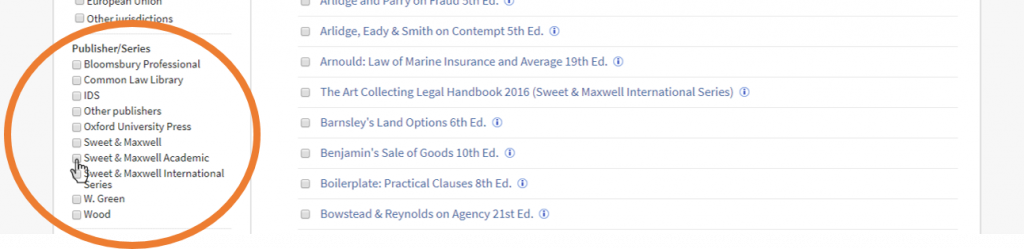
The Sweet & Maxwell Academic collection gives access to an additional 19 titles to support studying at home during this pandemic. Titles include Winfield & Jolowicz on Tort, Treitel on the Law of Contract, Megarry & Wade on the Law of Real Property and Elliott & Wood’s Cases and Materials on Criminal Law, among others.

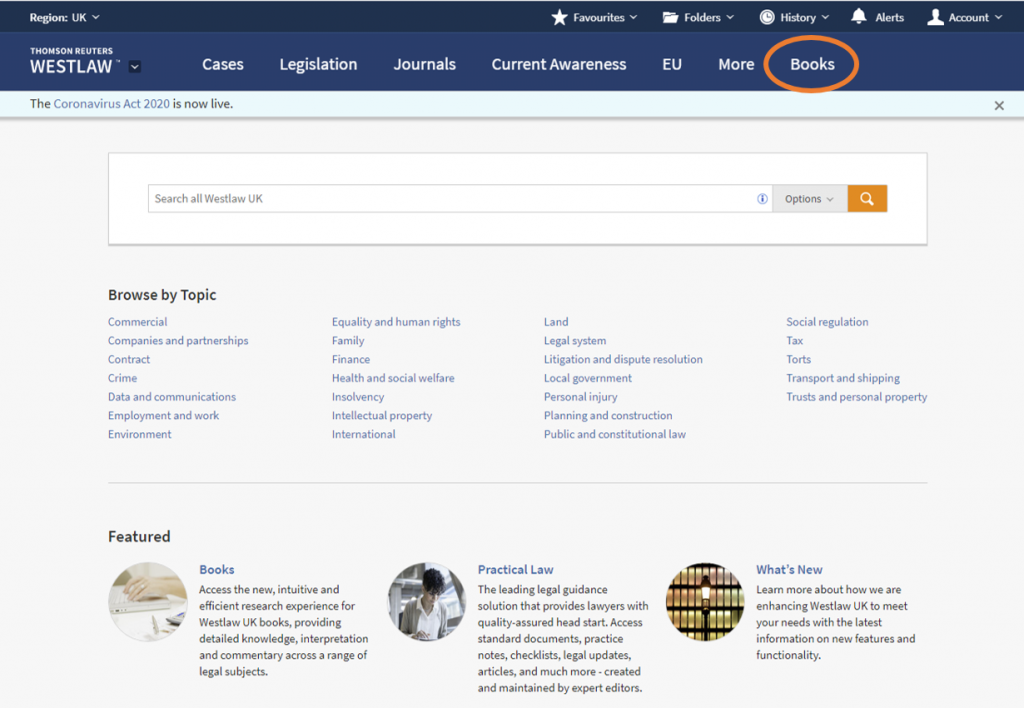
To access this content, log into Westlaw and click on Books in the menu at the top of the page.

An image of the Westlaw home screen with the Books option highlighted.

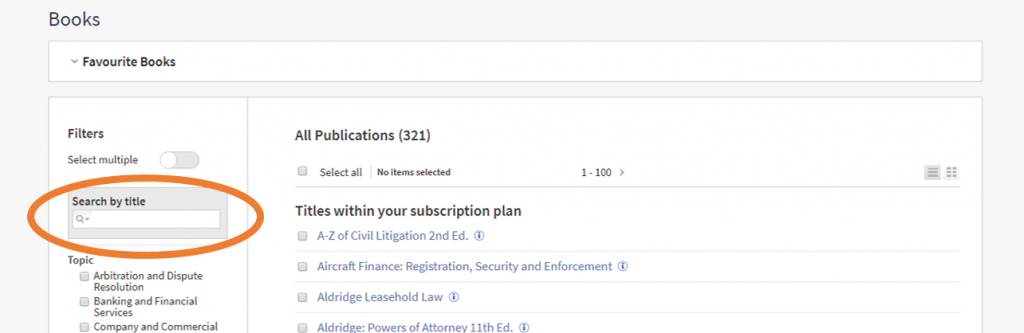
If you know the book you are looking for, search by a title keyword, e.g. tort.

An image of the Westlaw Books screen with Search highlighted.

If you want to browse these student-focused books, use the filters on the left-hand side of the screen. Scroll down and select ‘Sweet & Maxwell Academic’.

We hope you find this additional access to Westlaw useful; please leave feedback or contact libraryhelp@ncl.ac.uk you want to get in touch. The temporary access ends on May 27th 2020.

SciFinder – a one-stop shop for chemical reactions, substances, and scientific literature.

SciFinder is a research discovery application that provides integrated access to the world’s most comprehensive and authoritative source of references, substances and reactions in chemistry and related sciences.

Accessible via Library Search this powerful, chemist-curated database from CAS offers reference, substance and reaction searching with sophisticated analysis tools. Substances can be searched by chemical structure, markush (for Patents), molecular formula, property or substance identifier. All alternative substance names are listed alongside CAS Registry numbers and commercial sources. Popular in industry, this database is vital for students and researchers in chemistry, pharmacy, forensic science, medicinal chemistry and chemical engineering.

To use SciFinder you must register and sign in when prompted. On doing so you can then set personal preferences, explore resources, and save your own searches. You can also browse your search history and set up alerts and notifications.

SciFinder Mobile allows you quick and easy access to references of published scientific research and information on substances of interest (including nomenclature, molecular formula and properties) from your smartphone.

If you’d like to know more or need a little help to get started CAS provide a range of online support and training. There are also a selection of instructional videos available on YouTube.

So get registered, sign in, and explore. You’ll be inputting structures using the drawing editor and conducting substructure searches in no time!

The Research Reserve and Desktop Delivery Service (DDS)

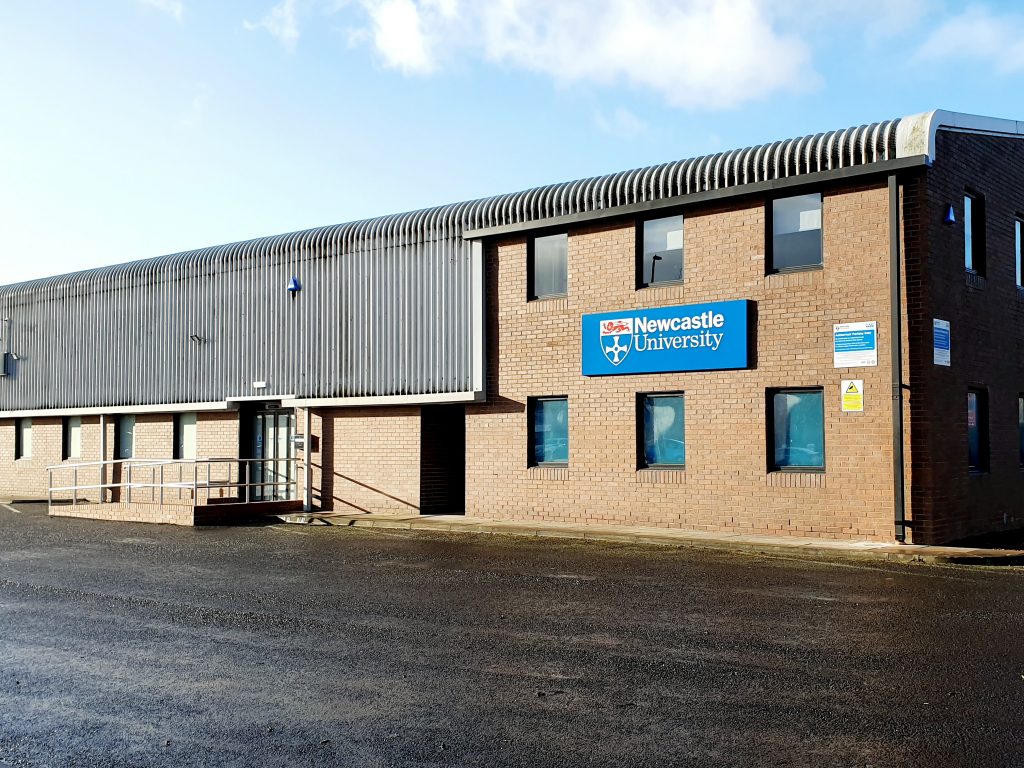
The exterior of the Research Reserve facility in the Team Valley.

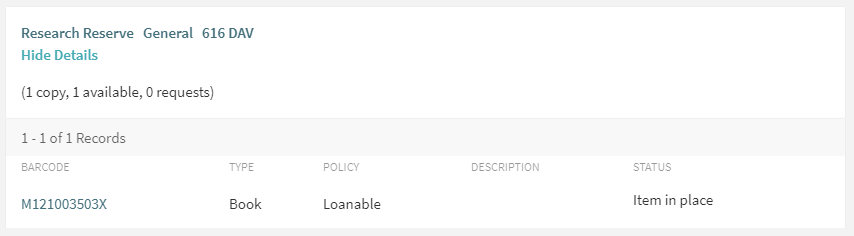
The eagle-eyed amongst you may have noticed a curious thing on Library Search. Where normally you would expect to see the name of one of the libraries next to an item’s shelfmark, occasionally you’ll see “Research Reserve”.

If you’ve ever wondered just what exactly the Research Reserve is, this is the blog for you, discover here exactly what the Research Reserve can offer you and your studies.

Before an item’s shelfmark is its location. This book is held off-site at the Research Reserve facility in the Team Valley.

The Research Reserve is the Library’s stores, located throughout campus and including a state-of-the-art storage facility in the Team Valley. These facilities allow the Library to keep less-used material for much longer than other academic libraries. These combined storage facilities provide over 29 kilometres of storage space, which is used to house old editions of journals and books which are consulted infrequently.

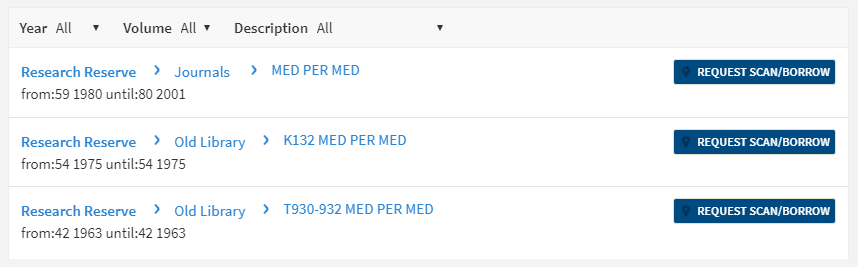
If you’d like to request items from the Research Reserve facilities, click the “Request Scan/Borrow” button once you’ve located the item on Library Search.

You can loan a variety of materials from the Research Reserve, including: books, theses and journal volumes. These can be requested from Library Search. Simply log in using your campus ID, find the item you are looking for and then click the blue “Request Scan/Borrow” button. You’ll get a choice of pickup locations (either the Walton or Philip Robinson libraries).

There are request forms to complete if you’d like to borrow a thesis or an entire volume of a journal.

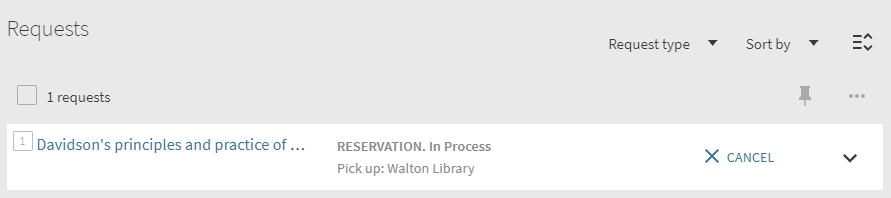
Requests can be viewed by going to “My Account” in Library Search and clicking on “My Requests” from the drop down menu. If you’d like to cancel your request, simply click the blue cancel hyperlink (as seen below). You’ll receive an email confirming your cancellation shortly afterwards.

You can cancel requests for Research Reserve items by clicking the blue ‘Cancel’ hyperlink, as shown above.

There is a collection service that runs between the Research Reserve and the various libraries (weekdays only, not on bank holidays) and your request will be generally be fulfilled within 24 hours. Anything requested on a Friday or over the weekend will be delivered on the following Monday afternoon.

Once your item has arrived at your chosen library, you’ll receive an email letting you know it’s available to loan. The item will be kept on the reservations shelves for five days before being returned to the Team Valley, or passed on to the next person in the reservation queue. Items from the Research Reserve are issued in the same way as standard long loan items, either using the self-issue machines or at the service desk. Once you’ve finished with the item, simply return it as normal.

The Desktop Delivery Service (DDS)

The Desktop Delivery Service can also be reached at: http://dds.ncl.ac.uk

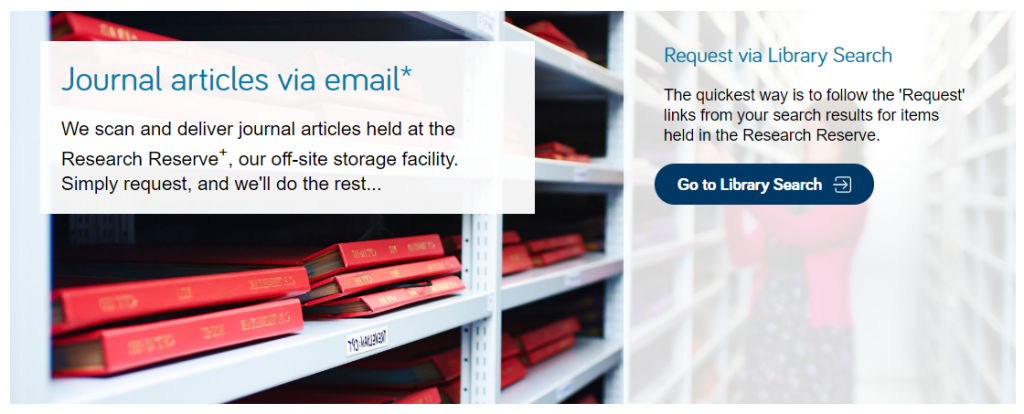
The Desktop Delivery Service (DDS) allows you request a scanned article from a journal held in one of the Library’s stores. Articles can be requested via Library Search (same as a book) or by filling out the relevant request form. Please try and include as much detail as possible on your request form. This helps Library staff locate your article and fulfil your request quicker.

You are only able to request one scanned article per journal issue. The scanned article will be delivered to your University email address, where it can be downloaded and printed off. Requests are generally fulfilled within 24 hours, although this may take longer over the weekends or on bank holidays. You have 30 days to download your article before it is ‘archived’ and no longer available.  

We do not scan items that are available electronically or can be borrowed.

If you have any other queries about the Desktop Delivery Service, read the FAQs.

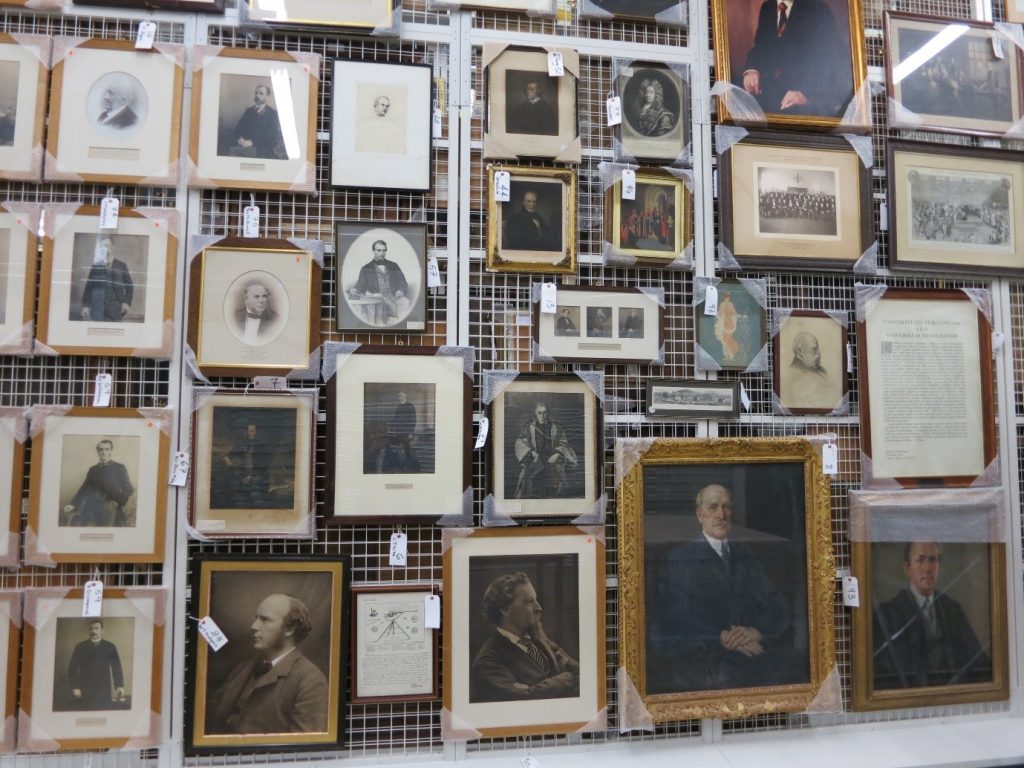
Just some of the amazing treasures held at the Research Reserve facility in the Team Valley.

You can also visit the off-campus Research Reserve facility in the Team Valley. Daily access is available by appointment only with the Research Reserve team, weekdays between 10AM and 4PM. Access outside of these hours can be organised given sufficient notice. There is a large car park available at the facility and buses stop nearby.

Full contact information, directions and opening hours for the Team Valley facility are available via the Library website.