Library Search is a powerful tool that can help you find good quality, relevant information quickly. Using Library Search is pretty intuitive but there are some useful search tips that can help you improve and get the most out of your searches:
Keywords and Subject Terms
When you’re searching for information it’s important to use a range of related keywords to ensure you find everything relevant to your topic. For example, if you’re searching for information on ‘Climate Change’ you might also want to search for ‘Greenhouse Effect’ or ‘Global Warming’ too. Thinking of related keywords can sometimes be difficult but Library Search can help!
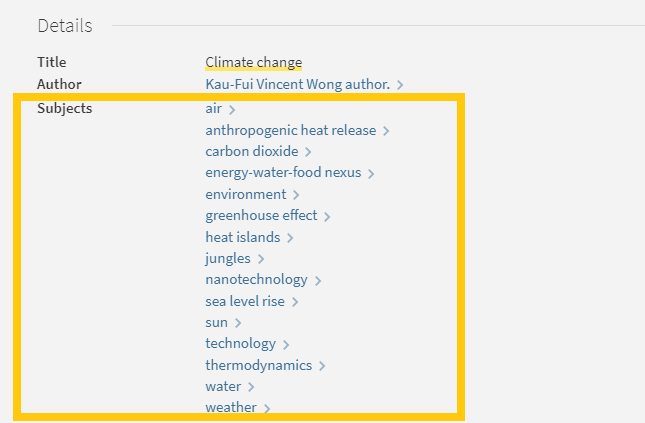
From your search results page, click on the title of a resource to open the resource record and scroll down to the ‘Details’ section. Here you will find a list of ‘Subjects’, also known as subject terms, used to describe the topics and themes this particular resource discusses. Take a look at this list and add any relevant words to your search string.
There are some other useful features in the resource record page that can help with your searches too:
Browse the virtual shelf
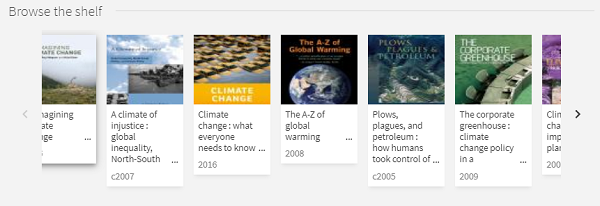
At the very bottom of the record you’ll find a virtual bookshelf, a visual list of the books that can be found next to this one if you were looking in the physical library. As the library is organised by subject some of these titles might be useful for your research too.
Read the abstract
A quick way to tell if a resource is going to be relevant and useful for your research is to read the abstract, a summary of the contents of the resource. On the resource record in Library Search, you’ll find this under the heading ‘Description’.
Advanced Search
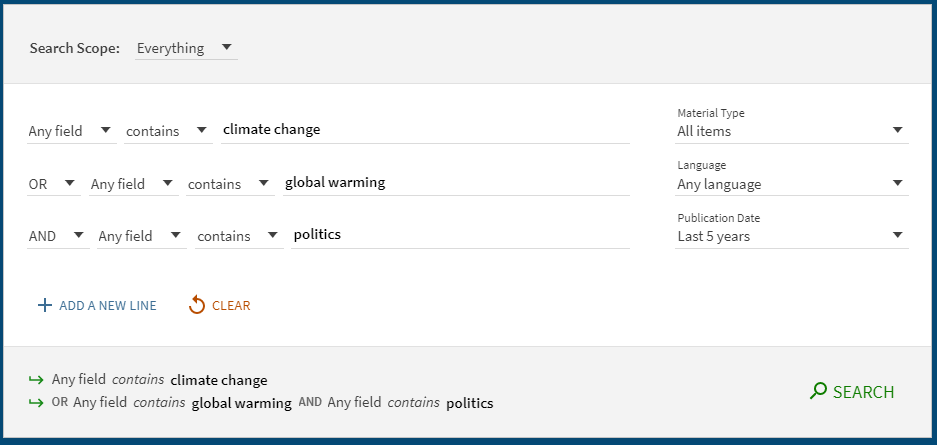
The Advanced Search function in Library search allows you to create a search that will produce more focused results. It does this by providing a range of search fields and drop down lists that help you build up your search.
Select from the options to:
Limit your search field to the title, author, subject, collection etc.
Apply BOOLEAN operators (AND, OR, NOT) to your keywords
Filter by specific material types, languages and dates to focus your search results to the most relevant resources.
Take a look at the Advanced Searching page on our Finding Information Guide for more on how to combine your keywords, create a search string and improve your search results.
You know Library Search. You use it every day when you’re at University. Why are you going to read a blog post on it? Well, we’re wondering if you’re using Library Search to its full potential. Not sure? Then read on.
Library Search is Newcastle University Library’s discovery tool – essentially it’s how you find resources on the library shelves and access those invaluable resources online. But what else can it do?
Log in. Using your usual Campus ID and password, you can open up the full functionality of Library Search by telling it who you are. It allows you to:
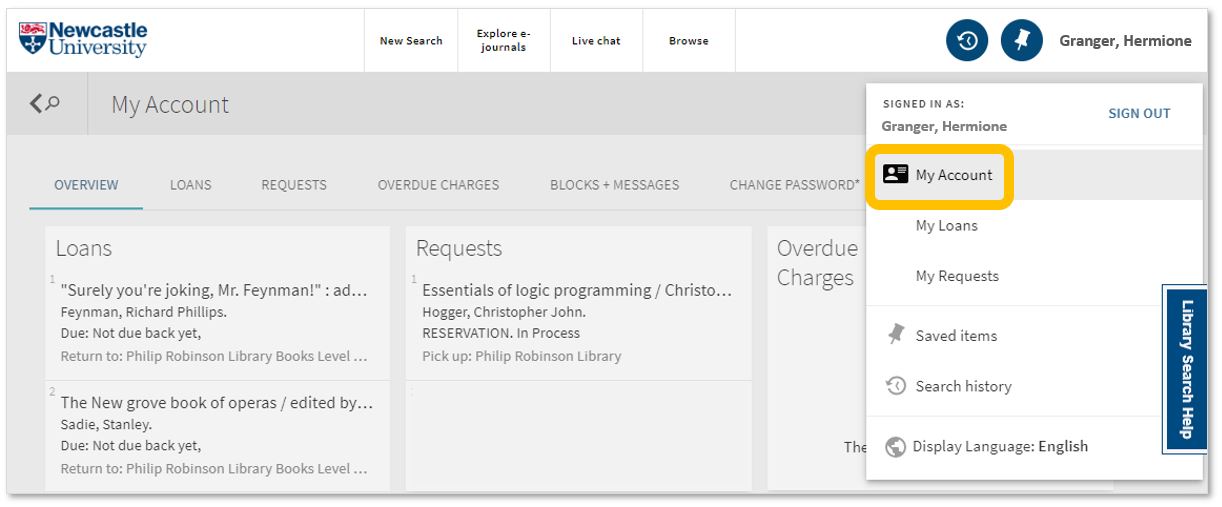
Log into your library account to see what books you have on loan (which you may be finished with and could return to any library site), those requests you’ve placed and any books you have on loan that may have been requested by someone else. The standard library stuff, but it’s important too.
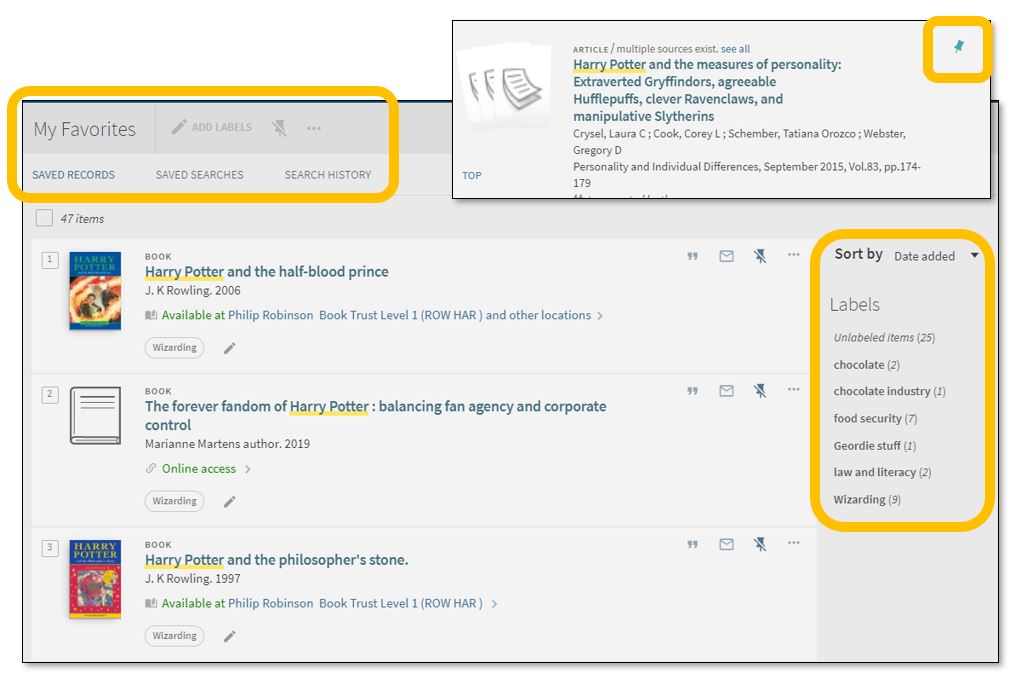
Save items you want to come back to (that’ll save you writing them down somewhere else). Find that favourite item and ‘pin’ it to your record. You can then access a list of your favourite books, journals or journal articles and label (or tag) them as to why you may need them, e.g. Herbology, Professor Snape’s essay, or Field Trip to Hogsmeade. That makes it easy to see what you need to use for each lecture, seminar or assessment.
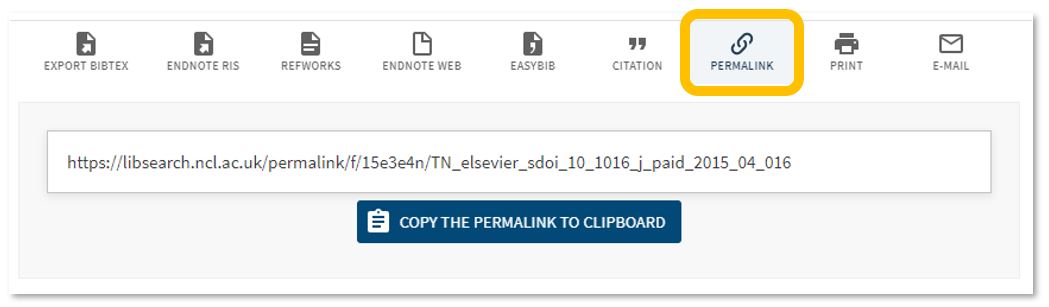
Permalink. You can share an item with someone if you want to – copy the permalink to the clipboard and send it to someone you know may be interested.
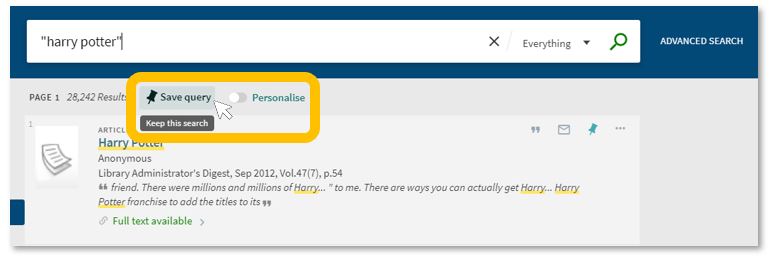
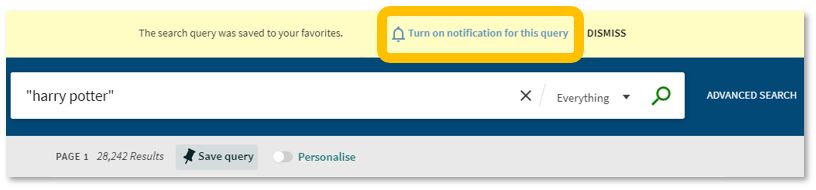
Save your search. If you need to repeat your search then save it within Library Search so you don’t need to remember the keywords and connectors (AND, OR, NOT) sequence. This is important if you are scoping a search and need to record or change your approach. You can also ‘Personalise’ your results to a particular discipline – give it a try!
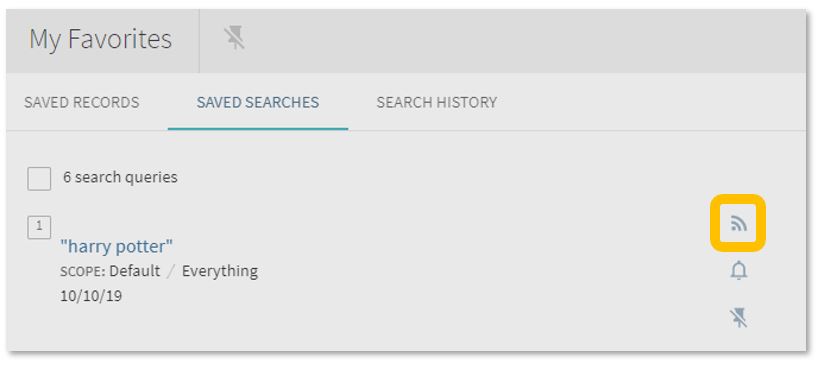
Set up a RSS Feed (yes, really!). The Rich Site Summary function allows you to be informed of changes to results in your saved searches. Handy, eh? Go to your Saved Searches and simply click the RSS icon.
Receive an email alert when there are new results for your saved search. This can save you time in your research as Library Search will inform you if there is a new publication available which matches your search terms. Switch it off when you move onto a new subject area by accessing your Favourites list and deselecting the alarm bell icon.
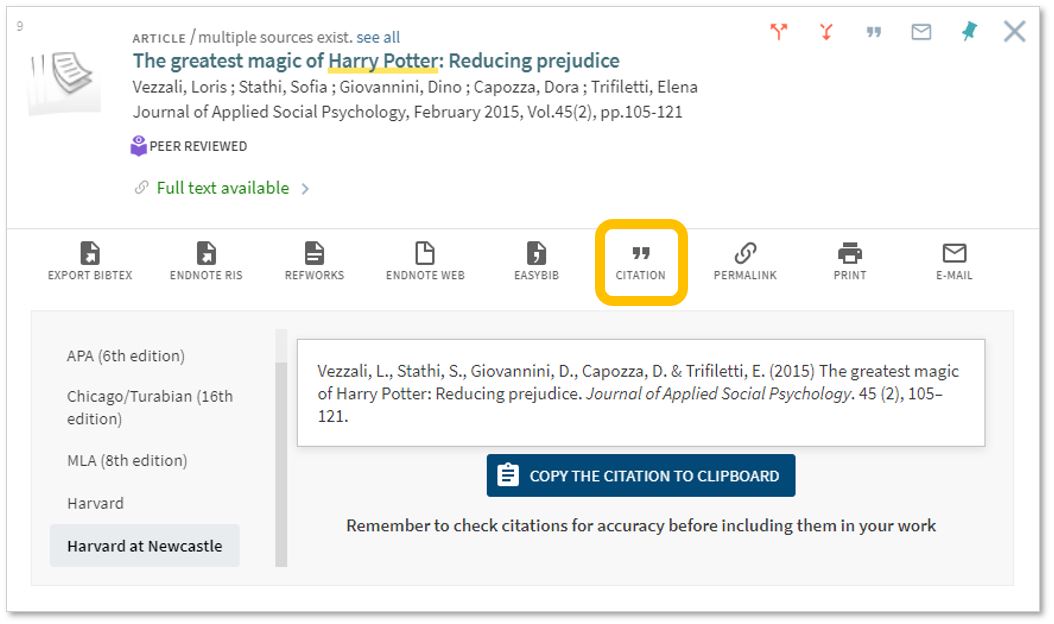
Finally, if you’re writing up your assignment and can’t remember the essential elements of a reference, then use Library Search for guidance. The Citation tool will allow you to view a suggested citation and to copy it to your clipboard for use in your work.*
*BUT (you knew that was coming, didn’t you) ensure you choose the correct style and check your citations for accuracy before including them in your work. It pays to know your required referencing style and not to rely on automated or generated references. If you want to learn more about referencing then see our Managing Information guide and Cite Them Right. Cite Them Right is a great resource which will remind you of the importance of referencing, how to reference and will give guidance on how to cite those more tricky materials such as conference papers, newspaper articles, social media posts and more. Finally, there’s a new tutorial with lots of interactive questions so you can test yourself too.
If you know of any tips or tricks in Library Search that aren’t mentioned here, then leave us a comment and share them!
New to the University or just not sure where to start other than the Politics reading lists you’ve been told to follow? Then check out our list for where you might to look.
When working off campus, you can still access the full collection of ebooks, electronic journals and professional magazines, newspapers, conferences and more, from Library Search.
Additional ebook titles are being added to the collection every day while we are all working remotely. Search by author, title or keyword to find books to help you with your essay topic.
To find academic journal articles from across our collection that match your topic keywords, use the everything search option and filter your results on the left to peer-reviewed journals.
Watch our introduction to the main Library Search features.
The Social Sciences Premium Collection is a brilliant place to start if you would like to refine your results to politics and the social sciences, while still searching broadly across different information types.
Find out more about the Social Sciences Premium Collection, how to search it successfully and use the advanced features. It is a brilliant resource for politics.
You can contact the Liaison Team for one-to-one support or send your questions to Library Help, where there are staff logged into our live chat service, 24/7.
Between Library Search and your Subject Guide, you will be able to find excellent information to use in your academic essays, but there are many other resources you may want to try.
Scopus is a large, multidisciplinary database, which indexes peer reviewed journal articles, books, book chapters, conference proceedings and trade publications.
One of the main advantages of using Scopus is that it provides a lot of useful information about the articles it indexes. This includes full reference lists for articles and cited reference searching, so you can navigate forward and backward through the literature to uncover all the information relevant to your research.
You can also set up citation alerts so you can be informed of new, relevant material automatically. Other useful tools include citation overviews, author and affiliation searching, visual analysis of search results, a journal analyser, and author identifier tools (if you are interested in publishing work).
https://youtu.be/qCu-obYMFsE
Watch this video from Scopus about how to expand your search from a known article reference.
Government publications provide information in a variety of subjects. Statistics, White Papers, Parliamentary Bills and a whole range of Official Legislation published by the Government provide a good, reliable, source of accurate statistics, and can give support to your argument in essay topics.
OECD iLibrary is the online library of the Organisation for Economic Cooperation and Development (OECD) and gives you access to books, analyticalreports and statistics, covering a broad range of topics relevant for studies in politics.
Agriculture and food
Development
Economics
Education
Employment
Energy and nuclear energy
Environment
Finance and investment, taxation and trade
Industry and services
Science and technology
Social Issues / Migration / Health
Transport
Urban, Rural and Regional Development
OECD iLibrary is certainly worth searching to provide reputable supporting information for your academic work.
Statista is an extensive statistics platform covering over 1.5 million data sets. It includes reports, statistics and forecasts on a range of topics. So if you want to know which social media platforms are most popular across the globe, compare homelessness statistics, explore industry trends or how many people play video games, Statista is a brilliant place to start.
Statistics and reports can be exported in a range of formats including images and PowerPoint, giving you flexibility to include the visuals in your assignments. The statistics source is included, giving you the information that you need to cite it successfully.
Find out more about Statista with this brief introduction.
Newspapers are an excellent resource to explore, to provide a range of perspectives on a topic. You can find opinion pieces, social commentary and identify trends in public opinion.
We have a range of newspaper resources available from the Library, and LexisLibrary is an excellent place to start. It provides access to UK national and regional newspapers, from the 1990s to today. It includes the copy text without the images or formating and all of the details you need to create a citation are on the article page.
Once you have followed the Library Search link to access Lexis, make sure you click on News at the top of the page for full text access to all UK publications.
As so many articles are published every day, you will need to refine your searching using date ranges, combined keywords or by selecting specific newspapers or publication type (i.e. broadsheet or tabloid).
Remember to use your critical skills when using newspapers however, and watch out for Fake News. They are so biased sources and are best used in balance with other sources. You can find our tips on our Evaluating Information skills guide.
9. Newspaper archives and international news
We have a huge range of newspaper archives, historic newspapers and international sources such as Nexis that can mostly be access online and off campus. Our Newspapers resource guide collates all of our resources and will guide you through how where to look.
If you want to search across a range of newspapers, we suggest you start with Gale Primary Sources, as this gives access to nearly all our British newspaper archives, except for The Guardian and The Observer.
10. Box of Broadcasts
Box of Broadcastscan be used to access TV and radio broadcasts from over 65 channels, including most of the UK’s freeview network, all BBC TV and radio content from 2007, and several foreign language channels. It’s a great resource to use to find documentaries or critical opinions.
You can view archived programmes, record new ones, create clips and playlists and see transcripts to help with citation and translation. You can also search for other user’s public playlists to help you in your own search.
Unfortunately, Box of Broadcasts is not available outside the UK.
We have a service called “Books on Time” for students. This allows you to tell us about the books you need for your studies. If we don’t have the books you need, simply complete the web form and we’ll see if we can buy them. For books we already have in stock, if they are out on loan please make a reservation/hold request using Library Search.
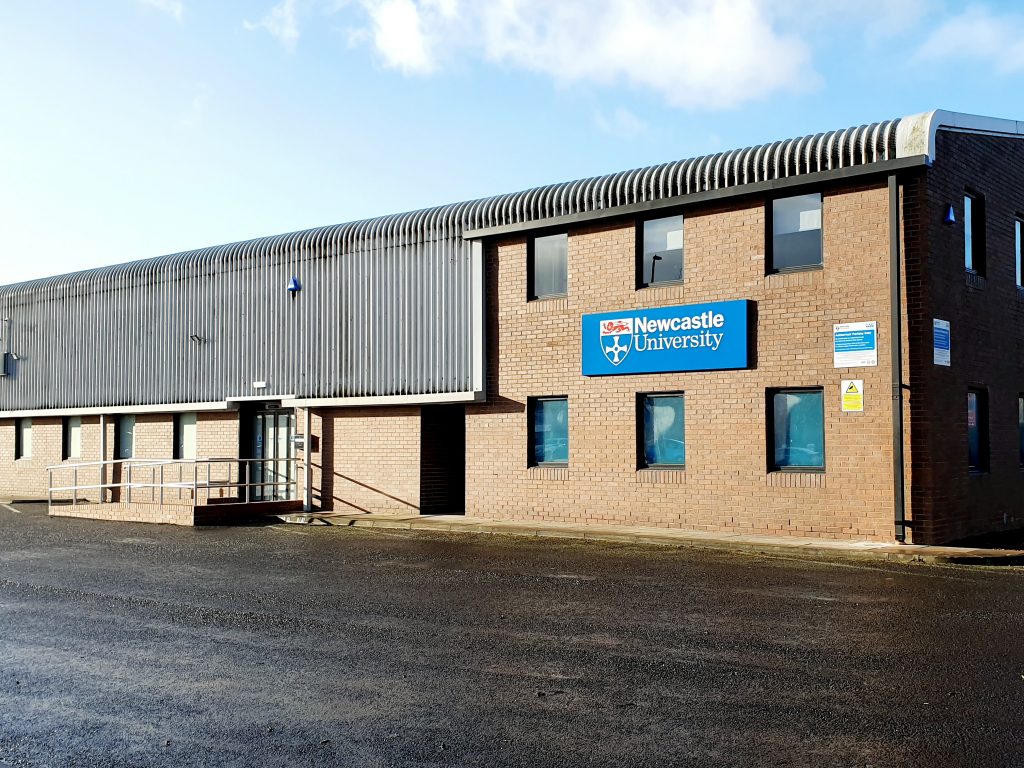
The exterior of the Research Reserve facility in the Team Valley.
The eagle-eyed amongst you may have noticed a curious thing on Library Search. Where normally you would expect to see the name of one of the libraries next to an item’s shelfmark, occasionally you’ll see “Research Reserve”.
If you’ve ever wondered just what exactly the Research Reserve is, this is the blog for you, discover here exactly what the Research Reserve can offer you and your studies.
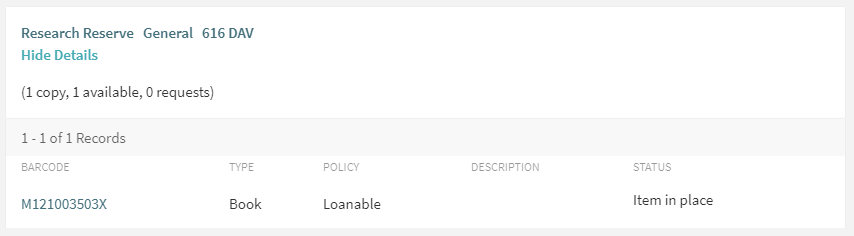
Before an item’s shelfmark is its location. This book is held off-site at the Research Reserve facility in the Team Valley.
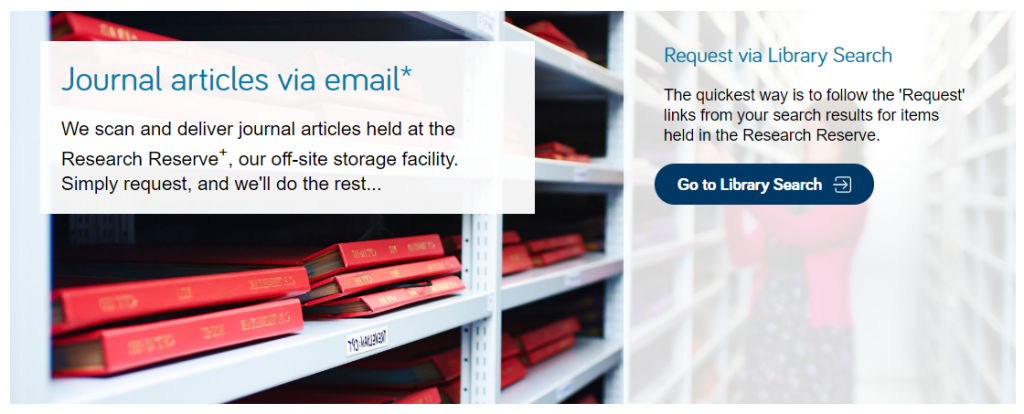
The Research Reserve is the Library’s stores, located throughout campus and including a state-of-the-art storage facility in the Team Valley. These facilities allow the Library to keep less-used material for much longer than other academic libraries. These combined storage facilities provide over 29 kilometres of storage space, which is used to house old editions of journals and books which are consulted infrequently.
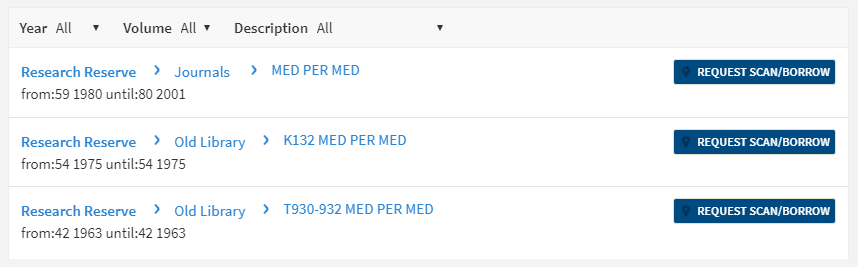
If you’d like to request items from the Research Reserve facilities, click the “Request Scan/Borrow” button once you’ve located the item on Library Search.
You can loan a variety of materials from the Research Reserve,
including: books, theses and journal volumes. These can be requested from Library
Search. Simply log
in using your campus ID, find the item you are looking for and then click
the blue “Request Scan/Borrow”
button. You’ll get a choice of pickup locations (either the Walton or Philip
Robinson libraries).
There are request forms to complete if you’d like to borrow
a thesis
or an entire volume
of a journal.
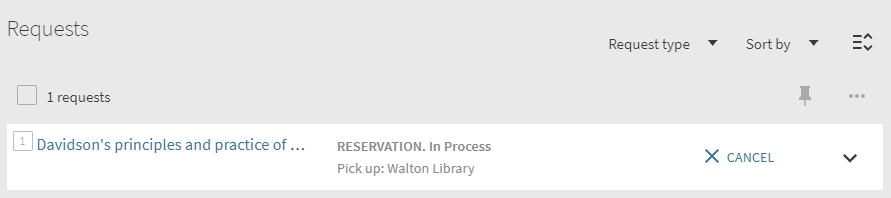
Requests can be viewed by going to “My Account” in Library Search and clicking on “My Requests” from the drop down menu. If you’d like to cancel your request, simply click the blue cancel hyperlink (as seen below). You’ll receive an email confirming your cancellation shortly afterwards.
You can cancel requests for Research Reserve items by clicking the blue ‘Cancel’ hyperlink, as shown above.
There is a collection service that runs between the Research
Reserve and the various libraries (weekdays only, not on bank holidays) and
your request will be generally be fulfilled within 24 hours. Anything requested
on a Friday or over the weekend will be delivered on the following Monday
afternoon.
Once your item has arrived at your chosen library, you’ll receive an email letting you know it’s available to loan. The item will be kept on the reservations shelves for five days before being returned to the Team Valley, or passed on to the next person in the reservation queue. Items from the Research Reserve are issued in the same way as standard long loan items, either using the self-issue machines or at the service desk. Once you’ve finished with the item, simply return it as normal.
The Desktop Delivery Service (DDS) allows you request a
scanned article from a journal held in one of the Library’s stores. Articles
can be requested via Library Search (same as a book) or by filling out the relevant request form. Please try and include
as much detail as possible on your request form. This helps Library staff
locate your article and fulfil your request quicker.
You are only able to request one scanned article per journal
issue. The scanned article will be delivered to your University email address,
where it can be downloaded and printed off. Requests are generally fulfilled
within 24 hours, although this may take longer over the weekends or on bank
holidays. You have 30 days to download your article before it is ‘archived’ and
no longer available.
We do not scan items that are available electronically or
can be borrowed.
If you have any other queries about the Desktop Delivery Service, read the FAQs.
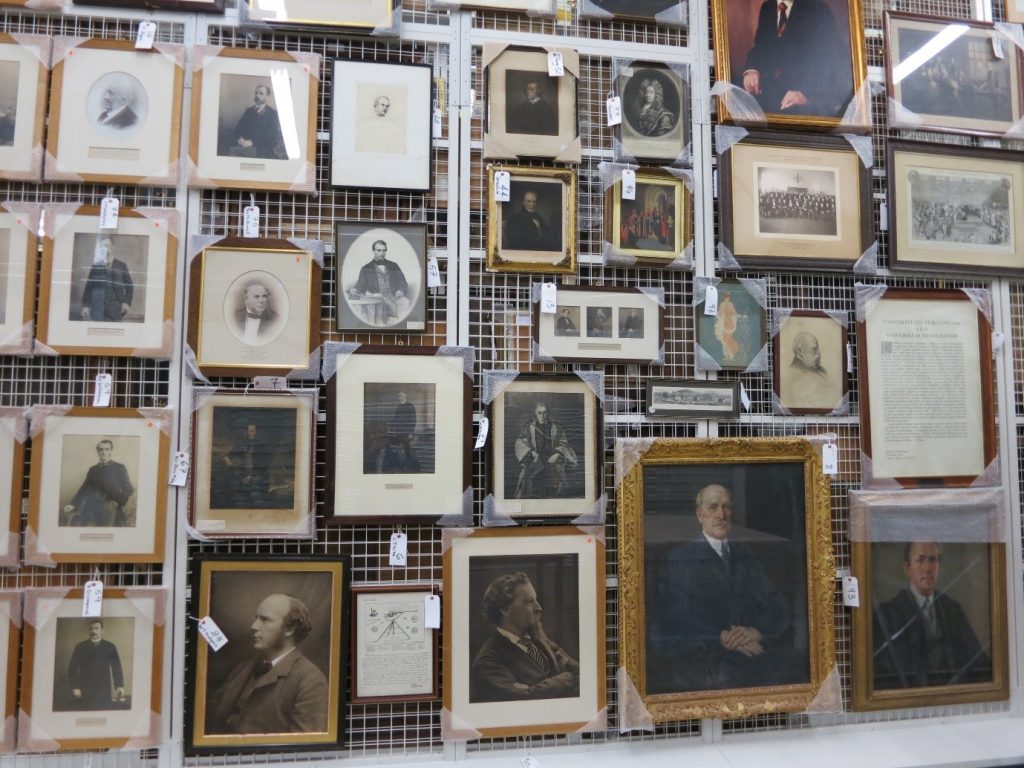
Just some of the amazing treasures held at the Research Reserve facility in the Team Valley.
You can also visit the off-campus Research Reserve facility in the Team Valley. Daily access is available by appointment only with the Research Reserve team, weekdays between 10AM and 4PM. Access outside of these hours can be organised given sufficient notice. There is a large car park available at the facility and buses stop nearby.
Full contact information, directions and opening hours for the Team Valley facility are available via the Library website.
Historic Digimap is an online map and data delivery service, available to all staff and students of Newcastle University. It delivers access to historical Ordnance Survey maps of Great Britain dating from 1846-1996 across various scales, including 1:25,000 and 1:10,650.
If you are a first time user of Digimap then you will need to complete a brief registration form and agree to the license agreements for each collection, but that takes seconds and then you’re ready to go!
Viewing historic maps (3:36 min)
If you want to ‘roam’ through the ages in an area, then you can use the timeline tool to see how the landscape has developed through the years, or view two maps side-by-side to compare and contrast your findings. Imagine looking at the Newcastle University Campus and seeing what used to be on the site before buildings such as the Henry Daysh Building, Stephenson Building and Philip Robinson Library graced us with their facilities!
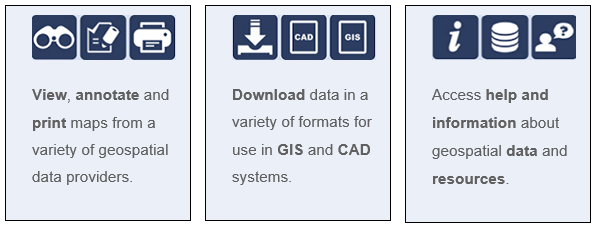
Once you have your area of interest, the Roam service will allow you to view, annotate and print the map in PDF format. Data Download will allow you to download OS data for use in GIS/CAD (if you wish!).
The full scope of what Historic Digimap (and the other collections available to you including Ordnance Survey, Geology, Marine, Environment, Aerial, Lidar and Improvement Service) are covered in EDINA’s comprehensive Help service:
(Improvement Services is an organisation dedicated to the improvement of local government services in Scotland. This data collection comprises of 37 local authority datasets, such as planning applications, green belts and school catchment areas. A wealth of information, who’d have thought.)
Go on, give it a try! But please do read EDINA’s Digimap FAQs on what you are permitted to do with the data you use, to ensure you comply with the educational use licence.
The archive brings you the full content of this world-renowned weekly literary and arts publication, dating back to its first issue. For over a century, the TLS has published reviews, features, debates and original works from across the arts world, not to mention its legendary letters page!
Many of the world’s most notable writers and thinkers have contributed to the TLS over the decades, including T.S. Eliot, W.H. Auden, Seamus Heaney, Noam Chomsky, Virginia Woolf, Bertolt Brecht and Umberto Eco. Until 1974, contributions published in the TLS were often anonymous, but the digital archive now reveals the identity of all contributors.
To find out more about the TLS, click Research Tools to read a selection of essays about different periods of its history.
You can browse the TLS by date to find a specific issue, or search in various ways (choose Advanced Search to see all options, including searching by contributor, book title, or document type.)
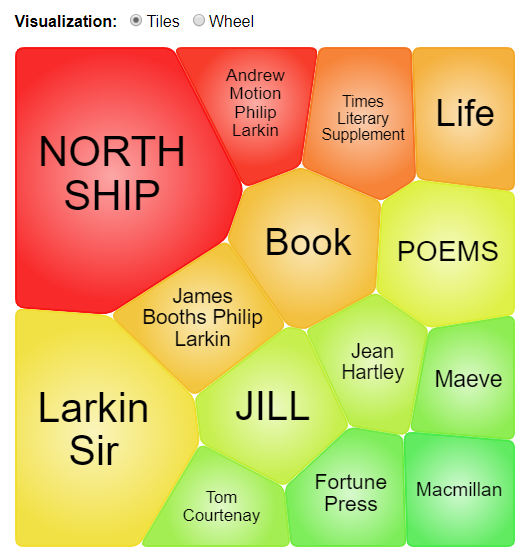
Additional search features on the home page include Term Frequency, to trace how often a word, phrase or person has featured in the TLS over the years, and Topic Finder, to explore and visualise connections between topics.
Topic finder
As the TLS archive is published by the company Gale, you can cross-search it with any of the other Gale archives to which we have access, via Gale Primary Sources.
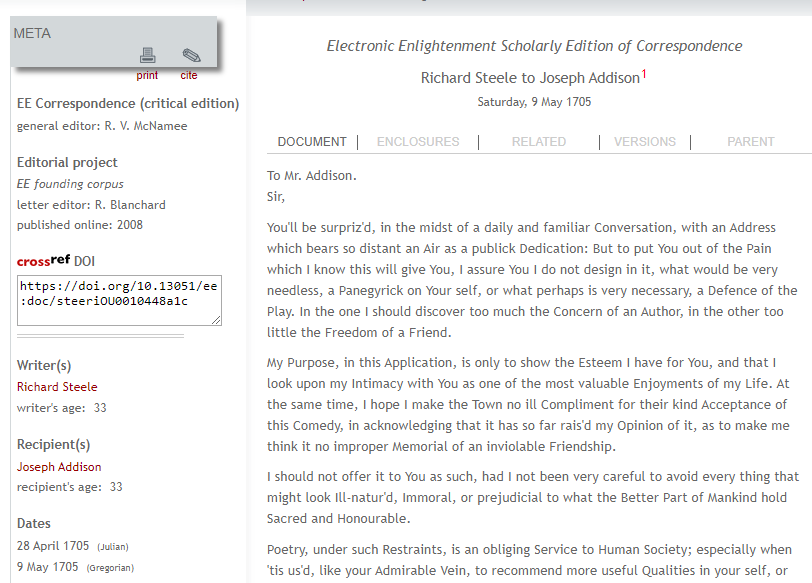
How did social networking operate before the internet? Explore Electronic Enlightenment to find out!
Electronic Enlightenment is a valuable resource for anybody studying or researching the long eighteenth century. It is an archive of digitised correspondence, comprising nearly 80,000 letters sent between 10,000 individuals, written from the 17th to mid 19th centuries. Its geographic scope covers Europe, the Americas and Asia, and it encompasses a cross-section of society, including philosophers, scholars, shopkeepers, servants and diplomats.
The letters are supplemented with contextual information, including annotations and biographical notes, plus teaching aids such as lesson plans and discussion ideas (choose about ee on the home page). Annual updates ensure the content keeps growing.
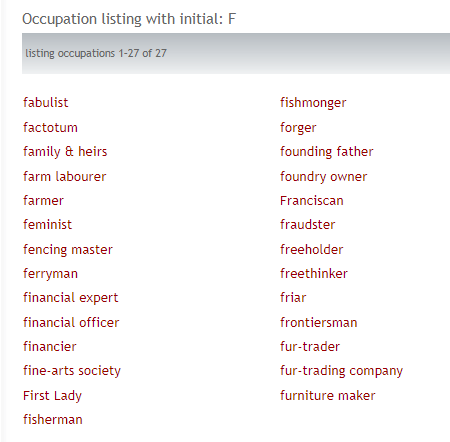
You can search or browse Electronic Enlightenment in various ways (e.g. by name, occupation, date or place).
Want to learn more? Choose take a guided tour from the home page to get an overview of content and how to search/browse.
Exams are a tricky time. Often you will be juggling different exams themselves, on top of other deadlines. However, we want you to know that you aren’t alone at this crazy time of year. We are here to help you through.
But how exactly can we help? Sadly, we can’t take go into the exam with you, or magically freeze time to give you more hours in the day, but do make the most of the following:
Library Help – the place to go when have a question via chat, email, text, twitter, Facebook. Or alternatively search our Frequently Asked Question (FAQ) database.
Librarians – yes you heard right. Book a one-to-one appointment to get the best out of the University Library resources. Also remember our staff in every library are friendly and approachable. There is no such thing as a silly question, so ask away!
Study Space– The University Library has a range of different study rooms and spaces to suit your needs.
24/7 – The Philip Robinson Library is open 24/7 during the exam period. We want you to sleep and get enough rest, but if you do need to study through the night, we are here.
Subject guides – we have a range of subject guides put together by expert librarians which draw together all the main resources for your studies.
Be well@NCL collection – we don’t just have books for study. This new collection includes tried and tested books that support your wellbeing.