
Resource in Focus: Linguistics and Language Behavior Abstracts (LLBA)

Photograph of a dictionary page, showing the definition of technology.

Linguistics and Language Behavior Abstracts (LLBA) indexes and provides abstracts of journal articles, books, book chapters and dissertations on linguistics and language sciences including topics such as:

  • Anthropological linguistics
  • Applied linguistics
  • Descriptive linguistics
  • Discourse analysis
  • Language – pathological and normal
  • Learning disabilities
  • Nonverbal communication
  • Phonetics
  • Phonology
  • Psycholinguistics

It’s an excellent resource for those interested in the nature and use of language.

Screen shot of the LLBA search box.

The database provides both basic and advanced search options and you can limit your results by information (source) type, publication date, subject, language and more.  You can also limit to peer reviewed items only.  While some full text items are available, LLBA item records generally provide only bibliographic information and an abstract, so look out for the ‘Find@Newcastle’ button in your results page, which will help you check for a full text copy of an item in Library Search.

LLBA has the advantage of including a specialised linguistics thesaurus, which you can use in advanced search to refine and focus your search. The thesaurus provides a searchable list of all the subject terms used in the database and highlights links between broader, narrower and related terms, helping you to select all of the keywords relevant to your topic.

Screen shot showing the LLBA thesaurus and advanced search screen.

ProQuest provide a helpful and detailed guide to LLBA which includes search tips for basic and advanced search as well as some sample searches you can work through to familiarise yourself with the database. 

Decoding your reading list

In the past few weeks you have probably been presented with module handbooks for everything you’re studying, with a list of references to things you are being told to read. Sometimes these will all be in the same referencing style and formatted in a way that you can understand easily what type of information it is. But sometimes, it might be more tricky to work out what exactly it is you are looking for. You can find yourself searching for a journal article, only to discover that it’s a book chapter, and you’ll never find it in a journal database.

If you are feeling a bit confused by your reading list, don’t worry. It’s a common problem and decoding references does get easier as you become more familiar with the referencing conventions of your subject.

There are some easy things to look out for in your references that will help you identify what type of information it is, and the key details, such as the author and title, that you would need to use in order to find it successfully. Take a look at the examples in the gallery to see what to watch out for.

Reference for a book in the Harvard style with the title in italics.
Reference for a book chapter in the Harvard style which includes the chapter and whole book title.
Reference for a journal article that includes the article title, volume and issue of the journal.
Reference for a website in harvard style which includes a url and accessed date.

Your reading list is also linked from your module course on Canvas. Individual items on your reading list will link through to Library Search, showing you print book availability and linking to e-book and e-journal full text wherever possible. This means you wont need to do a separate search.

Find out more about reading lists on the Library website.

Avoiding the second year slump

One of my good friends is the middle child of three siblings – born between two siblings with strong identities of “the eldest” and “the youngest”- and feels that she gets “forgotten about” or “neglected” by her parents (but of course she never is).

You could compare second year at University to feeling like the second child – not as exciting and ‘new’ as the youngest new-born (first year) nor as distinguished and knowledgeable as the eldest (final year at University) – but definitely never to be forgotten about.

Research conducted by Liverpool John Moores University found that second year students can suffer from ‘underperformance and withdrawal’ (Thompson et al., 2013) and that ‘around a third of undergraduates experienced a slow down in their academic progress during second year’ (Milsom, 2015). So don’t worry if you are feeling a bit overwhelmed and disengaged as you enter your second year of studies, you are definitely not alone.

So how can you get out of your slump?

The research by Liverpool John Moores University highlight the importance of recognising the challenges faced by second year students and identify support that can help you rise to meet them (Thompson et al., 2013).

The Library have definitely not forgotten about our much loved second years, and we’ve been thinking about how we can help – here are our top three ways that the Library and our resources can support you during your second year and how you can hopefully kick-start your engagement with the Library and your studies…

1. Find inspiration

As a second year, you may often feel disengaged, so take some time to remember what you love about you subject; explore your reading lists and Subject Guide(s) to find some wider reading on your favourite topics in your subject area – this may help you build your subject knowledge, help you think about what you want to focus on in third year and remind you why you chose this subject in the start.

The reading lists for your modules is an excellent places to start any refresh. Watch this short video (2:44min) on how to find and use your reading lists:

Another place to re-engage with your subject is our Subject Guides. These guides are created by our ingenious Librarians (*ahem) and are collections of subject specific resources to help you discover reliable and authoritative information for your studies. Remember, if your studies are interdisciplinary, you might have to use multiple guides to ensure find relevant resources.

2. Refresh and build on your skills

Second year is a great time to take some time to refresh or build on your information and academic skills, so you are prepared for your studies becoming more challenging and intense as the year progresses and then transitioning into third year.

Boost your motivation this year by setting yourself small and achievable goals. These could be to improve a mark from last year, to read more widely or to refresh a skill that would be useful for employment. Our Skills Checker is an excellent tool to help you identify an area of information skills to work on.

Once you have identified the areas to work on, check out the Academic Skills Kite for help and has advice on developing your academic skills. It is your guide to where you can go for support on all aspects of your academic life. With online resources to help you with your academic and study skills, covering topics such as academic integrity and referencing, exams and revisions, learning online and academic writing, you will find the support you need to study successfully.

Also discover our Resource and Subject Guides for help on finding, evaluating and managing information and useful guides on subject such as how to use EndNote, how to create an academic poster or how to identify fake news.

Our Employability Guide is another superb guide to show how developing your information and digital literacy skills can help prepare you for your future careers, and don’t forget, Newcastle University’s award-winning Careers Service provide expert advice regarding your future plans.

3. Ask for help

The Library is always here to help, so contact us by email, chat, phone or by social media 24/7 to ask any question regarding the Library services and resources.

The Library Liaison team and the Academic Skill Team are also available to meet (via Teams) for a one-to-one appointment to help you on any aspect of Library and academic skills that you need help with. You can book an appointment via Library Help.


I hope we have reassured you that you lovely second years are definitely not forgotten and that we are here to help you on your academic journey every step of the way (*oh so cheesy). These are difficult times but with a bit of grit and determination we have confidence that you will succeed in every way.

References

Milsom, C. (2015) ‘Disengaged and overwhelmed: why do second year students underperform?’, The Guardian, 16 February. Available at: https://www.theguardian.com/higher-education-network/2015/feb/16/disengaged-and-overwhelmed-why-do-second-year-students-underperform#:~:text=Positioned%20between%20two%20years%20with,often%20seems%20to%20be%20overshadowed.&text=The%20issue%20is%20widely%20recognised,related%20underperformance%20and%20disengagement%20extensively (Accessed: 28 October 2020).

Thompson, S., Milsom, C., Zaitseva, E., Stewart, M., Darwent, S. and Yorke, M. (2013) The Forgotten Year? Tackling the Second Year Slump. Liverpool John Moores University. Available at: https://www.advance-he.ac.uk/knowledge-hub/forgotten-year-tackling-%25E2%2580%2598sophomore-slump%25E2%2580%2599 (Accessed: 28 October 2020).

Managing Information: Referencing

Referencing is an important part of academic writing – you’ll usually find it included in the marking criteria for your assignments and projects, with marks being awarded for correctly formatted citations and reference lists.

Why is referencing important?

  • It acknowledges the ideas and contributions of others that you have drawn upon in your work, ensuring that you avoid plagiarism
  • It highlights the range of reading you’ve done for your assignment and makes your own contribution clear, showing how you’ve taken ideas from others and built upon them
  • It enables the person reading your work to follow up on your references so they can learn more about the ideas you’ve discussed in your work or check any facts and figures.

How does referencing work?

Are there any tools that can help?

Yes!  There are lots of referencing tools that can help you manage and format your citations and references correctly.  Here are some examples:

A very useful online tool that lists all the information you need to include in a reference and provides examples of how a reference will look as an in-text citation and in a reference list.  See our ‘Level Up Your Referencing: Cite Them Right’ blog for more information.

  • Citation Buttons
Citation button consisting of a speech mark "

Keep an eye out for this symbol on Library Search and Google Scholar.  Clicking the button will provide the option for you to copy a reference in a particular style and paste it directly into your reference list.  You might need to tidy it up a little bit but it will save you time over writing them manually.

Reference building tools help you to create a bibliography using the correct referencing style.  You can input information manually or use import functions to pull information through from other webpages or documents.  As with the citation button above, reference building tools can save you time but you may still need to check the references are accurate.

  • Reference Management Software: e.g. EndNote

If you’re writing a detailed essay, dissertation or thesis, you may like to use a reference management tool such as EndNote, Mendeley or Zotero to help keep all of your references organised.  This software allows you to manually add references or import them from Library Search, Google Scholar or Subject Databases; sort references into groups; attach pdf documents or add notes.  You can then use the reference management software while you write to add in-text citations and format your reference list.

The University has a subscription for EndNote which is available in all University clusters and can be downloaded to your own personal device. You’ll find information about how to get started with EndNote on our EndNote Guide.

Remember: whatever tool you use, it’s always a good idea to get to know the conventions of the referencing style your school or lecturer would like you to use so that you can spot mistakes or missing information.

You can find out more about referencing and plagiarism by following this tutorial from Cite Them Right (You’ll need to log in to the institutional log in with your University username and password.)

Resource Guides: it’s all in the name!

Last week, we let you in on the secrets of Library Search. This week we want to introduce you to our Resource Guides.

Library Search is a great starting point for any piece of research or essay, but there comes a time, when you need some extra help in finding a particular type of information. And that’s where our Resource Guides come in.  We have a range of guides to suit your information needs including: company information, market research, government publications, newspapers, maps, statistics, patents, standards, theses and dissertations, plus much more.

The guides group together all the main library subscriptions we have for that specific type of information, as well as linking out to key external links and resources too. Wherever possible we also include guidance and help on how to get the best out of the databases and links and group the information together into a logical and helpful way. We know how busy life is and we simply want to save you time!

So what you are waiting for, go and check out our fabulously named Resource Guides, because they do exactly what they say on the tin!

Getting the most out of e-books

Woman reading on an eReader device.

We have over 0.7 million e-books accessible through Library Search, including titles that feature on your reading lists, or those that have been recommended by staff and students. Sometimes we buy them through large bundle deals with specific publishers so we gain access to lots of research titles all at once.

Why use e-books?

e-books are incredibly useful resources as they are available 24/7 from any location, work with most devices and some come with snazzy features such as keyword searching, annotation options, links to other relevant information, and reading aloud facilities to name but a few.

How do e-books work?

As we get e-books from different platforms and providers you might see a different layout each time you access one of our titles but the logic is the same. You can navigate using a toolbar, you can normally turn pages using little arrows at the top or side of the page, you can jump to specific chapters and in some cases, print or download all or some sections of the e-book to read offline.

Unfortunately, one thing you can’t do with e-books is download and save offline a copy of the book to keep forever, there are usually some download restrictions. This is because we have subscriptions or licence access to titles but we don’t own the title. There is something called Digital Rights Management where publishers can control the copying, pasting and downloading of their content, this is linked to issues with privacy and copyright.

How do I access e-books?

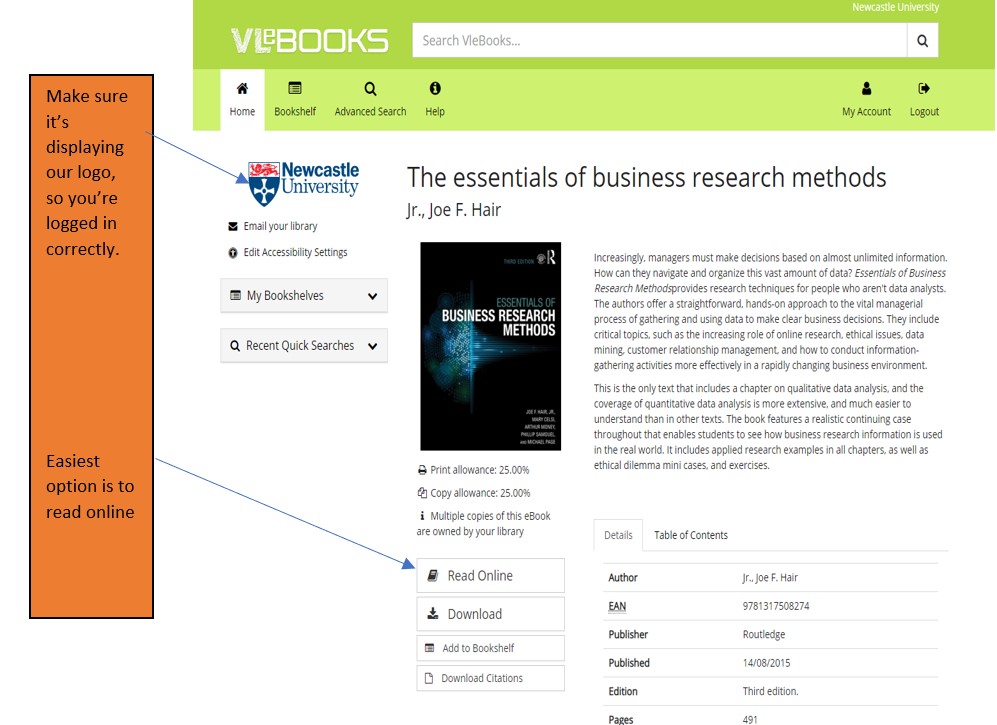
Simply navigate to Library Search and enter your keywords to look for a book title as usual. Library Search is the best way to access resources whether you’re on or off campus as it makes sure you’re logged in correctly and can access resources simply and quickly.

Watch this short video to begin searching for books and e-books.

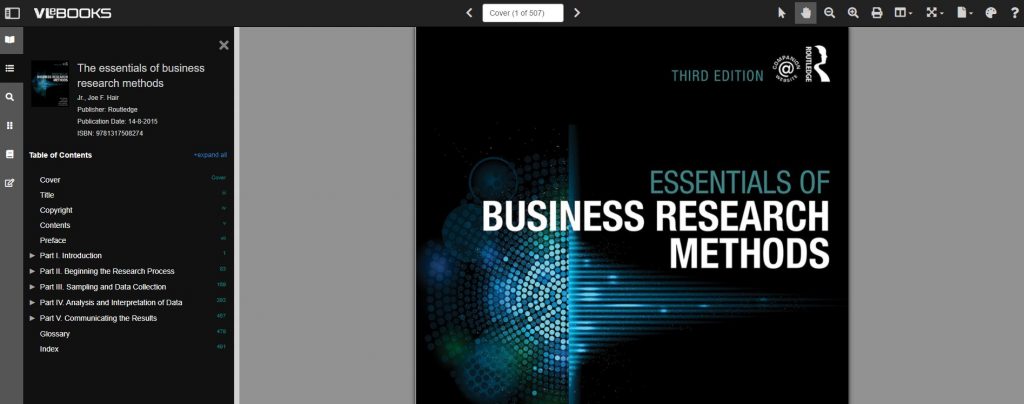
From your search results, choose an e-book which looks relevant e.g. Essentials of Business Research Methods by Hair, which we know is popular book for Business students doing dissertations. If you are off campus, you will need to sign in with your University ID and Password.

Once the e-book has loaded on the screen, hover over the functionality buttons to see what they do. For example; the search option will be useful if you’re looking for specific topics; use the Table of Contents to navigate straight to a chapter you’ve been told to read, or select the paint pallet to change the colour of the background to help with your reading.

Not all titles are available in eBook format for an institutional library to purchase, but if you’d prefer a title in electronic format we can certainly investigate. Just let us know by recommending a book.

Library Search: top search tips

Library Search is a powerful tool that can help you find good quality, relevant information quickly.  Using Library Search is pretty intuitive but there are some useful search tips that can help you improve and get the most out of your searches:

Keywords and Subject Terms

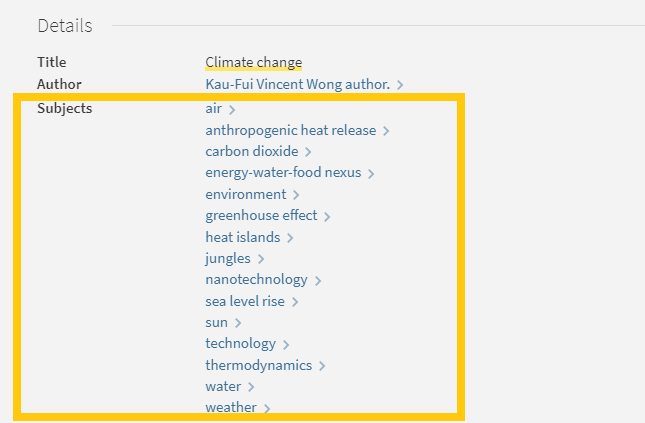
When you’re searching for information it’s important to use a range of related keywords to ensure you find everything relevant to your topic.  For example, if you’re searching for information on ‘Climate Change’ you might also want to search for ‘Greenhouse Effect’ or ‘Global Warming’ too.  Thinking of related keywords can sometimes be difficult but Library Search can help!

From your search results page, click on the title of a resource to open the resource record and scroll down to the ‘Details’ section.  Here you will find a list of ‘Subjects’, also known as subject terms, used to describe the topics and themes this particular resource discusses.  Take a look at this list and add any relevant words to your search string.

Screen shot of Library Search subject terms for climate change

There are some other useful features in the resource record page that can help with your searches too:

Browse the virtual shelf

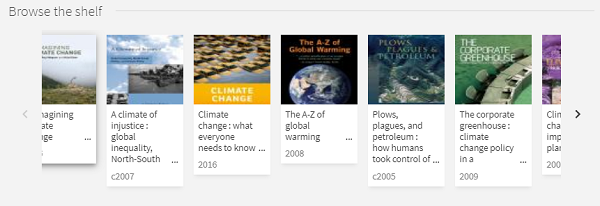
At the very bottom of the record you’ll find a virtual bookshelf, a visual list of the books that can be found next to this one if you were looking in the physical library.  As the library is organised by subject some of these titles might be useful for your research too.

Screen shot of virtual shelf on library search

Read the abstract

A quick way to tell if a resource is going to be relevant and useful for your research is to read the abstract, a summary of the contents of the resource.  On the resource record in Library Search, you’ll find this under the heading ‘Description’.

Advanced Search

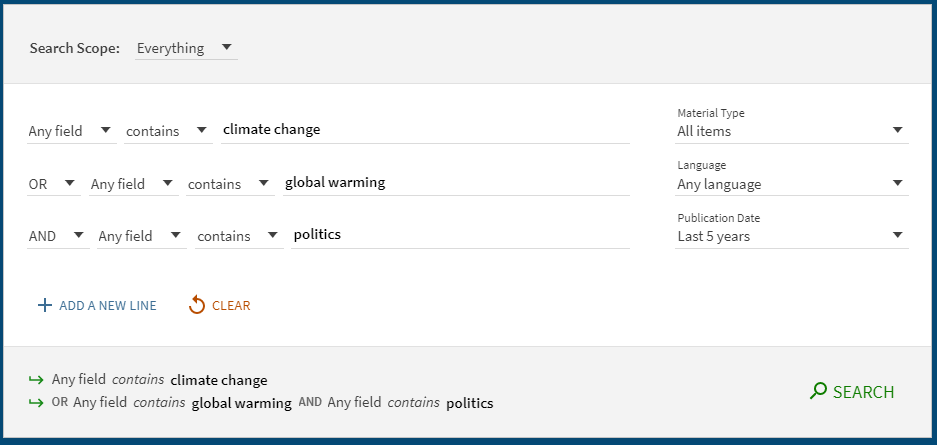
The Advanced Search function in Library search allows you to create a search that will produce more focused results.  It does this by providing a range of search fields and drop down lists that help you build up your search.

Screen shot of advanced search

Select from the options to:

  • Limit your search field to the title, author, subject, collection etc.
  • Apply BOOLEAN operators (AND, OR, NOT) to your keywords
  • Filter by specific material types, languages and dates to focus your search results to the most relevant resources.

Take a look at the Advanced Searching page on our Finding Information Guide for more on how to combine your keywords, create a search string and improve your search results.

Library Search: (the secret stuff?)

You know Library Search. You use it every day when you’re at University. Why are you going to read a blog post on it? Well, we’re wondering if you’re using Library Search to its full potential. Not sure? Then read on.

Library Search is Newcastle University Library’s discovery tool – essentially it’s how you find resources on the library shelves and access those invaluable resources online. But what else can it do?

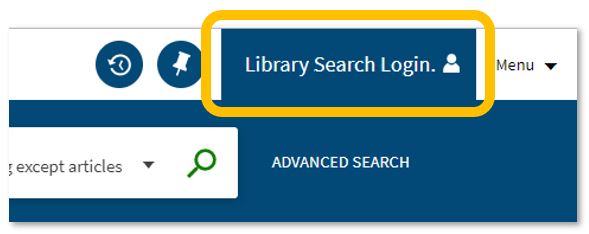
An image of the Library Search login function.

Log in. Using your usual Campus ID and password, you can open up the full functionality of Library Search by telling it who you are. It allows you to:

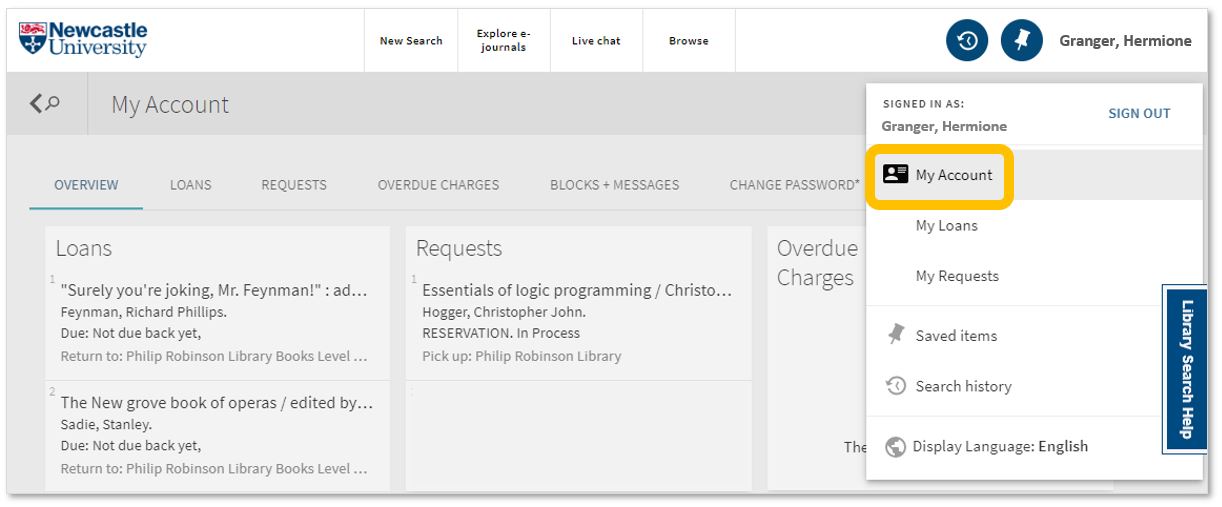
  • Log into your library account to see what books you have on loan (which you may be finished with and could return to any library site), those requests you’ve placed and any books you have on loan that may have been requested by someone else. The standard library stuff, but it’s important too.

An image of Library Search's My Account function.

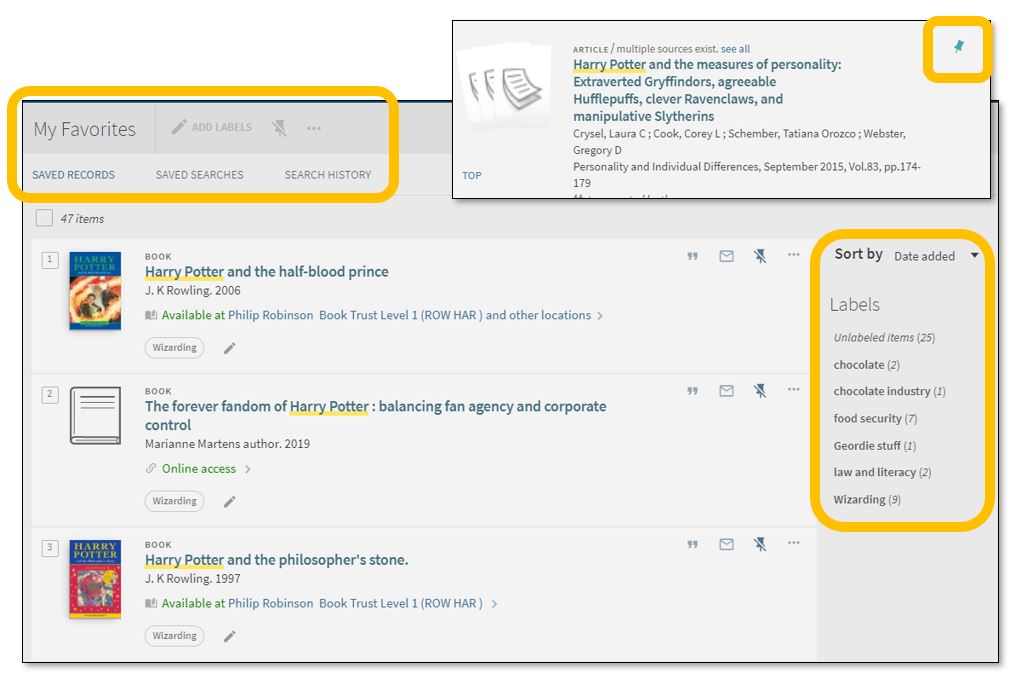
  • Save items you want to come back to (that’ll save you writing them down somewhere else). Find that favourite item and ‘pin’ it to your record. You can then access a list of your favourite books, journals or journal articles and label (or tag) them as to why you may need them, e.g. Herbology, Professor Snape’s essay, or Field Trip to Hogsmeade. That makes it easy to see what you need to use for each lecture, seminar or assessment.

An image of the Library Search Favourites tool.

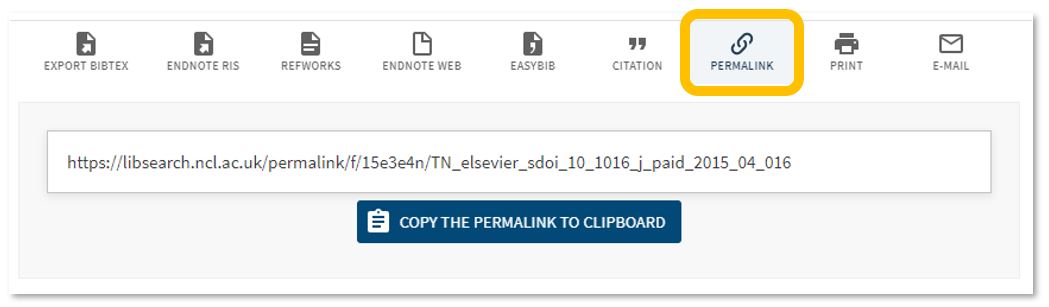
  • Permalink. You can share an item with someone if you want to – copy the permalink to the clipboard and send it to someone you know may be interested.

An image of Library Search's permalink tool.

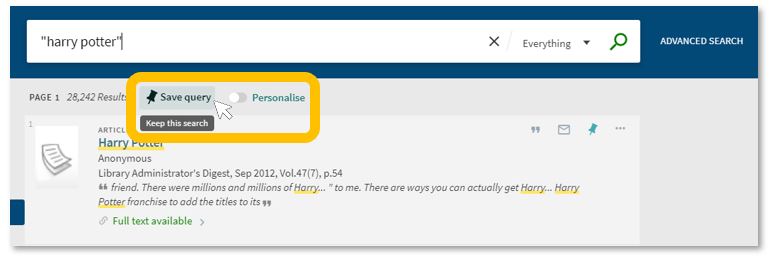
  • Save your search. If you need to repeat your search then save it within Library Search so you don’t need to remember the keywords and connectors (AND, OR, NOT) sequence. This is important if you are scoping a search and need to record or change your approach. You can also ‘Personalise’ your results to a particular discipline – give it a try!

Animage of the Library Search Save Search and Personalise tool.

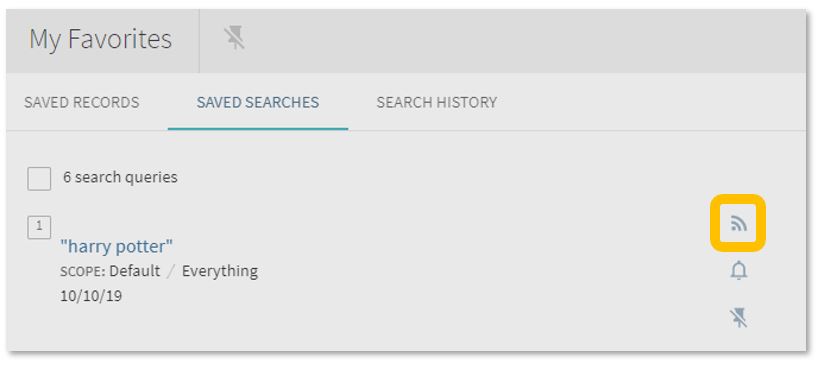
  • Set up a RSS Feed (yes, really!). The Rich Site Summary function allows you to be informed of changes to results in your saved searches. Handy, eh? Go to your Saved Searches and simply click the RSS icon.

An image of Library Search's RSS feed tool.

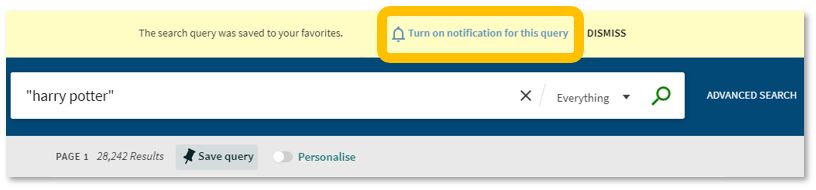
  • Receive an email alert when there are new results for your saved search. This can save you time in your research as Library Search will inform you if there is a new publication available which matches your search terms. Switch it off when you move onto a new subject area by accessing your Favourites list and deselecting the alarm bell icon.

An image of Library Search's email notification tool.

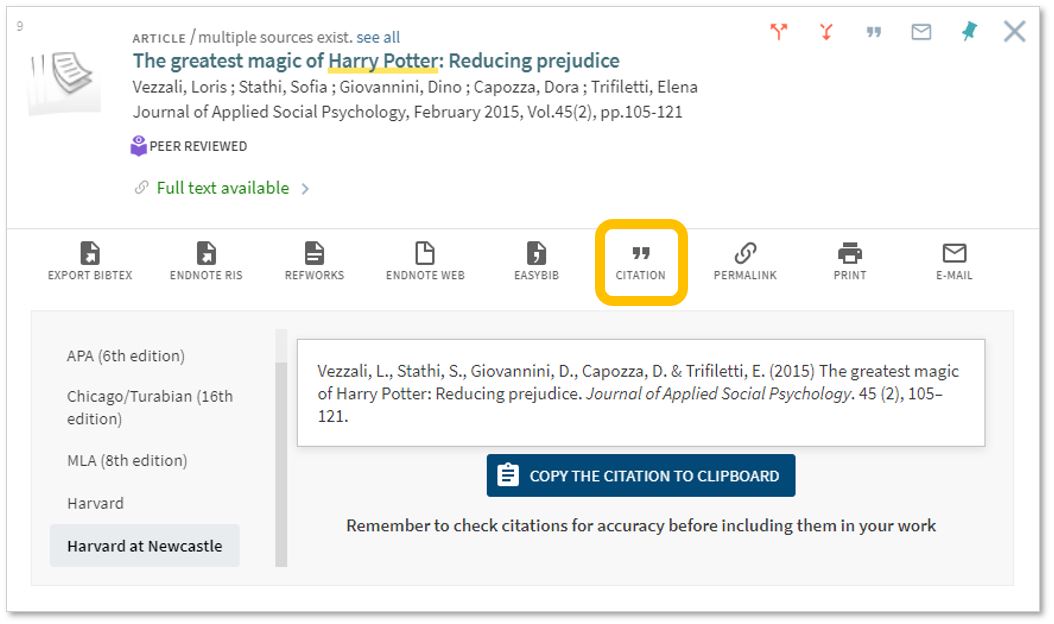
Finally, if you’re writing up your assignment and can’t remember the essential elements of a reference, then use Library Search for guidance. The Citation tool will allow you to view a suggested citation and to copy it to your clipboard for use in your work.*

An image of Library Search's Citation tool.

*BUT (you knew that was coming, didn’t you) ensure you choose the correct style and check your citations for accuracy before including them in your work. It pays to know your required referencing style and not to rely on automated or generated references. If you want to learn more about referencing then see our Managing Information guide and Cite Them Right. Cite Them Right is a great resource which will remind you of the importance of referencing, how to reference and will give guidance on how to cite those more tricky materials such as conference papers, newspaper articles, social media posts and more. Finally, there’s a new tutorial with lots of interactive questions so you can test yourself too.

If you know of any tips or tricks in Library Search that aren’t mentioned here, then leave us a comment and share them!

10 online resources for Education students

As well as following your reading lists from your module leaders you will also need to find your own good quality resources. Here are some of our suggestions to help you find the information you need.

1. Library Search for ebooks and articles

When working off campus, you can still access the full collection of ebooks, electronic journals and professional magazines, newspapers, conferences and more, from Library Search.

Additional ebook titles are being added to the collection every day while we are all working remotely. Search by author, title or keyword to find books to help you with your essay topic.

We’ve put together a page of tips and help videos all about Library Search on our finding information skills guide .

Our video will get you started with searching for eBooks.

To find academic journal articles from across our collection that match your topic keywords, use the everything search option and filter your results on the left to peer-reviewed journals.

Find out how to search for journal articles in this short video.

2. Your Subject Guide

The Subject Guide for Education draws together in one place, the resources available from the library to help you with your academic work. Use the Journals and Database page to access subject databases such as Social Sciences Premium Collection ERIC and JSTOR.

The Social Sciences Premium Collection is a brilliant place to start if you would like to refine your results to education and the social sciences, while still searching broadly across different information types. Find out more about the Social Sciences Premium Collection, how to search it successfully and use the advanced features in the video guide below. It is a brilliant resource for education.

You can contact the Liaison Team for one-to-one support or send your questions to Library Help, where there are staff logged into our live chat service, 24/7.

Between Library Search and your Subject Guide, you will be able to find excellent information to use in your academic essays, but there are many other resources you may want to try.

3. ERIC and British Education Index

ERIC is the most widely used education database, that covers a broad spectrum of education literature including journal articles, books, conference papers and reports. It has global coverage although can be a little skewed towards American education.

It includes basic and advanced search options, and has a built in thesaurus that allows you to select subject headings for your search, that take into account the differences in how education levels or topics may be described internationally, e.g. elementary education versus primary education.

Find out how to do a basic search on the EBSCOhost platform, that hosts ERIC.

If you want to refine your search to UK education, use British Education Index instead. It is on the same platform as ERIC so is searched in the same way, but will refine your results to a British focus.

4. JSTOR

JSTOR is a full-text collection, giving you online access to scholarly journals, books and book chapters in the arts, humanities, and social sciences.

It has basic and advanced search options that allow you to search by topic keyword, author, subject area, title or publisher

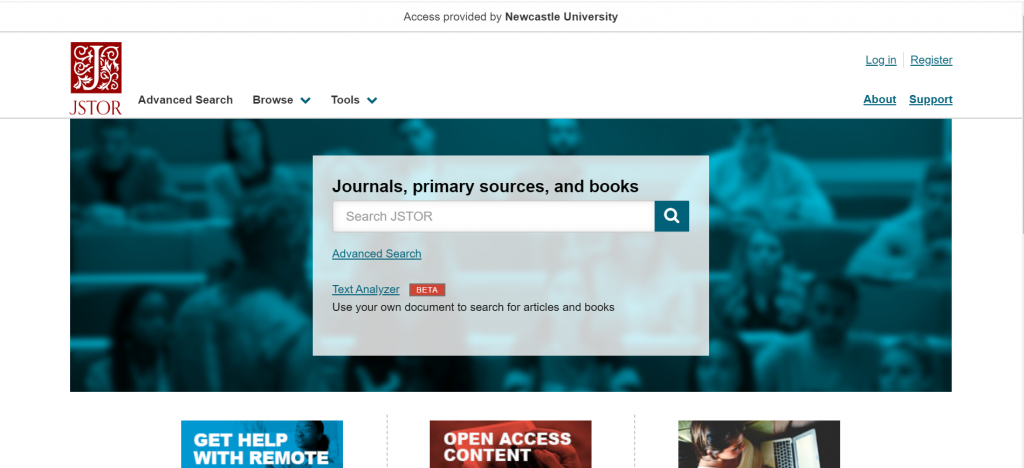
Screenshot showing the JSTOR homepage

5. Scopus

Scopus is a large, multidisciplinary database, which indexes peer- reviewed journal articles, books, book chapters, conference proceedings and trade publications.

One of the main advantages of using Scopus is that it provides a lot of useful information about the articles it indexes. This includes full reference lists for articles and cited reference searching, so you can navigate forward and backward through the literature to uncover all the information relevant to your research.  

You can also set up citation alerts so you can be informed of new, relevant material automatically. Other useful tools include citation overviews, author and affiliation searching, visual analysis of search results, a journal analyser, and author identifier tools (if you are interested in publishing work).Watch this video from Scopus about how to expand your search from a known article reference.

https://youtu.be/qCu-obYMFsE
Watch this video from Scopus about how to expand your search from a known article reference.

6. Government publications

Government publications provide information in a variety of subjects. Statistics, White Papers, Parliamentary Bills and a whole range of Official Legislation published by the Government. The provide a good, reliable, source of accurate statistics, and can give support to your argument in essay topics. This includes OFSTED reports, Department for Education advice, policy and publications.

We have put together a resource guide for government publications that will give you quick access to the United Kingdom gov.uk publications search and the Office For National StatisticsEuropean and international official publications.

7. OECD iLibrary for statistics and global reports.

OECD iLibrary is the online library of the Organisation for Economic Cooperation and Development (OECD) and gives you access to booksanalytical reports and statistics, covering a broad range of topics relevant for studies in education.

OECD iLibrary is certainly worth searching to provide reputable supporting information for your academic work.

8. Statista for easy statistics and global outlook

Statista is an extensive statistics platform covering over 1.5 million data sets. It includes reports, statistics and forecasts on a range of topics. So if you want to know which social media platforms are most popular across the globe, compare homelessness statistics, explore education trends or how many people read every day, Statista is a brilliant place to start.

Statistics and reports can be exported in a range of formats including images and PowerPoint, giving you flexibility to include the visuals in your assignments. The statistics source is included, giving you the information that you need to cite it successfully.

Find out more about Statista with this brief introduction.

You will find a similar sources on our Statistics and Market Research resource guides.

9. Current newspapers with LexisLibrary

Newspapers are an excellent resource to explore, to provide a range of perspectives on a topic. You can find opinion pieces, social commentary and identify trends in public opinion.

We have a huge range of newspaper archives, historic newspapers and international sources such as Nexis that can mostly be access online and off campus. Our Newspapers resource guide collates all of our resources and will guide you through how where to look.

LexisLibrary is an excellent place to start, including TES and The Guardian education. It provides access to UK national and regional newspapers, from the 1990s to today. It includes the copy text without the images or formatting and all of the details you need to create a citation are on the article page.

Once you have followed the Library Search link to access Lexis, make sure you click on News at the top of the page for full text access to all UK publications.

As so many articles are published every day, you will need to refine your searching using date ranges, combined keywords or by selecting specific newspapers or publication type (i.e. broadsheet or tabloid).

Remember to use your critical skills when using newspapers however, and watch out for Fake News. They are biased sources and are best used in balance with other sources. You can find our tips on our Evaluating Information skills guide.

10. Box of Broadcasts

Box of Broadcasts can be used to access TV and radio broadcasts from over 65 channels, including most of the UK’s freeview network, all BBC TV and radio content from 2007, and several foreign language channels. It’s a great resource to use to find documentaries or critical opinions.

You can view archived programmes, record new ones, create clips and playlists and see transcripts to help with citation and translation. You can also search for other user’s public playlists to help you in your own search. 

You can get help at anytime during your studies by contacting your Social Science Liaison Team; Karen and Louise who are based in the Philip Robinson Library.

mailto:libliaison@ncl.ac.uk