Referencing is an important part of academic writing –
you’ll usually find it included in the marking criteria for your assignments
and projects, with marks being awarded for correctly formatted citations and
reference lists.
Why is referencing important?
It acknowledges the ideas and contributions of
others that you have drawn upon in your work, ensuring that you avoid
plagiarism
It highlights the range of reading you’ve done
for your assignment and makes your own contribution clear, showing how you’ve
taken ideas from others and built upon them
It enables the person reading your work to
follow up on your references so they can learn more about the ideas you’ve
discussed in your work or check any facts and figures.
How does referencing work?
Are there any tools that can help?
Yes! There are lots of referencing tools that can help you manage and format your citations and references correctly. Here are some examples:
A very useful online tool that lists all the information you need to include in a reference and provides examples of how a reference will look as an in-text citation and in a reference list. See our ‘Level Up Your Referencing: Cite Them Right’ blog for more information.
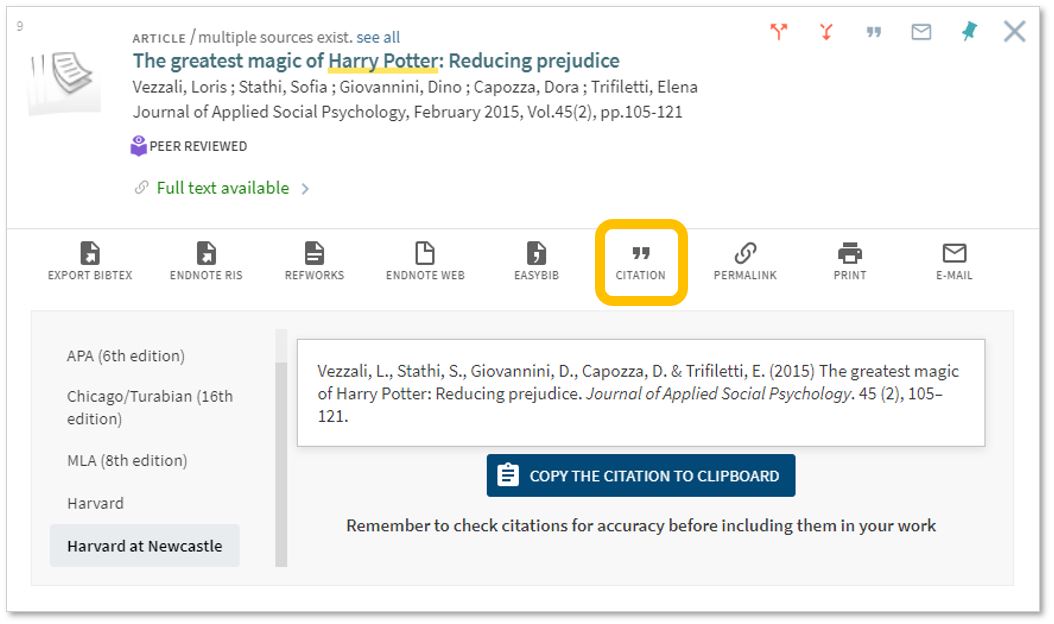
Citation Buttons
Keep an eye out for this symbol on Library
Search and Google Scholar. Clicking the
button will provide the option for you to copy a reference in a particular
style and paste it directly into your reference list. You might need to tidy it up a little bit but
it will save you time over writing them manually.
Reference building tools help you
to create a bibliography using the correct referencing style. You can input information manually or use
import functions to pull information through from other webpages or documents. As with the citation button above, reference
building tools can save you time but you may still need to check the references
are accurate.
Reference Management Software: e.g. EndNote
If you’re writing a detailed essay, dissertation or thesis, you may like to use a reference management tool such as EndNote, Mendeley or Zotero to help keep all of your references organised. This software allows you to manually add references or import them from Library Search, Google Scholar or Subject Databases; sort references into groups; attach pdf documents or add notes. You can then use the reference management software while you write to add in-text citations and format your reference list.
The University has a subscription for EndNote which is available in all University clusters and can be downloaded to your own personal device. You’ll find information about how to get started with EndNote on our EndNote Guide.
Remember: whatever tool you use, it’s always a good idea to get to know the conventions of the referencing style your school or lecturer would like you to use so that you can spot mistakes or missing information.
You can find out more about referencing and plagiarism by following this tutorial from Cite Them Right (You’ll need to log in to the institutional log in with your University username and password.)
We have over 0.7 million e-books accessible through Library Search, including titles that feature on your reading lists, or those that have been recommended by staff and students. Sometimes we buy them through large bundle deals with specific publishers so we gain access to lots of research titles all at once.
Why use e-books?
e-books are incredibly useful resources as they are available 24/7 from any location, work with most devices and some come with snazzy features such as keyword searching, annotation options, links to other relevant information, and reading aloud facilities to name but a few.
How do e-books work?
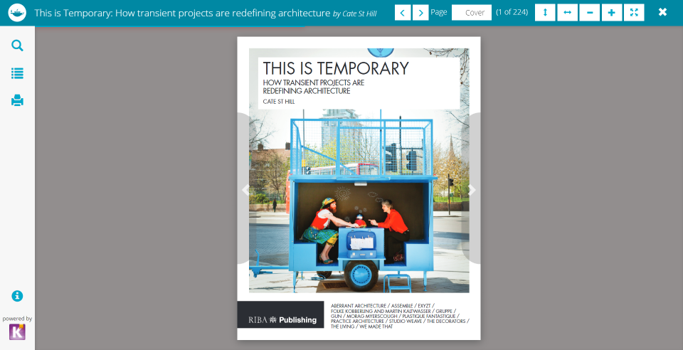
As we get e-books from different platforms and providers you might see a different layout each time you access one of our titles but the logic is the same. You can navigate using a toolbar, you can normally turn pages using little arrows at the top or side of the page, you can jump to specific chapters and in some cases, print or download all or some sections of the e-book to read offline.
Unfortunately, one thing you can’t do with e-books is download and save offline a copy of the book to keep forever, there are usually some download restrictions. This is because we have subscriptions or licence access to titles but we don’t own the title. There is something called Digital Rights Management where publishers can control the copying, pasting and downloading of their content, this is linked to issues with privacy and copyright.
How do I access e-books?
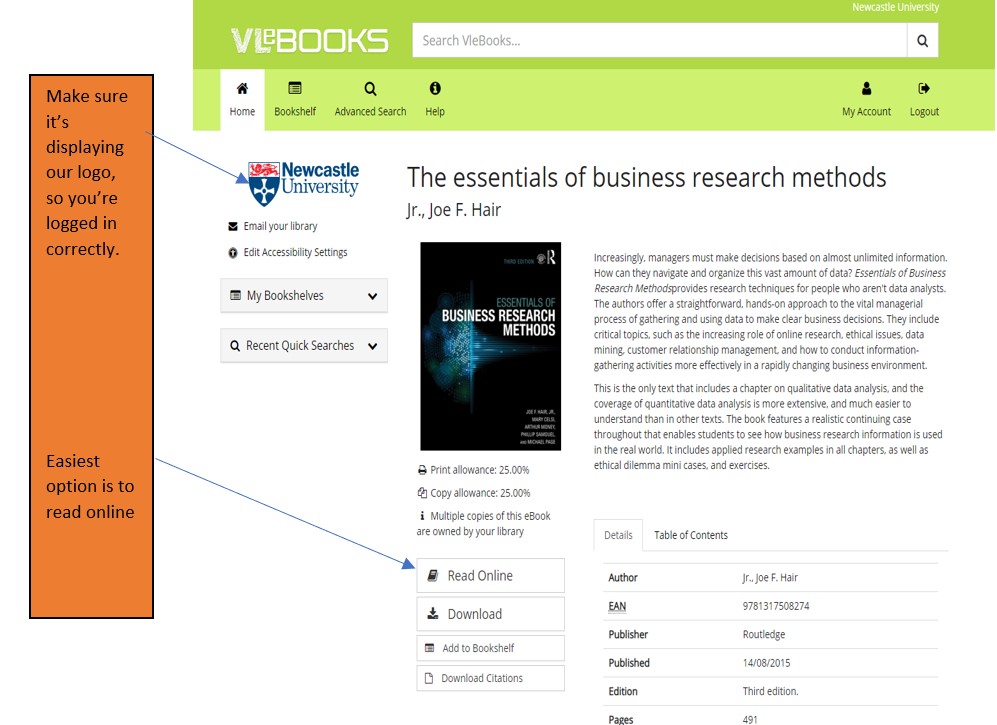
Simply navigate to Library Search and enter your keywords to look for a book title as usual. Library Search is the best way to access resources whether you’re on or off campus as it makes sure you’re logged in correctly and can access resources simply and quickly.
Watch this short video to begin searching for books and e-books.
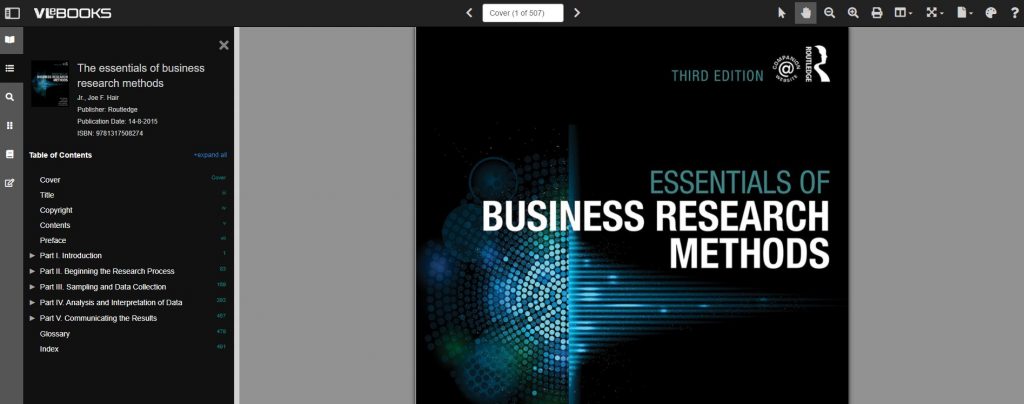
From your search results, choose an e-book which looks relevant e.g. Essentials of Business Research Methods by Hair, which we know is popular book for Business students doing dissertations. If you are off campus, you will need to sign in with your University ID and Password.
Once the e-book has loaded on the screen, hover over the functionality buttons to see what they do. For example; the search option will be useful if you’re looking for specific topics; use the Table of Contents to navigate straight to a chapter you’ve been told to read, or select the paint pallet to change the colour of the background to help with your reading.
Not all titles are available in eBook format for an institutional library to purchase, but if you’d prefer a title in electronic format we can certainly investigate. Just let us know by recommending a book.
Library Search is a powerful tool that can help you find good quality, relevant information quickly. Using Library Search is pretty intuitive but there are some useful search tips that can help you improve and get the most out of your searches:
Keywords and Subject Terms
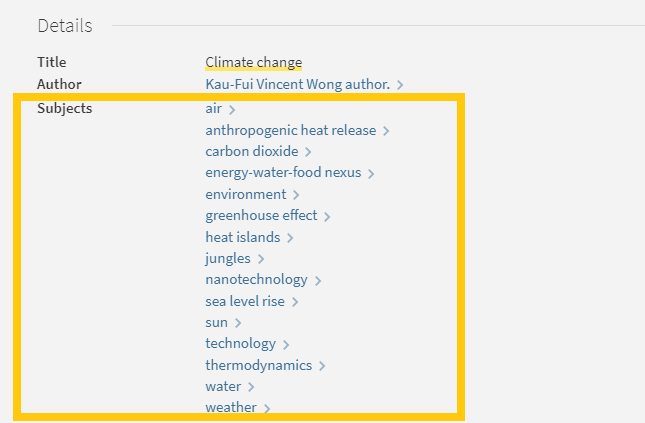
When you’re searching for information it’s important to use a range of related keywords to ensure you find everything relevant to your topic. For example, if you’re searching for information on ‘Climate Change’ you might also want to search for ‘Greenhouse Effect’ or ‘Global Warming’ too. Thinking of related keywords can sometimes be difficult but Library Search can help!
From your search results page, click on the title of a resource to open the resource record and scroll down to the ‘Details’ section. Here you will find a list of ‘Subjects’, also known as subject terms, used to describe the topics and themes this particular resource discusses. Take a look at this list and add any relevant words to your search string.
There are some other useful features in the resource record page that can help with your searches too:
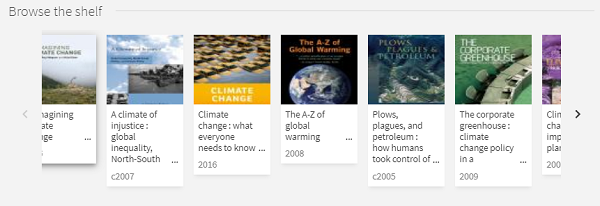
Browse the virtual shelf
At the very bottom of the record you’ll find a virtual bookshelf, a visual list of the books that can be found next to this one if you were looking in the physical library. As the library is organised by subject some of these titles might be useful for your research too.
Read the abstract
A quick way to tell if a resource is going to be relevant and useful for your research is to read the abstract, a summary of the contents of the resource. On the resource record in Library Search, you’ll find this under the heading ‘Description’.
Advanced Search
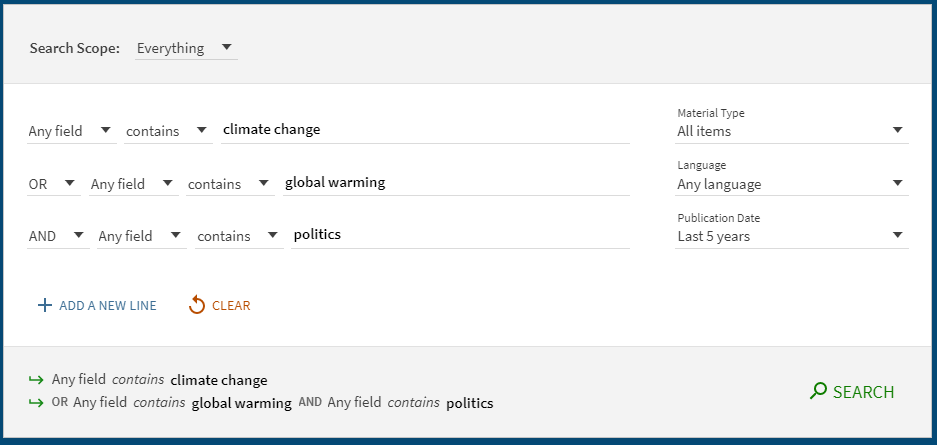
The Advanced Search function in Library search allows you to create a search that will produce more focused results. It does this by providing a range of search fields and drop down lists that help you build up your search.
Select from the options to:
Limit your search field to the title, author, subject, collection etc.
Apply BOOLEAN operators (AND, OR, NOT) to your keywords
Filter by specific material types, languages and dates to focus your search results to the most relevant resources.
Take a look at the Advanced Searching page on our Finding Information Guide for more on how to combine your keywords, create a search string and improve your search results.
You know Library Search. You use it every day when you’re at University. Why are you going to read a blog post on it? Well, we’re wondering if you’re using Library Search to its full potential. Not sure? Then read on.
Library Search is Newcastle University Library’s discovery tool – essentially it’s how you find resources on the library shelves and access those invaluable resources online. But what else can it do?
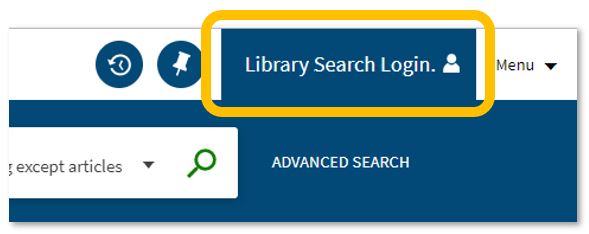
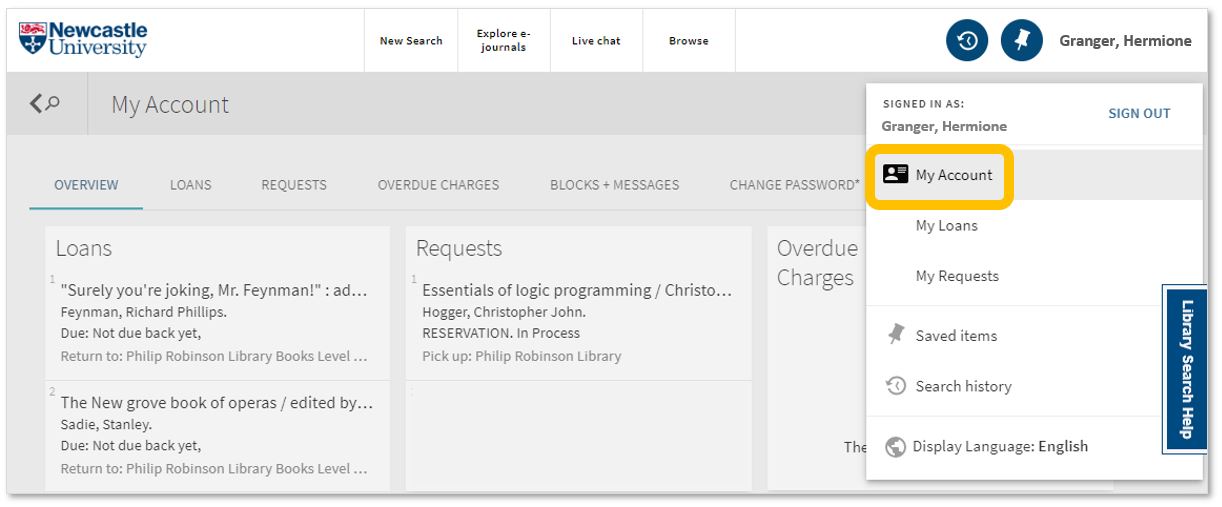
Log in. Using your usual Campus ID and password, you can open up the full functionality of Library Search by telling it who you are. It allows you to:
Log into your library account to see what books you have on loan (which you may be finished with and could return to any library site), those requests you’ve placed and any books you have on loan that may have been requested by someone else. The standard library stuff, but it’s important too.
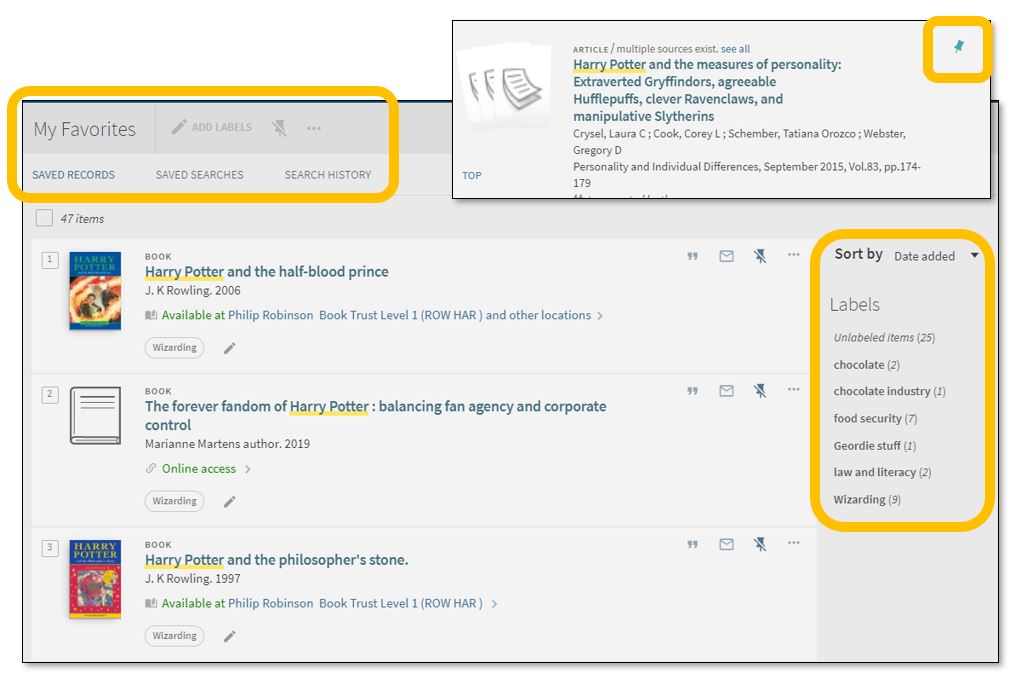
Save items you want to come back to (that’ll save you writing them down somewhere else). Find that favourite item and ‘pin’ it to your record. You can then access a list of your favourite books, journals or journal articles and label (or tag) them as to why you may need them, e.g. Herbology, Professor Snape’s essay, or Field Trip to Hogsmeade. That makes it easy to see what you need to use for each lecture, seminar or assessment.
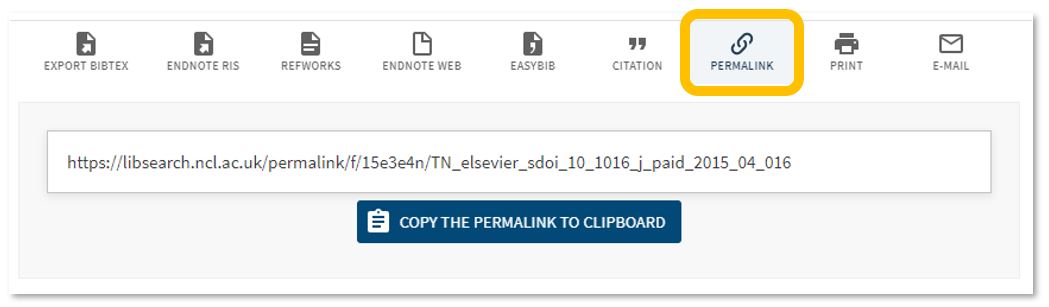
Permalink. You can share an item with someone if you want to – copy the permalink to the clipboard and send it to someone you know may be interested.
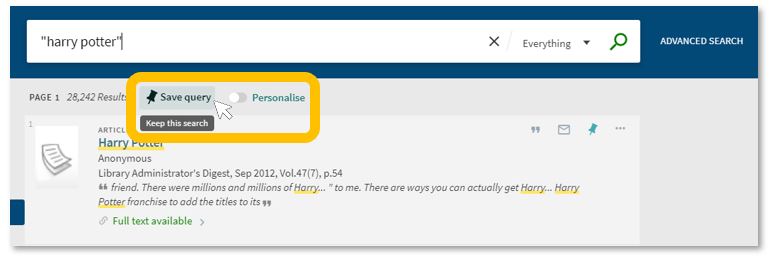
Save your search. If you need to repeat your search then save it within Library Search so you don’t need to remember the keywords and connectors (AND, OR, NOT) sequence. This is important if you are scoping a search and need to record or change your approach. You can also ‘Personalise’ your results to a particular discipline – give it a try!
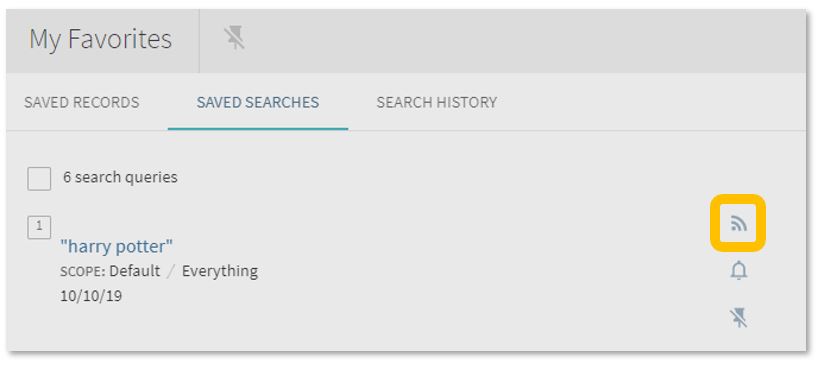
Set up a RSS Feed (yes, really!). The Rich Site Summary function allows you to be informed of changes to results in your saved searches. Handy, eh? Go to your Saved Searches and simply click the RSS icon.
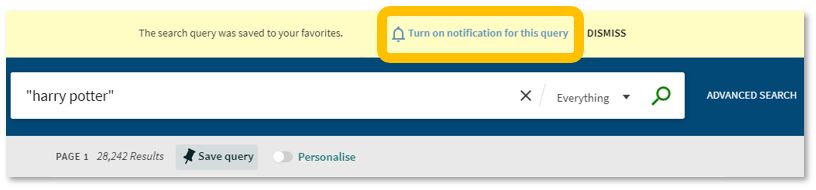
Receive an email alert when there are new results for your saved search. This can save you time in your research as Library Search will inform you if there is a new publication available which matches your search terms. Switch it off when you move onto a new subject area by accessing your Favourites list and deselecting the alarm bell icon.
Finally, if you’re writing up your assignment and can’t remember the essential elements of a reference, then use Library Search for guidance. The Citation tool will allow you to view a suggested citation and to copy it to your clipboard for use in your work.*
*BUT (you knew that was coming, didn’t you) ensure you choose the correct style and check your citations for accuracy before including them in your work. It pays to know your required referencing style and not to rely on automated or generated references. If you want to learn more about referencing then see our Managing Information guide and Cite Them Right. Cite Them Right is a great resource which will remind you of the importance of referencing, how to reference and will give guidance on how to cite those more tricky materials such as conference papers, newspaper articles, social media posts and more. Finally, there’s a new tutorial with lots of interactive questions so you can test yourself too.
If you know of any tips or tricks in Library Search that aren’t mentioned here, then leave us a comment and share them!
You can access the full collection of ebooks, electronic journals and professional magazines, newspapers, conferences and more, from Library Search.
Additional ebook titles are being added to the collection every day while we are all working remotely. Search by author, title or keyword to find books to help you with your essay topic.
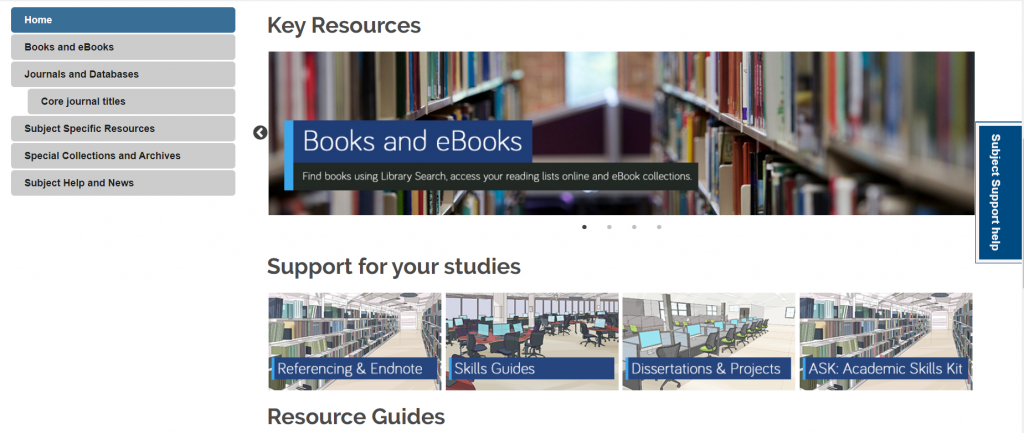
The Subject Specific Resources page gives you a curated list of good quality image and buildings websites which will be great to reference in your essays.
You can contact the Liaison Team for one-to-one support or send your questions to Library Help, where there are staff logged into our live chat service, 24/7.
Between Library Search and your Subject Guide, you will be able to find excellent information to use in your essay, but there are many other resources you may want to try.
The Library recently purchased 89 ebook titles, available through a partnership between RIBA and Taylor & Francis. You can access the RIBA ebooks in Library Search when books match your keywords, or you can find a full list on this blog post.
Find excellent quality building examples for your academic work. The database includes case studies, articles, essays, building plans and photographs for different building types and construction methods. You can find out more about
Published by the Getty Research Institute, the index is a comprehensive American guide to the current literature of architecture and design. It surveys more than 2,500 international journals and provides nearly 13,000 citation records for architects’ obituaries. Some of the articles have full-text attached, while others will link using the Find@Newcastle University button to take you back to Library Search to access the full-text if we have it.
You can filter your results to scholarly journals or the wider professional collection.
A full text, full colour archive of 25 art and architecture magazines from the 19th to 21st centuries. You can search across the whole archive or individual magazines.
The AJ Buildings Library is a digital database that showcases more than 1,900 exemplar projects, most from the last 20 years but including major projects back to 1900.
When accessing the database for the first time, you will need to set up an account using your Newcastle email on the Architects Journal website. Click on Sign In at the top left of the homepage, and then register, to complete the form. You will be able to log in to the Buildings Database.
You can search for projects by age, cost, architect, building type, footprint, location, and a combination of these. Each project featured in this digital database includes full project data (more than 20 items of information) and comprehensive architectural photographs and drawings (plans, elevation, section) – all provided at high resolution.
Drawings can be downloaded and printed out to their original scale. Vector pdfs and CAD files are not available for download and all copyrighted images are protected.
Box of Broadcasts can be used to access TV and radio broadcasts from over 65 channels, including most of the UK’s freeview network, all BBC TV and radio content from 2007, and several foreign language channels. It’s a great resource to use to find documentaries or critical opinions.
You can view archived programmes, record new ones, create clips and playlists and see transcripts to help with citation and translation. You can also search for other user’s public playlists to help you in your own search.
Unfortunately, Box of Broadcasts is not available outside the UK.
ArchDaily is a great resource that provides news and information from around the world on all aspects of architecture. Founded in 2008, is is one of the biggest and most popular architecture websites in the world.
You can keyword search across the website, or use the browse options to find information about hot topics, different types of architectural project. The interviews section is well worth exploring.
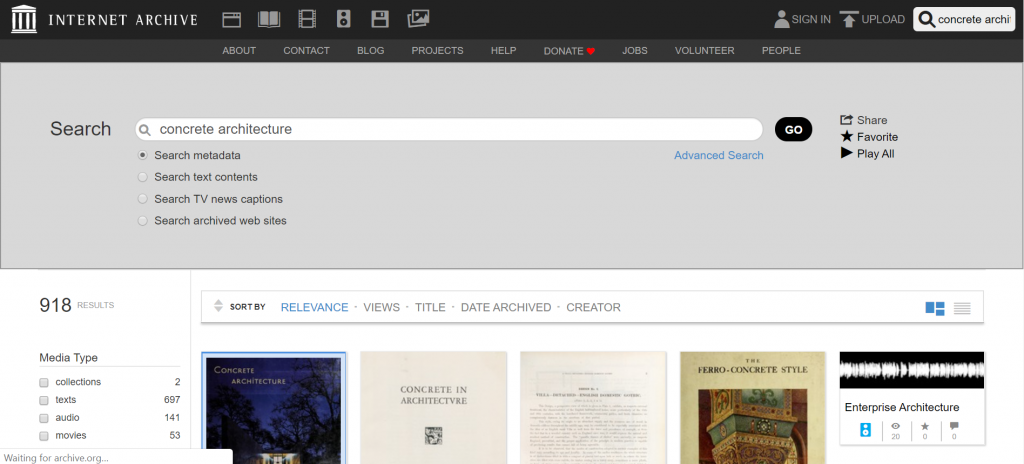
Internet Archive is a non-profit library of millions of free books, videos, music, websites, and more. You can do a simple keyword search around your topic area, and refine by the information type. Or search within the ebooks for specific titles.
The US Modernist Library is the world’s largest open digital collection of major US 20th-century architecture magazines with approximately 2.7 million downloadable pages – all free to access. You can search for a specific modernist house, search by architect, original owner or keyword.
RIBA’s image library of over 100,000 photographs and drawings from the RIBA Collections, available to view, buy and download. Many of the images are protected by copyright so will need to be used with caution.
With over 8,000 images, the slides, negatives and prints of historical and contemporary architecture are all available in low resolution for educational purposes. It also includes photographs of work produced by students at the School of Architecture since the 1880s, as well as a video archive for its lectures, conferences, and seminars.
This is the largest online-database about worldwide architects and buildings, including information about more than 81,000 built and unrealised projects. The information varies for each project but includes images, commentary, drawings and links to references to read more about the project.
You can search the database using your topic keywords, or by architect, building name or location.
CIS is produced jointly with the National Building Specification (NBS) especially for architects, civil and structural engineers, building control officers, building services engineers and other professionals in the construction industry. It provides industry information and legislation, along with full-text access to key professional publications, including Architects Journal.
The full-text documents cover all aspects of the building, engineering, design and construction process.
We have 89 eBook titles available through a partnership between RIBA and Taylor & Francis. We like them as they are available on a unlimited DRM free model.
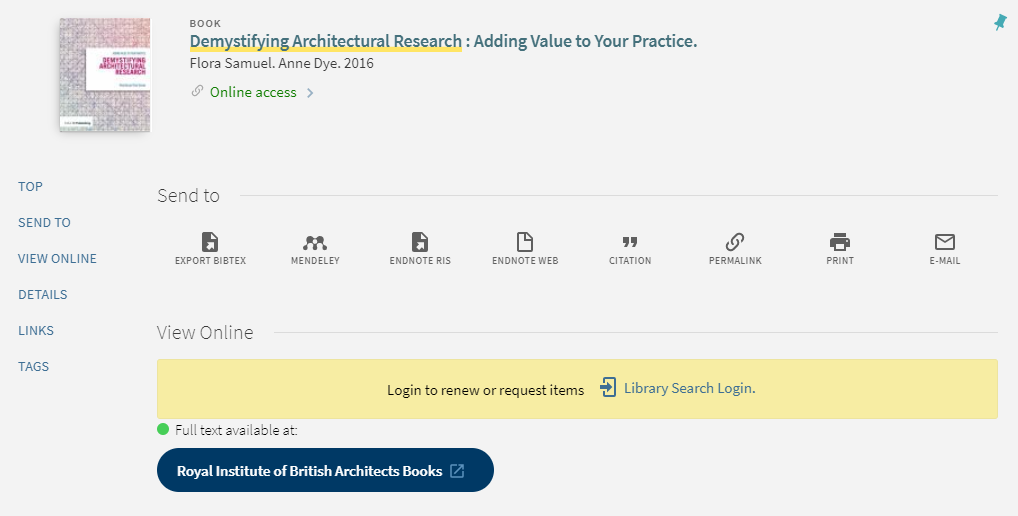
All titles are available through our catalogue, Library Search.
Follow the links to the platform which supply that title e.g. the large blue button to the “Royal Institute of British Architects Books”
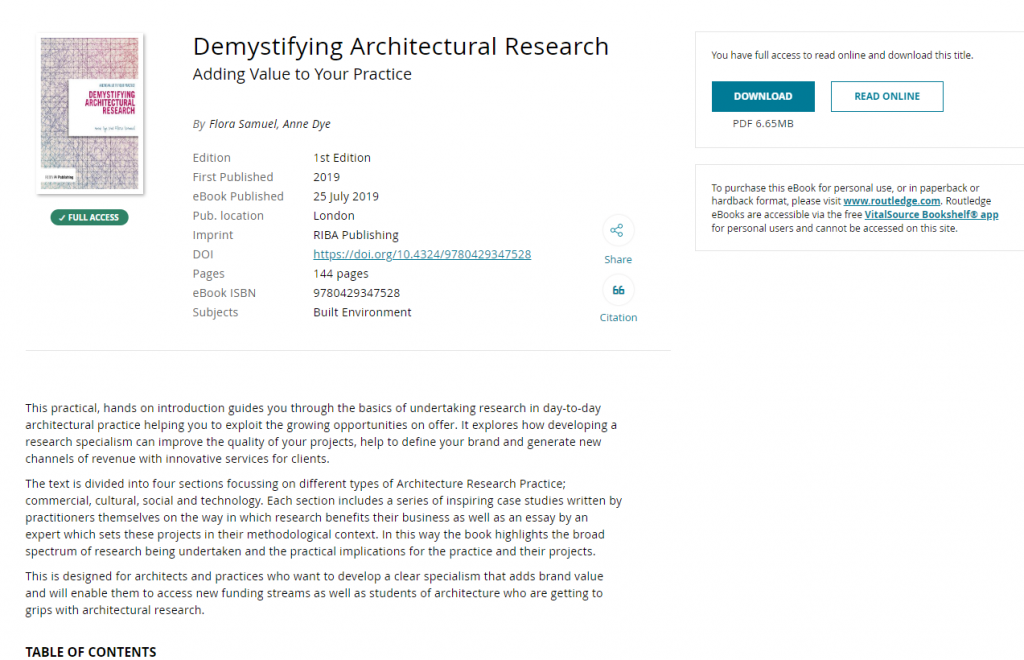
Once you are transferred to the Taylor and Francis platform you will see options to navigate to specific chapters or content, download read online. Once you’re inside the eBook then you can keyword search, make the text size larger/smaller or jump into chapters.
The full list of titles includes :
101 Rules of Thumb for Low Energy Architecture
101 Rules of Thumb for Sustainable Buildings
and Cities
20/20 Visions
A Gendered Profession
Age-friendly Housing
An Architect’s Guide to Public Procurement
An Introduction to Architectural
Conservation
An Introduction to Passive House
Architect’s Guide to NEC4
Assembling a Collaborative Project Team
Automatic for the City
Avoiding and Resolving Disputes
Being an Effective Construction Client
Better Buildings
BIM Demystified
Biomimicry in Architecture
Briefing
Building Condition Surveys
Building in Arcadia
Building Revolutions
CDM 2015
Chinese Urban Transformation
Climax City
Commercial Client’s Guide to Engaging an
Architect
Competition Grid
Conservation
Construction
Contemporary Vernacular Design
Contract Administration
Creating Winning Bids
Demystifying Architectural Research
Design
Design for Biodiversity
Design for Climate Change
Design Management
Designed to Perform
Desire Lines
Domestic Client’s Guide to Engaging an
Architect
Extensions of Time
Financial Management
Future Campus
Future Office
Future Schools
Good Office Design
Guide to JCT Design and Build Contract 2016
Guide to JCT Intermediate Building Contract
2016
Guide to JCT Minor Works Building Contract
2016
Guide to JCT Standard Building Contract 2016
Guide to RIBA Domestic and Concise Building
Contracts 2018
Guide to RIBA Professional Services
Contracts 2018
Guide to the RIBA Domestic and Concise
Building Contracts 2014
Historic Digimap is an online map and data delivery service, available to all staff and students of Newcastle University. It delivers access to historical Ordnance Survey maps of Great Britain dating from 1846-1996 across various scales, including 1:25,000 and 1:10,650.
If you are a first time user of Digimap then you will need to complete a brief registration form and agree to the license agreements for each collection, but that takes seconds and then you’re ready to go!
Viewing historic maps (3:36 min)
If you want to ‘roam’ through the ages in an area, then you can use the timeline tool to see how the landscape has developed through the years, or view two maps side-by-side to compare and contrast your findings. Imagine looking at the Newcastle University Campus and seeing what used to be on the site before buildings such as the Henry Daysh Building, Stephenson Building and Philip Robinson Library graced us with their facilities!
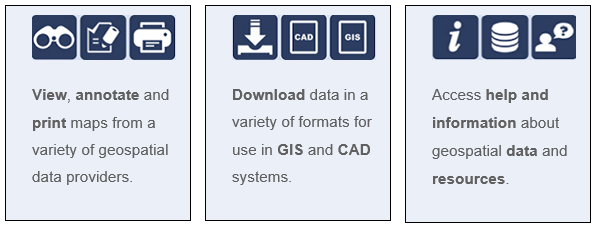
Once you have your area of interest, the Roam service will allow you to view, annotate and print the map in PDF format. Data Download will allow you to download OS data for use in GIS/CAD (if you wish!).
The full scope of what Historic Digimap (and the other collections available to you including Ordnance Survey, Geology, Marine, Environment, Aerial, Lidar and Improvement Service) are covered in EDINA’s comprehensive Help service:
(Improvement Services is an organisation dedicated to the improvement of local government services in Scotland. This data collection comprises of 37 local authority datasets, such as planning applications, green belts and school catchment areas. A wealth of information, who’d have thought.)
Go on, give it a try! But please do read EDINA’s Digimap FAQs on what you are permitted to do with the data you use, to ensure you comply with the educational use licence.
The official blurb on EndNote is
that it is “…the industry standard software tool for publishing and managing
bibliographies, citations and references.”
Have you drifted off yet? Don’t – read on!
EndNote takes a little getting used to
and we recommend you familiarise yourself with it at the start of your research
process. But as Library Staff, we wouldn’t spend a
significant amount of time demonstrating and training our academic staff and
students on what EndNote is, and how to use it, if we didn’t think it was
valuable. It will save you a huge amount of
time in terms of writing up your assignments.
Essentially, you can use EndNote to
create and organise a personal library of resources relevant to your research.
You can import references from Library Search, and a huge range of databases such
as Scopus, Web of Science, IEEE Xplore and Business Source Complete. You can ask EndNote to locate
the full-text PDFs of the resources you are going to use in your research, and
you can annotate them as you wish too. Did you know you can instruct Google Scholar to
import references into EndNote? No? Try
it. Finally, if you already have materials stored in your home
folder (H:\) then you can attach them to a manually-created
reference within EndNote, bringing all your research together in one place.
In addition to organising your references (and this is the clever bit) you can then get EndNote to ‘talk’ to your word processing software, e.g. Microsoft Word, and insert the citations into your work for you in your chosen referencing style, e.g. Cite Them Right Harvard, Vancouver, APA or MLA. If you don’t want to do that, then EndNote will also allow you to create an independent bibliography of your references, saving you an awful lot of typing.
Using EndNote
Intrigued? You should be. Take a look at our EndNote Guide. It contains all the introductory information you need, step-by-step workbooks to train yourself on the use of EndNote (the Desktop and Online versions), videos, useful FAQs, and contacts for help, should you need it.
Finally, Newcastle University
provides support for EndNote but it is not compulsory to use. You may
prefer Mendeley, Zotero, RefWorks or another piece of bibliographic
management software. That’s fine, whatever makes your referencing lives easier. Go on, give them a try.
A common mistake made in referencing is grouping all sources
found online under the category and reference type of a website. Your aim
should be to reference the information you have in front of you rather than
where it was sourced. Simply grouping items found online as a website would be
the equivalent of referencing a book by the publisher details rather than the
author and title.
For example, a government publication found online would be referenced like this in Chicago:
United Kingdom. Department for Education. Cloud computing: how schools can move services to the cloud. London: The Stationary Office, 2016. Accessed: November 4, 2019. https://www.gov.uk/government/publications/cloud-computing-how-schools-can-move-services-to-the-cloud.
An electronic journal article might appear like this in APA:
Gillum, J. (2012). Dyscalculia: Issues for
practice in education psychology. Educational Psychology in
Practice, 28(3), 287-297. doi:10.1080/02667363.2012.684344
While a video posted on the Tate website would look something like this
in Harvard.
TateShots (2016) Grayson Perry: think like an artist. Available at: https://www.tate.org.uk/whats-on/tate-modern/talk/what-makes-artist-grayson-perry-conversation-sarah-thornton (Accessed: 11 November 2019).
Identifying the type of information you are using as well as the source, are essential skills of evaluation and developing a critical approach to information. In many cases you will be unconsciously using your judgment to assess the value of information for your purpose. So when you are using any source of information, ask yourself what it is you are looking at, what details are recorded about it and whether it measures up as a quality piece of information. You can find more information on evaluating information on the Academic Skills Kit.