The guides group together all the main library subscriptions we have for that specific type of information, as well as linking out to key external links and resources too. Wherever possible we also include guidance and help on how to get the best out of the databases and links and group the information together into a logical and helpful way. We know how busy life is and we simply want to save you time!
So what you are waiting for, go and check out our fabulously named Resource Guides, because they do exactly what they say on the tin!
We have over 0.7 million e-books accessible through Library Search, including titles that feature on your reading lists, or those that have been recommended by staff and students. Sometimes we buy them through large bundle deals with specific publishers so we gain access to lots of research titles all at once.
Why use e-books?
e-books are incredibly useful resources as they are available 24/7 from any location, work with most devices and some come with snazzy features such as keyword searching, annotation options, links to other relevant information, and reading aloud facilities to name but a few.
How do e-books work?
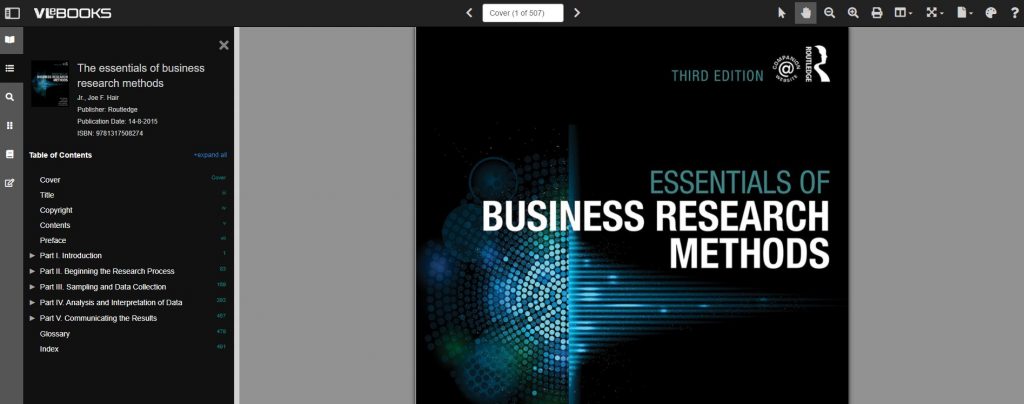
As we get e-books from different platforms and providers you might see a different layout each time you access one of our titles but the logic is the same. You can navigate using a toolbar, you can normally turn pages using little arrows at the top or side of the page, you can jump to specific chapters and in some cases, print or download all or some sections of the e-book to read offline.
Unfortunately, one thing you can’t do with e-books is download and save offline a copy of the book to keep forever, there are usually some download restrictions. This is because we have subscriptions or licence access to titles but we don’t own the title. There is something called Digital Rights Management where publishers can control the copying, pasting and downloading of their content, this is linked to issues with privacy and copyright.
How do I access e-books?
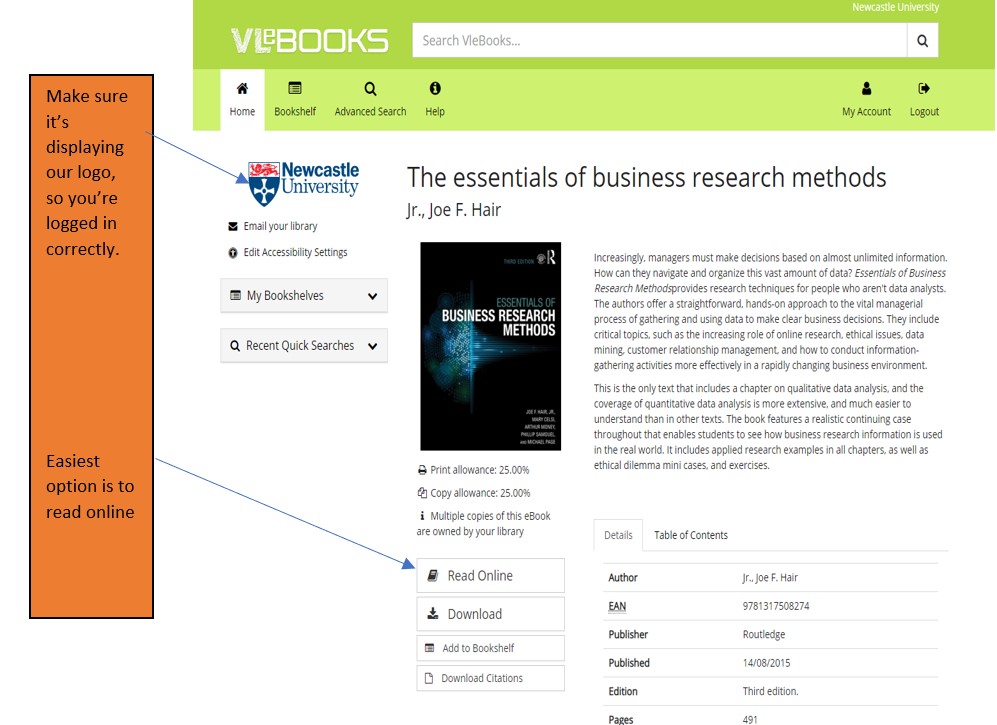
Simply navigate to Library Search and enter your keywords to look for a book title as usual. Library Search is the best way to access resources whether you’re on or off campus as it makes sure you’re logged in correctly and can access resources simply and quickly.
Watch this short video to begin searching for books and e-books.
From your search results, choose an e-book which looks relevant e.g. Essentials of Business Research Methods by Hair, which we know is popular book for Business students doing dissertations. If you are off campus, you will need to sign in with your University ID and Password.
Once the e-book has loaded on the screen, hover over the functionality buttons to see what they do. For example; the search option will be useful if you’re looking for specific topics; use the Table of Contents to navigate straight to a chapter you’ve been told to read, or select the paint pallet to change the colour of the background to help with your reading.
Not all titles are available in eBook format for an institutional library to purchase, but if you’d prefer a title in electronic format we can certainly investigate. Just let us know by recommending a book.
Library Search is a powerful tool that can help you find good quality, relevant information quickly. Using Library Search is pretty intuitive but there are some useful search tips that can help you improve and get the most out of your searches:
Keywords and Subject Terms
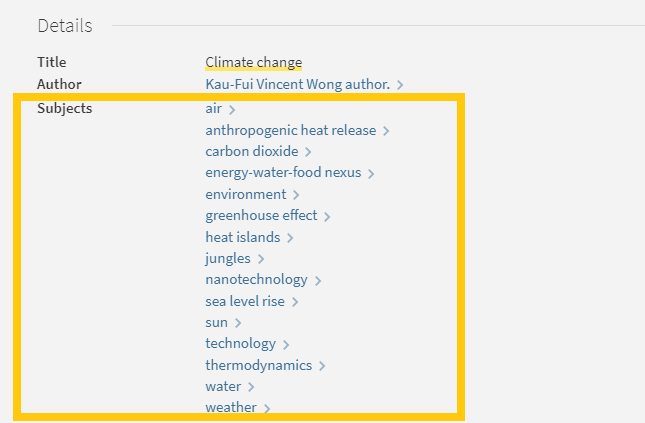
When you’re searching for information it’s important to use a range of related keywords to ensure you find everything relevant to your topic. For example, if you’re searching for information on ‘Climate Change’ you might also want to search for ‘Greenhouse Effect’ or ‘Global Warming’ too. Thinking of related keywords can sometimes be difficult but Library Search can help!
From your search results page, click on the title of a resource to open the resource record and scroll down to the ‘Details’ section. Here you will find a list of ‘Subjects’, also known as subject terms, used to describe the topics and themes this particular resource discusses. Take a look at this list and add any relevant words to your search string.
There are some other useful features in the resource record page that can help with your searches too:
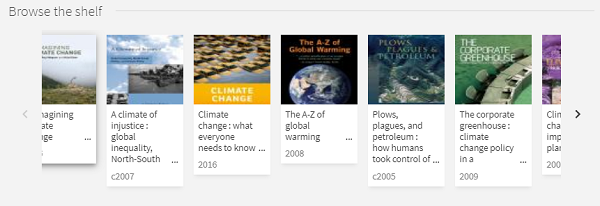
Browse the virtual shelf
At the very bottom of the record you’ll find a virtual bookshelf, a visual list of the books that can be found next to this one if you were looking in the physical library. As the library is organised by subject some of these titles might be useful for your research too.
Read the abstract
A quick way to tell if a resource is going to be relevant and useful for your research is to read the abstract, a summary of the contents of the resource. On the resource record in Library Search, you’ll find this under the heading ‘Description’.
Advanced Search
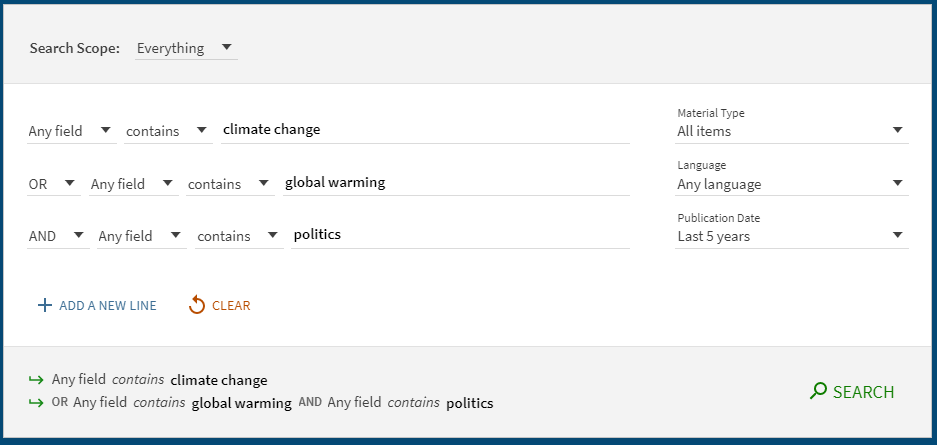
The Advanced Search function in Library search allows you to create a search that will produce more focused results. It does this by providing a range of search fields and drop down lists that help you build up your search.
Select from the options to:
Limit your search field to the title, author, subject, collection etc.
Apply BOOLEAN operators (AND, OR, NOT) to your keywords
Filter by specific material types, languages and dates to focus your search results to the most relevant resources.
Take a look at the Advanced Searching page on our Finding Information Guide for more on how to combine your keywords, create a search string and improve your search results.
You know Library Search. You use it every day when you’re at University. Why are you going to read a blog post on it? Well, we’re wondering if you’re using Library Search to its full potential. Not sure? Then read on.
Library Search is Newcastle University Library’s discovery tool – essentially it’s how you find resources on the library shelves and access those invaluable resources online. But what else can it do?
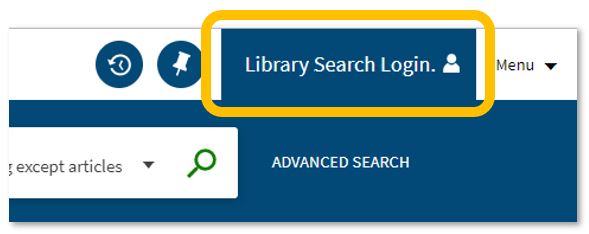
Log in. Using your usual Campus ID and password, you can open up the full functionality of Library Search by telling it who you are. It allows you to:
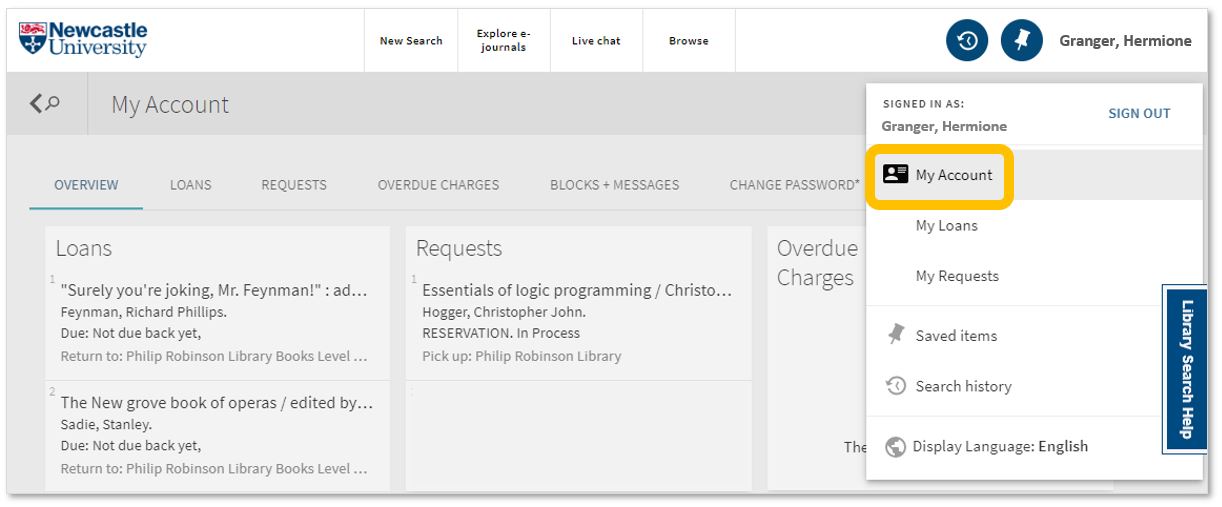
Log into your library account to see what books you have on loan (which you may be finished with and could return to any library site), those requests you’ve placed and any books you have on loan that may have been requested by someone else. The standard library stuff, but it’s important too.
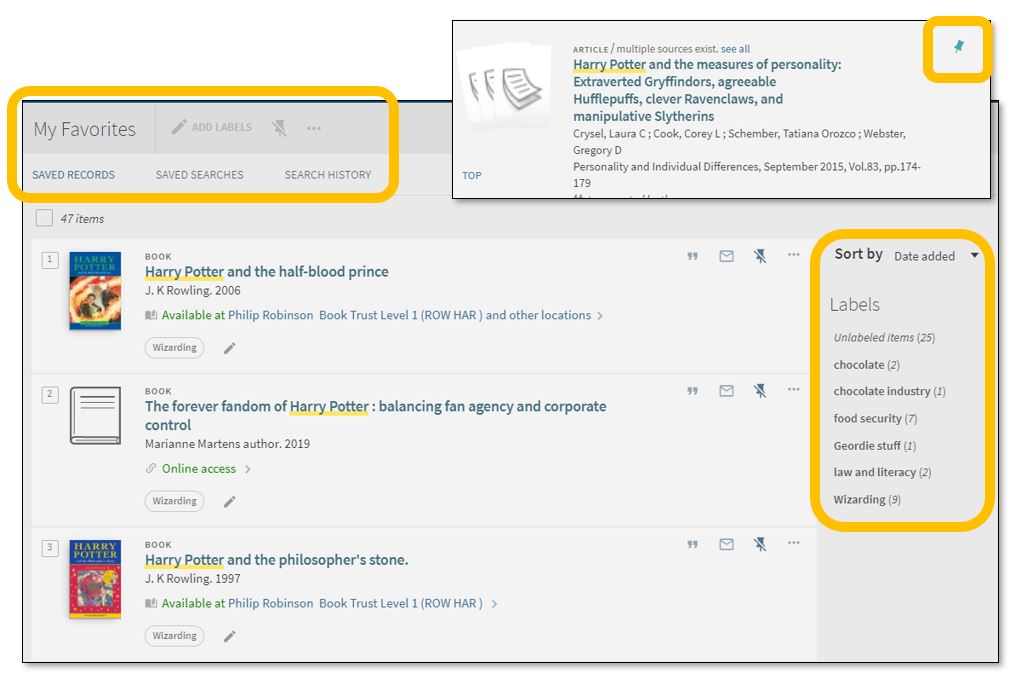
Save items you want to come back to (that’ll save you writing them down somewhere else). Find that favourite item and ‘pin’ it to your record. You can then access a list of your favourite books, journals or journal articles and label (or tag) them as to why you may need them, e.g. Herbology, Professor Snape’s essay, or Field Trip to Hogsmeade. That makes it easy to see what you need to use for each lecture, seminar or assessment.
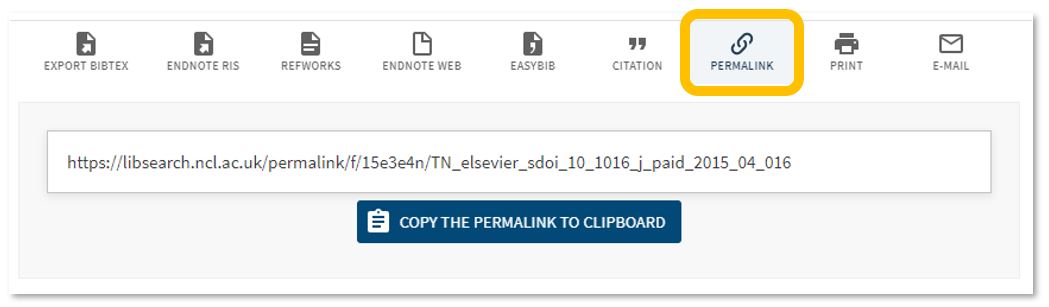
Permalink. You can share an item with someone if you want to – copy the permalink to the clipboard and send it to someone you know may be interested.
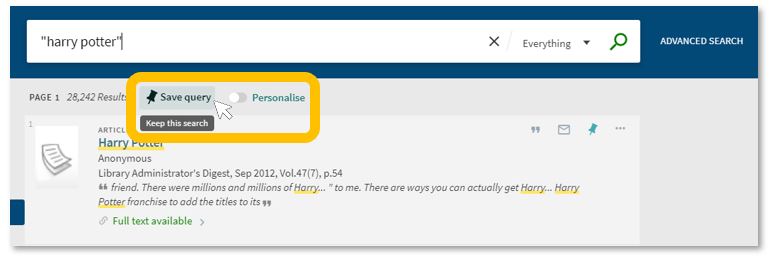
Save your search. If you need to repeat your search then save it within Library Search so you don’t need to remember the keywords and connectors (AND, OR, NOT) sequence. This is important if you are scoping a search and need to record or change your approach. You can also ‘Personalise’ your results to a particular discipline – give it a try!
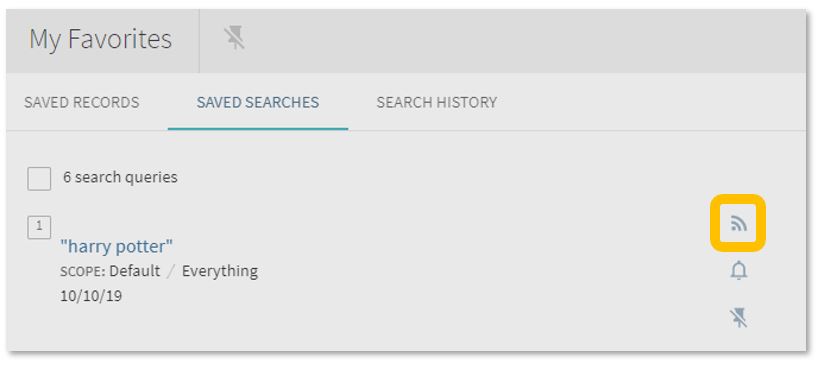
Set up a RSS Feed (yes, really!). The Rich Site Summary function allows you to be informed of changes to results in your saved searches. Handy, eh? Go to your Saved Searches and simply click the RSS icon.
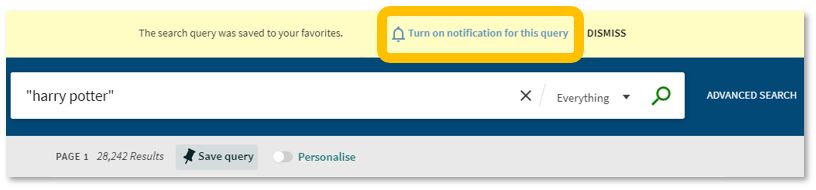
Receive an email alert when there are new results for your saved search. This can save you time in your research as Library Search will inform you if there is a new publication available which matches your search terms. Switch it off when you move onto a new subject area by accessing your Favourites list and deselecting the alarm bell icon.
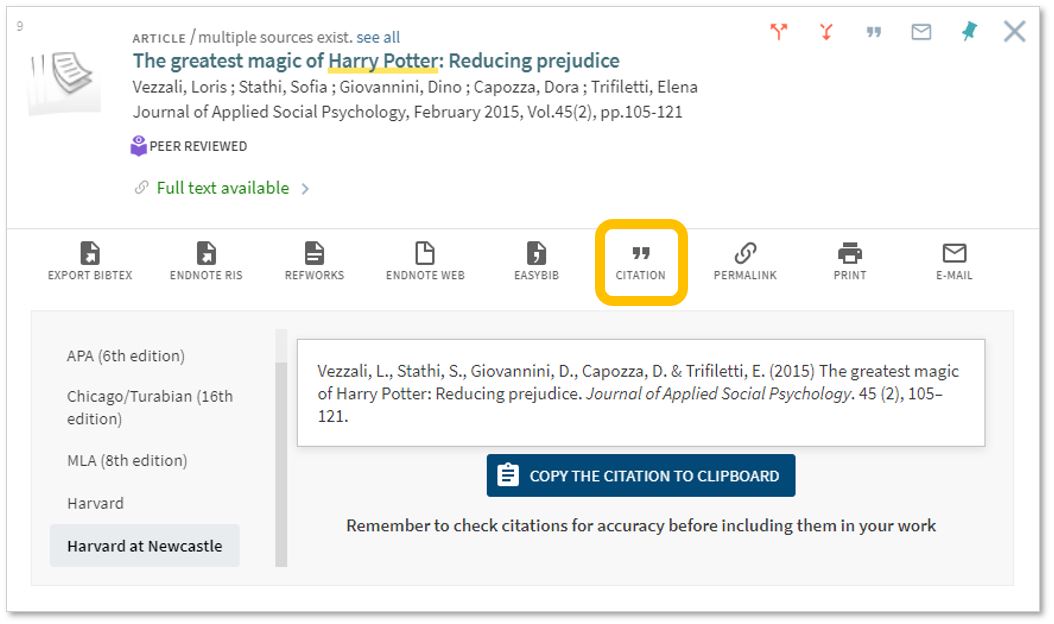
Finally, if you’re writing up your assignment and can’t remember the essential elements of a reference, then use Library Search for guidance. The Citation tool will allow you to view a suggested citation and to copy it to your clipboard for use in your work.*
*BUT (you knew that was coming, didn’t you) ensure you choose the correct style and check your citations for accuracy before including them in your work. It pays to know your required referencing style and not to rely on automated or generated references. If you want to learn more about referencing then see our Managing Information guide and Cite Them Right. Cite Them Right is a great resource which will remind you of the importance of referencing, how to reference and will give guidance on how to cite those more tricky materials such as conference papers, newspaper articles, social media posts and more. Finally, there’s a new tutorial with lots of interactive questions so you can test yourself too.
If you know of any tips or tricks in Library Search that aren’t mentioned here, then leave us a comment and share them!
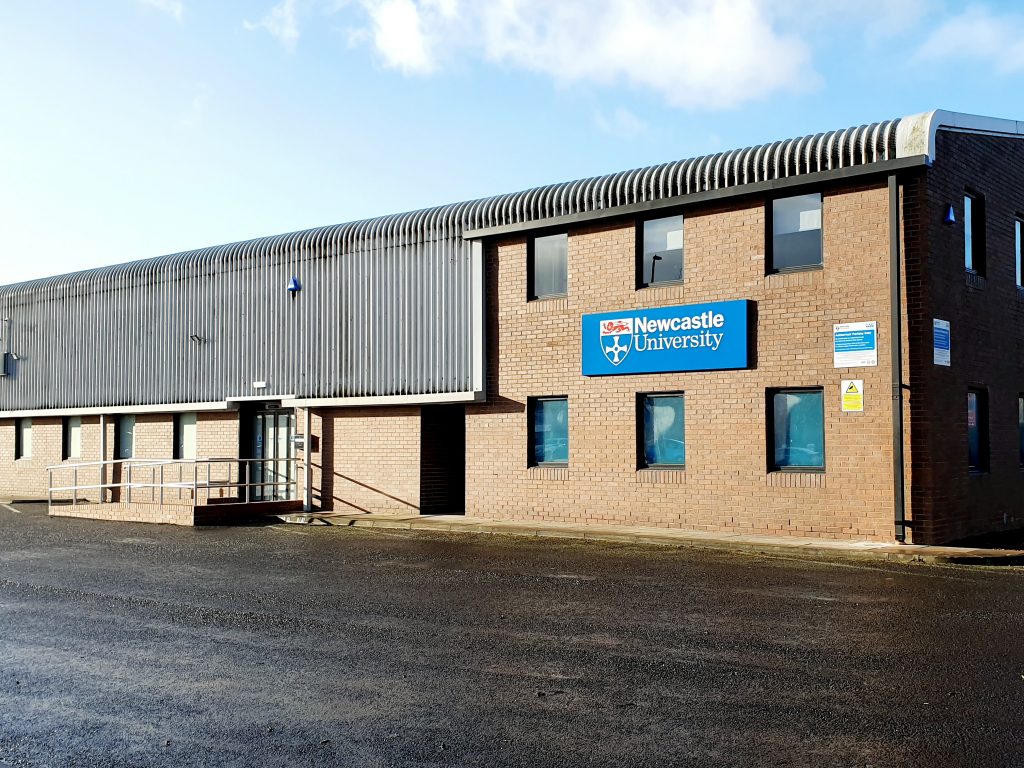
The exterior of the Research Reserve facility in the Team Valley.
The eagle-eyed amongst you may have noticed a curious thing on Library Search. Where normally you would expect to see the name of one of the libraries next to an item’s shelfmark, occasionally you’ll see “Research Reserve”.
If you’ve ever wondered just what exactly the Research Reserve is, this is the blog for you, discover here exactly what the Research Reserve can offer you and your studies.
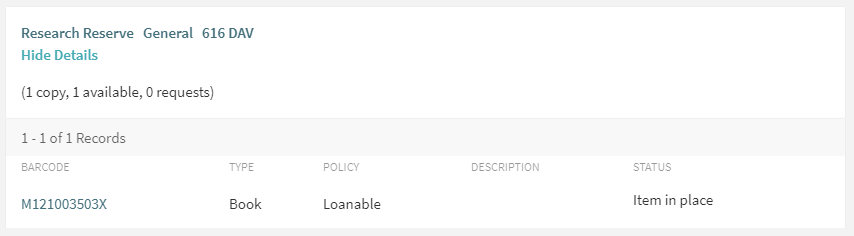
Before an item’s shelfmark is its location. This book is held off-site at the Research Reserve facility in the Team Valley.
The Research Reserve is the Library’s stores, located throughout campus and including a state-of-the-art storage facility in the Team Valley. These facilities allow the Library to keep less-used material for much longer than other academic libraries. These combined storage facilities provide over 29 kilometres of storage space, which is used to house old editions of journals and books which are consulted infrequently.
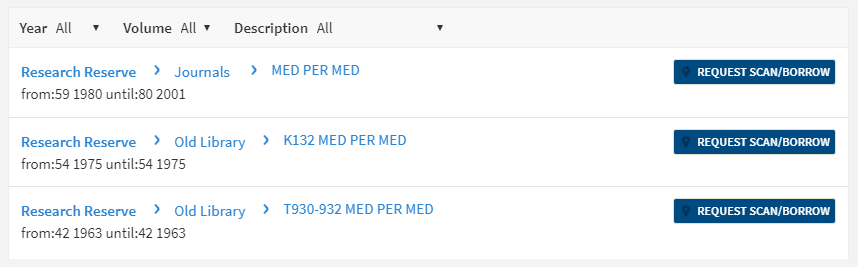
If you’d like to request items from the Research Reserve facilities, click the “Request Scan/Borrow” button once you’ve located the item on Library Search.
You can loan a variety of materials from the Research Reserve,
including: books, theses and journal volumes. These can be requested from Library
Search. Simply log
in using your campus ID, find the item you are looking for and then click
the blue “Request Scan/Borrow”
button. You’ll get a choice of pickup locations (either the Walton or Philip
Robinson libraries).
There are request forms to complete if you’d like to borrow
a thesis
or an entire volume
of a journal.
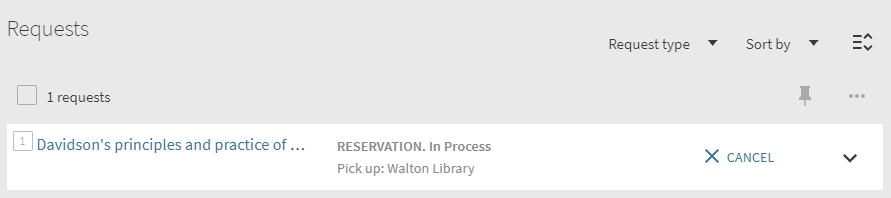
Requests can be viewed by going to “My Account” in Library Search and clicking on “My Requests” from the drop down menu. If you’d like to cancel your request, simply click the blue cancel hyperlink (as seen below). You’ll receive an email confirming your cancellation shortly afterwards.
You can cancel requests for Research Reserve items by clicking the blue ‘Cancel’ hyperlink, as shown above.
There is a collection service that runs between the Research
Reserve and the various libraries (weekdays only, not on bank holidays) and
your request will be generally be fulfilled within 24 hours. Anything requested
on a Friday or over the weekend will be delivered on the following Monday
afternoon.
Once your item has arrived at your chosen library, you’ll receive an email letting you know it’s available to loan. The item will be kept on the reservations shelves for five days before being returned to the Team Valley, or passed on to the next person in the reservation queue. Items from the Research Reserve are issued in the same way as standard long loan items, either using the self-issue machines or at the service desk. Once you’ve finished with the item, simply return it as normal.
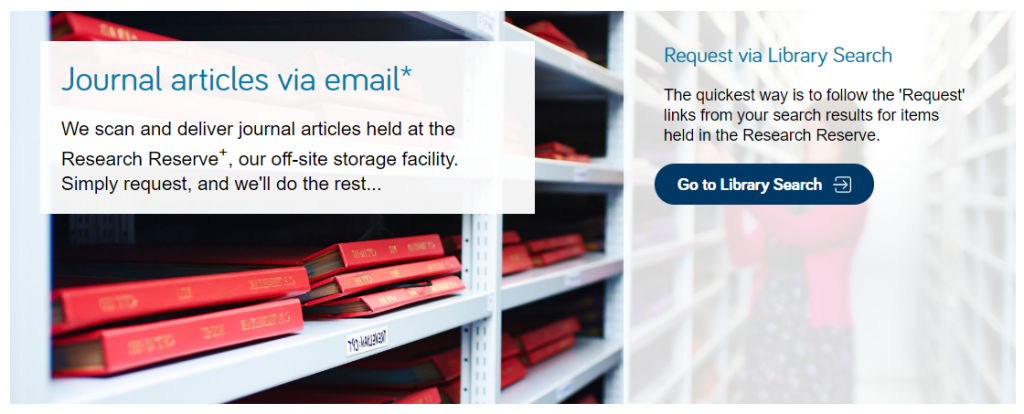
The Desktop Delivery Service (DDS) allows you request a
scanned article from a journal held in one of the Library’s stores. Articles
can be requested via Library Search (same as a book) or by filling out the relevant request form. Please try and include
as much detail as possible on your request form. This helps Library staff
locate your article and fulfil your request quicker.
You are only able to request one scanned article per journal
issue. The scanned article will be delivered to your University email address,
where it can be downloaded and printed off. Requests are generally fulfilled
within 24 hours, although this may take longer over the weekends or on bank
holidays. You have 30 days to download your article before it is ‘archived’ and
no longer available.
We do not scan items that are available electronically or
can be borrowed.
If you have any other queries about the Desktop Delivery Service, read the FAQs.
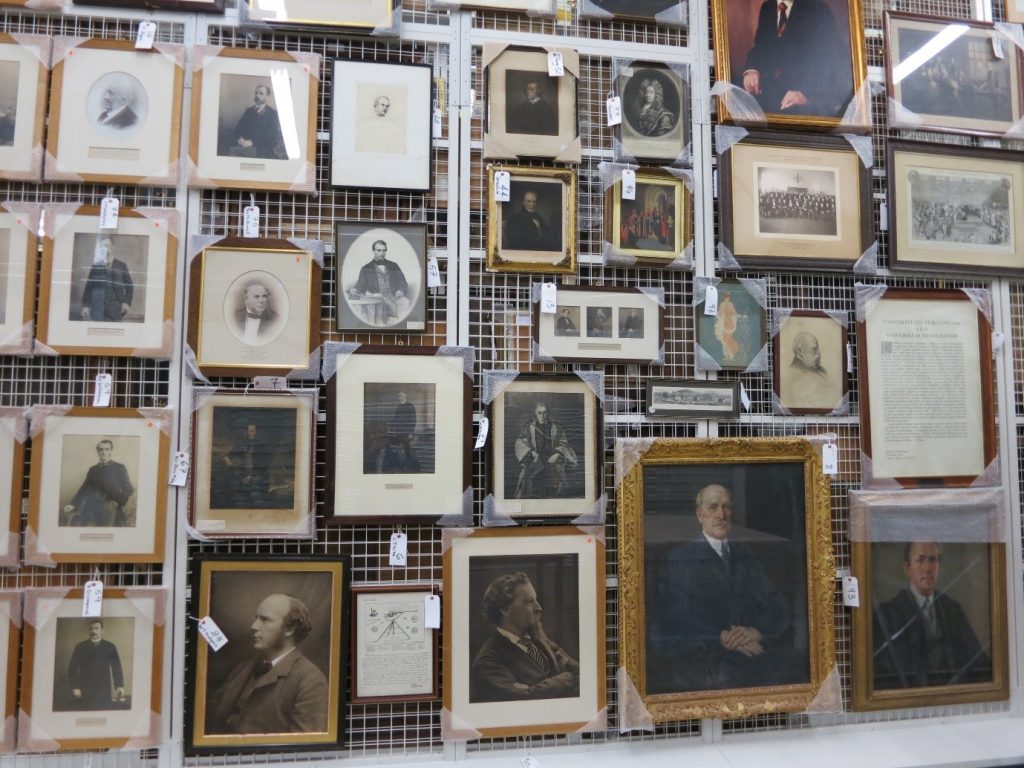
Just some of the amazing treasures held at the Research Reserve facility in the Team Valley.
You can also visit the off-campus Research Reserve facility in the Team Valley. Daily access is available by appointment only with the Research Reserve team, weekdays between 10AM and 4PM. Access outside of these hours can be organised given sufficient notice. There is a large car park available at the facility and buses stop nearby.
Full contact information, directions and opening hours for the Team Valley facility are available via the Library website.
Hi! I’m Caitlin, a final year law student and law library
aide – and by now I’m used to the stress of exams and deadlines.
I tried the ‘poetry-pick me up’ after going into the common room for a revision break.
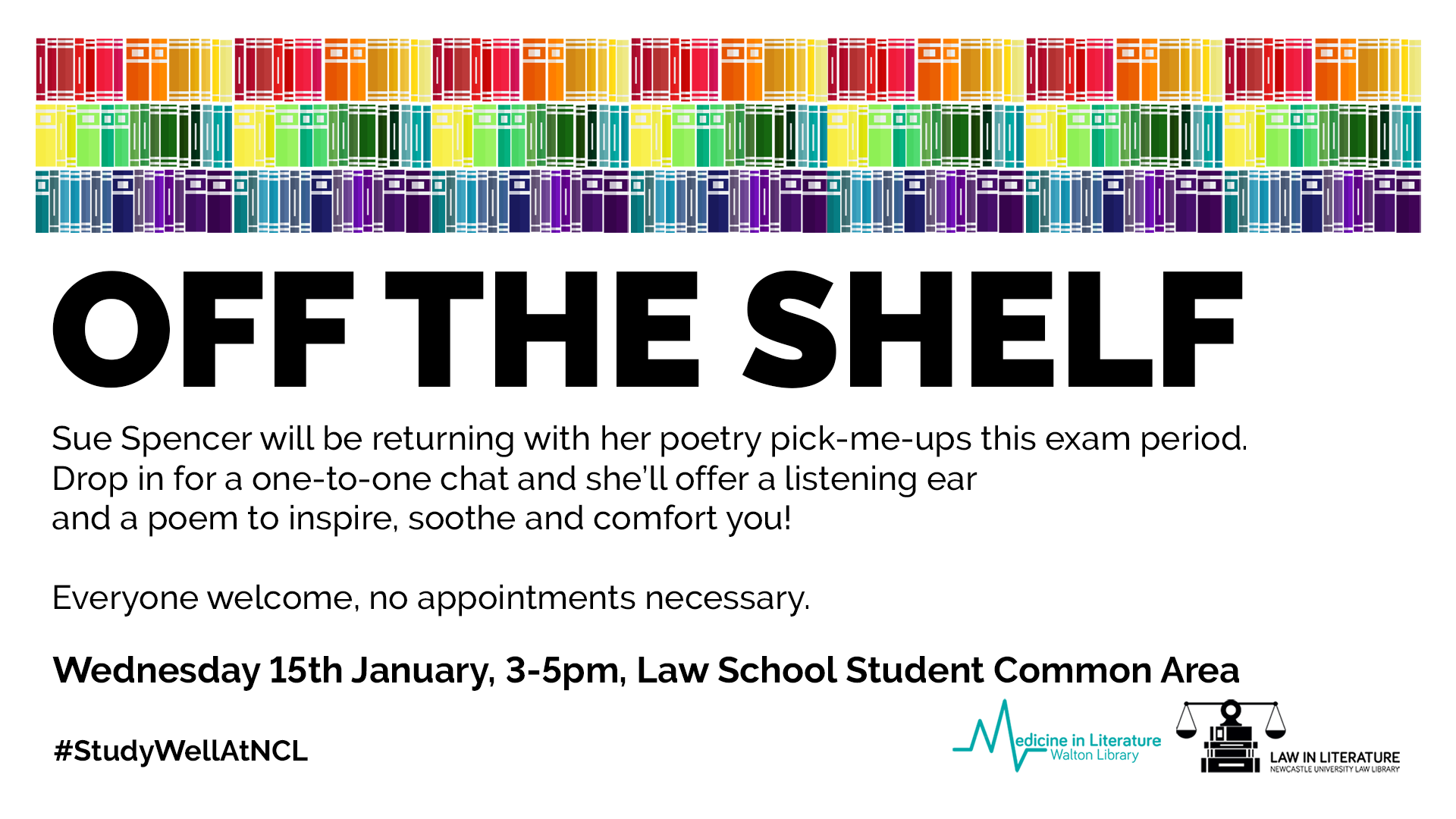
I stumbled across Sue (@kind_curious) in the Law School Student Common Room, where she asked, ‘do you want a poem?’. Not really knowing what to expect, I had to overcome a bit of social awkwardness! I was surprised by Sue’s passion and love of poetry, which was clear in the way she spoke about how she’d used poetry in the NHS before and it was what she enjoyed most.
I was asked questions about my current stress levels and how
I was feeling with exams, and how I dealt with stress. I told her that when I
get stressed I talk even more than usual, which for anyone who knows me sounds
like I’m going at a million miles an hour, and she suggested something that
would relax me.
I laughed as I saw no signs of chocolate or Netflix – my
usual go to relaxation strategies.
Instead she said I needed something like a lavender bubble
bath – again I saw no sign of a bubble bath in the Law School and I’d yet to
find one in the Dungeon.
She picked out two poems that would make me feel like the
relaxing in lavender: she suggested ‘Sonnet’ by Elizabeth Bishop and Shennagh
Pugh’s ‘What if This Road’.
What if this road reminded me of Robert Frost’s ‘A Road Not Taken’,
and was great for me as a an indecisive person. It was matched perfectly to the
questions that Sue had asked me, as I read it as a ‘roll with it’ approach to life, which is
definitely needed to cope with exams and deadline stress.
The second poem, Bishop’s ‘Sonnet’, had great visualisation
techniques, almost like a meditative poem – which was spot on to turn off the
stress and slow everything down!
The experience was a great switch off from deadline stress,
and a great use of the 10 minutes which I’d usually scroll through twitter or
Instagram. It was something different, and really quite unique and relaxing,
which I would definitely recommend to help have a break from any exam and
deadline stress!
The archive brings you the full content of this world-renowned weekly literary and arts publication, dating back to its first issue. For over a century, the TLS has published reviews, features, debates and original works from across the arts world, not to mention its legendary letters page!
Many of the world’s most notable writers and thinkers have contributed to the TLS over the decades, including T.S. Eliot, W.H. Auden, Seamus Heaney, Noam Chomsky, Virginia Woolf, Bertolt Brecht and Umberto Eco. Until 1974, contributions published in the TLS were often anonymous, but the digital archive now reveals the identity of all contributors.
To find out more about the TLS, click Research Tools to read a selection of essays about different periods of its history.
You can browse the TLS by date to find a specific issue, or search in various ways (choose Advanced Search to see all options, including searching by contributor, book title, or document type.)
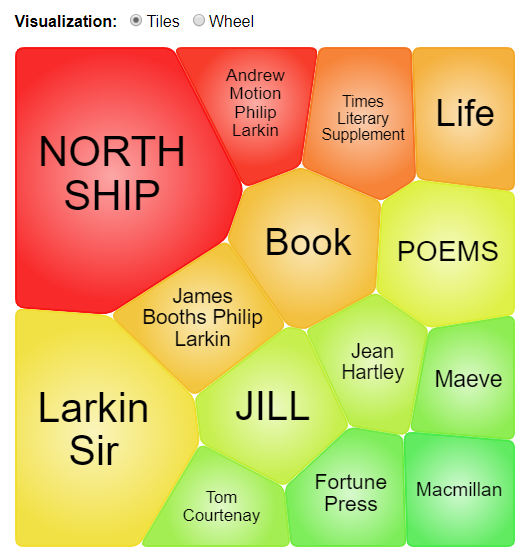
Additional search features on the home page include Term Frequency, to trace how often a word, phrase or person has featured in the TLS over the years, and Topic Finder, to explore and visualise connections between topics.
Topic finder
As the TLS archive is published by the company Gale, you can cross-search it with any of the other Gale archives to which we have access, via Gale Primary Sources.
Exams are a tricky time. Often you will be juggling different exams themselves, on top of other deadlines. However, we want you to know that you aren’t alone at this crazy time of year. We are here to help you through.
But how exactly can we help? Sadly, we can’t take go into the exam with you, or magically freeze time to give you more hours in the day, but do make the most of the following:
Library Help – the place to go when have a question via chat, email, text, twitter, Facebook. Or alternatively search our Frequently Asked Question (FAQ) database.
Librarians – yes you heard right. Book a one-to-one appointment to get the best out of the University Library resources. Also remember our staff in every library are friendly and approachable. There is no such thing as a silly question, so ask away!
Study Space– The University Library has a range of different study rooms and spaces to suit your needs.
24/7 – The Philip Robinson Library is open 24/7 during the exam period. We want you to sleep and get enough rest, but if you do need to study through the night, we are here.
Subject guides – we have a range of subject guides put together by expert librarians which draw together all the main resources for your studies.
Be well@NCL collection – we don’t just have books for study. This new collection includes tried and tested books that support your wellbeing.
The Library has subscribed to Drama Online for several years. This resource contains the text of over 2,200 international plays, from ancient to contemporary, together with contextual resources. It’s likely to be of interest to anyone studying literature, languages (ancient to modern), film studies and media.
We’ve recently upgraded our subscription to include the 2018/19 top-ups of the Nick Hern Books collection and the Core Collection (featuring plays published by Bloomsbury and Faber), giving us access to an additional 150 plays.
All the plays are individually catalogued and searchable via Library Search, or you can search/browse them all in various ways on the Drama Online site.
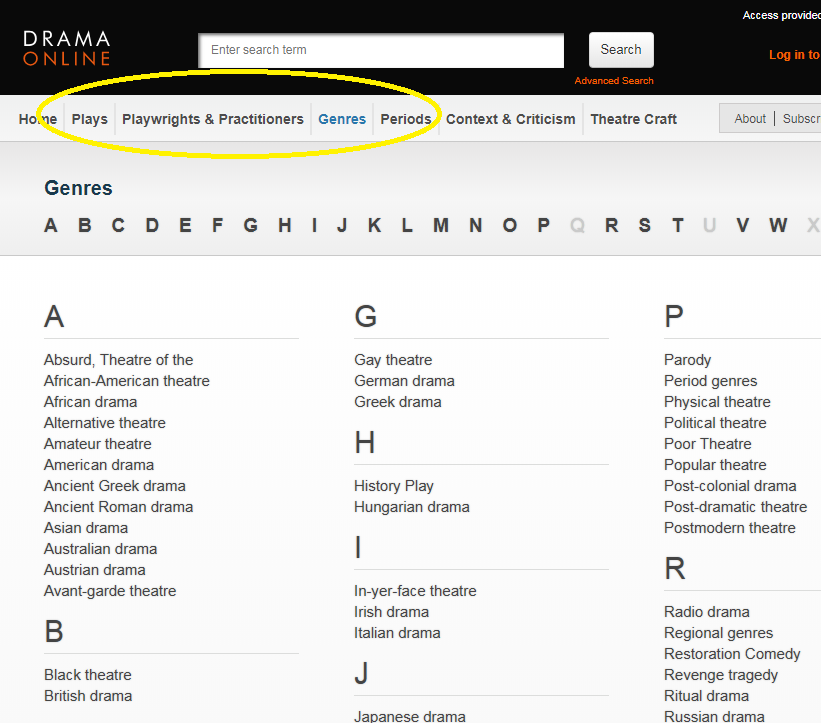
For example, using the options at the top of the screen, you can browse by title, author, genre and time period, or if you click Find Plays on the home page, you can add in other search filters, such as number of roles or scenes. Select Context and Criticism for access to a wide range of e-books about drama.
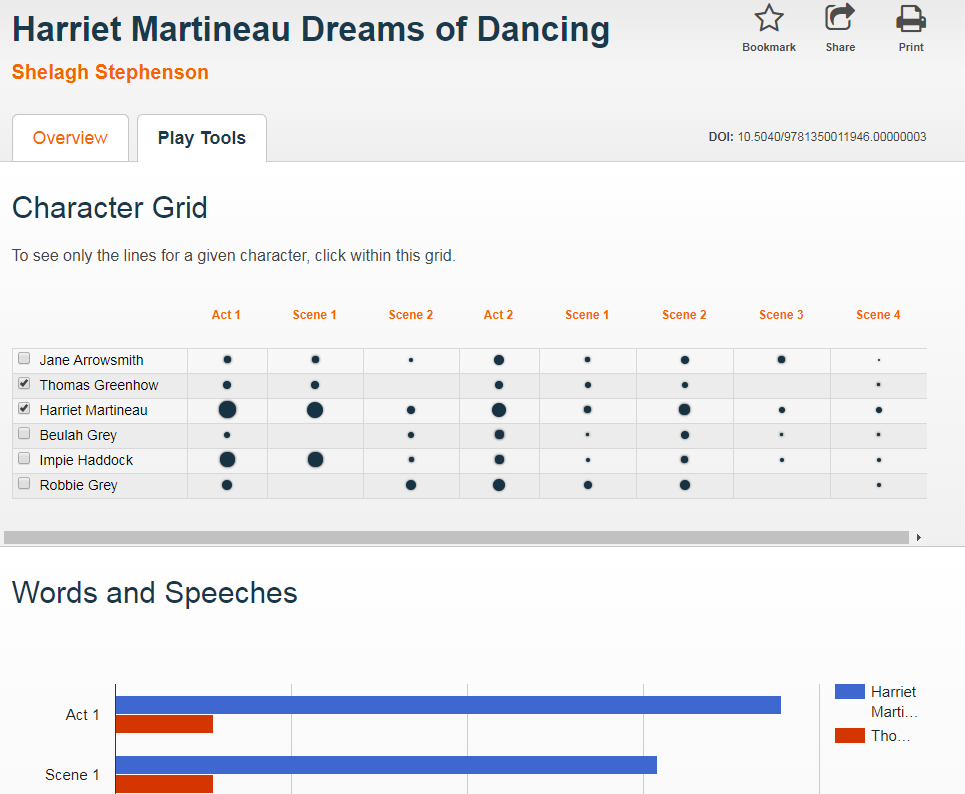
When viewing a play text, click Play Tools to analyse the speaking parts and appearances of different characters throughout the play.
Finally, follow @dramaonlinelib for news and features about this fantastic resource!