
We are excited to share a new Digital Drawing Tool is available in Inspera, which has increased functionality compared to the existing legacy tool. From 2026-27 academic year, the existing tool will be removed in place of the new drawing tool only.
How is the tool different from the existing tool?
Previously, our team would enable the existing drawing tool across your entire test (if you selected this on your Digital Exam Form), where it would be available for students to use in any/all essay questions in your question set. The new tool allows you to enable the drawing tool at a question level, rather than at a test level. Colleagues can choose what questions they wish to enable the drawing tool on for their students to use in their Inspera digital exam.
How to add the new drawing tool to your question(s):
To add the new drawing tool, you should follow the following steps:
- Navigate to the Author tab and select your question set where you would like to enable the digital drawing tool on your question(s).
- Create a new question or edit an existing question.
- In the right panel, expand the Drawing tool option and tick ‘enable the drawing tool for this question’.
What guidance is available to students?
The Digital Exams Team will attach the following guidance to any centrally-supported summative digital exams to your Inspera Question Set.
Student guidance: Using the Digital Drawing Tool
Your exam has a digital drawing tool enabled on at least one of the exam questions. This means that you have been invited to use the tool as part of your answer(s).
If the question has the digital drawing tool enabled on a particular question, you will see a banner that states ‘Drawing tool is enabled for this question’.

How to use the drawing tool?
- You will select the option to Start Drawing.
- Once finished, you will select Save & Close to save your drawing and return to your exam questions.
- Once a drawing is saved, options appear on the question page to manage the drawing. This includes: show drawing, edit drawing and delete.
What functionality is available?
You can using the different tools, colours, and shapes and interact with the elements such that each element can be moved, modified, and deleted.
You will use the drawing tool toolbar to create your ‘drawing’.
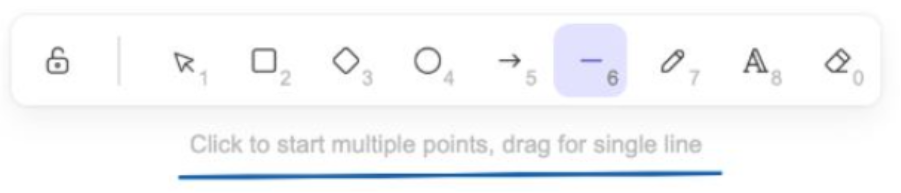
You can use the padlock icon – you can use this to continually use the same ‘function’ – for example, if you wish to draw a series of boxes. It is possible to add square, diamond and circle shapes, lines and arrows, draw freely and add text.
What do students think of the drawing tool?
We have had feedback from a couple of students that “It was really useful for adding extra detail and a diagram to explain my answer! It was also really intuitive and easy to use.” Another noted that “It was a good addition and helped a lot.”
Guidance and support for colleagues
There is full guidance available on the Digital Drawing Tool on the Inspera Content Creation Features webpage. This includes full details on how to enable the tool in your questions, what it will look like for students, demos for students and how to grade.
If you have any further questions, please contact Digital.Exams@newcastle.ac.uk.