Referencing is an important part of academic writing –
you’ll usually find it included in the marking criteria for your assignments
and projects, with marks being awarded for correctly formatted citations and
reference lists.
Why is referencing important?
It acknowledges the ideas and contributions of
others that you have drawn upon in your work, ensuring that you avoid
plagiarism
It highlights the range of reading you’ve done
for your assignment and makes your own contribution clear, showing how you’ve
taken ideas from others and built upon them
It enables the person reading your work to
follow up on your references so they can learn more about the ideas you’ve
discussed in your work or check any facts and figures.
How does referencing work?
Are there any tools that can help?
Yes! There are lots of referencing tools that can help you manage and format your citations and references correctly. Here are some examples:
A very useful online tool that lists all the information you need to include in a reference and provides examples of how a reference will look as an in-text citation and in a reference list. See our ‘Level Up Your Referencing: Cite Them Right’ blog for more information.
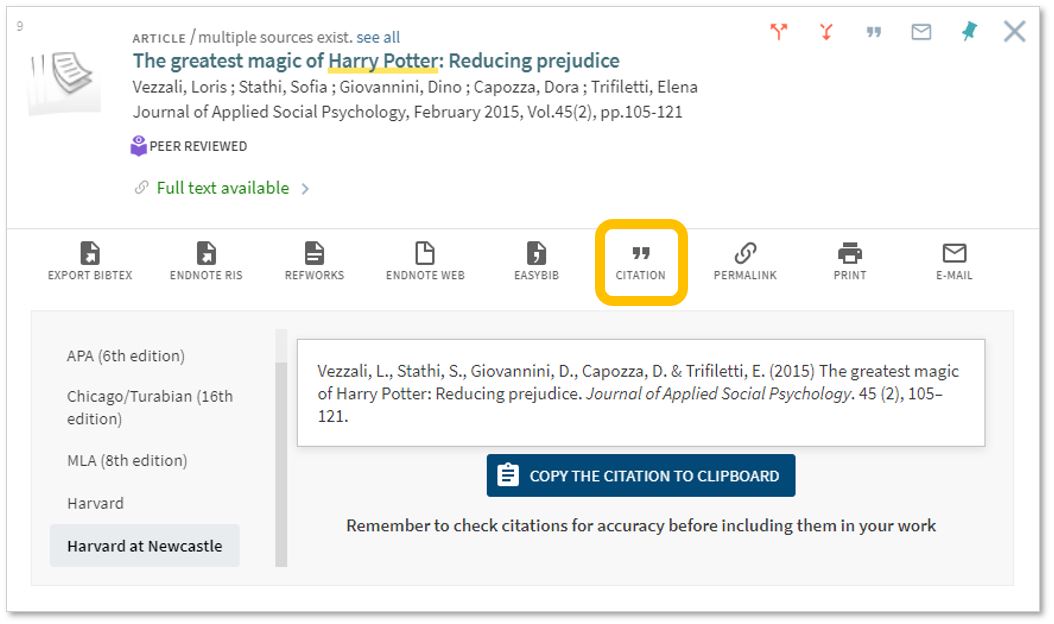
Citation Buttons
Keep an eye out for this symbol on Library
Search and Google Scholar. Clicking the
button will provide the option for you to copy a reference in a particular
style and paste it directly into your reference list. You might need to tidy it up a little bit but
it will save you time over writing them manually.
Reference building tools help you
to create a bibliography using the correct referencing style. You can input information manually or use
import functions to pull information through from other webpages or documents. As with the citation button above, reference
building tools can save you time but you may still need to check the references
are accurate.
Reference Management Software: e.g. EndNote
If you’re writing a detailed essay, dissertation or thesis, you may like to use a reference management tool such as EndNote, Mendeley or Zotero to help keep all of your references organised. This software allows you to manually add references or import them from Library Search, Google Scholar or Subject Databases; sort references into groups; attach pdf documents or add notes. You can then use the reference management software while you write to add in-text citations and format your reference list.
The University has a subscription for EndNote which is available in all University clusters and can be downloaded to your own personal device. You’ll find information about how to get started with EndNote on our EndNote Guide.
Remember: whatever tool you use, it’s always a good idea to get to know the conventions of the referencing style your school or lecturer would like you to use so that you can spot mistakes or missing information.
You can find out more about referencing and plagiarism by following this tutorial from Cite Them Right (You’ll need to log in to the institutional log in with your University username and password.)
The Library has invested in thousands of new ebooks since March, to help widen our collections and enable access for students, wherever you are based.
As well as purchasing individual titles, we have also bought several specialist collections of particular interest to arts and humanities, including the following:
Bloomsbury collections in Education, Film and Media, Law, Linguistics and Literary Studies (535 titles in total)
All the new titles are individually catalogued on Library Search, or you can browse the books available to us on the publisher’s platform (make sure you are logged in with your Newcastle University username and password).
The guides group together all the main library subscriptions we have for that specific type of information, as well as linking out to key external links and resources too. Wherever possible we also include guidance and help on how to get the best out of the databases and links and group the information together into a logical and helpful way. We know how busy life is and we simply want to save you time!
So what you are waiting for, go and check out our fabulously named Resource Guides, because they do exactly what they say on the tin!
We have over 0.7 million e-books accessible through Library Search, including titles that feature on your reading lists, or those that have been recommended by staff and students. Sometimes we buy them through large bundle deals with specific publishers so we gain access to lots of research titles all at once.
Why use e-books?
e-books are incredibly useful resources as they are available 24/7 from any location, work with most devices and some come with snazzy features such as keyword searching, annotation options, links to other relevant information, and reading aloud facilities to name but a few.
How do e-books work?
As we get e-books from different platforms and providers you might see a different layout each time you access one of our titles but the logic is the same. You can navigate using a toolbar, you can normally turn pages using little arrows at the top or side of the page, you can jump to specific chapters and in some cases, print or download all or some sections of the e-book to read offline.
Unfortunately, one thing you can’t do with e-books is download and save offline a copy of the book to keep forever, there are usually some download restrictions. This is because we have subscriptions or licence access to titles but we don’t own the title. There is something called Digital Rights Management where publishers can control the copying, pasting and downloading of their content, this is linked to issues with privacy and copyright.
How do I access e-books?
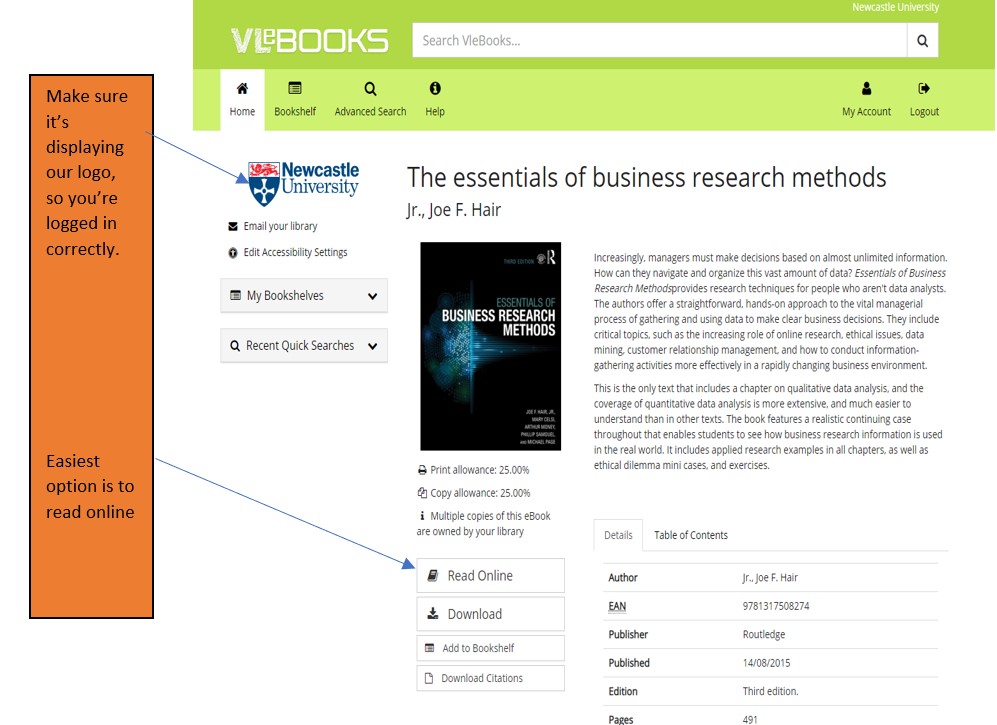
Simply navigate to Library Search and enter your keywords to look for a book title as usual. Library Search is the best way to access resources whether you’re on or off campus as it makes sure you’re logged in correctly and can access resources simply and quickly.
Watch this short video to begin searching for books and e-books.
From your search results, choose an e-book which looks relevant e.g. Essentials of Business Research Methods by Hair, which we know is popular book for Business students doing dissertations. If you are off campus, you will need to sign in with your University ID and Password.
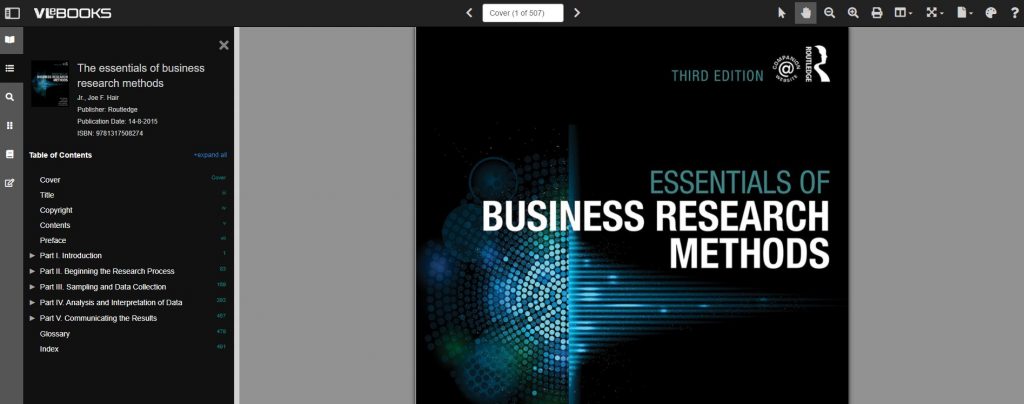
Once the e-book has loaded on the screen, hover over the functionality buttons to see what they do. For example; the search option will be useful if you’re looking for specific topics; use the Table of Contents to navigate straight to a chapter you’ve been told to read, or select the paint pallet to change the colour of the background to help with your reading.
Not all titles are available in eBook format for an institutional library to purchase, but if you’d prefer a title in electronic format we can certainly investigate. Just let us know by recommending a book.
Library Search is a powerful tool that can help you find good quality, relevant information quickly. Using Library Search is pretty intuitive but there are some useful search tips that can help you improve and get the most out of your searches:
Keywords and Subject Terms
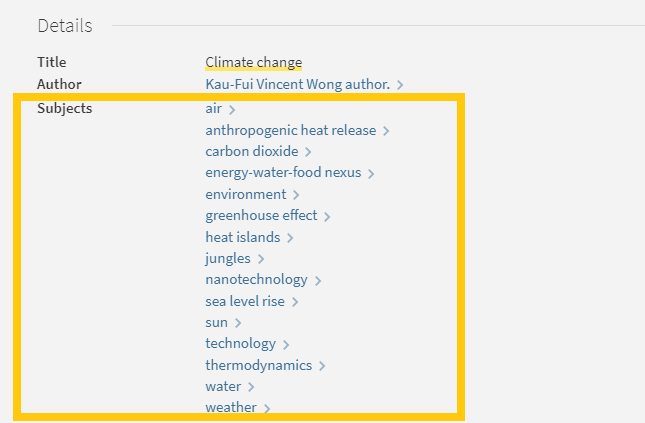
When you’re searching for information it’s important to use a range of related keywords to ensure you find everything relevant to your topic. For example, if you’re searching for information on ‘Climate Change’ you might also want to search for ‘Greenhouse Effect’ or ‘Global Warming’ too. Thinking of related keywords can sometimes be difficult but Library Search can help!
From your search results page, click on the title of a resource to open the resource record and scroll down to the ‘Details’ section. Here you will find a list of ‘Subjects’, also known as subject terms, used to describe the topics and themes this particular resource discusses. Take a look at this list and add any relevant words to your search string.
There are some other useful features in the resource record page that can help with your searches too:
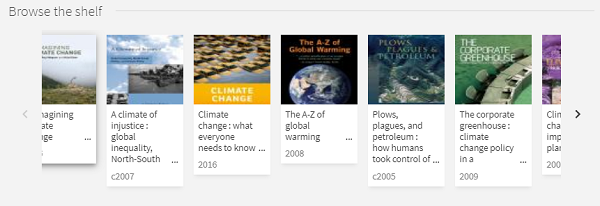
Browse the virtual shelf
At the very bottom of the record you’ll find a virtual bookshelf, a visual list of the books that can be found next to this one if you were looking in the physical library. As the library is organised by subject some of these titles might be useful for your research too.
Read the abstract
A quick way to tell if a resource is going to be relevant and useful for your research is to read the abstract, a summary of the contents of the resource. On the resource record in Library Search, you’ll find this under the heading ‘Description’.
Advanced Search
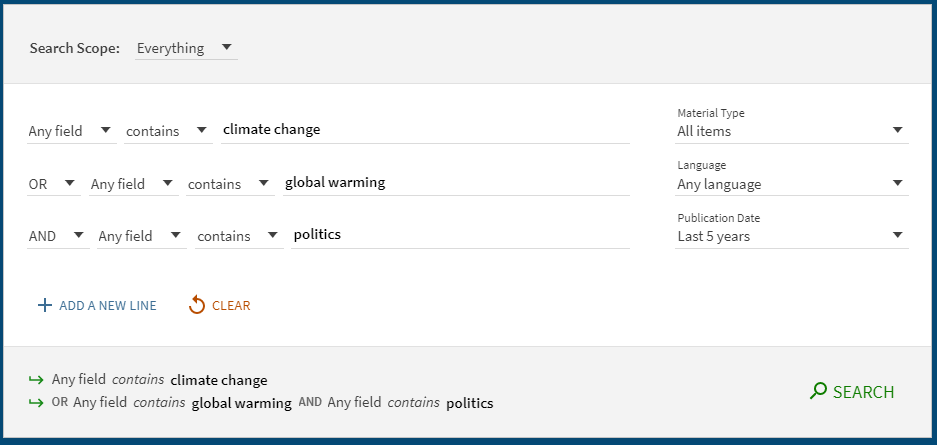
The Advanced Search function in Library search allows you to create a search that will produce more focused results. It does this by providing a range of search fields and drop down lists that help you build up your search.
Select from the options to:
Limit your search field to the title, author, subject, collection etc.
Apply BOOLEAN operators (AND, OR, NOT) to your keywords
Filter by specific material types, languages and dates to focus your search results to the most relevant resources.
Take a look at the Advanced Searching page on our Finding Information Guide for more on how to combine your keywords, create a search string and improve your search results.
You know Library Search. You use it every day when you’re at University. Why are you going to read a blog post on it? Well, we’re wondering if you’re using Library Search to its full potential. Not sure? Then read on.
Library Search is Newcastle University Library’s discovery tool – essentially it’s how you find resources on the library shelves and access those invaluable resources online. But what else can it do?
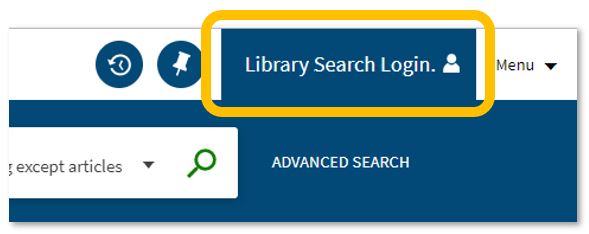
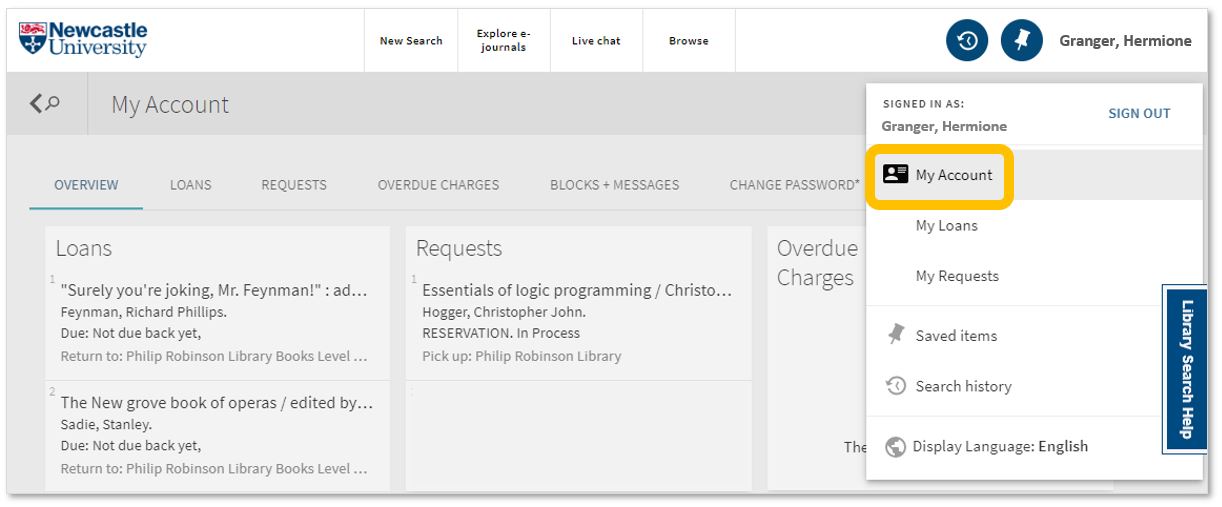
Log in. Using your usual Campus ID and password, you can open up the full functionality of Library Search by telling it who you are. It allows you to:
Log into your library account to see what books you have on loan (which you may be finished with and could return to any library site), those requests you’ve placed and any books you have on loan that may have been requested by someone else. The standard library stuff, but it’s important too.
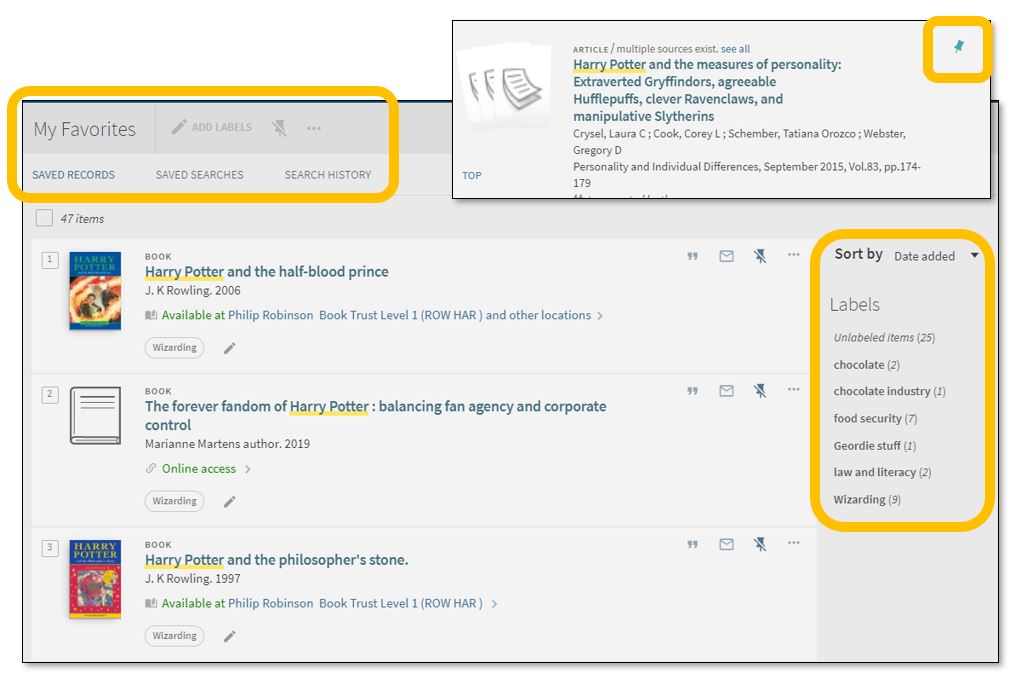
Save items you want to come back to (that’ll save you writing them down somewhere else). Find that favourite item and ‘pin’ it to your record. You can then access a list of your favourite books, journals or journal articles and label (or tag) them as to why you may need them, e.g. Herbology, Professor Snape’s essay, or Field Trip to Hogsmeade. That makes it easy to see what you need to use for each lecture, seminar or assessment.
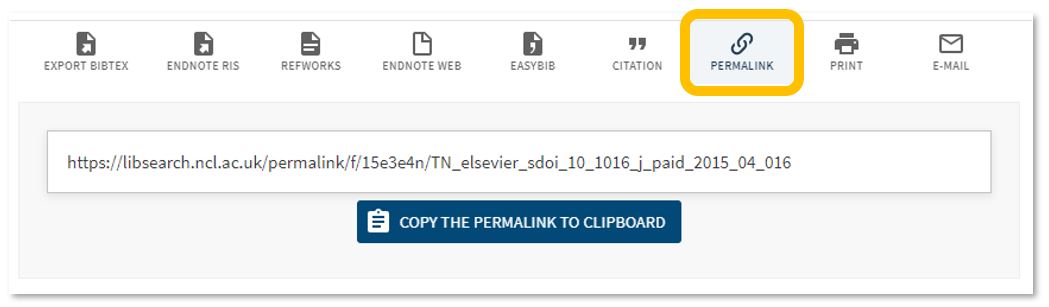
Permalink. You can share an item with someone if you want to – copy the permalink to the clipboard and send it to someone you know may be interested.
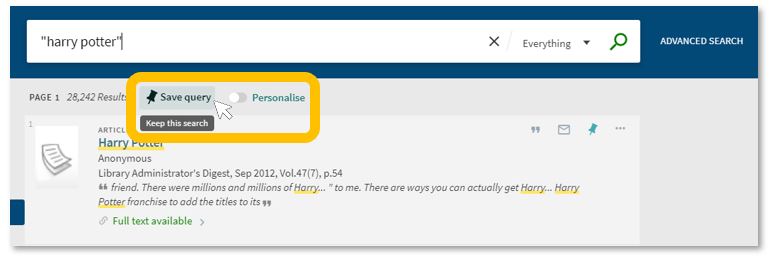
Save your search. If you need to repeat your search then save it within Library Search so you don’t need to remember the keywords and connectors (AND, OR, NOT) sequence. This is important if you are scoping a search and need to record or change your approach. You can also ‘Personalise’ your results to a particular discipline – give it a try!
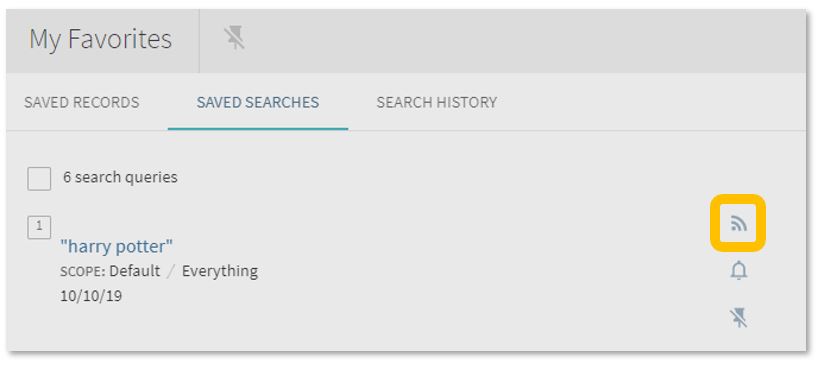
Set up a RSS Feed (yes, really!). The Rich Site Summary function allows you to be informed of changes to results in your saved searches. Handy, eh? Go to your Saved Searches and simply click the RSS icon.
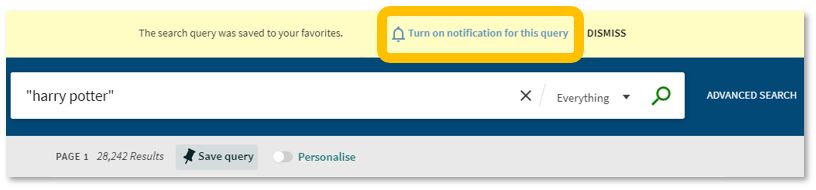
Receive an email alert when there are new results for your saved search. This can save you time in your research as Library Search will inform you if there is a new publication available which matches your search terms. Switch it off when you move onto a new subject area by accessing your Favourites list and deselecting the alarm bell icon.
Finally, if you’re writing up your assignment and can’t remember the essential elements of a reference, then use Library Search for guidance. The Citation tool will allow you to view a suggested citation and to copy it to your clipboard for use in your work.*
*BUT (you knew that was coming, didn’t you) ensure you choose the correct style and check your citations for accuracy before including them in your work. It pays to know your required referencing style and not to rely on automated or generated references. If you want to learn more about referencing then see our Managing Information guide and Cite Them Right. Cite Them Right is a great resource which will remind you of the importance of referencing, how to reference and will give guidance on how to cite those more tricky materials such as conference papers, newspaper articles, social media posts and more. Finally, there’s a new tutorial with lots of interactive questions so you can test yourself too.
If you know of any tips or tricks in Library Search that aren’t mentioned here, then leave us a comment and share them!
New to the University and not sure where to start? Or simply need a handy list for you to refer back to when you’re studying Geography? Well look no further than this post! Here are some of our suggestions to help you find the information you need.
Whether you’re on or off campus, you can access the full collection of ebooks, electronic journals and professional magazines, newspapers, conferences and more, from Library Search.
Watch our short video showing how to search for eBooks.
To find academic journal articles from across our collection that match your topic keywords, use the everything search option and filter your results on the left to peer-reviewed journals.
Find out how to search for electronic journal articles in this short video.
You can contact the Liaison Team for one-to-one support or send your questions to Library Help, where there are staff logged into our live chat service, 24/7.
Between Library Search and your Subject Guide, you will be able to find excellent information to use in your academic essays, but there are many other resources you may want to try.
3. Proquest Collections
The Social Sciences Premium Collection and Natural Sciences Collection are both brilliant places to start if you would like to refine your results to either natural or social sciences, while still searching broadly across different information types. They are collections of databases, covering a range of information types including articles, reports, conference papers and theses, so you are able to find results that match your keywords from a variety of global sources.
Find out more about the Social Sciences Premium Collection, how to search it successfully and use the advanced features in the video guide below. It is a brilliant resource for sociology and excellent to use for any academic assignment.
Watch our introduction to the Social Sciences Premium Collection to explore basic and advanced searching.
Scopus is a large, multidisciplinary database, which indexes peer- reviewed journal articles, books, book chapters, conference proceedings and trade publications.
One of the main advantages of using Scopus is that it provides a lot of useful information about the articles it indexes. This includes full reference lists for articles and cited reference searching, so you can navigate forward and backward through the literature to uncover all the information relevant to your research.
You can also set up citation alerts so you can be informed of new, relevant material automatically. Other useful tools include citation overviews, author and affiliation searching, visual analysis of search results, a journal analyser, and author identifier tools (if you are interested in publishing work).Watch this video from Scopus about how to expand your search from a known article reference.Watch this video from Scopus about how to expand your search from a known article reference.
https://youtu.be/qCu-obYMFsE
Watch this video from Scopus about how to expand your search from a known article reference.
Government publications provide information in a variety of subjects. Statistics, White Papers, Parliamentary Bills and a whole range of Official Legislation published by the Government. The provide a good, reliable, source of accurate statistics, and can give support to your argument in essay topics.
OECD iLibrary is the online library of the Organisation for Economic Cooperation and Development (OECD) and gives you access to books, analyticalreports and statistics, covering a broad range of topics relevant for studies in sociology.
Statista is an extensive statistics platform covering over 1.5 million data sets. It includes reports, statistics and forecasts on a range of topics. So if you want to know compare homelessness statistics, explore education trends, attitudes to sustainability and the environment or how many people drink barista coffee every day, Statista is a brilliant place to start.
Statistics and reports can be exported in a range of formats including images and PowerPoint, giving you flexibility to include the visuals in your assignments. The statistics source is included, giving you the information that you need to cite it successfully.
Find out more about Statista with this brief introduction.
Newspapers are an excellent resource to explore, to provide a range of perspectives on a topic. You can find opinion pieces, social commentary and identify trends in public opinion.
We have a huge range of newspaper archives, historic newspapers and international sources such as Nexis that can mostly be access online and off campus. Our Newspapers resource guide collates all of our resources and will guide you through how where to look.
LexisLibrary is an excellent place to start. It provides access to UK national and regional newspapers, from the 1990s to today. It includes the copy text without the images or formatting and all of the details you need to create a citation are on the article page.
Once you have followed the Library Search link to access Lexis, make sure you click on News at the top of the page for full text access to all UK publications.
As so many articles are published every day, you will need to refine your searching using date ranges, combined keywords or by selecting specific newspapers or publication type (i.e. broadsheet or tabloid).
Remember to use your critical skills when using newspapers however, and watch out for Fake News. They are biased sources and are best used in balance with other sources. You can find our tips on our Evaluating Information skills guide.
11. Box of Broadcasts
Box of Broadcasts can be used to access TV and radio broadcasts from over 65 channels, including most of the UK’s freeview network, all BBC TV and radio content from 2007, and several foreign language channels. It’s a great resource to use to find documentaries or critical opinions.
You can view archived programmes, record new ones, create clips and playlists and see transcripts to help with citation and translation. You can also search for other user’s public playlists to help you in your own search.
Unfortunately, Box of Broadcasts is not available outside the UK.
The British Geological Survey website gives you access to geological datasets, including environmental monitoring data, digital databases, physical collections (borehole core, rocks, minerals and fossils), records and archives.
You can search using keywords or browse the Open Geoscience datasets. It is also worth browsing in the research section and participate in one of their citizen science projects.
GreenFILE is a fully searchable database on the EBSCOHost platform, offering research on all aspects of human impact on the environment. It includes peer-reviewed, academic articles, government and general-interest titles on topics including global warming, green building, pollution, sustainable agriculture, renewable energy, recycling, and more.
Some of the content is full text while with others, you will need to use the Find at Newcastle University option to check for access via Library Search.
A new dataset is now available within Digimap called the Pilot Collection. This provides temporary access to data that EDINA are trying out and want feedback from users. This means the data will be replaced with other data sets over time as new sets become available.
Digimap Pilot is free for staff and students at current subscribing higher and further education institutions and research councils. All you will need to do is to accept the end user licence agreement which is available when you log into Digimap with your Campus ID and password. As these datasets will change regularly then you’ll need to re-accept each new licence agreement as sets are replaced.
Digimap Pilot comprises two applications, one for creating maps online, the other for downloading data which enables further analysis and investigation in other packages:
Use Roam to view, annotate and print maps online.
Use Data Download to download data and load it into a GIS or CAD package for further manipulation
As of April 2020, Pilot currently offers access to the following data.
UKMap a modern, highly detailed, feature-rich mapping database of Greater London. Its unique, innovative design offers users a flexible choice of integrated map features within a single geographic information source. It comprises addresses, retail names, detailed shopping centre data, building heights, a wide range of points of interest, aerial photography, together with Digital Terrain and Surface Models.
This one dataset has different components for Greater London. This includes UKMapLondon which provides aerial imagery with a resolution of 10cm, UKMap Upper Floors which shows more granular information e.g. which shops are on different floors of shopping centres, UKMap Tree Canopy which indicates tree canopies.
UKBuildings a unique database created and regularly updated to help you understand the age, structure, characteristics and use, of commercial, public and residential buildings across the UK.
UKLand a maintained, national land information database providing a detailed consistent breakdown of the use of land across the UK. There are 30 different land classes available e.g. woodland, water features, transport and commerical.
An EDINA Satellite data collection initially consisting of:
Sentinel 2 derived cloud free optical mosaic for Great Britain, 2019.
Sentinel 2 derived Near Infrared mosaic for Great Britain, 2019.
These 2 sections are currently available until the 31/07/2020.
Within the Pilot Data Download section you’ll also find some useful product information such as where the data comes from, it’s availability and sizing and Copyright information.
If you’re using mapping data already you might want to use this in conjunction with GIS if you’re manipulating or working with the data. Or doing a comparison to other maps you might have found freely available e.g. Google Maps.
We have a service called “Books on Time” for students. This allows you to tell us about the books you need for your studies. If we don’t have the books you need, simply complete the web form and we’ll see if we can buy them. For books we already have in stock, if they are out on loan please make a reservation/hold request using Library Search.