The guides group together all the main library subscriptions we have for that specific type of information, as well as linking out to key external links and resources too. Wherever possible we also include guidance and help on how to get the best out of the databases and links and group the information together into a logical and helpful way. We know how busy life is and we simply want to save you time!
So what you are waiting for, go and check out our fabulously named Resource Guides, because they do exactly what they say on the tin!
You know Library Search. You use it every day when you’re at University. Why are you going to read a blog post on it? Well, we’re wondering if you’re using Library Search to its full potential. Not sure? Then read on.
Library Search is Newcastle University Library’s discovery tool – essentially it’s how you find resources on the library shelves and access those invaluable resources online. But what else can it do?
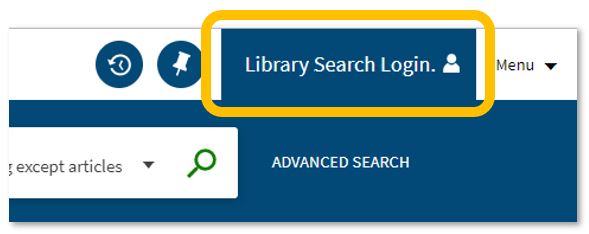
Log in. Using your usual Campus ID and password, you can open up the full functionality of Library Search by telling it who you are. It allows you to:
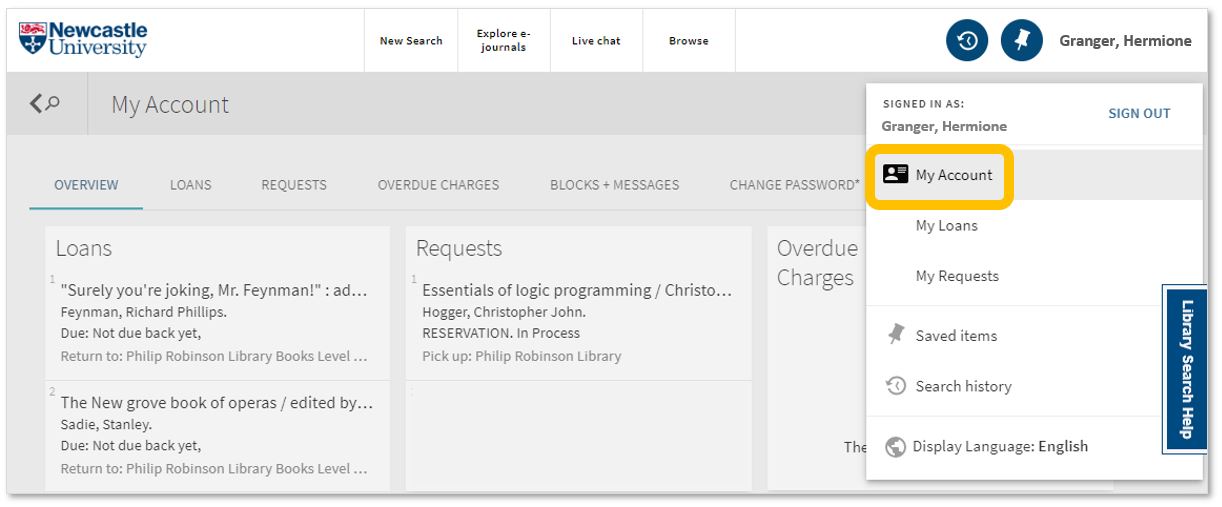
Log into your library account to see what books you have on loan (which you may be finished with and could return to any library site), those requests you’ve placed and any books you have on loan that may have been requested by someone else. The standard library stuff, but it’s important too.
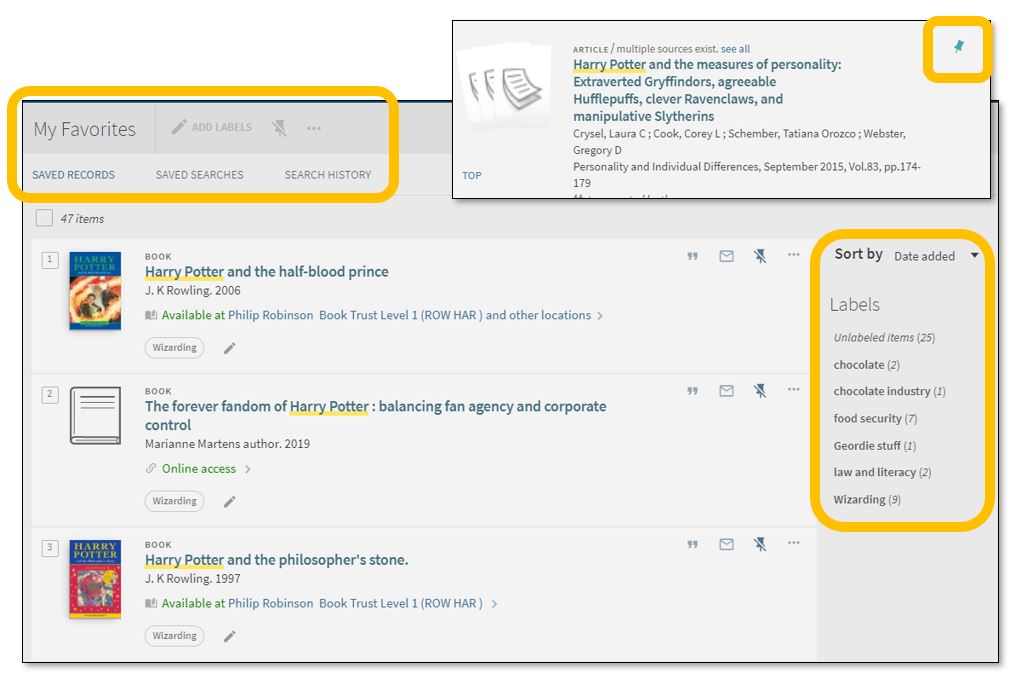
Save items you want to come back to (that’ll save you writing them down somewhere else). Find that favourite item and ‘pin’ it to your record. You can then access a list of your favourite books, journals or journal articles and label (or tag) them as to why you may need them, e.g. Herbology, Professor Snape’s essay, or Field Trip to Hogsmeade. That makes it easy to see what you need to use for each lecture, seminar or assessment.
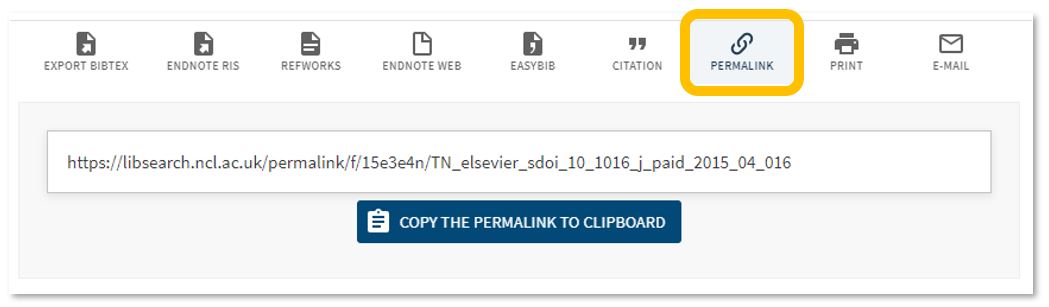
Permalink. You can share an item with someone if you want to – copy the permalink to the clipboard and send it to someone you know may be interested.
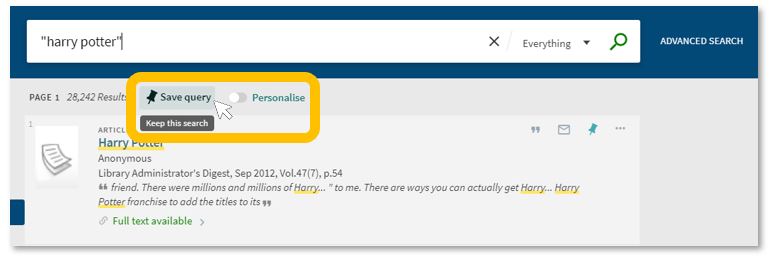
Save your search. If you need to repeat your search then save it within Library Search so you don’t need to remember the keywords and connectors (AND, OR, NOT) sequence. This is important if you are scoping a search and need to record or change your approach. You can also ‘Personalise’ your results to a particular discipline – give it a try!
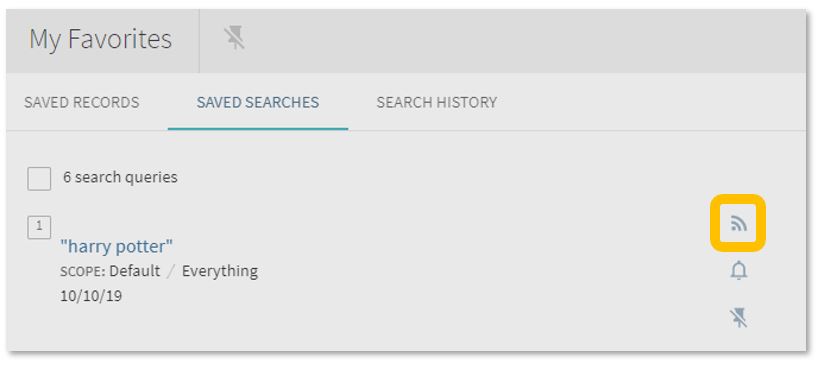
Set up a RSS Feed (yes, really!). The Rich Site Summary function allows you to be informed of changes to results in your saved searches. Handy, eh? Go to your Saved Searches and simply click the RSS icon.
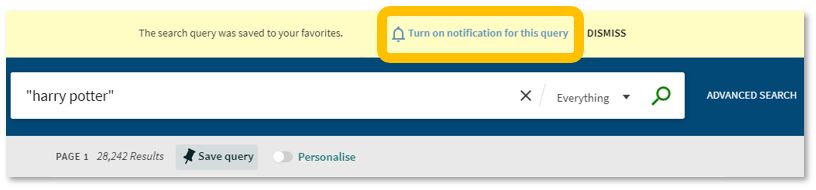
Receive an email alert when there are new results for your saved search. This can save you time in your research as Library Search will inform you if there is a new publication available which matches your search terms. Switch it off when you move onto a new subject area by accessing your Favourites list and deselecting the alarm bell icon.
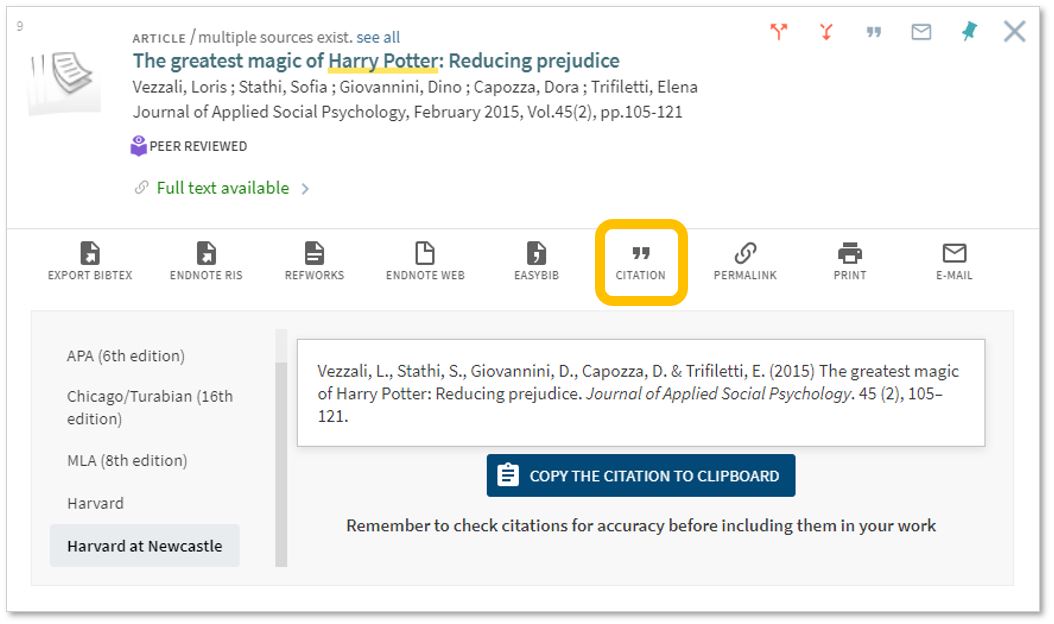
Finally, if you’re writing up your assignment and can’t remember the essential elements of a reference, then use Library Search for guidance. The Citation tool will allow you to view a suggested citation and to copy it to your clipboard for use in your work.*
*BUT (you knew that was coming, didn’t you) ensure you choose the correct style and check your citations for accuracy before including them in your work. It pays to know your required referencing style and not to rely on automated or generated references. If you want to learn more about referencing then see our Managing Information guide and Cite Them Right. Cite Them Right is a great resource which will remind you of the importance of referencing, how to reference and will give guidance on how to cite those more tricky materials such as conference papers, newspaper articles, social media posts and more. Finally, there’s a new tutorial with lots of interactive questions so you can test yourself too.
If you know of any tips or tricks in Library Search that aren’t mentioned here, then leave us a comment and share them!
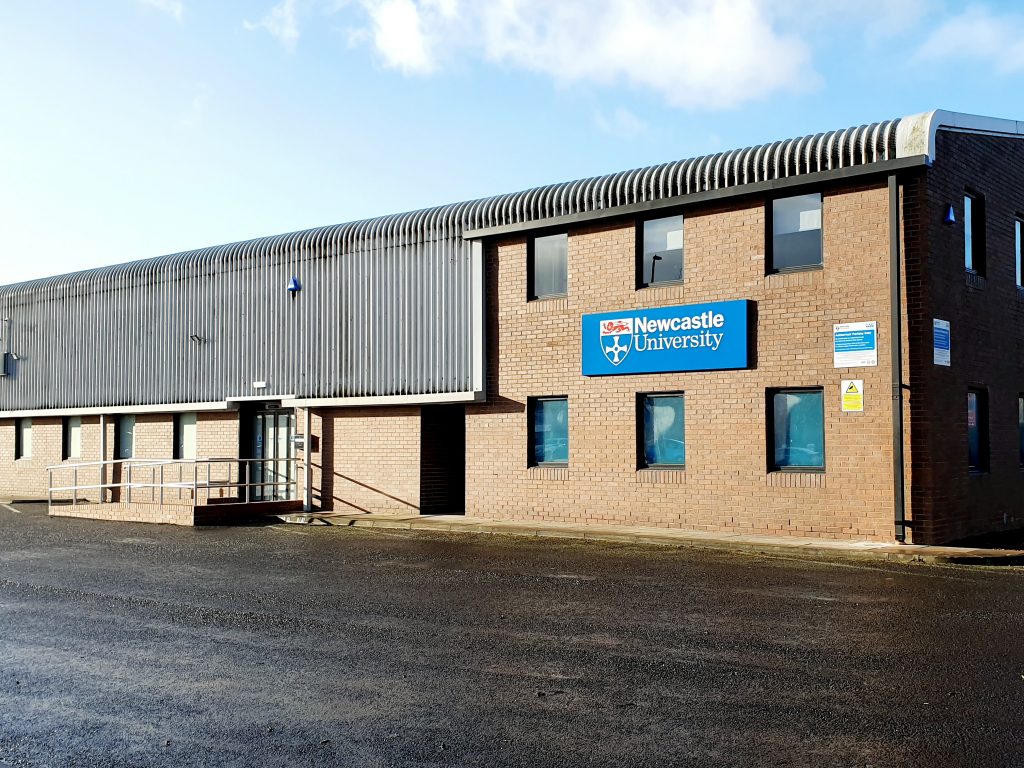
The exterior of the Research Reserve facility in the Team Valley.
The eagle-eyed amongst you may have noticed a curious thing on Library Search. Where normally you would expect to see the name of one of the libraries next to an item’s shelfmark, occasionally you’ll see “Research Reserve”.
If you’ve ever wondered just what exactly the Research Reserve is, this is the blog for you, discover here exactly what the Research Reserve can offer you and your studies.
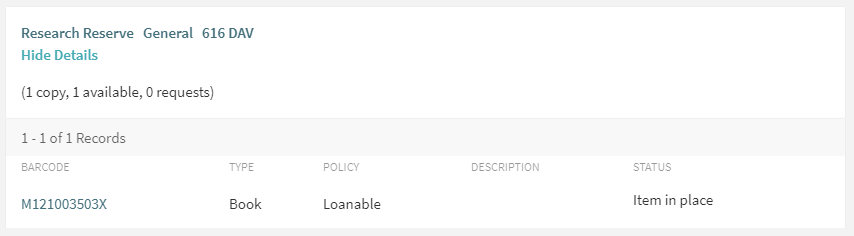
Before an item’s shelfmark is its location. This book is held off-site at the Research Reserve facility in the Team Valley.
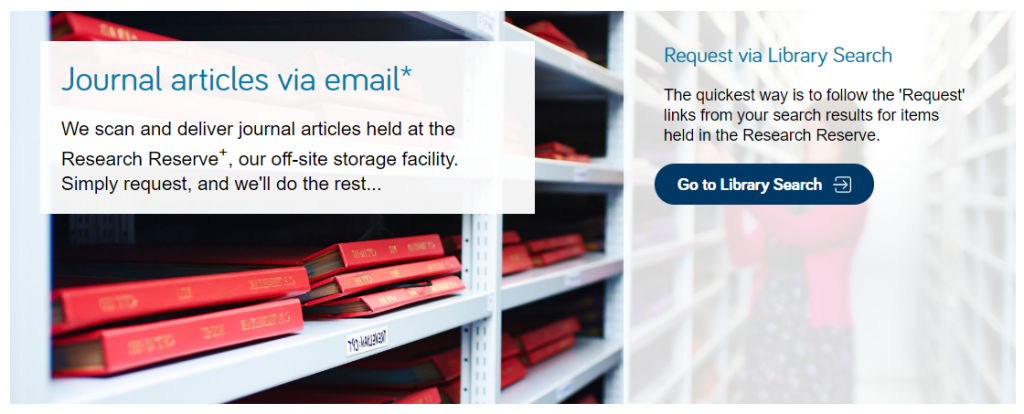
The Research Reserve is the Library’s stores, located throughout campus and including a state-of-the-art storage facility in the Team Valley. These facilities allow the Library to keep less-used material for much longer than other academic libraries. These combined storage facilities provide over 29 kilometres of storage space, which is used to house old editions of journals and books which are consulted infrequently.
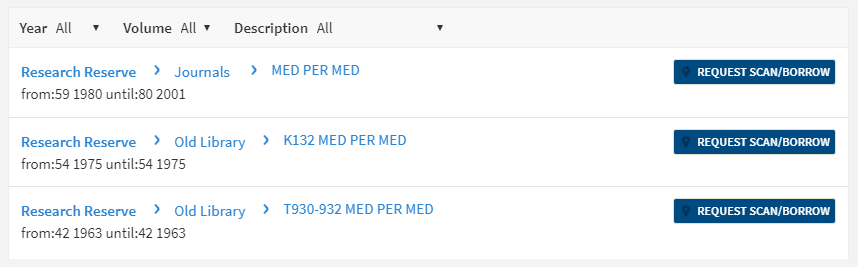
If you’d like to request items from the Research Reserve facilities, click the “Request Scan/Borrow” button once you’ve located the item on Library Search.
You can loan a variety of materials from the Research Reserve,
including: books, theses and journal volumes. These can be requested from Library
Search. Simply log
in using your campus ID, find the item you are looking for and then click
the blue “Request Scan/Borrow”
button. You’ll get a choice of pickup locations (either the Walton or Philip
Robinson libraries).
There are request forms to complete if you’d like to borrow
a thesis
or an entire volume
of a journal.
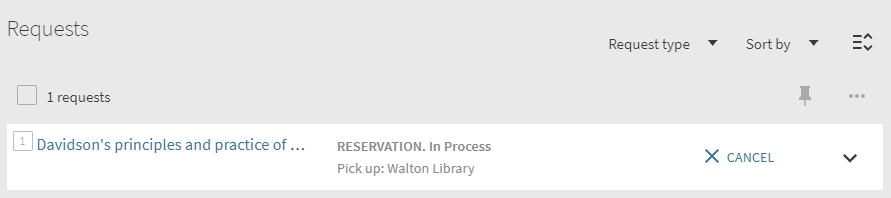
Requests can be viewed by going to “My Account” in Library Search and clicking on “My Requests” from the drop down menu. If you’d like to cancel your request, simply click the blue cancel hyperlink (as seen below). You’ll receive an email confirming your cancellation shortly afterwards.
You can cancel requests for Research Reserve items by clicking the blue ‘Cancel’ hyperlink, as shown above.
There is a collection service that runs between the Research
Reserve and the various libraries (weekdays only, not on bank holidays) and
your request will be generally be fulfilled within 24 hours. Anything requested
on a Friday or over the weekend will be delivered on the following Monday
afternoon.
Once your item has arrived at your chosen library, you’ll receive an email letting you know it’s available to loan. The item will be kept on the reservations shelves for five days before being returned to the Team Valley, or passed on to the next person in the reservation queue. Items from the Research Reserve are issued in the same way as standard long loan items, either using the self-issue machines or at the service desk. Once you’ve finished with the item, simply return it as normal.
The Desktop Delivery Service (DDS) allows you request a
scanned article from a journal held in one of the Library’s stores. Articles
can be requested via Library Search (same as a book) or by filling out the relevant request form. Please try and include
as much detail as possible on your request form. This helps Library staff
locate your article and fulfil your request quicker.
You are only able to request one scanned article per journal
issue. The scanned article will be delivered to your University email address,
where it can be downloaded and printed off. Requests are generally fulfilled
within 24 hours, although this may take longer over the weekends or on bank
holidays. You have 30 days to download your article before it is ‘archived’ and
no longer available.
We do not scan items that are available electronically or
can be borrowed.
If you have any other queries about the Desktop Delivery Service, read the FAQs.
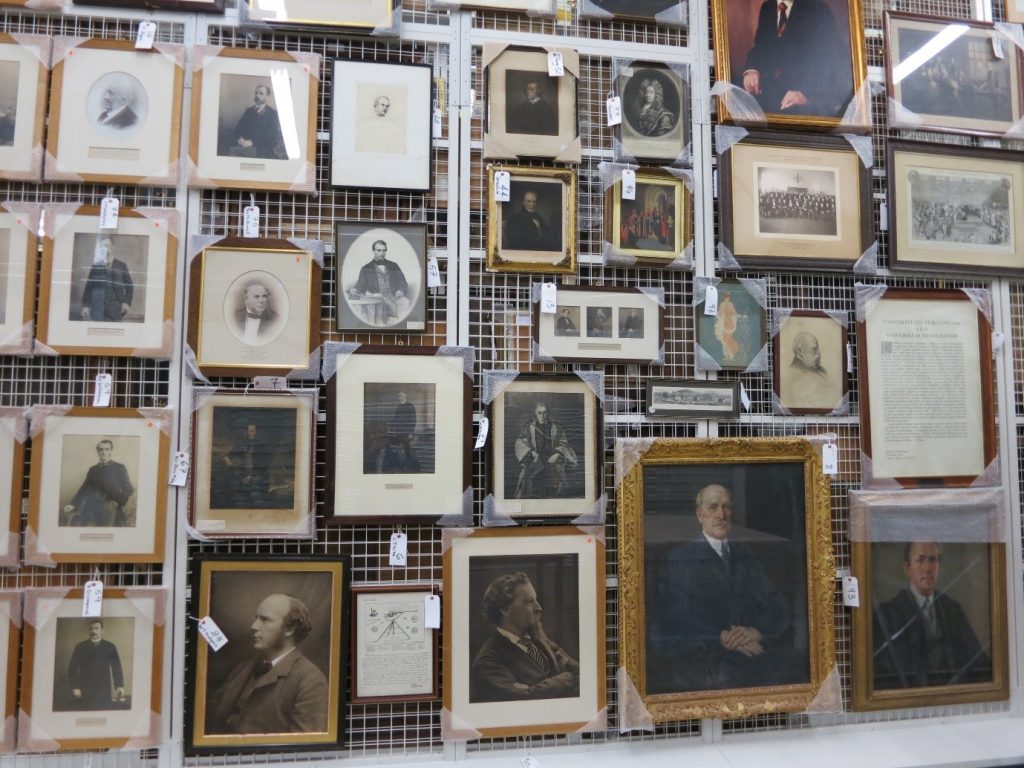
Just some of the amazing treasures held at the Research Reserve facility in the Team Valley.
You can also visit the off-campus Research Reserve facility in the Team Valley. Daily access is available by appointment only with the Research Reserve team, weekdays between 10AM and 4PM. Access outside of these hours can be organised given sufficient notice. There is a large car park available at the facility and buses stop nearby.
Full contact information, directions and opening hours for the Team Valley facility are available via the Library website.
Exams are a tricky time. Often you will be juggling different exams themselves, on top of other deadlines. However, we want you to know that you aren’t alone at this crazy time of year. We are here to help you through.
But how exactly can we help? Sadly, we can’t take go into the exam with you, or magically freeze time to give you more hours in the day, but do make the most of the following:
Library Help – the place to go when have a question via chat, email, text, twitter, Facebook. Or alternatively search our Frequently Asked Question (FAQ) database.
Librarians – yes you heard right. Book a one-to-one appointment to get the best out of the University Library resources. Also remember our staff in every library are friendly and approachable. There is no such thing as a silly question, so ask away!
Study Space– The University Library has a range of different study rooms and spaces to suit your needs.
24/7 – The Philip Robinson Library is open 24/7 during the exam period. We want you to sleep and get enough rest, but if you do need to study through the night, we are here.
Subject guides – we have a range of subject guides put together by expert librarians which draw together all the main resources for your studies.
Be well@NCL collection – we don’t just have books for study. This new collection includes tried and tested books that support your wellbeing.
The official blurb on EndNote is
that it is “…the industry standard software tool for publishing and managing
bibliographies, citations and references.”
Have you drifted off yet? Don’t – read on!
EndNote takes a little getting used to
and we recommend you familiarise yourself with it at the start of your research
process. But as Library Staff, we wouldn’t spend a
significant amount of time demonstrating and training our academic staff and
students on what EndNote is, and how to use it, if we didn’t think it was
valuable. It will save you a huge amount of
time in terms of writing up your assignments.
Essentially, you can use EndNote to
create and organise a personal library of resources relevant to your research.
You can import references from Library Search, and a huge range of databases such
as Scopus, Web of Science, IEEE Xplore and Business Source Complete. You can ask EndNote to locate
the full-text PDFs of the resources you are going to use in your research, and
you can annotate them as you wish too. Did you know you can instruct Google Scholar to
import references into EndNote? No? Try
it. Finally, if you already have materials stored in your home
folder (H:\) then you can attach them to a manually-created
reference within EndNote, bringing all your research together in one place.
In addition to organising your references (and this is the clever bit) you can then get EndNote to ‘talk’ to your word processing software, e.g. Microsoft Word, and insert the citations into your work for you in your chosen referencing style, e.g. Cite Them Right Harvard, Vancouver, APA or MLA. If you don’t want to do that, then EndNote will also allow you to create an independent bibliography of your references, saving you an awful lot of typing.
Using EndNote
Intrigued? You should be. Take a look at our EndNote Guide. It contains all the introductory information you need, step-by-step workbooks to train yourself on the use of EndNote (the Desktop and Online versions), videos, useful FAQs, and contacts for help, should you need it.
Finally, Newcastle University
provides support for EndNote but it is not compulsory to use. You may
prefer Mendeley, Zotero, RefWorks or another piece of bibliographic
management software. That’s fine, whatever makes your referencing lives easier. Go on, give them a try.
A common mistake made in referencing is grouping all sources
found online under the category and reference type of a website. Your aim
should be to reference the information you have in front of you rather than
where it was sourced. Simply grouping items found online as a website would be
the equivalent of referencing a book by the publisher details rather than the
author and title.
For example, a government publication found online would be referenced like this in Chicago:
United Kingdom. Department for Education. Cloud computing: how schools can move services to the cloud. London: The Stationary Office, 2016. Accessed: November 4, 2019. https://www.gov.uk/government/publications/cloud-computing-how-schools-can-move-services-to-the-cloud.
An electronic journal article might appear like this in APA:
Gillum, J. (2012). Dyscalculia: Issues for
practice in education psychology. Educational Psychology in
Practice, 28(3), 287-297. doi:10.1080/02667363.2012.684344
While a video posted on the Tate website would look something like this
in Harvard.
TateShots (2016) Grayson Perry: think like an artist. Available at: https://www.tate.org.uk/whats-on/tate-modern/talk/what-makes-artist-grayson-perry-conversation-sarah-thornton (Accessed: 11 November 2019).
Identifying the type of information you are using as well as the source, are essential skills of evaluation and developing a critical approach to information. In many cases you will be unconsciously using your judgment to assess the value of information for your purpose. So when you are using any source of information, ask yourself what it is you are looking at, what details are recorded about it and whether it measures up as a quality piece of information. You can find more information on evaluating information on the Academic Skills Kit.
Harvard at Newcastle is the most frequently used
referencing style and if your school does not have a preferred style, it is the
one that we would recommend. This is because there is the most comprehensive
guidance available for Harvard and it is a style that can manage referencing
all types of information. Whether you are referencing a book, news
article, Instagram or market research, the Harvard at Newcastle style has got
you covered.
There are many
variations of Harvard but the one used at Newcastle can be found in Cite Them Right. Harvard uses an in-text citation (Millican, 2018, p.12)
inserted in the text, coupled with a reference list at the end of the document,
which provides the key. Cite Them Right is available as a published book to borrow from the
library and Cite Them Right Online provides the same comprehensive
guidance in a searchable interface that can be accessed anywhere online. It
includes guidance about how to reference just about every type of information
you can think of, including the more tricky online sources such as social
media.
You will find the Harvard at Newcastle style in EndNote on campus PCs and through the RAS, and are able to download the style from our EndNote guide if you are using it locally on your own device. We’ve also included some useful tips and advice about getting to grips with Harvard on the Academic Skills Kit.
There are lots of different referencing styles, but which one is right for you?
Once you start creating
citations and references, you need to consider referencing styles. There are hundreds of them out there
and each has a slightly different set of rules about how citations and
reference lists should appear in your text.
Most Newcastle University students use the Cite them Right Harvard style, but there is also Vancouver, IEEE, OSCOLA, Chicago, and many more. Your lecturers will expect you to use one specific style and all of your citations and references should conform to that style accurately and consistently; same punctuation, same capitalisation, same everything.
We have lots of help about using some of the popular referencing styles Academic Skills Kit. The Cite Them Right website is also a valuable online resource that will show you how to hit all of the right steps on your way to mastering an individual referencing style.
When walking in the snow we need the right footwear, and to keep warm, a scarf, hat, and gloves are also of great help. By doing so, we are adapting to the environment and using the right tools at the right time for the job at hand.
The same is true when adapting to academic writing where referencing is a key tool.
When you are writing a piece of work and you use someone else’s thoughts, words or ideas, you must reference them. But why do we talk about referencing so much at University, and why is it so important? Why should you bother spending time on ensuring that your references are consistent, accurate and correct?
It all comes down to why we reference in the first place:
To make your contribution clear by showing which words and ideas are yours, and which have come from your reading.
To acknowledge the work of others and to demonstrate how you have built on the knowledge that you’ve gained from your reading.
To ensure that the reader can follow up on your references for themselves.
To avoid being wrongly accused of plagiarism.
Watch our short video to find out a little more about why we should bother with referencing.