Have you been told that you need to diversify your search, or maybe use a new database such as PubMed? Did someone mention that MeSH terms could improve your search?
If you do not know what those terms mean or where to start, you are in the right place. The following video will explain to you what controlled vocabularies are and why they are a powerful tool for retrieving relevant papers.
Now, let’s put theory into practice and demonstrate how to use Medical Subject Headings (MeSH) in PubMed. The video below will do just that.
Let’s have a look at what other controlled vocabulary databases you can use in medical sciences or if your Social Sciences student whose work crosses over with medical sciences. You can find all the databases mentioned below and others in Library Search:
Since the previous videos focus on PubMed, you might wonder what other databases you should be using. If you are unsure how to find the most relevant databases for your course, you can watch a video that will show you how to identify them.
Is Medline the database for you, but you need some help with the basics? Watch our:
Finally, please remember that this is general advice and it might not cover your particular area of interest. If you have any specific questions, please do not hesitate to contact us on Library Help, where you can email us or speak to us through the Live Chat feature.
Are your literature searches run mainly in keyword-based platforms such as Google Scholar, Scopus or Web of Science?
Have you been told that you need to diversify your search, or maybe use a new database such as Medline, Embase or PsycInfo through the Ovid searching platform? Did someone mention that Medline’s MeSH terms could improve your search?
If you do not know what those terms mean or where to start, you are in the right place.
The following video will explain to you what controlled vocabularies are, why they are a powerful tool for retrieving relevant papers and it will demonstrate how to use Medical Subject Headings (MeSH) in Medline via Ovid.
Since the previous video focuses on Medline, you might wonder what other databases you should be using. If you are unsure how to find the most relevant databases for your course, you can watch a video that will show you how to identify them.
Finally, please remember that this is general advice and it might not cover your particular area of interest. If you have any specific questions, please do not hesitate to contact us on Library Help, where you can email us or speak to us through the Live Chat feature.
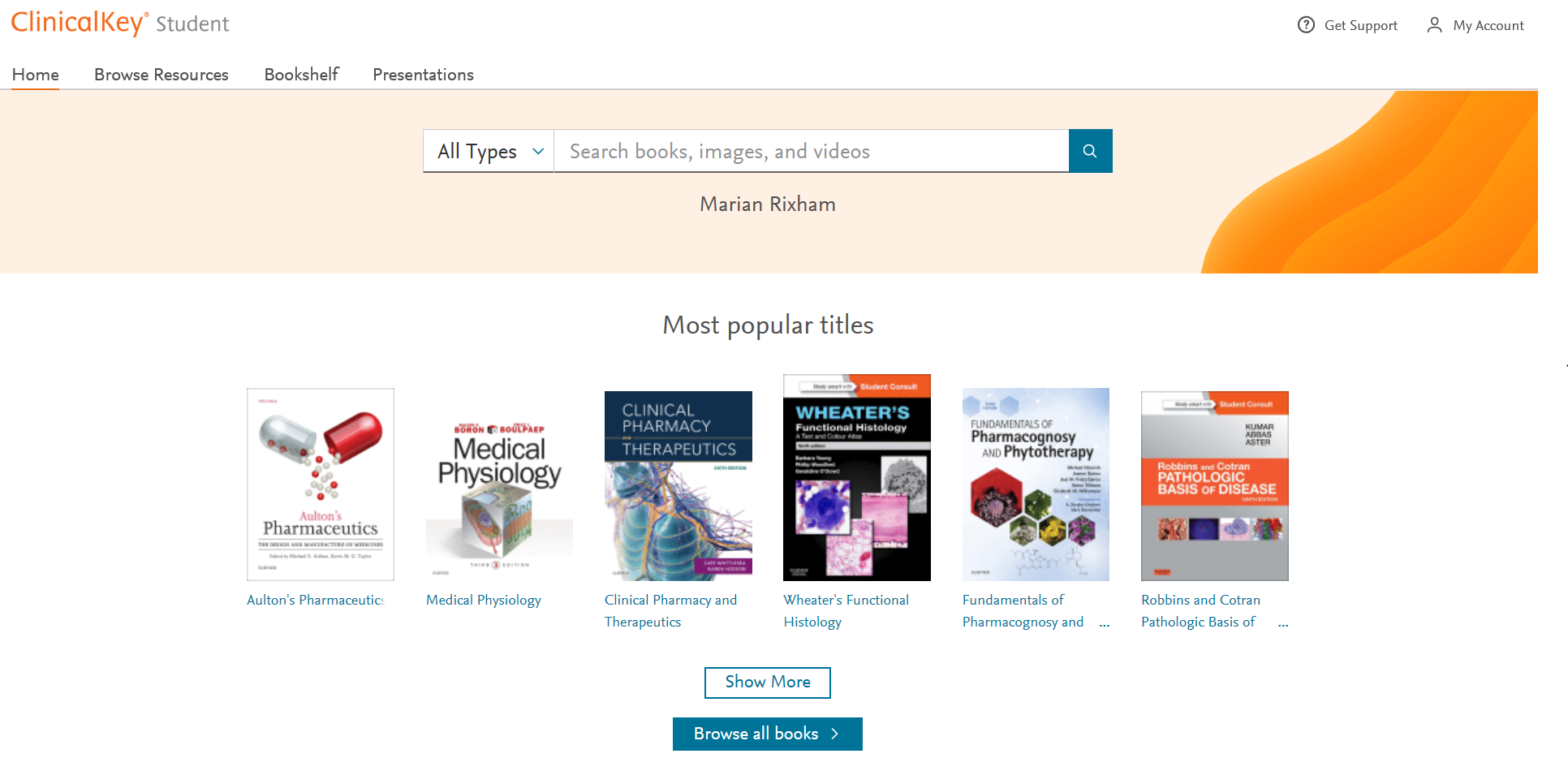
Elsevier’s Clinicalkey Student gives you electronic access to some of the most popular recommended clinical textbooks plus lots of other really useful resources including images and video. Subjects covered include medicine, dentistry and pharmacy. It allows you to add a book to your own Bookshelf, highlight text, add notes, create flashcard, make presentations and more. All of which is described below with videos to watch.
All of the eBooks available from Elsevier’s Clinicalkey can be found individually by searching for them on Library Search. To search or browse the collection go to Library Search and search for Clinicalkey.
To Login
To find out how to login and search for a book follow the instruction below or watch this video to get started.
Click on Log in via your institution on the right hand side
In the Institution search box type Newcastle University
Login using your University Username and Password
You are now ready to search for content either:
a book by title, author or keyword
a subject keyword for any content e.g. book, chapter, video available
Using the Bookshelf
To find out how to use the Bookshelf follow the instruction below or watch this video to get started.
To add a book to the Bookshelf you need to be within the content of a chapter. Search for the book by title, author or keyword
Click View book TOC
Click on the chapter you want
Click Add to Bookshelf on right hand side
If you want to see the book on your bookshelf, click Launch Bookshelf
If you click on the Home option this will show you all the books you have added to your Bookshelf
Once you have added to your Bookshelf you can go straight to it from the homepage by clicking on Bookshelf
For more details on using the Bookshelf watch this video.
Highlighting and Saving Text
When you are within the text of a chapter you can highlight any part to save it as a note for later. See instructions below and for more detail watch this video on Highlighting and Saving text.
Highlight the text you want to save
Select either green or yellow to highlight the colour
Give the note a name to show what it is
To look at all your notes click on the Notepad option on the left of the screen.
Creating Flashcards
When you are within the text of a book you can highlight any part to create a Flashcard. See instructions below and for more detail watch this videoon Creating Flashcards.
Highlight the text you want for the front of the flashcard
Choose an existing Deck or a New Deck and Create it
Highlight and select Copy to get the text for the back of the card – Paste this text into the card
Save the card
You can create as many decks as you want and as many cards you want in each deck
By clicking on the Play button in the top right hand corner of the deck you can run through the cards to test your knowledge
Creating Presentations
You can share the latest evidence-based information with colleagues by exporting images with their citation and copyright information into a PowerPoint presentation.
See instructions below and for more detail watch this video on Creating Presentations
Search or Browse for an image
Click the Add to Presentation link at the bottom of the image
Select an Existing Presentation from the drop down menu
Click Add
OR
Click Create a New Presentation
Give it a name in the Presentation Name box
Click Add
Download the presentation and save as a .ppt file. You can then add your own slides and text to complete your presentation.
Using the Clinicalkey APPs
There are two types of Bookshelf apps:
Mobile App (iOS or Android): You can download the mobile app directly in the iOS or Android app store. To find the app, search for the name of the app (Bookshelf ClinicalKey Student).
Desktop App (Windows 10+): The app name appears as ClinicalKey Student Bookshelf. During the download process, you will be prompted to install the app and agree to the terms and conditions. This will create a menu icon and add a shortcut on your Windows 10 desktop.
Desktop Apps (Mac OS): Download the Mac version and follow the steps on the screen to complete the download and install the app.
Authentication requirements depend on the app you are using: mobile or desktop.
Mobile App (iOS or Android): The first time you use the Bookshelf mobile app, you must be in your authenticated medical school’s network when you sign up or sign in. For only this first-time usage, you have to be authenticated by your medical school’s network. After this unique confirmation that your account belongs to a medical school that provides ClinicalKey Student, the app will remember this authentication, and you can use the app online (in any network) or offline.
Desktop App (Windows 10+): You do not need to be on an IP-authenticated network to access the desktop app. Use your ClinicalKey Student username and password to log in to the desktop app.
I’m not a massive podcast listener, but the ones I do listen to are entertaining, comforting and familiar. The wonderful thing about podcasts is that no matter what you are interested in, I bet there is a podcast out there on it – there is definitely something for everyone. You can also download and listen to them anywhere and anytime on your phone (and most of them are free) – I like to download them and listen whilst walking the dog or play them through the radio on long drives. How do you listen to yours?
So, this Winter holiday, download some new podcasts and get out in the fresh air to awaken all of your senses – you may even learn something along the way!
Here are some Christmassy inspired podcast episodes to get you in the mood:
99% Invisible – For those who love design and architecture, myself and my fellow Librarians can highly recommend this podcast series. 99% Invisible is about all the thought that goes into the things we don’t think about — the unnoticed architecture and design that shape our world. Here’s a couple of Christmassy themed episodes for you to enjoy:
The Truth: Santa’s Nine – The Truth create their own original short stories that are sometimes dark, sometimes funny, and always intriguing. Each episode is only 20-30 minutes long. This episode tells the tale of two best friends that take part in a Christmas Eve heist only to discover their boss isn’t who they thought he would be.
Scienceish: Christmas Special – Haven’t listened to this series before, but looks right up my street! Rick Edwards (presenter) and Dr. Michael Brooks (Editor of the New Scientist), delve into the science behind popular culture. Enjoy last year’s Christmas special from Scienceish where Rick and Michael conclude Season 2 by revisiting their favourite questions – fringe theories, spider goats, and simulated universes.
The Infinite Monkey Cage – Christmas Special: The Science of Magic – The Infinite Monkey Cage is a BBC Radio 4 comedy and popular science series, hosted by physicist Brian Cox and comedian Robin Ince. Enjoy last year’s Christmas special that looks at the science behind some of our best loved magic tricks and illusions.
Other top podcasts series to discover for any time of year:
Spark from CBC Radio – This has been one of my favourite podcasts for a few years now. The host Nora Young explores how technology, innovation and design affects our lives.
Happy Place – Fearne Cotton’s Happy Place podcast series builds on the success of the top 10 bestseller HAPPY where Fearne draws on her own experiences and shares advice from experts on how to work through feeling blue to finding joy each and every day. I need this right now!
Desert Island Discs – Another one of my go-to podcast series. Yes you can listen to many a famous celebrity on this, but what I really enjoy is learning about many interesting figures in sciences, arts, education, politics etc. Those who you will have never heard of before, but who have had very interesting lives and done some amazing things in the World.
Made of Human – Comedian Sofie Hagen chats to comedians, authors, actors, musicians, activists, medical professionals, podcasters, influencers and artists about how to do life. (Spoiler alert: no one really knows)
Table Manners with Jessie Ware – Jessie Ware hosts a podcast about food, family, and the beautiful art of having a chat, direct from her very own dinner table. With a little bit of help from her chef extraordinaire mum Lennie, each week guests from the worlds of music, culture and politics drop by for a bite and a bit of a natter. Oversharing guaranteed.
We have all heard it said that languages spoken in northern arctic regions have considerably more words for snow than those spoken in southern climates. When dealing with something in detail every day it is often helpful to categorise and clarify its nuances.
A common mistake made in academic referencing is grouping all sources found online under the overarching category of a website. However, your aim should be to reference the information you have in front of you rather than where it was sourced. Grouping all items found online as a website would be the equivalent to referencing a book only by the publisher details, rather than the author and title. Or, by referring to both a snowball and a snowflake as simply snow.
For example, a government publication found online would be referenced like this in Chicago:
United Kingdom. Department for Education. Cloud computing: how schools can move services to the cloud. London: The Stationary Office, 2016. Accessed: November 4, 2019. https://www.gov.uk/government/publications/cloud-computing-how-schools-can-move-services-to-the-cloud.
An electronic journal article might appear like this in APA:
Gillum, J. (2012). Dyscalculia: Issues for practice in education psychology. Educational Psychology in Practice, 28(3), 287-297. doi:10.1080/02667363.2012.684344
While a video posted on the Tate website would look something like this in Harvard:
TateShots (2016) Grayson Perry: think like an artist. Available at: https://www.tate.org.uk/whats-on/tate-modern/talk/what-makes-artist-grayson-perry-conversation-sarah-thornton (Accessed: 11 November 2019).
Identifying the type of information you are using, as well as the source, is an essential evaluation skill which helps in developing a greater critical approach to information. In many cases you will be unconsciously using your judgment to assess the value of information for your purpose. So when you are using any source of information, ask yourself what it is you are looking at, what details are recorded about it, and whether it measures up as a quality piece of information. You’ll find more guidance about evaluating information on our Evaluating Information guide.
Referencing is the acknowledgement of the sources that you use in your work. You must reference all sources that you use in your assignments, projects or dissertations, and includes quotes, ideas, facts, images, videos, audio, websites, statistics, diagrams and data.
Over the next two weeks we will be producing a series of blogs focusing on how to reference successfully in your work. We will cover…
explain why referencing is important
advice on how to produce consistent and reliable referencing
help on how to manage your information to make your life easier and assignments less stressful
point you in the direction of where to find advice and help
So come in from the cold and warm up with some referencing help and keep your eyes peeled for our upcoming blogs.
The guides group together all the main library subscriptions we have for that specific type of information, as well as linking out to key external links and resources too. Wherever possible we also include guidance and help on how to get the best out of the databases and links and group the information together into a logical and helpful way. We know how busy life is and we simply want to save you time!
So what you are waiting for, go and check out our fabulously named Resource Guides, because they do exactly what they say on the tin!
You know Library Search. You use it every day when you’re at University. Why are you going to read a blog post on it? Well, we’re wondering if you’re using Library Search to its full potential. Not sure? Then read on.
Library Search is Newcastle University Library’s discovery tool – essentially it’s how you find resources on the library shelves and access those invaluable resources online. But what else can it do?
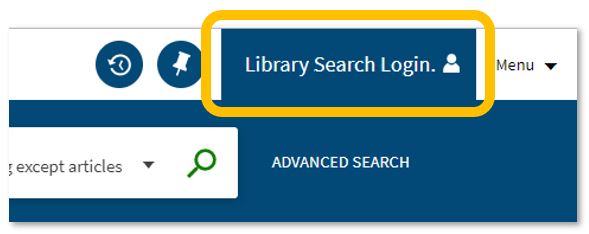
Log in. Using your usual Campus ID and password, you can open up the full functionality of Library Search by telling it who you are. It allows you to:
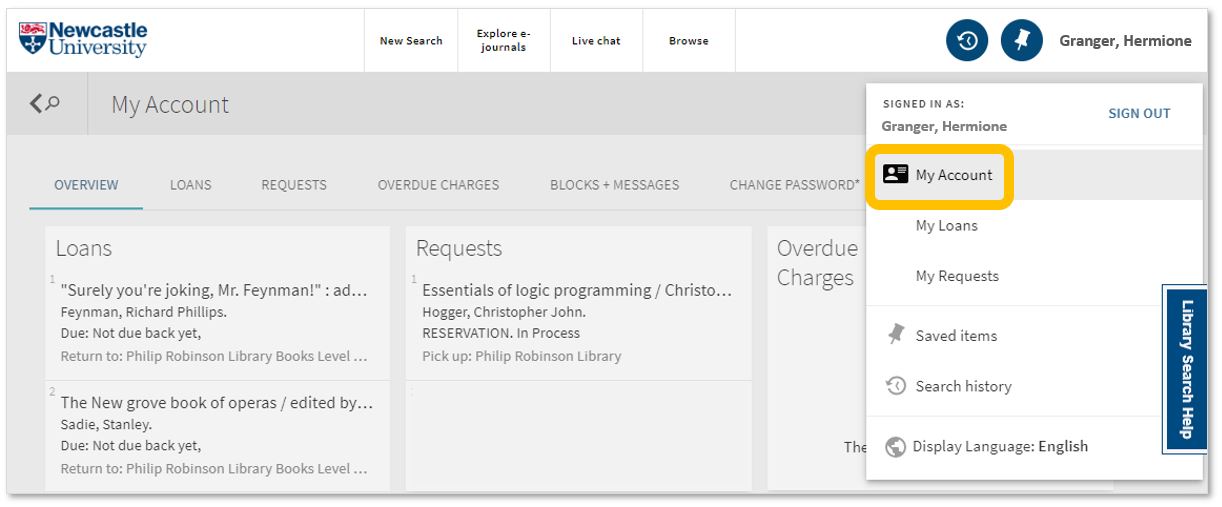
Log into your library account to see what books you have on loan (which you may be finished with and could return to any library site), those requests you’ve placed and any books you have on loan that may have been requested by someone else. The standard library stuff, but it’s important too.
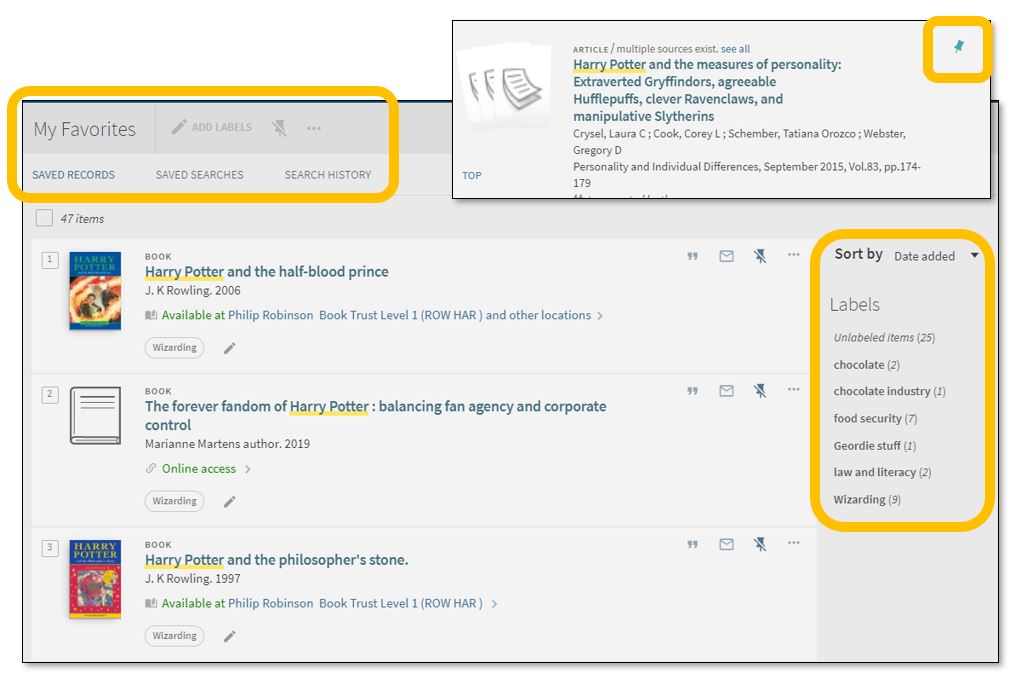
Save items you want to come back to (that’ll save you writing them down somewhere else). Find that favourite item and ‘pin’ it to your record. You can then access a list of your favourite books, journals or journal articles and label (or tag) them as to why you may need them, e.g. Herbology, Professor Snape’s essay, or Field Trip to Hogsmeade. That makes it easy to see what you need to use for each lecture, seminar or assessment.
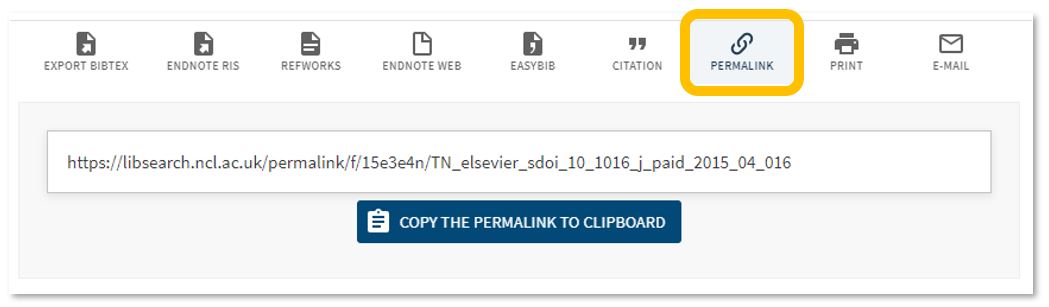
Permalink. You can share an item with someone if you want to – copy the permalink to the clipboard and send it to someone you know may be interested.
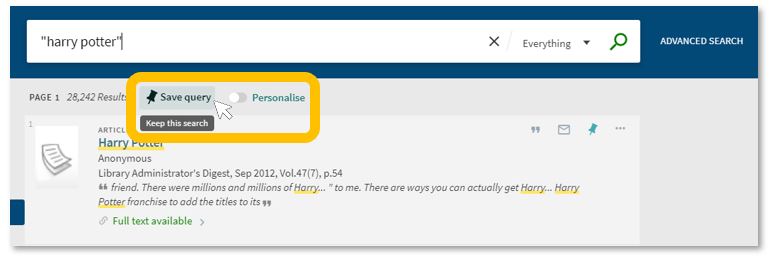
Save your search. If you need to repeat your search then save it within Library Search so you don’t need to remember the keywords and connectors (AND, OR, NOT) sequence. This is important if you are scoping a search and need to record or change your approach. You can also ‘Personalise’ your results to a particular discipline – give it a try!
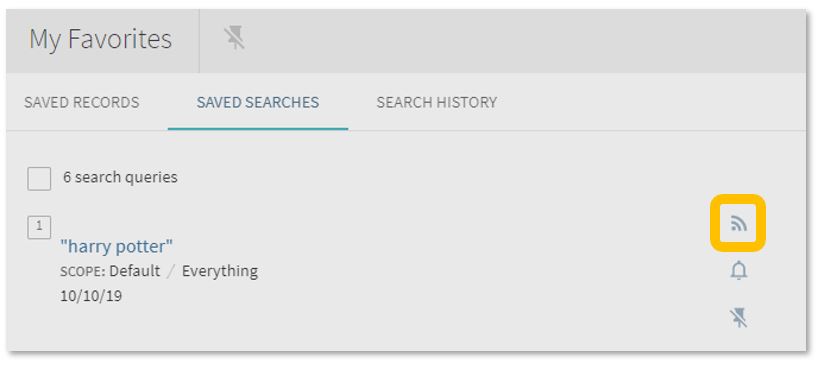
Set up a RSS Feed (yes, really!). The Rich Site Summary function allows you to be informed of changes to results in your saved searches. Handy, eh? Go to your Saved Searches and simply click the RSS icon.
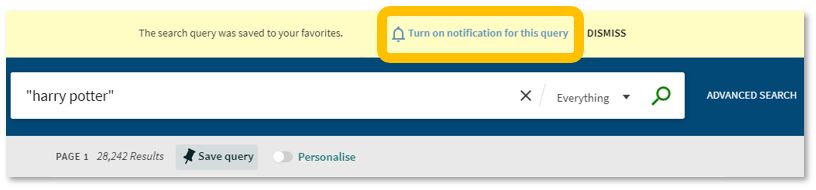
Receive an email alert when there are new results for your saved search. This can save you time in your research as Library Search will inform you if there is a new publication available which matches your search terms. Switch it off when you move onto a new subject area by accessing your Favourites list and deselecting the alarm bell icon.
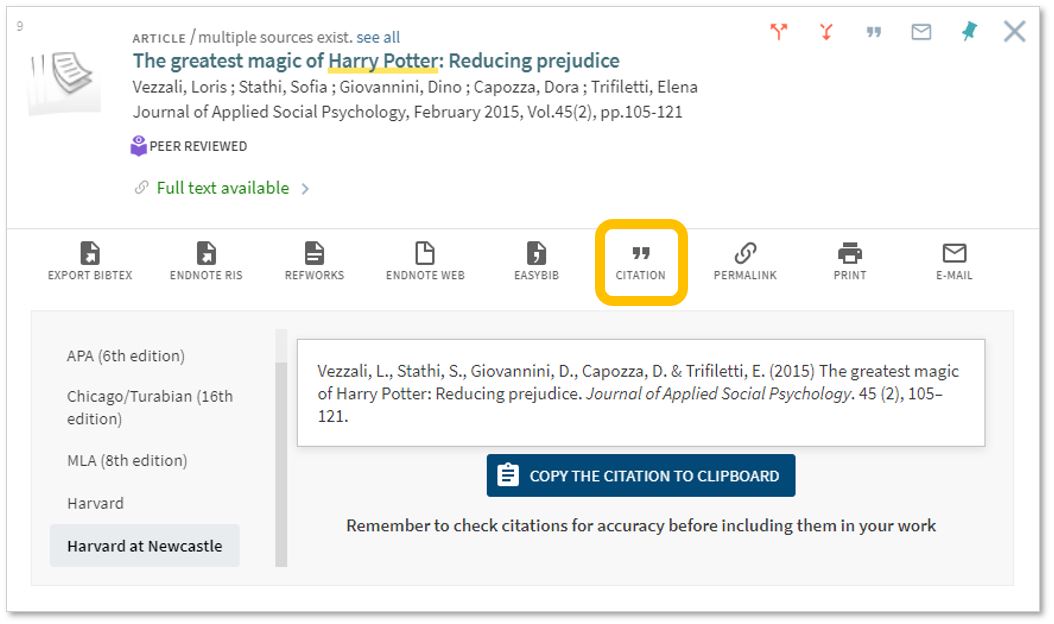
Finally, if you’re writing up your assignment and can’t remember the essential elements of a reference, then use Library Search for guidance. The Citation tool will allow you to view a suggested citation and to copy it to your clipboard for use in your work.*
*BUT (you knew that was coming, didn’t you) ensure you choose the correct style and check your citations for accuracy before including them in your work. It pays to know your required referencing style and not to rely on automated or generated references. If you want to learn more about referencing then see our Managing Information guide and Cite Them Right. Cite Them Right is a great resource which will remind you of the importance of referencing, how to reference and will give guidance on how to cite those more tricky materials such as conference papers, newspaper articles, social media posts and more. Finally, there’s a new tutorial with lots of interactive questions so you can test yourself too.
If you know of any tips or tricks in Library Search that aren’t mentioned here, then leave us a comment and share them!
Hello and a warm welcome from all of us here at the Walton Library!
With the beginning of the year in mind (and what a year this is looking to be!) we wanted to make sure you are familiar with at least some of our faces.
Aimee, our Deputy Medical Sciences Librarian will begin by welcoming you all and talking a little bit about her role and the role of the Walton Library Liaison Team.
Compared to previous years, we won’t get to see as many of you as we would like, but we want to assure you that we are real and still very keen to help. So, let’s hear from Helen, one of our Library Aides, who ensures that physical resources are tidy and readily available, but is also here to welcome you when you come to the library, help you find your study space and your books.
A lot of work is put in ensuring that the academic resources required for your course are available. This extends from liaising with your lecturers and putting together reading lists of essential and recommended material, to ensuring that you can access these resources, to delivering session that will help you make the most out of them, as Marian, the Assistant Librarian in the Liaison team will explain.
Our Library assistants have a huge role in the reading list process as they check, double check and triple check… and then they check again that things work well. Elizabeth has a role in all of this, but she will also explain what she does when we receive new books and they need to be sorted and catalogued.
While we do have a lot of online resources on the website that will help you teach yourself a variety of academic skills, it can be quite daunting sometimes to find your way to the correct link, on the correct page, for the correct resource. That is why we are also happy to give you one-to-one guidance and point you in the right direction and if you ever get stuck, do our best to answer your questions. Bogdan will tell you in a few words how much he enjoys this element of interacting with you all.
Remember, you can always ask for assistance via Library Help.