I actually enjoy a good conspiracy theory, and they often make for great film or TV tropes. Do you remember the end clip of Indiana Jones and the Raiders of the Lost Ark where the American government are storing the Ark of the Covenant in a huge warehouse? Do you think this is true? Might governments be hiding top secret things from us in massive, unknown warehouses? I like to jest that I believe this is real.
However, it wasn’t until recently that I realised how dangerous really believing in conspiracy theories can be. Watching the storming of Capital Hill in Washington DC back in January this year, opened my eyes to how conspiracy theories could take hold and potentially endanger lives.
Like fake news, conspiracy theories have been around for a very, very, very long time. Here’s some that you might recognise:
Most recently, you may have spotted some of the dangerous conspiracy theories rising up around the Covid-19 pandemic.
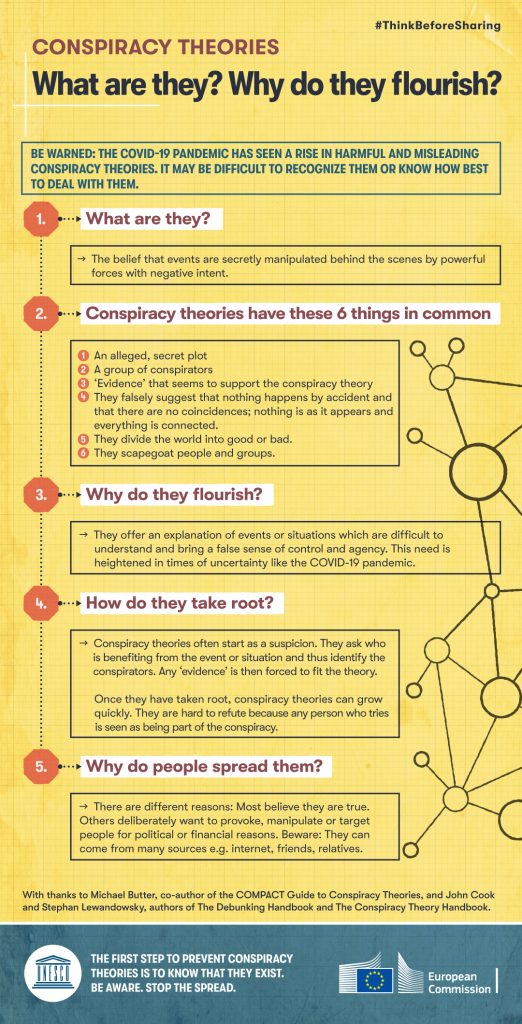
Do you believe in conspiracy theories? Do you know anyone that really believes in them? Have you ever found it hard to talk to them about what they believe? In light of the conspiracy theories surrounding Covid-19, The European Commission have created 10 useful infographics to help people be aware of conspiracy theories, how they spread, the dangers of them, how to talk to people who do believe in them, and (like fake news), how you should think twice before sharing them online:
I found it particularly interesting to learn that it is basic human nature to question reality in periods of uncertainty/change/major incidents (such as the pandemic, 9/11, shootings of presidents etc.), hence this is often when conspiracy theories take off.
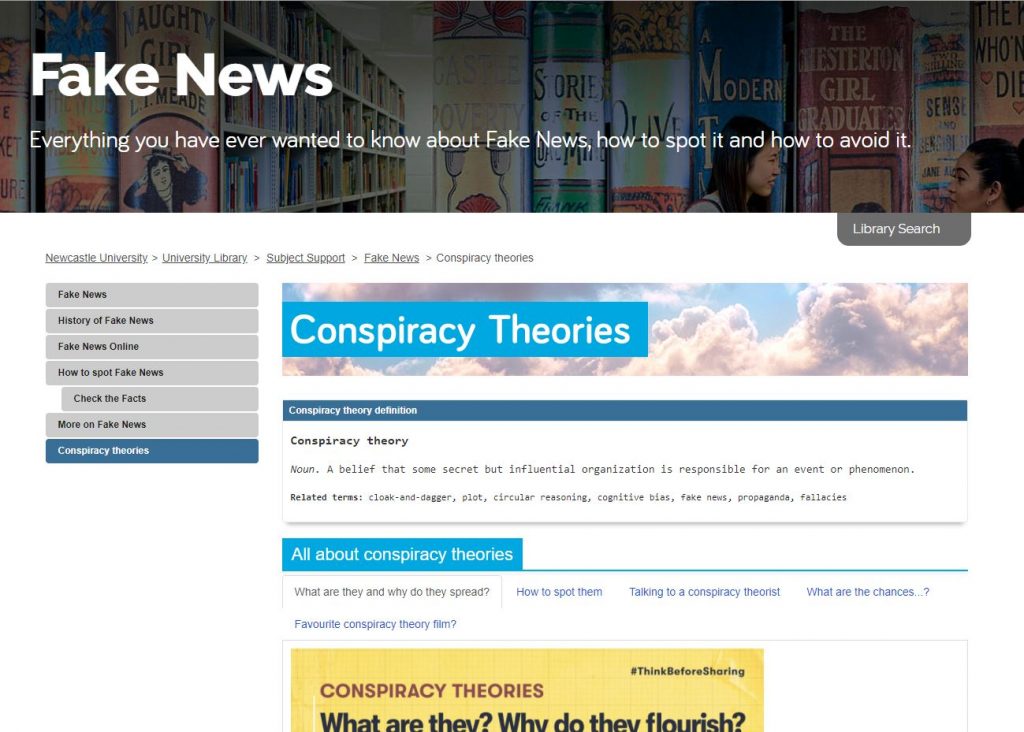
You’ll find these infographics on our Fake New Guide , along with other new content including links to some excellent videos and articles. Be sure to take our poll to share your favourite conspiracy theory movie too!
As a University student, it’s important for you to be aware of conspiracy theories; to know of the dangers they pose, to check your own beliefs and to be careful of what you share online. Use these resources to learn more and always remember, the truth is out there…
Slavery, Abolition and Social Justice brings together a huge range of primary source materials relating to slavery and abolition studies from across the world, covering the time period between 1490 and 2007.
Primary source content
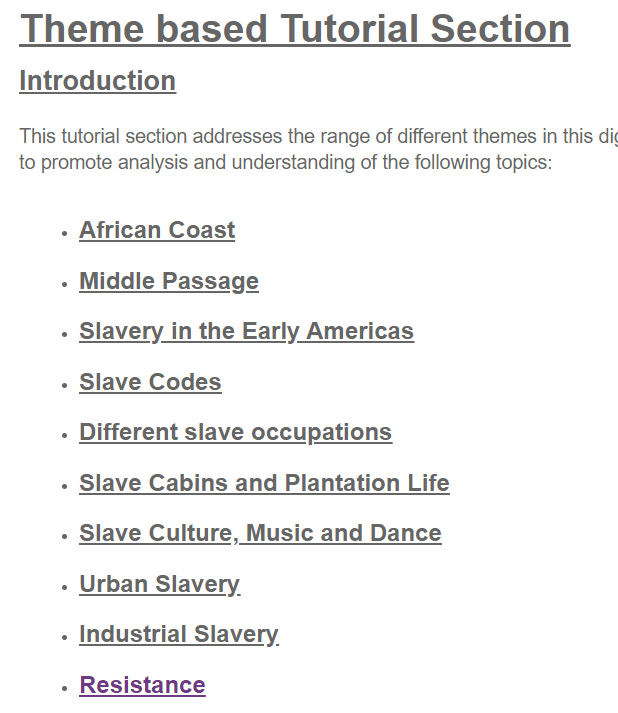
The content includes thousands of digitised sources, including images, maps, manuscripts, registers, ships’ logs and court records. It is arranged into sixteen broad themes, including Slavery in the Early Americas; Resistance and Revolt; Slave Testimony, and Urban and Domestic Slavery. Contemporary sources include materials from Anti-Slavery International, and submissions to the UNCHR.
Getting started
If you’re using Slavery, Abolition and Social Justice for the first time, we’d strongly encourage you to click on Introduction and take a little time to read about the content and themes, so you can get the best out of it: it is an extensive resource.
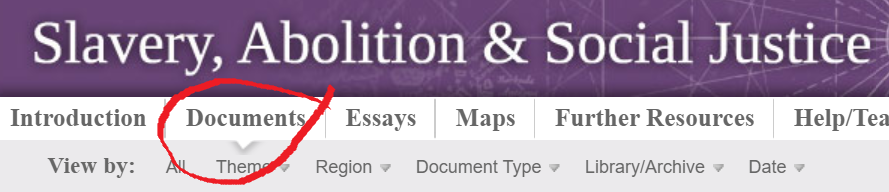
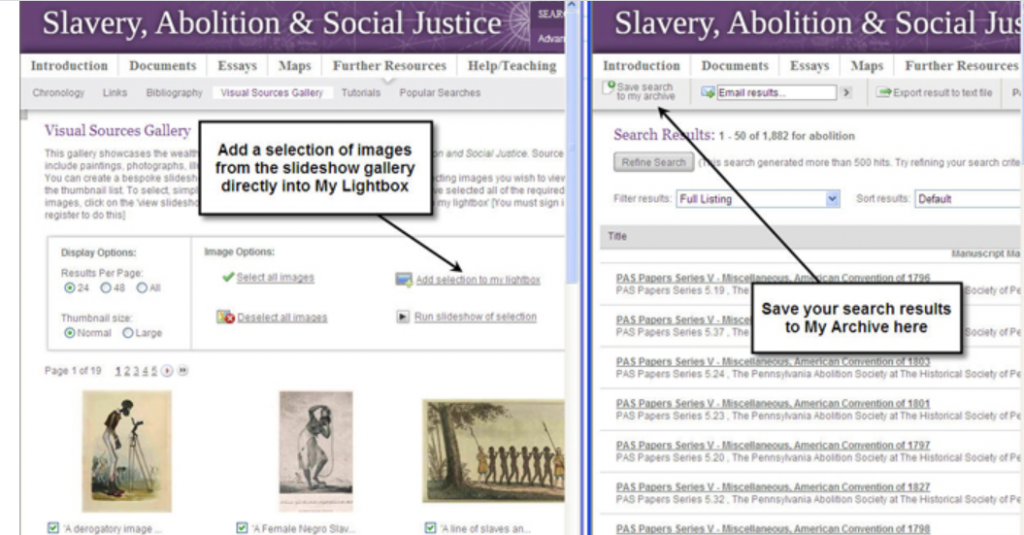
You can browse or search the content in various ways: we’d recommend choosing Documents from the top menu, as you can then browse by theme, geographic region, document type, date or more.
You may also find it useful to click REGISTER, so you can personalise your searching experience, including saving searches, documents and creating your own image slideshows.
Help and context
The primary sources are complemented by essays, tutorials and timelines to help you interpret the content: click on Further Resources from the top menu.
Have you been told that you need to diversify your search, or maybe use a new database such as PubMed? Did someone mention that MeSH terms could improve your search?
If you do not know what those terms mean or where to start, you are in the right place. The following video will explain to you what controlled vocabularies are and why they are a powerful tool for retrieving relevant papers.
Now, let’s put theory into practice and demonstrate how to use Medical Subject Headings (MeSH) in PubMed. The video below will do just that.
Let’s have a look at what other controlled vocabulary databases you can use in medical sciences or if your Social Sciences student whose work crosses over with medical sciences. You can find all the databases mentioned below and others in Library Search:
Since the previous videos focus on PubMed, you might wonder what other databases you should be using. If you are unsure how to find the most relevant databases for your course, you can watch a video that will show you how to identify them.
Is Medline the database for you, but you need some help with the basics? Watch our:
Finally, please remember that this is general advice and it might not cover your particular area of interest. If you have any specific questions, please do not hesitate to contact us on Library Help, where you can email us or speak to us through the Live Chat feature.
Are your literature searches run mainly in keyword-based platforms such as Google Scholar, Scopus or Web of Science?
Have you been told that you need to diversify your search, or maybe use a new database such as Medline, Embase or PsycInfo through the Ovid searching platform? Did someone mention that Medline’s MeSH terms could improve your search?
If you do not know what those terms mean or where to start, you are in the right place.
The following video will explain to you what controlled vocabularies are, why they are a powerful tool for retrieving relevant papers and it will demonstrate how to use Medical Subject Headings (MeSH) in Medline via Ovid.
Since the previous video focuses on Medline, you might wonder what other databases you should be using. If you are unsure how to find the most relevant databases for your course, you can watch a video that will show you how to identify them.
Finally, please remember that this is general advice and it might not cover your particular area of interest. If you have any specific questions, please do not hesitate to contact us on Library Help, where you can email us or speak to us through the Live Chat feature.
We have trial access to an additional product from EDINA Digimap – Geomni, available until 1st April 2021. Trial login details available on request.
Geomni offers remote sensing and machine learning sourced geographic and spatially referenced data relevant to many sectors and disciplines. Create, view and annotate Geomni data online or download for further manipulation within GIS or CAD packages.
Geomni includes the following datasets:
UKMap 1:1,000-scale topographic mapping, UKMap accurately locates topographic detail and includes rich attribution detailing land and building use and land-cover. In addition, it comprises addresses, retail names, detailed shopping centre data, building heights, a wide range of points of interest, aerial photography, together with Digital Terrain and Surface Models.
UKLand A maintained, national land information database providing a detailed consistent breakdown of the use of land across the UK. With 30 different land use classes from agriculture and woodland to business parks, transport and urban centres. Available as both a land-use and telecoms clutter database, UKLand is used by planners, consultancies, telecoms and other utilities and local and regional government organizations, to help plan and deliver major projects.
UKBuildings A unique database created and maintained by Geomni to help you understand the age, structure, characteristics and use of commercial, public and residential buildings across the UK. UKBuildings is used in the insurance, finance, land and property sectors and by government, telecoms and utility organisations. The UKBuildings database contains the location and footprint of all buildings across the UK with a full classification within urban areas (towns above 10,000 population).
Contact your Liaison team for the trial login details and with any queries. Please send us any comments as to how this data product supports your teaching or research.
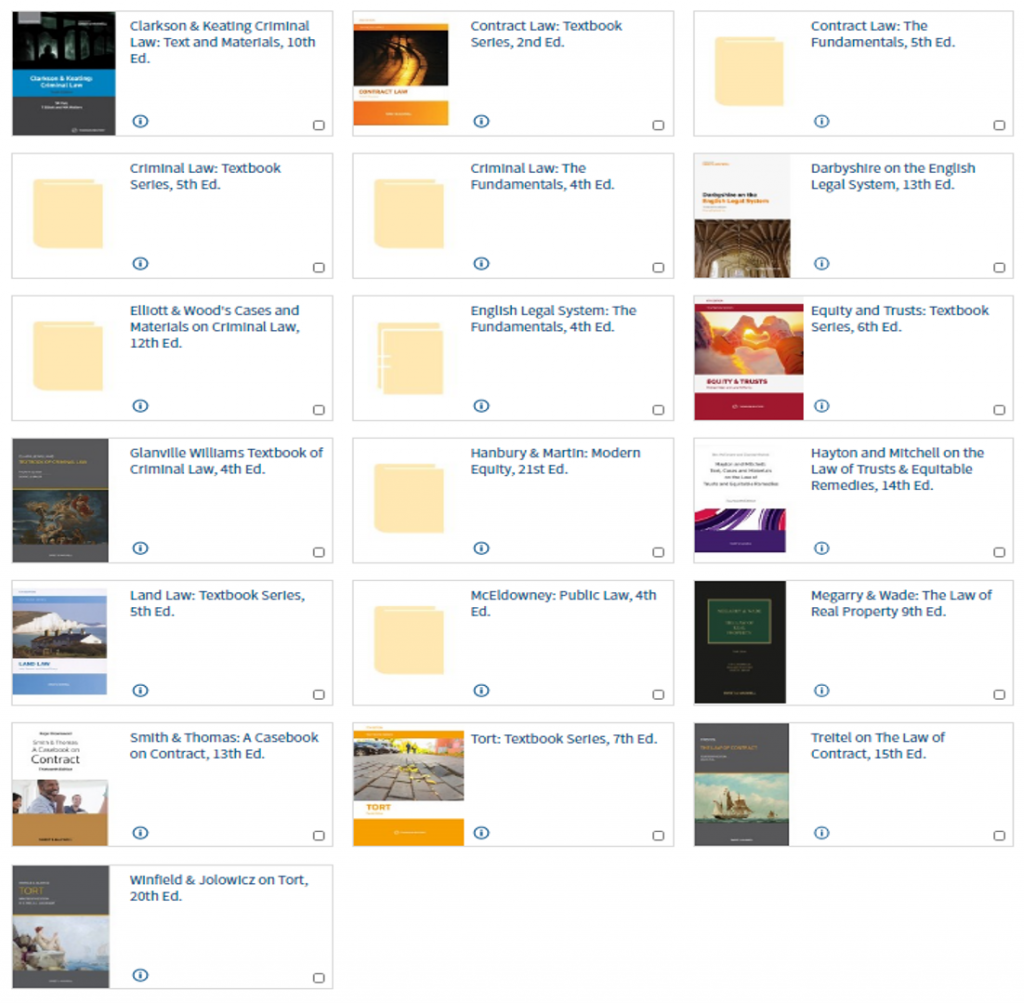
Westlaw is one of our much-valued legal databases and can be accessed via our Law Subject Guide and Library Search, logging in with your Newcastle University Campus ID & password. One of the lesser-used aspects of Westlaw is its Books collection and it’s a resource that should not be overlooked.
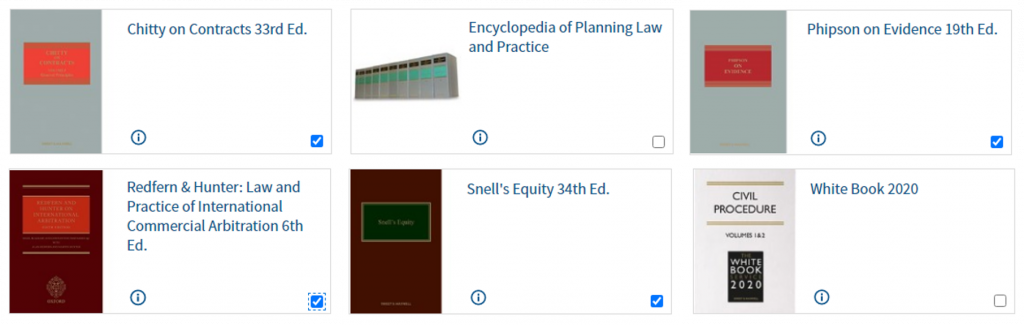
Westlaw Books gives access to invaluable titles such as the White Book and Archbold, alongside comprehensive and authoritative coverage of common law through titles from the Common Law Library series, including Charlesworth & Percy on Negligence, Chitty on Contracts, and Benjamin’s Sale of Goods. While these are titles you will use more regularly in practice, all Newcastle Law School students are encouraged to become familiar with them during your time at University.
We also have academically-based books available in the Sweet & Maxwell Academic Collection to support your studies. These include Winfield & Jolowicz on Tort, Treitel on the Law of Contract, Megarry & Wade on the Law of Real Property, and Elliott & Wood’s Cases and Materials on Criminal Law (the latter being written and edited by former academics of Newcastle Law School).
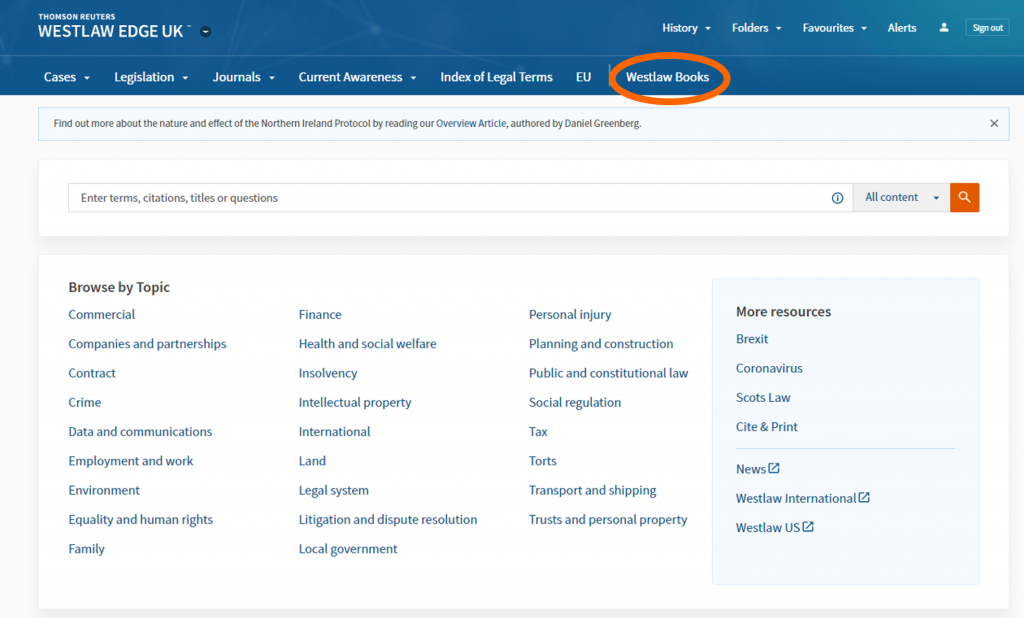
To access this content, log into Westlaw and click on Westlaw Books in the menu at the top of the page.
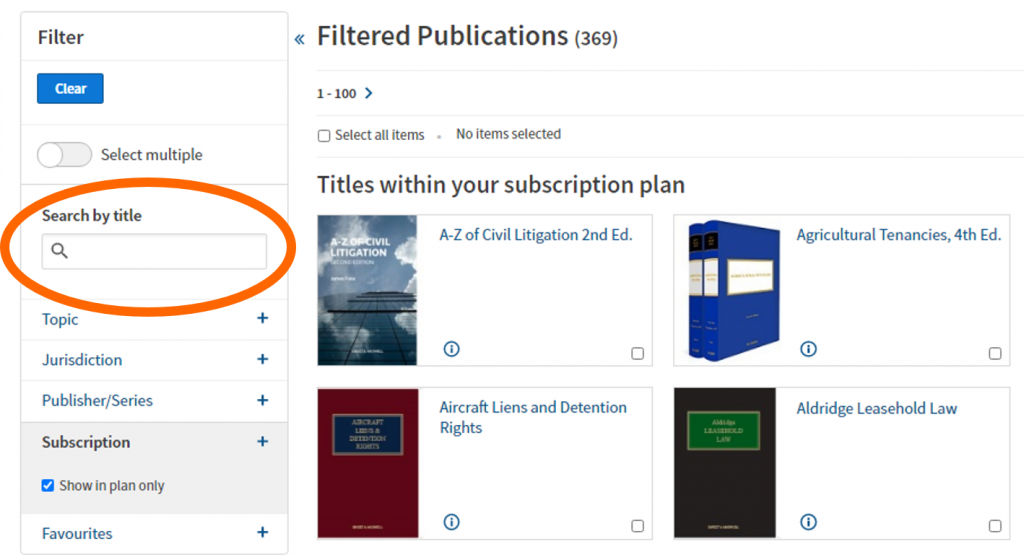
You can browse through the 350+ titles included in the Library’s subscription plan, but if you know the book you are looking for, search by a title keyword, e.g. criminal.
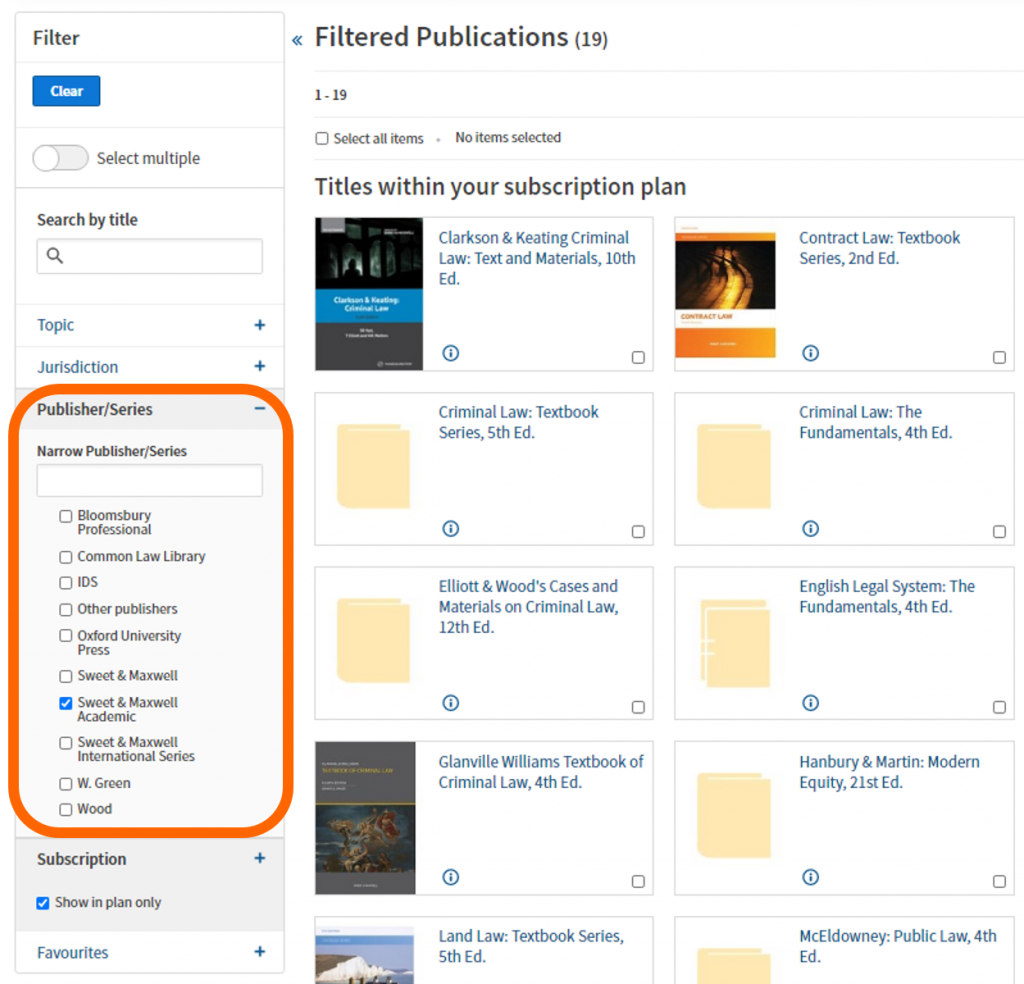
If you want to browse those student-focused books, use the filters on the left-hand side of the screen. Scroll down and select ‘Sweet & Maxwell Academic’ in the Publisher/Series filter section.
This short Thomson Reuters video (1:56 mins) gives tips on using Westlaw Books effectively in locating bibliographic information (essential for referencing these titles in your work), searching the materials using keywords, saving your favourite titles for repeated use, and how to email, print, download, save into a Westlaw folder or simply view the material on the screen (in reading-mode too).
If you’re not a fan of videos and want a handy guide to download or print, then this Westlaw Books PDF will help.
If you have any comments or questions about Westlaw Books, or any other library resource, please contact libraryhelp@ncl.ac.uk or leave your comments here.
Containing over 520 volumes of Latin and Greek poetry, drama, oratory, history, philosophy and more, the Loeb Classical Library is a key resource for those studying the ancient Greek and Roman world. The side-by-side layout of the ancient text and English translation makes the literature accessible to readers and can be especially helpful to those new to the study of ancient Greek or Latin.
The online Library presents tools that allow readers to explore the texts at various levels, via browsing, searching, annotating, and sharing content. The online works include the same content, page, and volume numbers as their print counterparts so you can easily switch between the two or share ideas related to certain passages or pages.
Loeb volumes
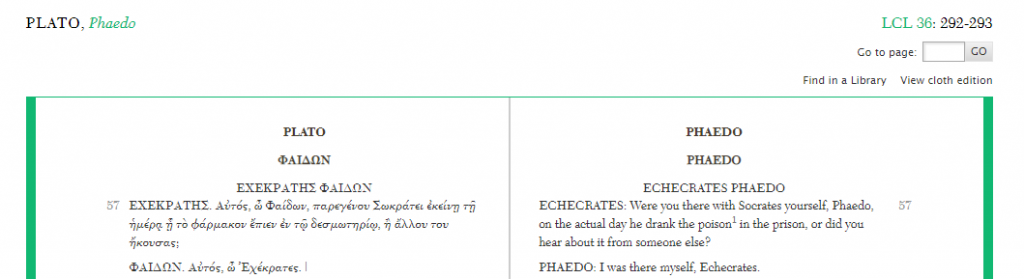
For each volume in the Library, you’ll find an introductory page containing useful information on the author, some details of the Loeb edition, a bibliographic reference for the text as well as a table of contents that you can use to navigate through the online work. You can access this page at any time by clicking on the LCL number located above the right hand page.
In the text itself, the left (verso) page contains the original Greek/Latin language, while the right (recto) presents the English translation. Tools along the bottom of the page allow you to hide either the left or right pages as needed. The tool bar also includes options for searching within the work or printing sections of the text. Further options to bookmark pages, highlight and annotate text, and organise or share your annotations with others, are also available in the toolbar but require you to create a free My Loeb account.
Browsing the Library
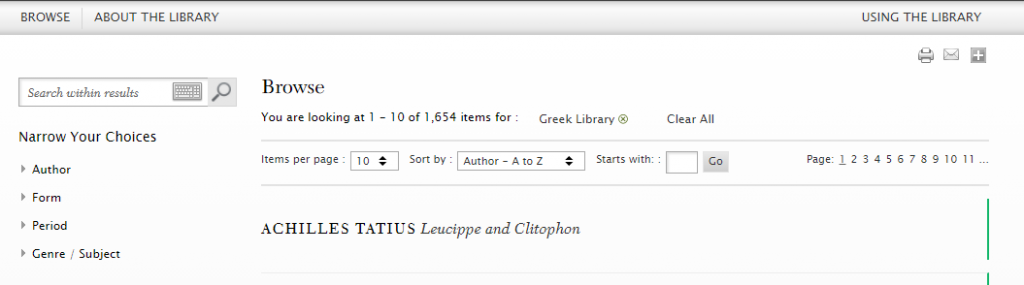
The browse option allows you to scan the Loeb Library by author name, Greek or Latin works, and Loeb volume number.
When browsing Greek or Latin works, you’re given further filter options so you can narrow your search by author, form (poetry or prose), time period, and genre/subject. These options can be particularly useful if you are interested in certain themes presented in the ancient world across specific time periods.
Searching the Library
The search box at the top right of the page allows you to do a quick search for titles, authors, keywords or phrases.
Alternatively, advanced search allows you to be more specific, searching for terms within introductions, bibliographies, or indexes. You can also limit your search to verso or recto to focus on the Greek/Latin text or the English translations. All search boxes provide you with a Greek keyboard to simplify searching for keywords in the original language.
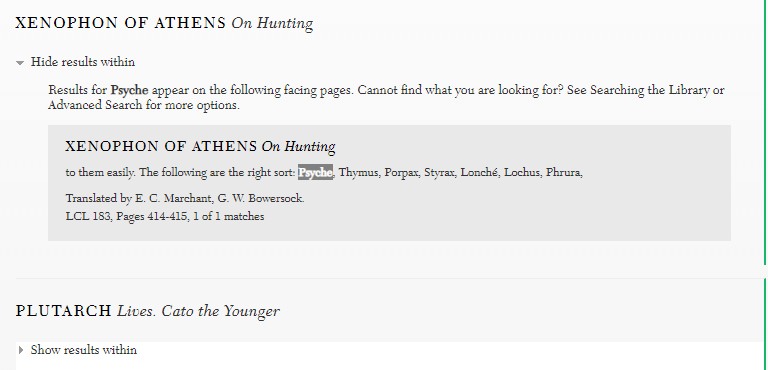
As within browse, the search results allow you to filter records further by language, author, period, or genre. If you’ve searched for a specific keyword, clicking on ‘Show results within’ allows you to browse instances of the word appearing within a text from the results page.
Find out more
For more help, visit the Using the Library link at the top right of the Loeb Library page. Here you’ll find further advice on using tools within My Loeb, how to search and how to cite volumes from the Library.
You can find out more about key features and take a quick visual tour of the digital Library via the Loeb Classical Library website.
The Bibliography of British and Irish History (BBIH) is a database of over 600,000 records about British and Irish history from 55BC to the present day. It indexes publications from the early 1900s to the present, including journal articles, books, book chapters and theses, making it an indispensable resource for finding secondary literature. It’s updated three times a year, and is curated by historians, so it’s a very high quality, well-organised database.
Searching
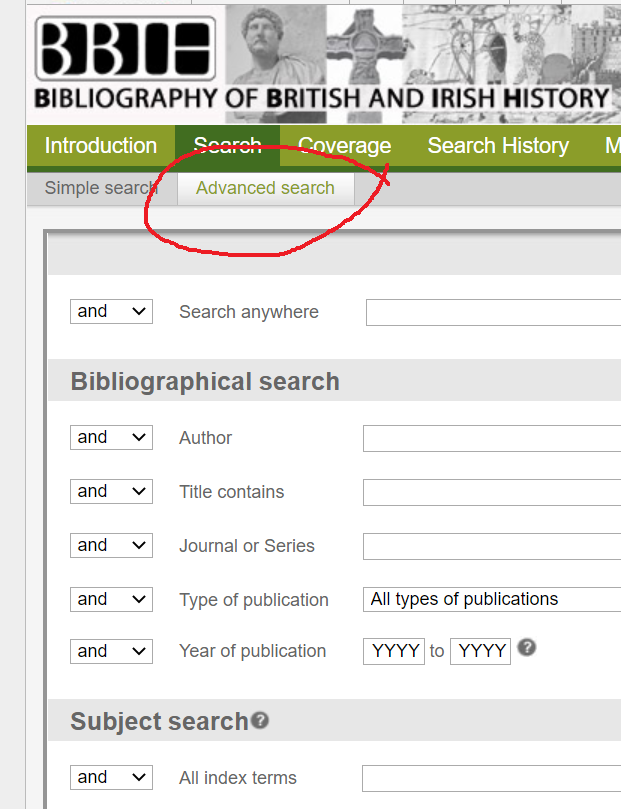
You can search it in various ways, including by subject, author, place and date. Choose Advanced search to get the full range of options, including browsing a subject ‘tree’ (or index) to help you select appropriate search terms, and broaden or narrow your search.
Finding the full text
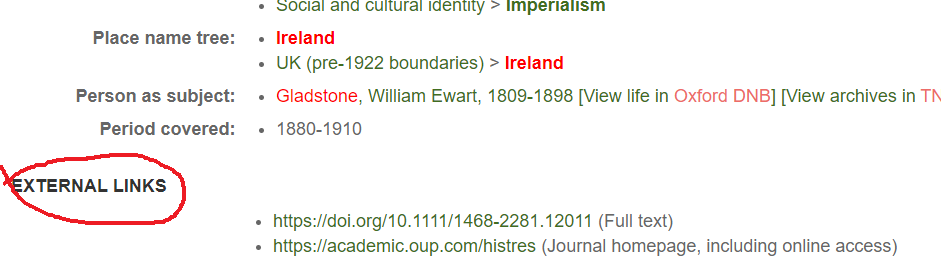
Your records will link to the full text article at Newcastle University Library if we have access to it. Just click to display the details of a record, and the full text links will be at the bottom of the record in an external links section.
If we don’t have access to the full text of an article, there won’t be an external links section. Please note that if the item you want is a book or book chapter, BBIH won’t link to it automatically, so you’ll need to search for the book separately in Library Search.
You can export records in various ways to create your own bibliography: just click on Export at the top of the screen to see the options.
Need more help?
BBIH has recently released a really helpful set of short videos and guides, aimed at first and second year students; students doing a dissertation or thesis, and lecturers.
Get the latest news about BBIH, including content updates and features, via its blog.
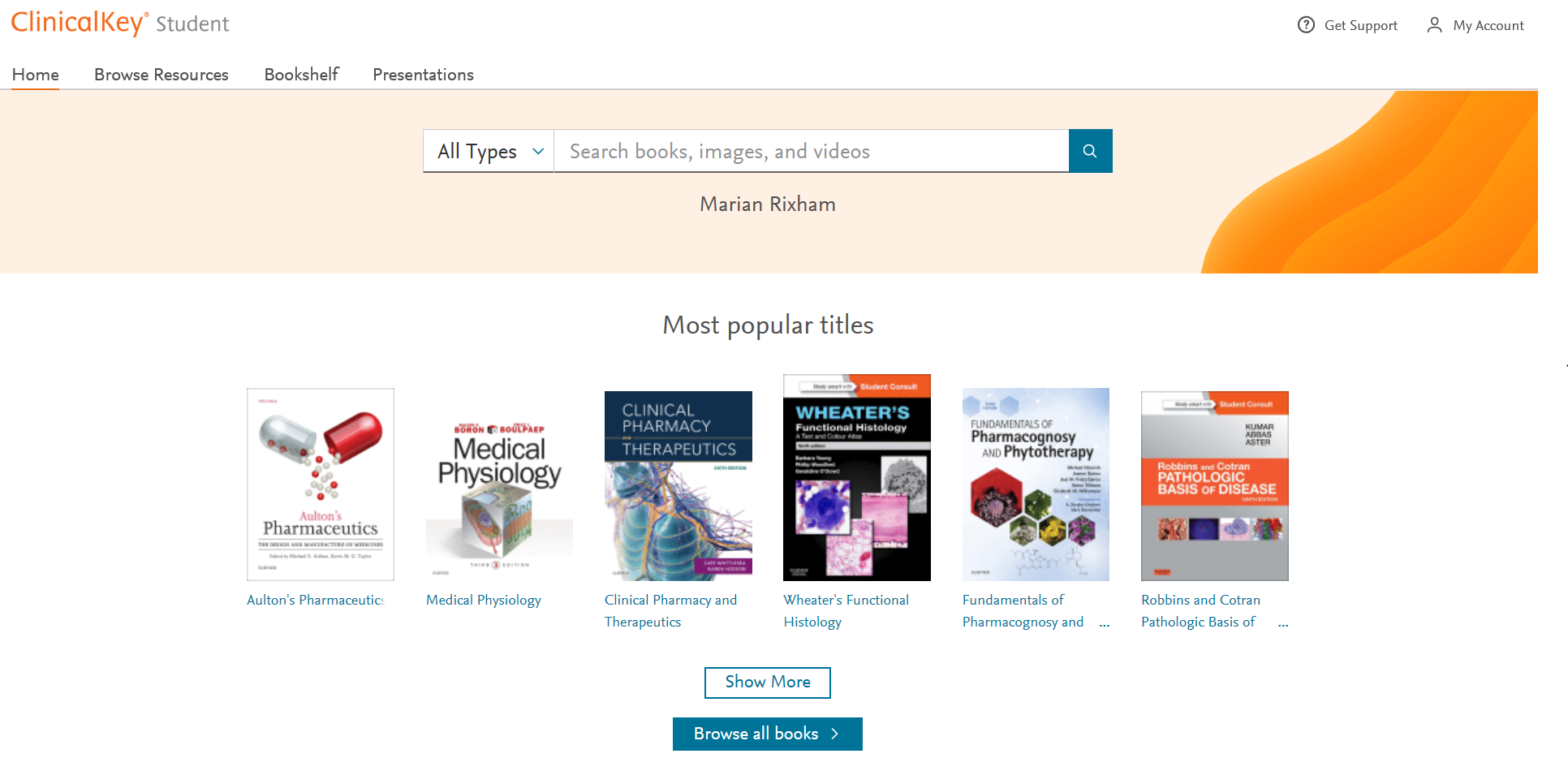
Elsevier’s Clinicalkey Student gives you electronic access to some of the most popular recommended clinical textbooks plus lots of other really useful resources including images and video. Subjects covered include medicine, dentistry and pharmacy. It allows you to add a book to your own Bookshelf, highlight text, add notes, create flashcard, make presentations and more. All of which is described below with videos to watch.
All of the eBooks available from Elsevier’s Clinicalkey can be found individually by searching for them on Library Search. To search or browse the collection go to Library Search and search for Clinicalkey.
To Login
To find out how to login and search for a book follow the instruction below or watch this video to get started.
Click on Log in via your institution on the right hand side
In the Institution search box type Newcastle University
Login using your University Username and Password
You are now ready to search for content either:
a book by title, author or keyword
a subject keyword for any content e.g. book, chapter, video available
Using the Bookshelf
To find out how to use the Bookshelf follow the instruction below or watch this video to get started.
To add a book to the Bookshelf you need to be within the content of a chapter. Search for the book by title, author or keyword
Click View book TOC
Click on the chapter you want
Click Add to Bookshelf on right hand side
If you want to see the book on your bookshelf, click Launch Bookshelf
If you click on the Home option this will show you all the books you have added to your Bookshelf
Once you have added to your Bookshelf you can go straight to it from the homepage by clicking on Bookshelf
For more details on using the Bookshelf watch this video.
Highlighting and Saving Text
When you are within the text of a chapter you can highlight any part to save it as a note for later. See instructions below and for more detail watch this video on Highlighting and Saving text.
Highlight the text you want to save
Select either green or yellow to highlight the colour
Give the note a name to show what it is
To look at all your notes click on the Notepad option on the left of the screen.
Creating Flashcards
When you are within the text of a book you can highlight any part to create a Flashcard. See instructions below and for more detail watch this videoon Creating Flashcards.
Highlight the text you want for the front of the flashcard
Choose an existing Deck or a New Deck and Create it
Highlight and select Copy to get the text for the back of the card – Paste this text into the card
Save the card
You can create as many decks as you want and as many cards you want in each deck
By clicking on the Play button in the top right hand corner of the deck you can run through the cards to test your knowledge
Creating Presentations
You can share the latest evidence-based information with colleagues by exporting images with their citation and copyright information into a PowerPoint presentation.
See instructions below and for more detail watch this video on Creating Presentations
Search or Browse for an image
Click the Add to Presentation link at the bottom of the image
Select an Existing Presentation from the drop down menu
Click Add
OR
Click Create a New Presentation
Give it a name in the Presentation Name box
Click Add
Download the presentation and save as a .ppt file. You can then add your own slides and text to complete your presentation.
Using the Clinicalkey APPs
There are two types of Bookshelf apps:
Mobile App (iOS or Android): You can download the mobile app directly in the iOS or Android app store. To find the app, search for the name of the app (Bookshelf ClinicalKey Student).
Desktop App (Windows 10+): The app name appears as ClinicalKey Student Bookshelf. During the download process, you will be prompted to install the app and agree to the terms and conditions. This will create a menu icon and add a shortcut on your Windows 10 desktop.
Desktop Apps (Mac OS): Download the Mac version and follow the steps on the screen to complete the download and install the app.
Authentication requirements depend on the app you are using: mobile or desktop.
Mobile App (iOS or Android): The first time you use the Bookshelf mobile app, you must be in your authenticated medical school’s network when you sign up or sign in. For only this first-time usage, you have to be authenticated by your medical school’s network. After this unique confirmation that your account belongs to a medical school that provides ClinicalKey Student, the app will remember this authentication, and you can use the app online (in any network) or offline.
Desktop App (Windows 10+): You do not need to be on an IP-authenticated network to access the desktop app. Use your ClinicalKey Student username and password to log in to the desktop app.
The Library has lots of great collections and resources, so when it comes to finding wider reading for your topic or beginning research for your assignment or dissertation it might all seem a bit overwhelming. Library Search can be a great place to start looking for information but there are many other resources you might want to try. To help you get the best out of our resources we’ve put together this list of some of the most useful online databases and collections for Archaeology.
Let’s dive in!
Scopus
Scopus is a large, interdisciplinary database of peer-reviewed literature, providing an index of articles, book chapters, conference papers and trade publications.
One of the main advantages of using Scopus is that it provides a lot of useful information about the articles it indexes. This includes full reference lists for articles and cited reference searching, so you can navigate forward and backward through the literature to uncover all the information relevant to your research. You can also set up citation alerts, so you can be informed of new, relevant material automatically.
https://youtu.be/qCu-obYMFsE
Scopus tutorial: How to expand your search results
Scopus includes other smart tools that can help you track and visualise the research in your area, including author and affiliation searching, visual analysis of search results, a journal analyser, and author identifier tools. You’ll find tutorials and advice on using these features in the Scopus support centre and on their YouTube Channel.
JSTOR
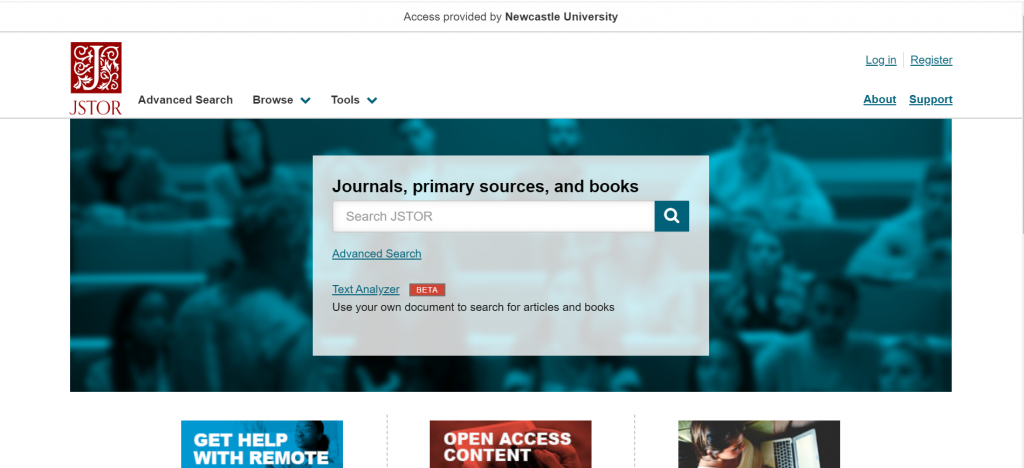
JSTOR provides access to full-text materials including scholarly journals, books and book chapters in the arts, humanities, and social sciences. It has basic and advanced search options that allow you to search by topic keyword, author, subject area, title or publisher.
Take a look at our Get more out of JSTOR blog post to find tips for advanced searching on this database.
Archaeology Data Service Library (ADS)
ADS is a database which brings together material from the British and Irish Archaeological Bibliography (BIAB), the ADS library of unpublished fieldwork reports, as well as documents from the ADS archives and publishers such as Oxbow.
There are three ways to search ADS:
Archsearch – for searching for short records about a monument or historic environment event from the UK.
ADS Library – for a report, book or article about the historic environment of Britain and Ireland.
Find out how to search ADS for a known article in this video guide:
PastScape
The information on PastScape is derived from the National Record of the Historic Environment (NRHE) which holds records on the architectural and archaeological heritage of England. The NRHE contains over 420,000 records of archaeological sites and buildings in England and its territorial waters. The record is very broad in scope and contains information on sites dating from prehistoric times to the modern period, from finds of early stone tools to contemporary architecture, from Roman roads to disused railways and 19th century shipwrecks.
Although PastScape is no longer being updated, it is still a useful resource for finding descriptions of sites or buildings, surveys and excavation information and other useful links.
BAR Digital Collection
The BAR Digital Collection gives full text access to over 3,100 titles published from 1974 to date. The collection includes both BAR’s British and international series, and covers archaeological research, excavation reports and other important series from around the world. You can browse or search the entire collection in various ways (e.g. by location, author, subject, time period or series). Each report is also individually catalogued on Library Search.
Encyclopedia of Ancient History
The Encyclopedia of Ancient History is a reference work containing a comprehensive collection of 21st century scholarship on the ancient Mediterranean world. Entries span the bronze age through to 10th century Byzantium and extend to all Mediterranean civilisations including the Near East and Egypt. Materials include articles, images and maps of the ancient world. Our video guide below demonstrates how to browse and search for information using the Encyclopedia:
Video Guide to finding information on the Encyclopedia of Ancient History
Abstracts of International Conservation Literature (AATA)
AATA Online is a comprehensive database containing over 150,000 abstracts of journals and conference proceedings related to the preservation and conservation of material cultural heritage, including archaeological sites and materials.
You can browse the database by topic or use the search tab to do a quick keyword search, a more detailed search in particular fields or a text search for a more detailed keyword search.
The results tab allows you to sort items by date, author or title, and export record details to a reference management tool such as EndNote.
Historical Abstracts
Historical Abstracts provides bibliographic records for thousands of journals and books, including several key archaeology journals such as Historical Archaeology, International Journal of Historical Archaeology, International Journal of Nautical Archaeology and World Archaeology. Content covers the history of the world (excluding the United States and Canada) from 1450 to the present, including world history, military history, women’s history, history of education, and more.
This video explains how to search effectively in EBSCOHost databases such as this one:
https://youtu.be/DjKNxqiuwpY
EBSCOHost Tutorial: Creating an Advanced Search
Aph
l’Année philologique is a bibliographic database, indexing journal articles and book chapters about the classical world, going back to 1924. It’s an excellent resource for researching topics related to Greek and Latin literature and linguistics, Greek and Roman history, art, archaeology, philosophy, religion and more. Our video guide below demonstrates how to find information on l’Année philologique:
Video guide to finding information on l’Année philologique
Box of Broadcasts (BoB)
Box of Broadcasts allows you to access TV and radio broadcasts from over 65 channels, including most of the UK’s Freeview network, all BBC TV and radio content from 2007, and several foreign language channels. It’s a great resource for finding documentaries or critical opinions.
You can view archived programmes, create clips and playlists, and see transcripts to help with citation and translation. You can also search other user’s public playlists to see curated lists around topics similar to your own. There are lots of helpful tutorial videos on the BoB website.
Unfortunately, Box of Broadcasts is not available outside the UK.
Archaeology Subject Guide
This list was just a taster of all the great resources available for your subject area, to access these and to find out more visit your Subject Guide and explore the journals, databases and subject specific resources we’ve curated for Archaeology students.