“Should I use EndNote as a way to manage my references?” is often a question we get asked. We wish that there was a simple answer to that question, but there isn’t! It all depends on how many references you have, how you like to work and if you are willing to make time to learn how to use EndNote properly. You see, while EndNote is tool that can make your academic life easier (for example, it can help you build a collection of references, insert references into your work and create bibliographies), it will only save you time, if you invest time NOW.
So if you’re using the OSCOLA referencing style and weighing up whether to use EndNote or not, then you might want to consider the following:
You need to have a good grasp of the OSCOLA fundamentals before you even start with EndNote. If you need a refresher on OSCOLA, then check out the OSCOLA referencing guide first before even looking at EndNote.
EndNote will not do EVERYTHING for you. You will still need to manually input and amend your references to ensure your footnotes and bibliography comply with OSCOLA.
Have you got the time to invest in EndNote before using it? We strongly recommend that you make a start using EndNote from the beginning, rather than in the middle or at the end, of your research.
How do you want to use EndNote? Some people decide to use it simply as a storage place for their references and PDFs and leave it at that. Others use it both as a storage place, as well as a tool to help them cite.
Still not sure? Watch the video below to see how to use OSCOLA style and the Cite While You Write feature in Word. Then take a look at the OSCOLA and EndNote guide and see if it’s something you’d like to start using.
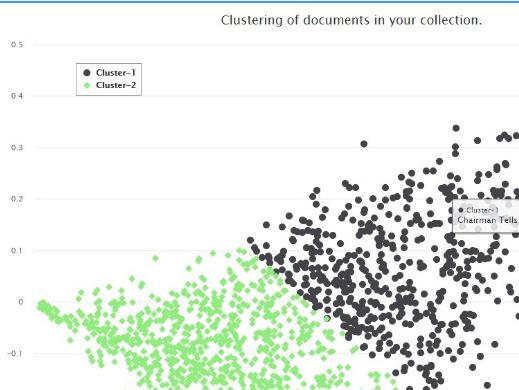
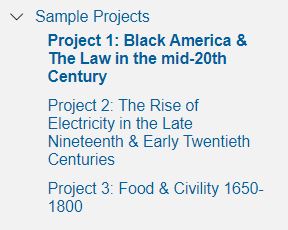
The Library has purchased Gale’s Digital Scholar Lab: a digital humanities platform with potential uses for students, researchers and module leaders, whatever your previous experience. It enables you to:
create and clean customised content sets, using our Gale Primary Sources collections (which include a wide range of historic newspaper, periodical and book archives)
analyse and interrogate the data, using the Lab’s text analysis and visualisation tools
manage and share content sets with others.
For those who regularly use digital techniques or methods, you can use the Lab to dramatically reduce the time needed to compile, curate and clean datasets, either using Gale data or locally held data, which can be uploaded into the Lab.
For those interested in teaching using the Lab, it contains a comprehensive Learning Centre that you can use to introduce students to basic and advanced concepts, with worked examples that can form the basis of a lesson plan.
Finally, for those new to digital humanities, and intimidated by thoughts of coding, the Lab provides a way to produce sophisticated, analytical research that requires no coding skill and allows you to make discoveries in archives that would otherwise be impossible.
To help you find out more about Digital Scholar Lab, representatives from Gale will be running two online training sessions for Newcastle University staff and students via Zoom on:
Monday November 16th, 14.00-15.30 and repeated on
Thursday November 19th, 10.00-11.30
The session will introduce you to Digital Scholar Lab, and its interface and workflows. It will cover text mining in general, search queries, curating and managing datasets, using analysis tools, and reviewing results. There will be plenty of opportunities for questions.
Any Newcastle University staff and students are welcome: you don’t need any previous knowledge of Digital Scholar Lab. However, if you have previously used Digital Scholar Lab, you may also find the session useful as a refresher, and to find out about recent enhancements.
To book your place on one of the sessions, please fill in our booking form.
If you are interested in more bespoke training (for example, for a specific cohort of students, or at a more advanced level), please contact Lucy Keating, and we’ll discuss with Gale representatives.
The Library has invested in thousands of new ebooks since March, to help widen our collections and enable access for students, wherever you are based.
As well as purchasing individual titles, we have also bought several specialist collections of particular interest to arts and humanities, including the following:
Bloomsbury collections in Education, Film and Media, Law, Linguistics and Literary Studies (535 titles in total)
All the new titles are individually catalogued on Library Search, or you can browse the books available to us on the publisher’s platform (make sure you are logged in with your Newcastle University username and password).
We have over 0.7 million e-books accessible through Library Search, including titles that feature on your reading lists, or those that have been recommended by staff and students. Sometimes we buy them through large bundle deals with specific publishers so we gain access to lots of research titles all at once.
Why use e-books?
e-books are incredibly useful resources as they are available 24/7 from any location, work with most devices and some come with snazzy features such as keyword searching, annotation options, links to other relevant information, and reading aloud facilities to name but a few.
How do e-books work?
As we get e-books from different platforms and providers you might see a different layout each time you access one of our titles but the logic is the same. You can navigate using a toolbar, you can normally turn pages using little arrows at the top or side of the page, you can jump to specific chapters and in some cases, print or download all or some sections of the e-book to read offline.
Unfortunately, one thing you can’t do with e-books is download and save offline a copy of the book to keep forever, there are usually some download restrictions. This is because we have subscriptions or licence access to titles but we don’t own the title. There is something called Digital Rights Management where publishers can control the copying, pasting and downloading of their content, this is linked to issues with privacy and copyright.
How do I access e-books?
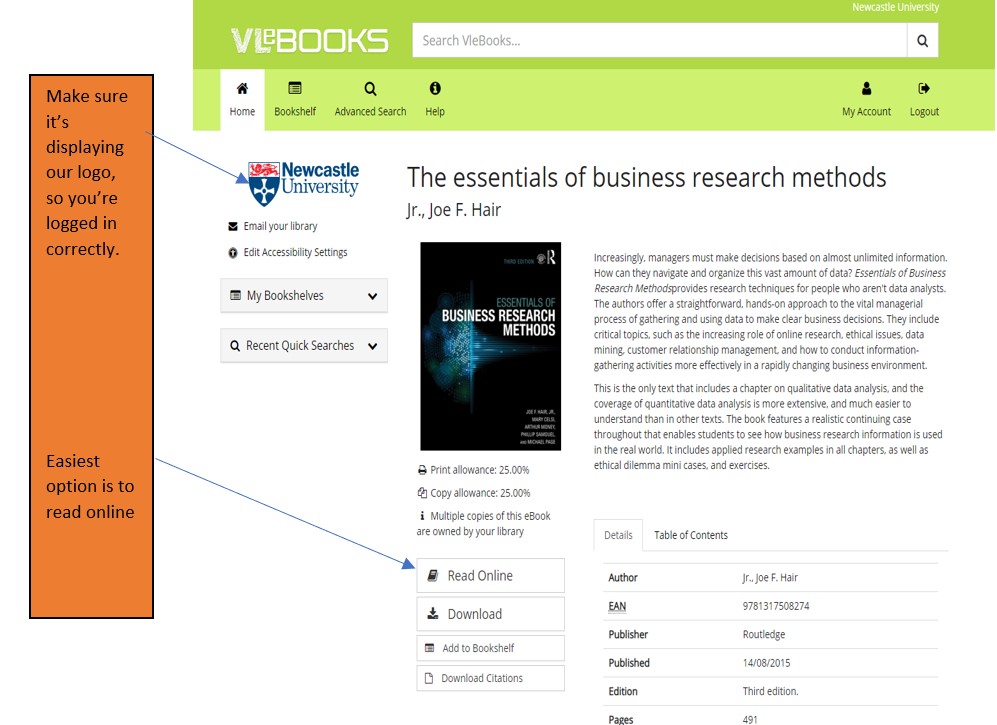
Simply navigate to Library Search and enter your keywords to look for a book title as usual. Library Search is the best way to access resources whether you’re on or off campus as it makes sure you’re logged in correctly and can access resources simply and quickly.
Watch this short video to begin searching for books and e-books.
From your search results, choose an e-book which looks relevant e.g. Essentials of Business Research Methods by Hair, which we know is popular book for Business students doing dissertations. If you are off campus, you will need to sign in with your University ID and Password.
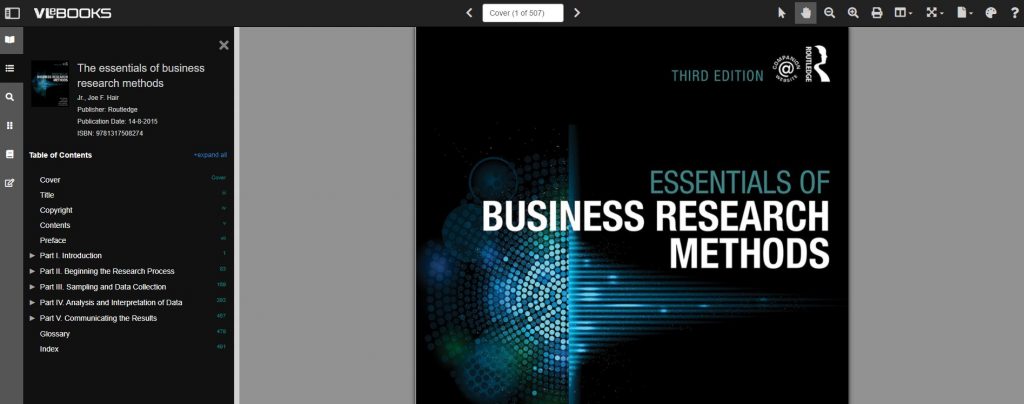
Once the e-book has loaded on the screen, hover over the functionality buttons to see what they do. For example; the search option will be useful if you’re looking for specific topics; use the Table of Contents to navigate straight to a chapter you’ve been told to read, or select the paint pallet to change the colour of the background to help with your reading.
Not all titles are available in eBook format for an institutional library to purchase, but if you’d prefer a title in electronic format we can certainly investigate. Just let us know by recommending a book.
You know Library Search. You use it every day when you’re at University. Why are you going to read a blog post on it? Well, we’re wondering if you’re using Library Search to its full potential. Not sure? Then read on.
Library Search is Newcastle University Library’s discovery tool – essentially it’s how you find resources on the library shelves and access those invaluable resources online. But what else can it do?
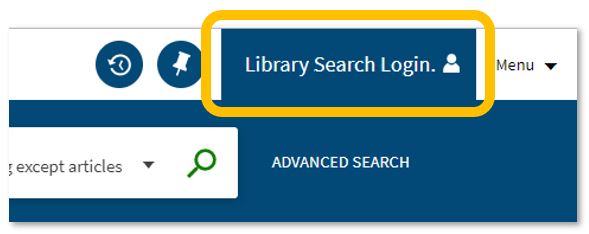
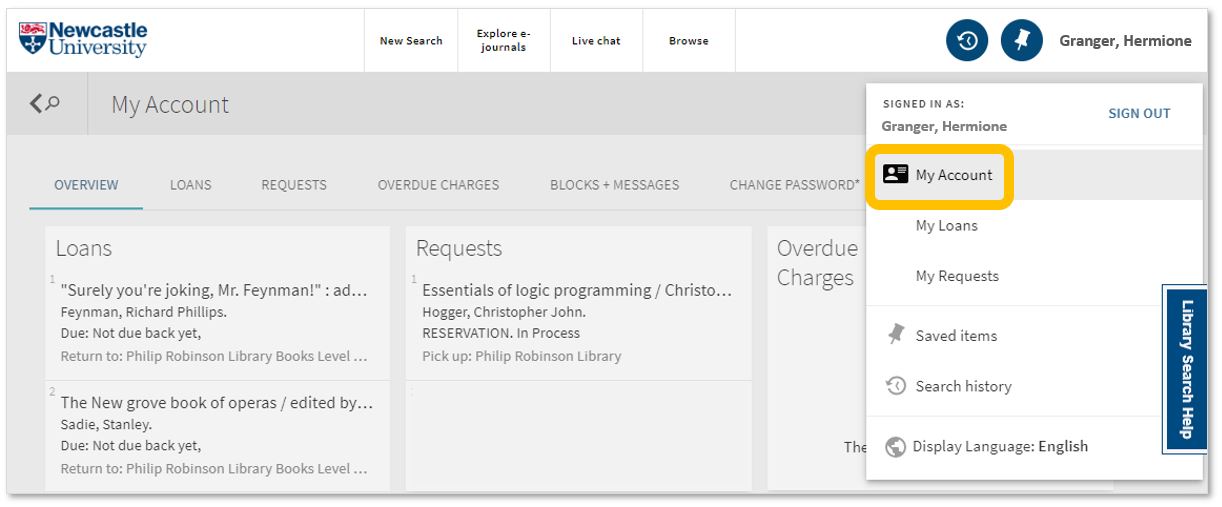
Log in. Using your usual Campus ID and password, you can open up the full functionality of Library Search by telling it who you are. It allows you to:
Log into your library account to see what books you have on loan (which you may be finished with and could return to any library site), those requests you’ve placed and any books you have on loan that may have been requested by someone else. The standard library stuff, but it’s important too.
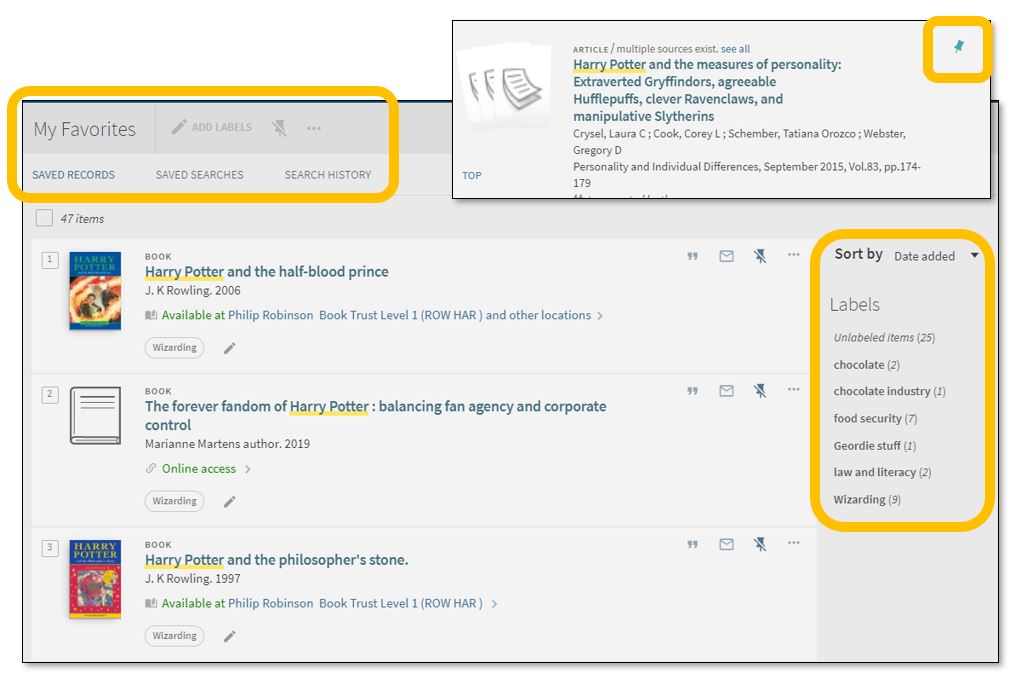
Save items you want to come back to (that’ll save you writing them down somewhere else). Find that favourite item and ‘pin’ it to your record. You can then access a list of your favourite books, journals or journal articles and label (or tag) them as to why you may need them, e.g. Herbology, Professor Snape’s essay, or Field Trip to Hogsmeade. That makes it easy to see what you need to use for each lecture, seminar or assessment.
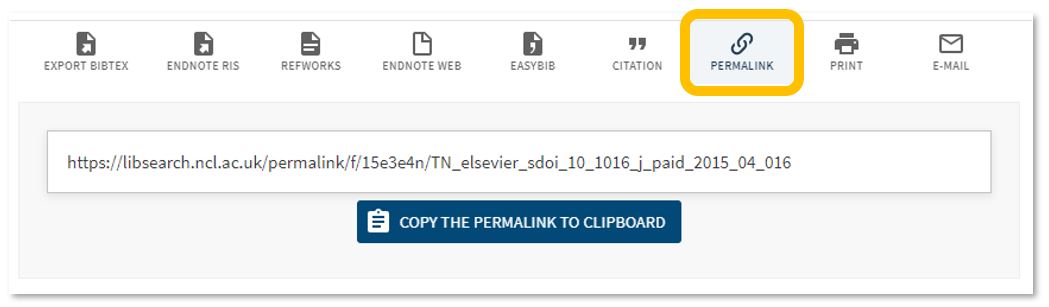
Permalink. You can share an item with someone if you want to – copy the permalink to the clipboard and send it to someone you know may be interested.
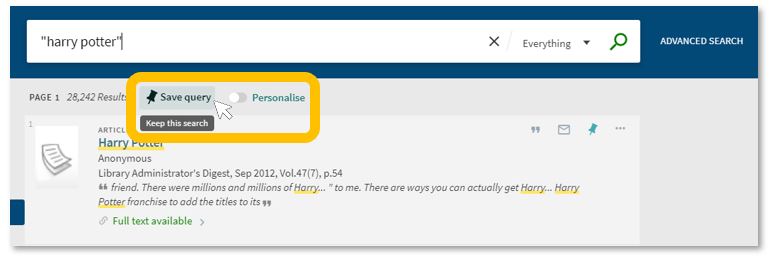
Save your search. If you need to repeat your search then save it within Library Search so you don’t need to remember the keywords and connectors (AND, OR, NOT) sequence. This is important if you are scoping a search and need to record or change your approach. You can also ‘Personalise’ your results to a particular discipline – give it a try!
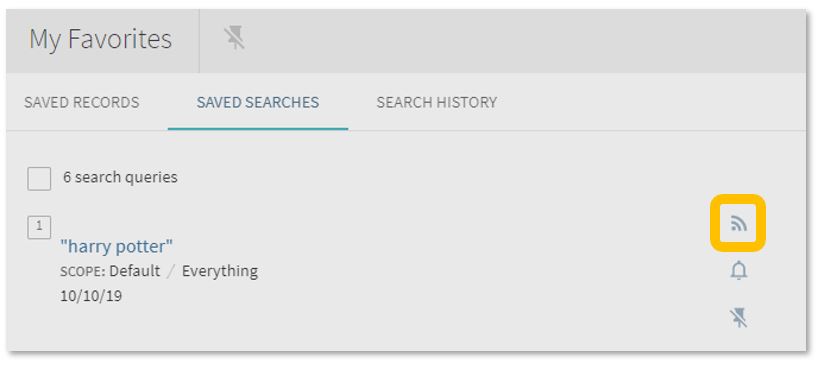
Set up a RSS Feed (yes, really!). The Rich Site Summary function allows you to be informed of changes to results in your saved searches. Handy, eh? Go to your Saved Searches and simply click the RSS icon.
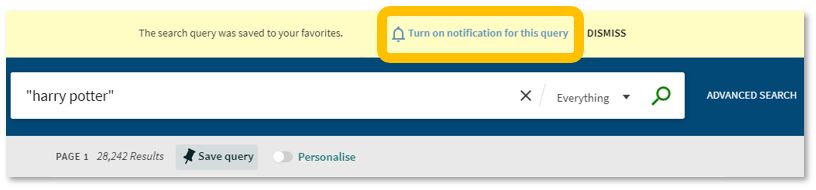
Receive an email alert when there are new results for your saved search. This can save you time in your research as Library Search will inform you if there is a new publication available which matches your search terms. Switch it off when you move onto a new subject area by accessing your Favourites list and deselecting the alarm bell icon.
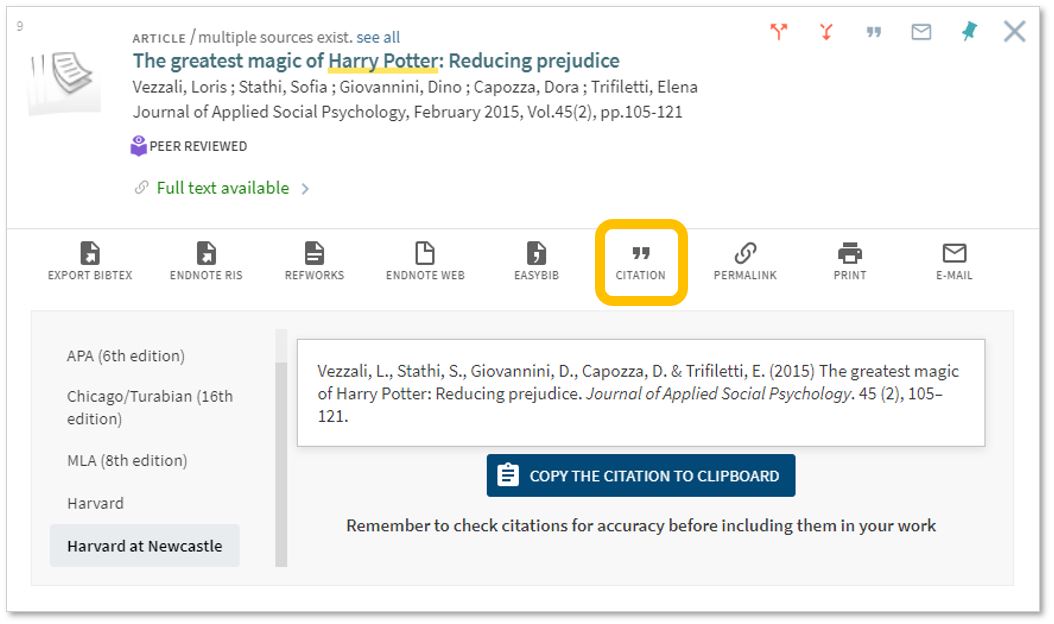
Finally, if you’re writing up your assignment and can’t remember the essential elements of a reference, then use Library Search for guidance. The Citation tool will allow you to view a suggested citation and to copy it to your clipboard for use in your work.*
*BUT (you knew that was coming, didn’t you) ensure you choose the correct style and check your citations for accuracy before including them in your work. It pays to know your required referencing style and not to rely on automated or generated references. If you want to learn more about referencing then see our Managing Information guide and Cite Them Right. Cite Them Right is a great resource which will remind you of the importance of referencing, how to reference and will give guidance on how to cite those more tricky materials such as conference papers, newspaper articles, social media posts and more. Finally, there’s a new tutorial with lots of interactive questions so you can test yourself too.
If you know of any tips or tricks in Library Search that aren’t mentioned here, then leave us a comment and share them!
This Oxford University Press resource contains most of the essential, recommended and background reading titles you would normally find listed in your Newcastle Law School module handbooks and on the Law Library shelves.
If you’re asking if you need to buy your course texts for 2020/21 then we can’t answer that question for you, as the answer depends on you. Ask yourself: can you work with e-books? Do you prefer to have your own copy of a book so you can fold pages, write notes in the margins or use a highlighter to annotate the text (*librarians across the world gasp in horror!*). Can the University Library provide a copy of the book you need to use via the Click+Collect service? We certainly can’t provide a copy of every book to every single student even when we want to. We do advise you to try OUP Law Trove and see how easy it is to access, and how versatile it can be (including annotating the text!). It may just save you spending money on books where you don’t need to.
Read on, or you can take a tour of the resource before diving in. OUP have released a YouTube playlist for you to watch to make the most of OUP Law Trove too.
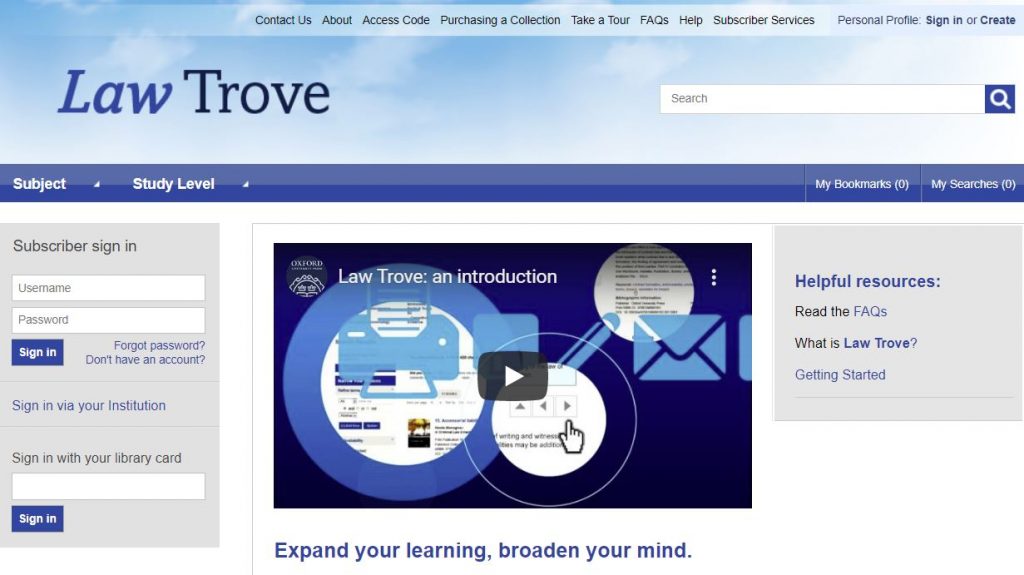
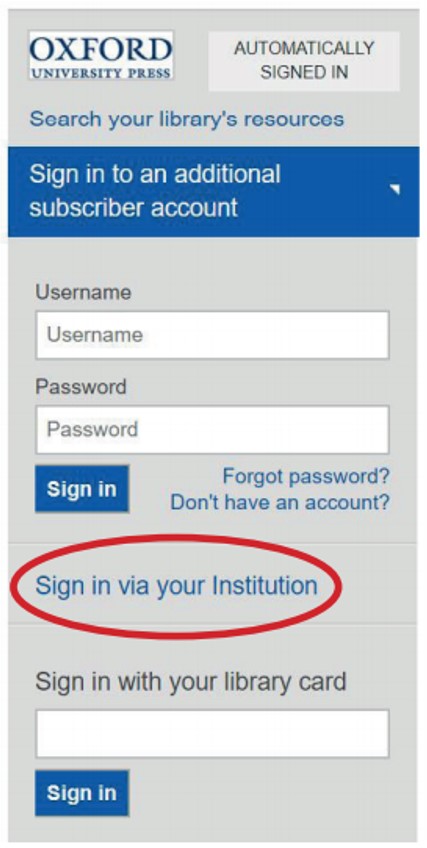
Logging in You can access OUP Law Trove directly via Library Search (log in with your Campus ID and password), via your Reading Lists in your Canvas modules, and directly too. You can go to OUP Law Trove and use the ‘Sign in via your institution’ option in the left-hand login box on the homepage, and follow the instructions.
Further guidance on logging in is provided by OUP in this video (1:26 mins):
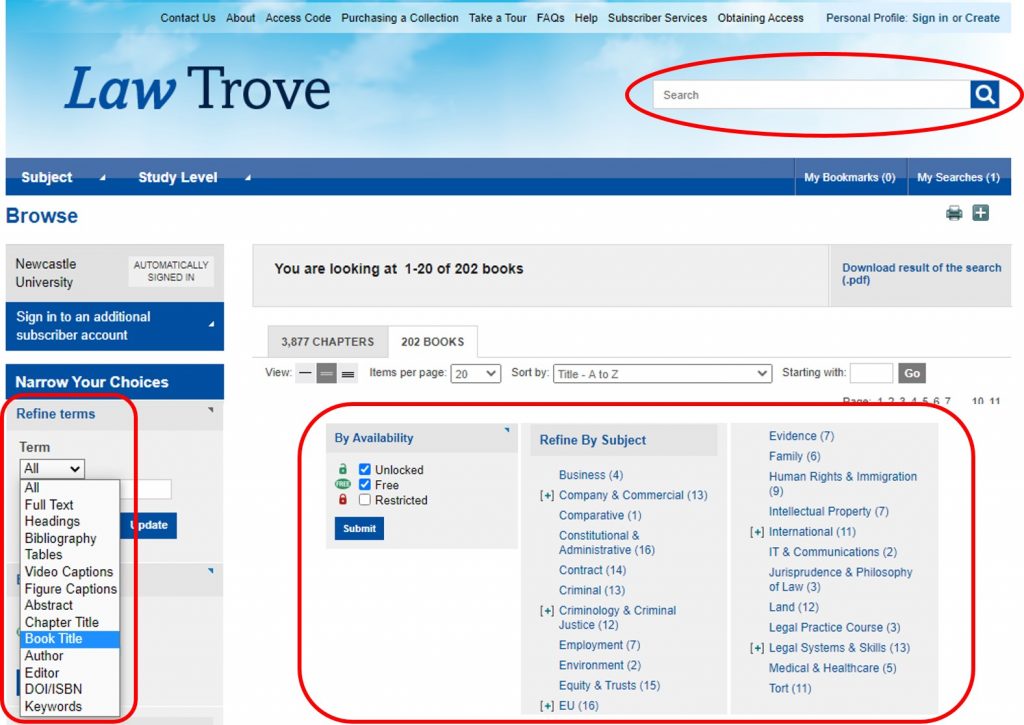
Searching You can search OUP Law Trove by author, title or keyword. You can narrow your search to those titles available to us alone by selecting Show titles in my subscription (left-hand menu). Select those that are unlocked or free.
You can further narrow your results by refining by subject using the options available in the left-hand menu.
Further guidance on navigating and searching is provided by OUP in this video (2:55 mins):
Personalisation You can create a Personal Profile to experience the full functionality of OUP Law Trove, including bookmarking and annotating (without writing on your books!). Click the ‘Sign in’ button on the top menu bar and follow the instructions.
Further information on the benefits of creating and using the Personal Profiles features is provided by OUP in this video (0:58 mins):
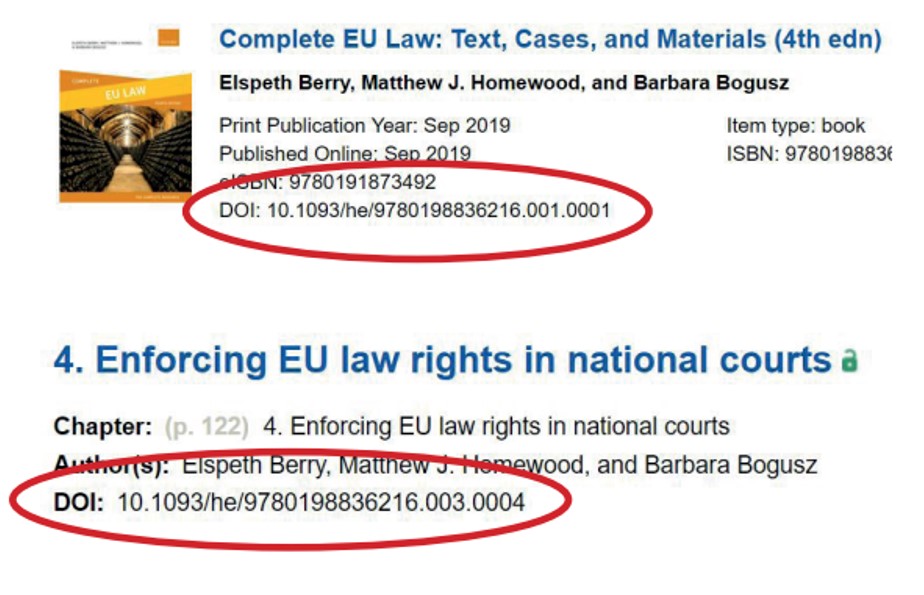
Reading Lists and Handouts You may find your module teaching staff are using the DOI: for a specific book or chapter from your Reading List or module handout. What’s a DOI? A Digital Object Identifier. It’s a ‘permalink’ (permanent link) to the specific materials you need to read and looks like a weblink (which it is, essentially). If it doesn’t directly link to OUP Law Trove then add https://dx.doi.org/ to create the full DOI link. You will still be asked to login using your Campus ID & password to gain access to the materials.
Tips Search OUP Law Trove directly for your resources if you can. Library Search and your Reading Lists are linking to most of the books, and some of the chapters available, but not all. You may find more resources by performing a keyword search; the results could show a useful chapter in another book that you would never have thought to search in.
You have access to some good study skills information in OUP Law Trove too. Whether you are wondering what academic writing actually is, how to write a case note, how to prepare for a moot or dealing with an exam, there are materials in Trove to assist you alongside the Academic Skills Kit made available to you by the University, the University Library and the Writing Development Centre.
Further information on the online resources, including MCQs, is provided by OUP in this video (2:12 mins):
We think you will find this resource very useful in supporting your studies at Newcastle Law School. If you have any feedback or questions, please leave a comment or contact libraryhelp@ncl.ac.uk.
Westlaw Edge UK. Is this a new resource? Possibly not by definition, but it is most certainly a significant enhancement within the existing Westlaw UK service.
https://youtu.be/K2hiP_AsLag
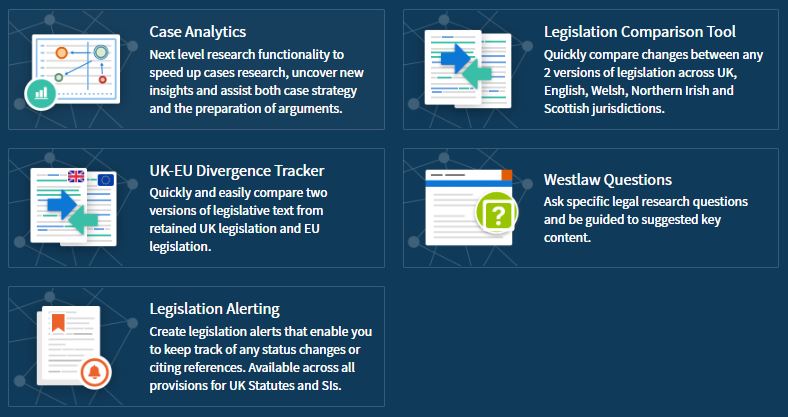
Westlaw Edge UK (not to be confused with the Microsoft Edge browser) is available via the Law Subject Guide and Library Search within Westlaw UK. Once logged in with your Newcastle University Campus ID and password you will find the tools available to help you keep currently aware and able to anticipate change – skills which are incredibly important to develop as a law student to be carried into your legal career.
These tools include:
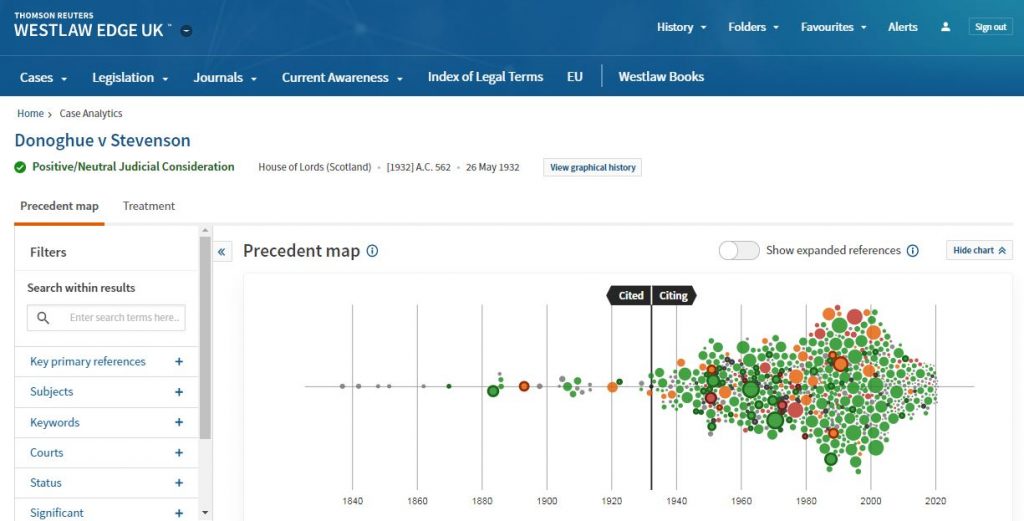
With inclusion of an interactive precedent map within Case Analytics to easily locate relevant cases…
…and the UK-EU Divergence Tracker to assist with analysing the legal implications of Brexit, it’s even easier to carry out effective and efficient legal research.
https://youtu.be/RIo7_d54VDY
You can go beyond search results lists with AI-suggested relevant research and resources tailored to your needs. Skynet hasn’t got a look in. Go on, don’t be slow. Lose yourself in Westlaw Edge UK and get ahead.
We are pleased to announce we have trial access to Westlaw’s student textbooks, in addition to the standard Westlaw All Books collection we use on a daily basis.
The Sweet & Maxwell Academic collection gives access to an additional 19 titles to support studying at home during this pandemic. Titles include Winfield & Jolowicz on Tort, Treitel on the Law of Contract, Megarry & Wade on the Law of Real Property and Elliott & Wood’s Cases and Materials on Criminal Law, among others.
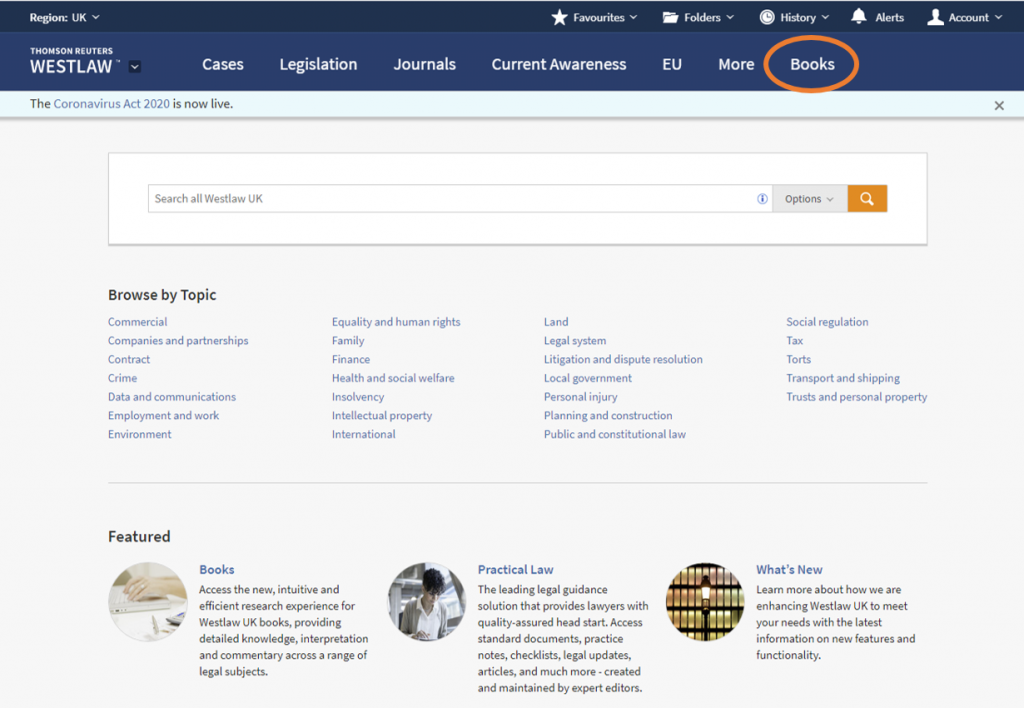
To access this content, log into Westlaw and click on Books in the menu at the top of the page.
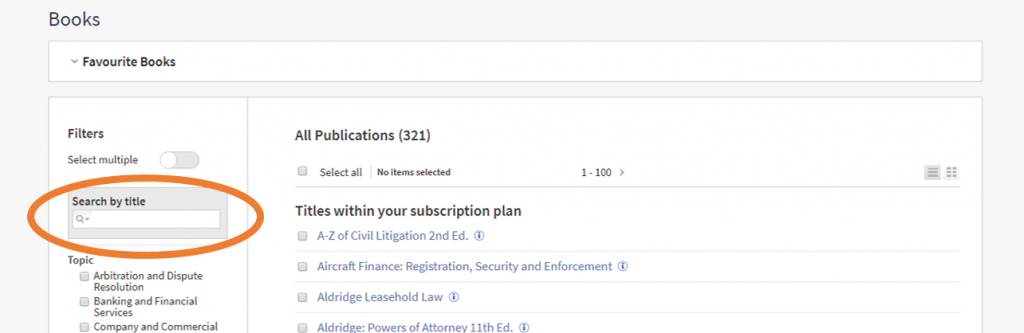
If you know the book you are looking for, search by a title keyword, e.g. tort.
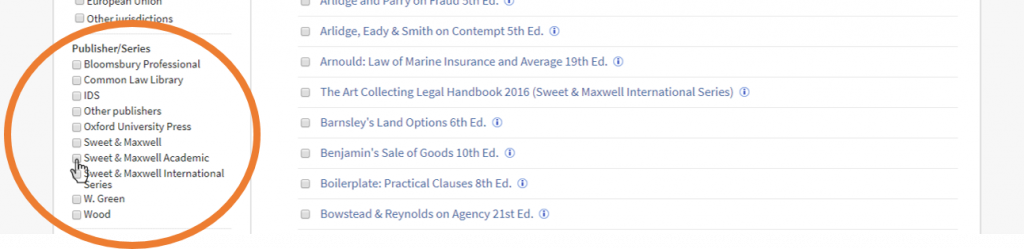
If you want to browse these student-focused books, use the filters on the left-hand side of the screen. Scroll down and select ‘Sweet & Maxwell Academic’.
We hope you find this additional access to Westlaw useful; please leave feedback or contact libraryhelp@ncl.ac.uk you want to get in touch. The temporary access ends on May 27th 2020.
Love books? We hope so. Do you want to know more? Take a journey into the history of the book with Literary Print Culture.
Literary Print Culture: the Stationers’ Company Archive, 1554-2007 is a resource which will show you the primary source documents from the City of London archives. Covering the history of the book, publishing history, the history of copyright and the workings of the early London Livery Company, explore the variety of documents to uncover the story of the role the Stationers’ Company played in the history of the book trade.
This archive contains a huge range of primary sources, showcasing a diverse range of material from the archive of the Stationers’ Company archive including:
Constitutional Records
Court Records
Membership Records
Financial Records
Trade Records
General Administrative Records
Charities and Property Records
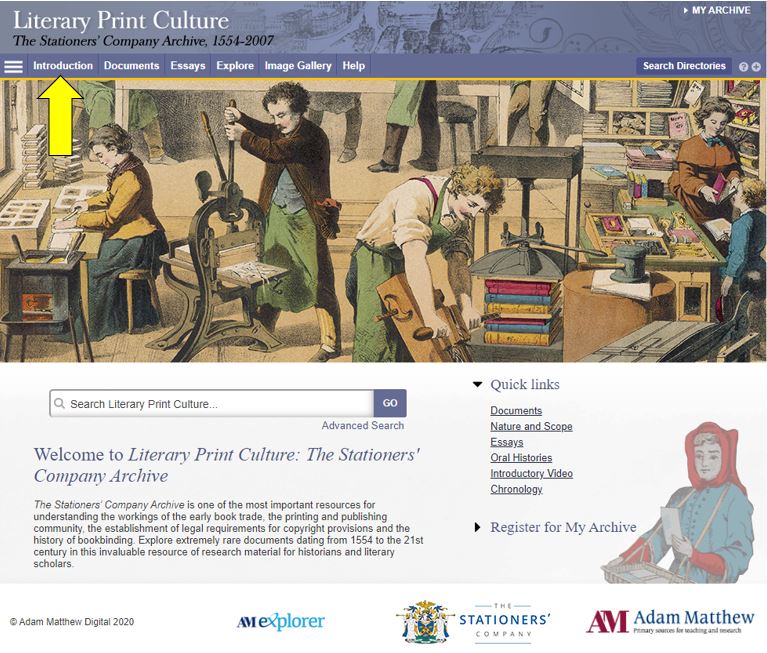
Before you begin, we’d recommend clicking Introduction, in which you can learn more about its scope and features.
The primary sources are supplemented by contextual essays and other commentary to give you ideas for interpreting and exploiting the archive.
You can browse or search the archive contents by clicking Documents(to browse) or one of the two Searchbuttons. You can filter your search in various ways, e.g. by document type, year or theme.
For some of the documents in the archive, you can now use handwritten text recognition to enable you to search the handwritten items effectively. Split-screen viewing enables you to view a document and its index simultaneously.
Have you used Literary Print Culture? Please feel free to post your comments and experiences by clicking Leave a comment below.
Hi! I’m Caitlin, a final year law student and law library
aide – and by now I’m used to the stress of exams and deadlines.
I tried the ‘poetry-pick me up’ after going into the common room for a revision break.
I stumbled across Sue (@kind_curious) in the Law School Student Common Room, where she asked, ‘do you want a poem?’. Not really knowing what to expect, I had to overcome a bit of social awkwardness! I was surprised by Sue’s passion and love of poetry, which was clear in the way she spoke about how she’d used poetry in the NHS before and it was what she enjoyed most.
I was asked questions about my current stress levels and how
I was feeling with exams, and how I dealt with stress. I told her that when I
get stressed I talk even more than usual, which for anyone who knows me sounds
like I’m going at a million miles an hour, and she suggested something that
would relax me.
I laughed as I saw no signs of chocolate or Netflix – my
usual go to relaxation strategies.
Instead she said I needed something like a lavender bubble
bath – again I saw no sign of a bubble bath in the Law School and I’d yet to
find one in the Dungeon.
She picked out two poems that would make me feel like the
relaxing in lavender: she suggested ‘Sonnet’ by Elizabeth Bishop and Shennagh
Pugh’s ‘What if This Road’.
What if this road reminded me of Robert Frost’s ‘A Road Not Taken’,
and was great for me as a an indecisive person. It was matched perfectly to the
questions that Sue had asked me, as I read it as a ‘roll with it’ approach to life, which is
definitely needed to cope with exams and deadline stress.
The second poem, Bishop’s ‘Sonnet’, had great visualisation
techniques, almost like a meditative poem – which was spot on to turn off the
stress and slow everything down!
The experience was a great switch off from deadline stress,
and a great use of the 10 minutes which I’d usually scroll through twitter or
Instagram. It was something different, and really quite unique and relaxing,
which I would definitely recommend to help have a break from any exam and
deadline stress!